How to craft and use a Cartography Table in Minecraft?
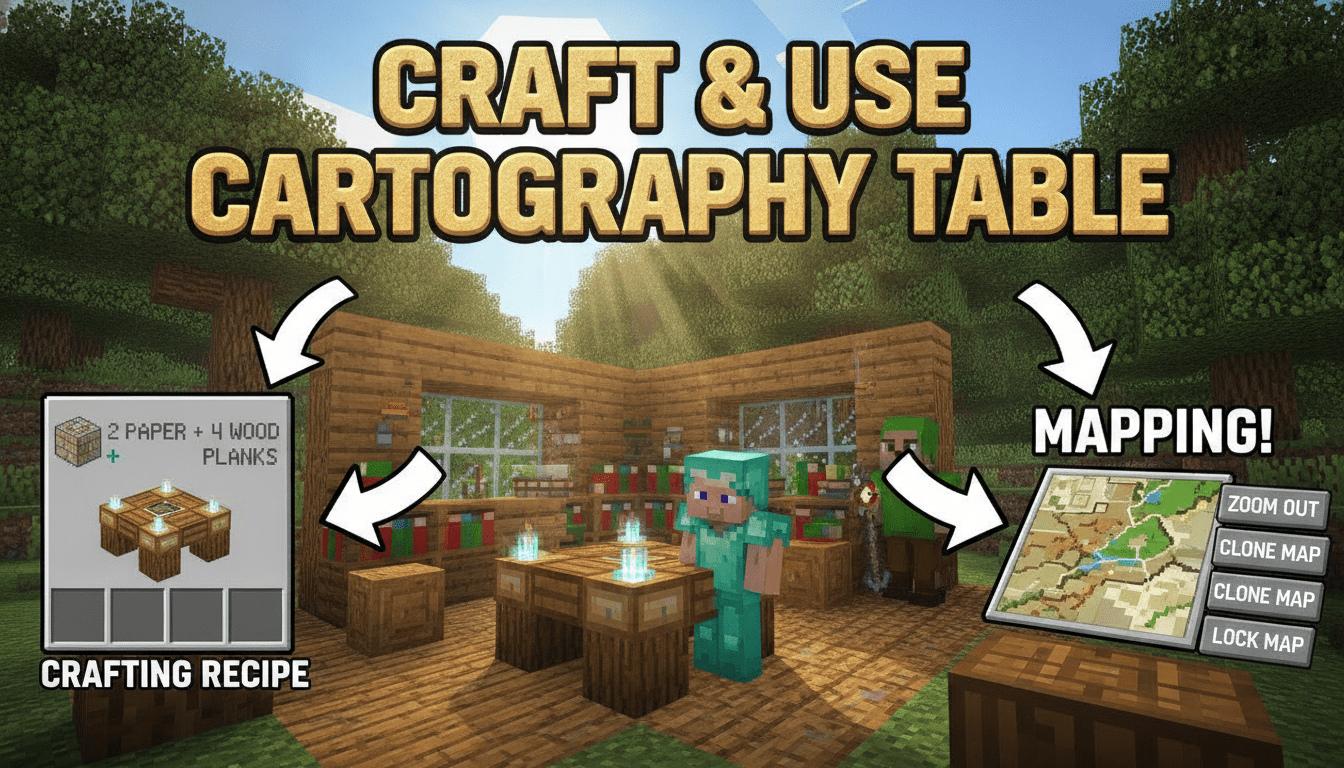
Learning how to craft and use a Cartography Table in Minecraft will unlock a powerful tool for exploration, navigation, and even decorative map-making in your blocky world. This guide will walk you through every step, from gathering ingredients to mastering its diverse functions.
What You’ll Need
To craft a Cartography Table, you’ll need a few common resources:
- 2x Paper:
- Crafted from 3x Sugarcane. Sugarcane is a plant that grows naturally in single blocks or small stalks along water sources in most biomes. It can be harvested and then placed in a horizontal row of three in a crafting grid to yield three pieces of paper.
- 4x Wooden Planks (any type):
- Obtained by breaking down logs from any tree. Simply place a log in any slot of your crafting grid, and it will convert into four wooden planks. You can mix and match different types of planks (e.g., two oak and two spruce) for the crafting recipe.
- A Crafting Table:
- Essential for combining your ingredients. If you don’t have one, craft it by placing four wooden planks in a 2×2 square in your inventory’s crafting grid.
Step-by-Step
Here’s how to craft and then effectively use your Cartography Table.
Crafting a Cartography Table
- Open your Crafting Table: Right-click on a placed Crafting Table to open its 3×3 crafting grid interface.
- Place Wooden Planks: Arrange four wooden planks in a 2×2 square. For example, fill the bottom-left, bottom-middle, middle-left, and center slots of the 3×3 grid.
- Add Paper: Place two pieces of paper directly above the planks. If your planks are in the bottom two rows, place the paper in the top-middle and middle-middle slots.
- Retrieve the Cartography Table: The crafted Cartography Table will appear in the result slot on the right. Drag it into your inventory.
- Place the Table: Once in your inventory, you can place the Cartography Table anywhere in your world by selecting it and right-clicking on a block.
Using a Cartography Table
Right-click on your placed Cartography Table to open its interface. You’ll see two input slots on the left and one output slot on the right.
1. Zooming Out a Map (Expanding Map Coverage)
This is perhaps the most common use, allowing you to expand an existing map to cover a larger area.
- Input Slot 1: Place an existing, explored map that you wish to zoom out.
- Input Slot 2: Place 1x Paper.
- Output: You will receive a zoomed-out version of your map.
Each map starts at “Level 0” (the closest zoom). You can repeat this process up to four times, consuming one piece of paper each time, to zoom out to “Level 4,” which covers the largest possible area for a single map. Each zoom level quadruples the area covered by the map.
2. Cloning a Map (Duplicating Maps)
If you’ve spent time exploring and filling out a map, you might want to create copies to share with friends or for display.
- Input Slot 1: Place an existing, explored map.
- Input Slot 2: Place 1x Empty Map.
- Output: You will receive two identical copies of the original map.
Both the original and the new map will update simultaneously as you explore, provided you are holding either map. This is incredibly useful for creating map walls or distributing exploration data among a team.
3. Locking a Map (Preventing Updates)
Sometimes you want a map to remain static, perhaps to commemorate a past build or a specific world state.
- Input Slot 1: Place an existing, explored map.
- Input Slot 2: Place 1x Glass Pane.
- Output: You will receive a “locked” map.
A locked map will no longer update its contents, even if the terrain or structures within its mapped area change. This is perfect for creating historical records or decorative map walls that won’t be affected by future builds or destruction.
Java vs. Bedrock Edition Differences
While the core functionality of the Cartography Table is consistent across both editions, there are a few important distinctions, particularly regarding maps themselves.
Locator Maps
- Java Edition: Maps in Java Edition automatically display the player’s position with a small pointer. No extra steps are needed.
- Bedrock Edition: To see your player’s position on a map in Bedrock Edition, you need to create a locator map. This requires a compass.
- Creating an Empty Locator Map: Place 1x Paper in the first input slot and 1x Compass in the second input slot of the Cartography Table.
- Upgrading an Existing Map to a Locator Map: Place an existing map in the first input slot and 1x Compass in the second input slot.
Creating Empty Maps (Bedrock Edition Only)
In Bedrock Edition, the Cartography Table offers a simpler way to create new, empty maps:
- Empty Map: Place 1x Paper in the first input slot.
- Empty Locator Map: Place 1x Paper in the first input slot and 1x Compass in the second input slot.
In Java Edition, empty maps are crafted using 8x Paper and 1x Compass in a crafting table (for a locator map) or just 8x Paper (for a non-locator map, which still shows your position).
Renaming Maps (Bedrock Edition Only)
Bedrock Edition allows players to rename maps directly within the Cartography Table interface, which is a convenient feature for organizing your explorations. Java Edition players must use an Anvil to rename maps.
Alternative Methods for Obtaining
While crafting is the primary way to get a Cartography Table, you might stumble upon one naturally:
- Village Generation: Cartography Tables can be found generating naturally within cartographer houses in villages. These are usually small, distinct buildings with a globe banner outside. If you’re exploring a new world, checking villages can save you some crafting resources.
Tips for Efficiency
- Automate Sugarcane: Sugarcane grows quickly near water. Consider building a small sugarcane farm, perhaps even automated with pistons and observers, to ensure a steady supply of paper for map expansion and creation.
- Strategic Map Creation: Remember that each base map (Level 0) covers a specific 128×128 block area centered on where you first create it. If you want to map a large region, you’ll need to create multiple Level 0 maps in different locations and then zoom them out. You cannot create one Level 0 map and then zoom it out to cover different areas; each base map must be created in the specific area it is intended to cover.
- Map Walls: Cartography Tables are essential for creating impressive map walls. By carefully creating, cloning, and zooming out maps, you can stitch together a massive, detailed overview of your world. Consider locking maps once a section of your map wall is complete to prevent accidental updates.
- Villager Interactions: Cartography Tables serve as the job site block for Cartographer villagers. If you place a Cartography Table near an unemployed villager, they may claim it and become a Cartographer, offering trades for paper, compasses, empty maps, and even explorer maps to Ocean Monuments or Woodland Mansions. Be mindful if you’re trying to prevent a specific villager from changing professions.
FAQ
Q: What is the maximum zoom level for a map?
A: A map can be zoomed out up to four times using paper in the Cartography Table, reaching “Level 4” zoom.
Q: Can I repair a damaged map with a Cartography Table?
A: No, maps do not take durability damage and therefore do not need to be repaired. The Cartography Table is for creating, expanding, cloning, and locking maps, not repairing them.
Q: Does the Cartography Table require fuel like a furnace?
A: No, the Cartography Table is a utility block that does not consume fuel. Its operations are instant and only require the specified input items.
Q: Why isn’t my map showing my player icon in Java Edition?
A: In Java Edition, maps automatically show your player’s position. If it’s not showing, ensure you are holding the map in your hand or off-hand, or that it’s in your inventory. Also, make sure you are within the mapped area. If you are outside the mapped boundaries, a small dot will appear on the edge of the map indicating your general direction.
Q: Can I use a Cartography Table to find specific structures like strongholds?
A: The Cartography Table itself doesn’t directly help you find structures like strongholds. However, Cartographer villagers (who use the Cartography Table as their job site) will trade “explorer maps” which point to Ocean Monuments or Woodland Mansions.
The Cartography Table is an indispensable tool for any serious Minecraft explorer or builder, simplifying map management and opening up new possibilities for navigation and display.
Tags:
YOU MAY ALSO LIKE...