How to use command blocks for teleportation in Minecraft?
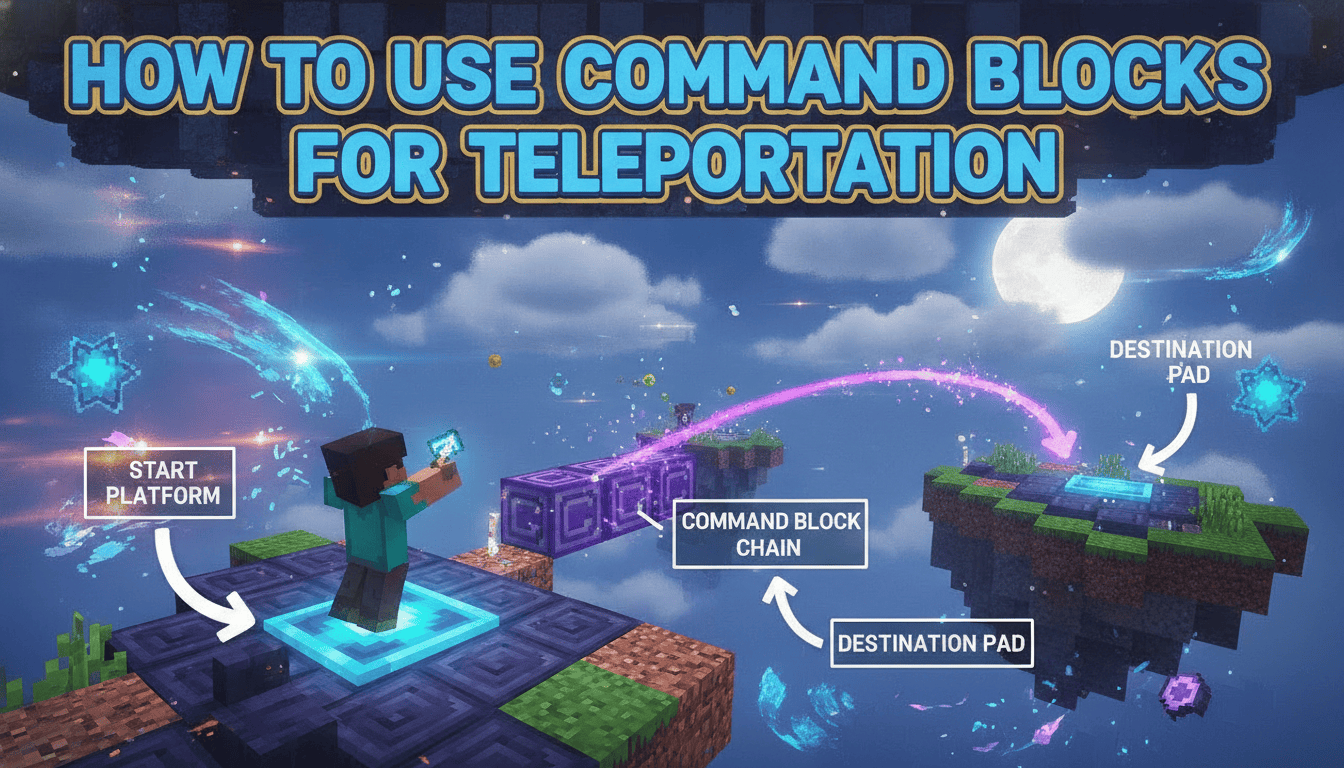
To use command blocks for teleportation in Minecraft, you can create instant travel points, custom mini-games, or automated systems that move players or entities across your world with a single interaction. This guide will walk you through setting up command blocks for efficient teleportation, covering everything from obtaining the blocks to configuring complex commands and understanding version-specific nuances.
What You’ll Need
- Minecraft Java Edition or Bedrock Edition: The game itself, updated to a recent version for full feature compatibility.
- A Minecraft World with Cheats Enabled: Command blocks are operator-only items and require cheats to be active.
- Java Edition: When creating a new world, ensure “Allow Cheats” is set to “ON.” If you’re in an existing world without cheats, you can temporarily enable them by pausing the game, clicking “Open to LAN,” setting “Allow Cheats” to “ON,” and then “Start LAN World.”
- Bedrock Edition: In your world’s settings, make sure “Activate Cheats” is toggled “ON.” It’s also highly recommended to enable “Show Coordinates” here.
- A Command Block: This special block cannot be crafted in Survival mode.
- Java Edition: Open the chat (T key by default) and type
/give @p command_block. Alternatively, if “Operator Items Tab” is enabled in your Controls options, you can find it in the Creative inventory under the “Operator Utilities” tab. - Bedrock Edition: Open the chat and type
/give @s command_blockor/give @p command_block.
- Java Edition: Open the chat (T key by default) and type
- Redstone Components (Optional but Recommended):
- Button: Obtained by crafting with 1 wood plank or 1 stone block.
- Pressure Plate: Crafted with 2 wood planks or 2 stone blocks.
- Lever: Crafted with 1 stick and 1 cobblestone.
- These are used to activate the command block.
Step-by-Step
Follow these steps precisely to set up a command block for teleportation.
-
Enable Cheats and Show Coordinates
Before you begin, ensure that cheats are enabled in your world. This is crucial for both obtaining command blocks and using the teleportation command. Also, make sure coordinates are visible.- Java Edition: Press
F3to toggle the debug screen, which displays your current coordinates (X, Y, Z). - Bedrock Edition: Enable “Show Coordinates” in your world settings.
- Java Edition: Press
-
Obtain a Command Block
As mentioned in the “What You’ll Need” section, command blocks are not craftable. Use the/givecommand appropriate for your game edition.- Java Edition:
/give @p command_block - Bedrock Edition:
/give @s command_block
- Java Edition:
-
Place the Command Block
Place the command block in the location where you want the teleportation to originate. This could be next to a custom portal, at a spawn point, or anywhere you want players to start their journey from. -
Identify Destination Coordinates
Travel to the exact spot where you want entities to be teleported to. Once there, note down the X, Y, and Z coordinates displayed on your screen.- Important: When noting the Y-coordinate, always add a few blocks (e.g., 1 or 2) to ensure the teleported entity doesn’t spawn inside a block or directly on the ground, which could cause suffocation or fall damage. For example, if the ground is at Y=63, use Y=64 or Y=65 as your destination.
-
Open the Command Block GUI
Return to your placed command block and interact with it to open its interface.- Java Edition: Right-click the command block.
- Bedrock Edition: Tap the command block.
-
Enter the Teleport Command
In the “Command Input” field, type your teleportation command. The basic structure is/tp <target> <x> <y> <z>or/teleport <target> <x> <y> <z>. In Java Edition,/tpis an alias for/teleport.-
Target Selectors: These specify who or what gets teleported.
@p: Teleports the nearest player to the command block.@s: Teleports the entity executing the command (useful if you’re testing it directly in chat, less common for command blocks unless you’re targeting yourself from a specific block).@a: Teleports all players in the world.@e: Teleports all entities (including mobs, items, and players). Use with caution!@r: Teleports a random player.<playername>: Teleports a specific player by their exact Minecraft username.
-
Example Command: If you want to teleport the nearest player to coordinates 200, 64, -100, the command would be:
/tp @p 200 64 -100 -
Relative Coordinates: You can use the tilde symbol (
~) before a coordinate to make it relative to the command block’s current position. For instance,~ ~8 ~would teleport the target 8 blocks directly upwards from the command block’s location, keeping the X and Z coordinates the same. This is useful for moving entities relative to their current position.
-
-
Set Command Block Type (Optional but Recommended)
Below the command input field, you’ll see options for the command block’s type.- Impulse (Orange): This is the default type. It executes the command once when activated by a Redstone signal. Ideal for single-use teleportation buttons.
- Chain (Green): Executes when triggered by another command block in a sequence. Useful for multi-step operations but less common for simple teleportation.
- Repeat (Purple): Executes the command every game tick (20 times per second) as long as it’s activated. Be very careful with this! Using
/tp @p <coords>on repeat can constantly teleport a player, making them unable to move. It’s better for constantly moving entities or for more advanced, conditional teleportation setups.
-
Set Redstone Mode
Next to the command block type, you’ll find Redstone mode settings.- Needs Redstone (Default for Impulse/Repeat): The command block will only execute its command when it receives a Redstone signal. This is almost always what you want for player-initiated teleportation.
- Always Active (Default for Chain): The command block will constantly try to execute its command without needing a Redstone signal. Use this for repeat command blocks that should always be running, but again, be cautious with
/tpcommands here.
-
Activate the Command Block
After entering your command and setting the block type/Redstone mode, close the GUI. Now, connect a Redstone mechanism to the command block to activate it.- Button: Place a button on any side of the command block. Pressing it will send a brief Redstone pulse, executing the command once.
- Pressure Plate: Place a pressure plate on top of or adjacent to the command block (if the block is below ground). Stepping on it will activate the command.
- Lever: Place a lever on the command block. Flipping it “on” will provide a continuous Redstone signal, which is useful for “Repeat” command blocks (again, use with extreme care for teleportation).
Advanced Teleportation Techniques
While the basic /tp command is powerful, you can enhance your teleportation systems with more advanced features.
Cross-Dimensional Teleportation
Both Java and Bedrock Editions support teleporting players between dimensions (Overworld, Nether, End). This is achieved by specifying the dimension within the command.
-
Java Edition:
/execute in <dimension> run teleport <target> <x> <y> <z>dimensioncan beminecraft:overworld,minecraft:the_nether, orminecraft:the_end.- Example:
/execute in minecraft:the_nether run teleport @p 100 70 50(Teleports nearest player to 100, 70, 50 in the Nether).
-
Bedrock Edition:
/execute in <dimension> run tp <target> <x> <y> <z>dimensioncan beoverworld,nether, orthe_end.- Example:
/execute in nether run tp @p 100 70 50(Teleports nearest player to 100, 70, 50 in the Nether).
Teleporting to Entities
Instead of specific coordinates, you can teleport a target to another entity.
/tp <target> <destination_entity>- Example:
/tp @p @e[type=villager,sort=nearest,limit=1](Teleports the nearest player to the nearest villager). - This is incredibly useful for dynamic teleportation, such as moving players to specific NPCs or even to other players.
- Example:
Conditional Teleportation
You can make teleportation conditional using additional command blocks or by adding arguments to your target selectors.
- Target Selector Arguments:
@p[r=5]: Teleports the nearest player within a 5-block radius. This is particularly useful in Bedrock Edition to prevent unintended players from being teleported if they are too close to the command block and another player activates it.@a[level=10..20]: Teleports all players whose experience level is between 10 and 20.@a[tag=admin]: Teleports all players with the “admin” tag.- These arguments allow for very specific targeting, ensuring only the intended players are affected.
Common Mistakes and Troubleshooting
- Cheats Not Enabled: This is the most frequent issue. Command blocks simply won’t work if cheats are not active in your world. Double-check your world settings or use “Open to LAN” in Java.
- Incorrect Coordinates: Even a single digit error can send you far away or into a wall. Always double-check your X, Y, and Z values. Remember to add a buffer to the Y-coordinate to avoid suffocation.
- Forgetting Target Selector: A command like
/tp 200 64 -100without a target selector will not work. You need to specify who is being teleported (e.g.,@p,@a, or a player’s name). - Not Activating the Command Block: If your command block is set to “Needs Redstone,” it won’t do anything until it receives a Redstone signal. Ensure your button, pressure plate, or lever is correctly placed and activated.
- Teleporting Multiple Players Unintentionally (Bedrock Specific): In Bedrock, if you use
@pwith a button, any player near the command block might be selected. To avoid this, use@p[r=X](e.g.,@p[r=3]) to limit the range to X blocks, ensuring only players very close to the button are affected. If using an NPC,@initiatorcan target the player who interacted with the NPC. - Attempting to Craft Command Blocks: Command blocks are operator-only items and cannot be crafted in Survival mode. You must use the
/givecommand. - Using Repeat Command Blocks Carelessly: A repeat command block with a simple
/tp @p <coords>will continuously teleport the player, making them unable to move. Use repeat blocks with conditional logic or for non-player entities.
FAQ
Q: Can I use command blocks to teleport items or mobs?
A: Yes! The /tp or /teleport command works for any entity. Instead of @p or @a, you can use @e[type=sheep] to teleport all sheep, or @e[type=item,name="diamond"] to teleport all dropped diamonds, for example.
Q: Do command blocks work in multiplayer worlds?
A: Yes, command blocks function identically in multiplayer worlds, provided the server or world has cheats enabled and the player placing/configuring the command block has operator permissions.
Q: What happens if I teleport into a block?
A: If you teleport into a solid block, you will likely take suffocation damage and could die. Always add a few blocks to your Y-coordinate to ensure a safe landing spot.
Q: Can I make a command block teleport me to a random location?
A: Directly, no. The /tp command requires specific coordinates. However, you can create a system with multiple command blocks and a randomizer (like a Redstone circuit with dispensers and items) to select from a list of predefined teleportation destinations.
Q: How do I get rid of a command block if I make a mistake?
A: You can break a command block with any tool, just like a regular block. Since it’s an operator-only item, it won’t drop anything unless you are in Creative mode.
Mastering command blocks for teleportation opens up a world of possibilities in Minecraft, allowing for intricate map designs, custom mini-games, and streamlined navigation.