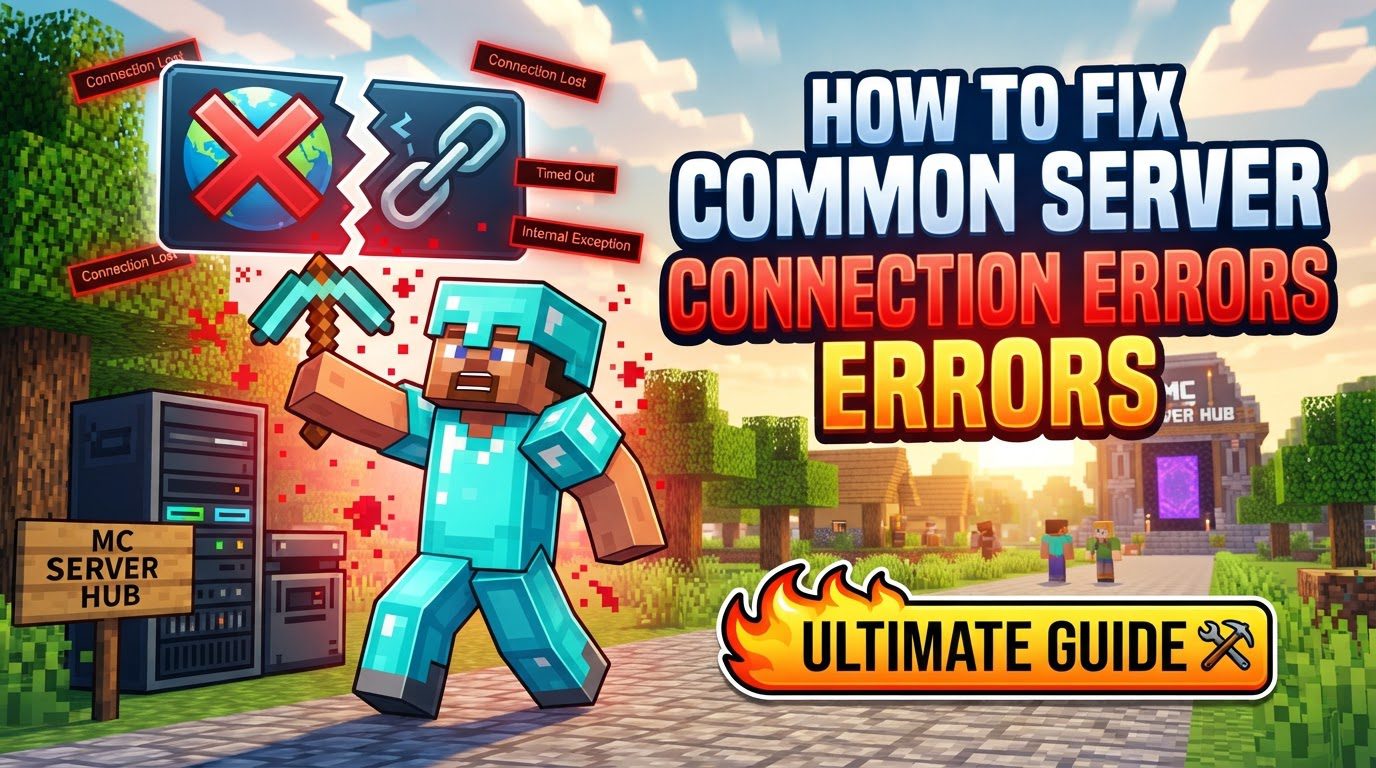
How to fix common server connection errors
Connecting to a Minecraft server can sometimes be challenging, but understanding the core mechanics and following a systematic troubleshooting guide can resolve most common issues. Minecraft operates on a client-server model, communicating primarily over TCP, with Java Edition typically using port 25565. A successful connection hinges on several factors: the correct server IP address or domain, the right port number, stable network conditions, appropriate firewall settings, and compatible game versions. DNS resolution is also crucial for locating the server.
For Minecraft Bedrock Edition, additional considerations apply. Account permissions, specific world settings, and active platform subscriptions (e.g., Xbox Game Pass Core) are all vital for multiplayer access. Addressing connection problems systematically, starting with basic checks and progressing to more advanced network adjustments, is the most effective approach.
Initial Troubleshooting Steps
Begin your troubleshooting with these fundamental checks, as they often resolve common connectivity issues quickly.
-
Verify Basics:
- Internet Connection: Confirm your internet is active and stable. Try loading a webpage or using another online application to confirm connectivity.
- Server Status: Ensure the server you are trying to join is online. Many server communities provide status pages or Discord channels where you can check for ongoing maintenance or outage issues.
- Game Version Compatibility: This is a critical step. Both your Minecraft client and the server must be on the exact same Minecraft version. Mismatched versions are one of the most common reasons for connection failures, often resulting in “outdated client” or “outdated server” errors. Always double-check this after any game update.
- Server Address and Port: Carefully review the server’s IP address (or domain name) and port number for any typos. Even a single incorrect digit or character will prevent a connection.
-
Restart Components:
- Minecraft: Close your Minecraft client completely and then reopen it. This can clear temporary glitches or corrupted session data.
- Computer or Console: Perform a full restart of your computer or gaming console. A fresh boot can resolve many underlying system issues affecting network connectivity.
- Router/Modem: Power cycle your network hardware. Unplug your router and modem from their power sources, wait for about 30 seconds, and then plug them back in. Allow a few minutes for them to fully boot up and re-establish an internet connection before attempting to connect to Minecraft again. This often resolves temporary network congestion or router software glitches.
Adjusting Network Settings
If basic checks don’t work, review these network and system-level configurations, as they often involve your operating system’s security features or your home router’s setup.
-
Firewall and Antivirus:
- Your computer’s firewall (e.g., Windows Defender Firewall) and any third-party antivirus software can sometimes mistakenly identify Minecraft or its underlying Java process as a threat, blocking its internet access.
- Action: Go into your firewall settings and explicitly allow Minecraft and Java (specifically
javaw.exefor Java Edition) through. Look for options like “Allow an app through firewall” or “Program Control.” - Testing: As a temporary diagnostic step, you can try disabling your firewall and antivirus software briefly to see if this resolves the connection issue. If it does, you’ll know that these programs are the culprit and you can then re-enable them and configure the exceptions more carefully. Never leave your security software disabled for extended periods.
-
DNS (Domain Name System) Settings:
- DNS translates human-readable domain names into numerical IP addresses. Issues with your DNS resolver can prevent your client from finding the server’s correct IP.
- Flush DNS Cache: Open Command Prompt (as Administrator) and type
ipconfig /flushdns. Press Enter. This clears any outdated or corrupted DNS entries stored on your computer. - Change DNS Servers: Consider changing your DNS servers to public, reliable ones like Google DNS (primary: 8.8.8.8, secondary: 8.8.4.4) or Cloudflare DNS (1.1.1.1). This can improve resolution speed and reliability. You typically do this in your network adapter settings.
-
NAT (Network Address Translation) Configuration:
- NAT is a function performed by your router that allows multiple devices on your private network to share a single public IP address. NAT types (Open, Moderate, Strict) affect how easily your device can communicate with others online.
- Action: Access your router’s settings (usually by typing its IP address, like
192.168.1.1, into a web browser) and look for NAT settings. Aim for a ‘Moderate’ or ‘Open’ NAT type. Specific steps vary by router model.
-
Port Forwarding (for Server Hosts):
- If you are the one hosting the Minecraft server on your home network for others to join, you must configure port forwarding. This tells your router to direct incoming connection requests on a specific port to the computer running the server.
- Action: In your router’s settings, locate the “Port Forwarding” or “Virtual Server” section. Create a new rule to forward the default Minecraft port (25565 for Java Edition) or the specific port your server uses, to the local IP address of the computer hosting the server. Ensure you forward both TCP and UDP protocols if given the option, though TCP is primary for Minecraft.
-
IP Release/Renew (for “Connection Reset” errors):
- If you encounter a “Connection Reset” error, it might indicate an issue with your computer’s network interface or its assigned IP address.
- Action: Open Command Prompt (as Administrator) and execute the following commands in order, pressing Enter after each:
ipconfig /releaseipconfig /flushdnsipconfig /renewThis sequence releases your current IP address, clears your DNS cache, and then requests a new IP address from your router, often resolving transient network conflicts.
Account, Permissions, and LAN Issues
Specific scenarios, particularly for Bedrock Edition or local network play, require attention to account details or local network settings.
-
Account & Permissions (Bedrock/Authentication):
- If you’re facing authentication errors or issues with multiplayer on Bedrock Edition, try signing out of your Microsoft account within the Minecraft launcher and then signing back in. This can refresh your authentication token.
- For Bedrock players, verify that multiplayer is explicitly enabled in your world settings. Additionally, confirm that any required platform subscriptions, such as Xbox Game Pass Core for console multiplayer, are active and in good standing.
-
LAN Specifics:
- When attempting to play a Local Area Network (LAN) game, ensure all devices are connected to the same Wi-Fi network. Cross-network play for LAN is not supported.
- On Windows, set your network connection profile to ‘Private’ (not ‘Public’) and ensure ‘Network Discovery’ is enabled. This allows other devices on your local network to see and connect to your game.
Important Tips and Common Mistakes
Beyond troubleshooting existing problems, optimizing your connection proactively and being aware of common pitfalls can significantly enhance your Minecraft multiplayer experience and prevent future issues.
-
Important Tips for Stable Connectivity:
- Wired Connection: Whenever possible, especially for stationary gaming setups, use a wired Ethernet connection instead of Wi-Fi. Ethernet provides superior stability, lower latency, and less interference, leading to a more consistent connection.
- Improve Wi-Fi Signal: If a wired connection isn’t feasible, optimize your Wi-Fi. Move closer to your router, reduce physical obstacles between your device and the router, or consider Wi-Fi extenders to boost signal strength and reliability.
- Minimize Network Usage: While playing, avoid other network-intensive activities on your network, such as streaming high-definition video, downloading large files, or running bandwidth-heavy applications, as these can hog bandwidth and cause lag or disconnections in Minecraft.
- Server Proximity: Choose a server that is geographically closer to your location. Lower latency (ping) is often indicated by more signal bars next to the server entry in the multiplayer menu, resulting in a smoother, more responsive gameplay experience.
- Check Official Service Status: If you encounter errors indicating a problem with “Minecraft Services” (e.g., authentication issues), it’s wise to check the official Minecraft or Xbox status pages. Widespread service outages are not uncommon, and in such cases, the only solution is often to wait for the services to be restored.
-
Common Mistakes to Avoid:
- Mismatched Game Versions: Always ensure your Minecraft client is on the exact same version as the server. This is a frequent cause of “outdated client” or “outdated server” errors and is easily overlooked after game updates.
- Incorrect Server Address/Port: Double-check the server’s IP address or domain name and port for any typographical errors. A single mistake will prevent a connection, leading to “Can’t connect to server” messages.
- Firewall Interference: Do not overlook your firewall or antivirus software as potential blockers. These security measures are often the silent culprits behind connection issues if Minecraft or Java isn’t explicitly allowed.
- Poor Wi-Fi Signal: Trying to play on an unstable or weak wireless connection will almost guarantee a frustrating experience with lag, packet loss, and frequent disconnections.
- Ignoring Server Status: Always confirm if the server you intend to join is actually online and operational. Attempting to connect to an offline server is a waste of time and can lead to unnecessary troubleshooting on your end.
- Outdated Java: For Java Edition players, especially those on modded servers, ensure your Java Runtime Environment (JRE) is up to date. Outdated Java versions can cause compatibility issues and prevent the game from running correctly.
Tags:
YOU MAY ALSO LIKE...