Fixing the “outdated Client” or “outdated Server” Error
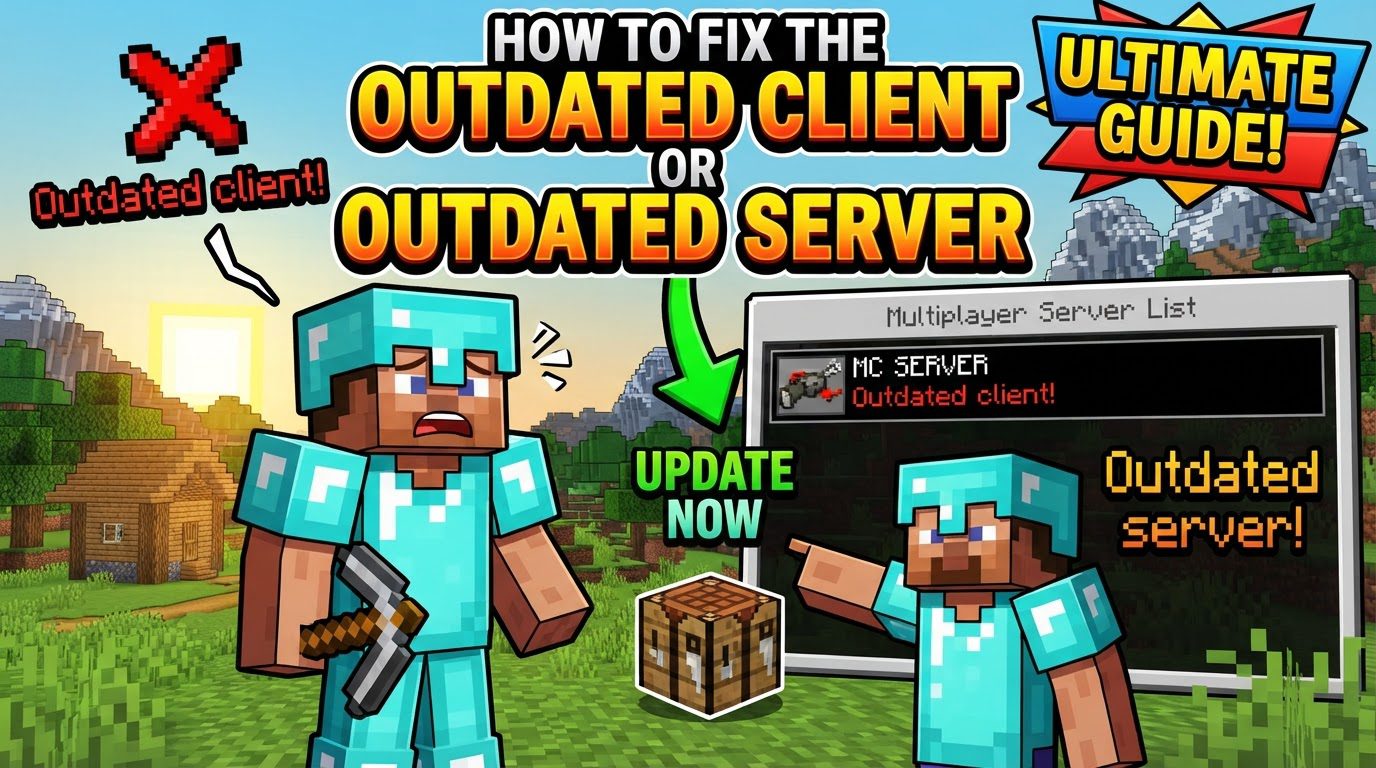
The “outdated client” or “outdated server” error is a common frustration for Minecraft players and server administrators alike. This message signifies a fundamental incompatibility: your Minecraft game client and the server you are attempting to connect to are not running the exact same version of the game. Minecraft’s development involves frequent updates that introduce new features, fix bugs, and, critically, alter the underlying communication protocols and data structures. When these versions do not align perfectly, the game client cannot properly communicate with the server, leading to this version mismatch error.
Understanding the Version Mismatch
At its core, the “outdated client” or “outdated server” error arises because different Minecraft versions are fundamentally incompatible with each other. This incompatibility stems from several factors:
- Protocol Differences: Each Minecraft version uses a specific network protocol to communicate between the client and the server. If these protocols do not match, communication breaks down.
- Feature Discrepancies: Newer versions introduce new blocks, items, mechanics, and world generation features that older versions simply do not understand. Conversely, an older client trying to connect to a newer server wouldn’t know how to render or interact with these new elements.
- Data Structure Changes: The way Minecraft stores world data, player inventories, and other game information can change between versions. A client or server expecting one data structure will fail if the other party is sending or expecting a different one.
For players, the rule is simple: your game client version must precisely match the server’s version. If the server is running version 1.20.4, your client must also be 1.20.4. For server owners, the responsibility lies in ensuring the server’s version aligns with what your players are using, or what you intend them to use. It’s also crucial to note that experimental snapshot and pre-release versions of Minecraft are generally incompatible with stable servers, as they are development builds not intended for general server use.
Resolving the Error: For Players (Updating Your Client)
If you encounter the “outdated client” error, it means your game client is not the correct version for the server you’re trying to join. Here’s how to update your client for both Java and Bedrock editions:
Minecraft Java Edition:
The Java Edition launcher allows you to manage multiple game versions, making it flexible for connecting to different servers.
- Open the Minecraft Launcher: Start by launching the official Minecraft Launcher application.
- Navigate to the “Installations” Tab: At the top of the launcher window, you’ll find several tabs. Click on “Installations.”
- Click “New Installation”: On the Installations screen, locate and click the button labeled “New Installation.”
- Give it a Descriptive Name: In the “Create new installation” window, give your new installation a clear and descriptive name, such as “Server 1.20.1” or “My Favorite Server Version.” This helps you identify it later.
- Select the Specific Version: From the “Version” dropdown menu, carefully select the exact Minecraft version that the server you wish to join is currently running. If you don’t know the server’s version, you’ll need to ask the server administrator.
- Click “Create”: Once you’ve named your installation and selected the correct version, click the “Create” button.
- Go Back to the “Play” Tab: Return to the “Play” tab in the Minecraft Launcher.
- Select and Play: To the left of the large “Play” button, there’s a dropdown menu. Click on it and select the new installation you just created. Finally, click the “Play” button to launch Minecraft with the specified version.
Minecraft Bedrock Edition (PC, Xbox, Mobile):
Bedrock Edition updates are typically handled through your device’s respective app store or platform client.
- PC (Microsoft Store):
- Open the Microsoft Store application on your Windows PC.
- Go to “Library” (or click the three-dots icon in the top right corner, then select “Downloads and updates”).
- Look for Minecraft in your list of applications and click “Get updates” to check for and install any available updates.
- Xbox:
- Navigate to “My Apps & Games” on your Xbox dashboard.
- Select Minecraft from your game list.
- Press the “Menu” button (the button with three horizontal lines) on your controller.
- Choose “Manage game & add-ons.”
- Select “Updates” to check for and install any pending game updates.
- Mobile (App Store/Google Play):
- Open your device’s app store (Apple App Store for iOS or Google Play Store for Android).
- Search for “Minecraft” in the search bar.
- If an update is available, you will see an “Update” button next to the Minecraft app. Tap it to download and install the latest version.
Resolving the Error: For Server Owners (Updating Your Server)
If your players are reporting an “outdated server” error, it means your server is running an older version than what they are trying to connect with, or simply not the target version. Updating a server requires careful steps to ensure data integrity.
- Stop Your Minecraft Server: Before making any changes, it is crucial to gracefully stop your Minecraft server. Do not just close the window; use the appropriate command (e.g.,
stopin the console) to ensure all data is saved properly. - Create a Complete Backup: This is arguably the most critical step. Before any update, create a complete backup of all your server files, including your world data, configuration files, and any plugins or mods. This safeguard allows you to revert to a working state if anything goes wrong.
- Download the New Server Software:
- For Java Edition: Download the new server JAR file for the desired version from the official Minecraft website.
- For Bedrock Edition: Download the appropriate server software for the desired version from the official Minecraft website.
- Replace the Old Server File: Navigate to your server directory. Replace the old server JAR file (for Java) or the relevant server software files (for Bedrock) with the newly downloaded ones. Ensure the new file has the correct name (e.g.,
server.jarif that’s what your start script expects). - Start the Server: Once the files are replaced, start your server using your usual startup script or command.
- Verify the Update: After the server has started, you can verify its version. For Java Edition, you can often type
/versionin the server console to confirm the running version. - Update Mods/Plugins (for Modded/Plugin Servers): If your server uses mods or plugins, it is imperative to update all of them to match the new server version. Outdated mods or plugins can cause severe instability, crashes, or even data corruption. Check the respective mod/plugin developer’s websites for compatible versions.
Important Tips for Smooth Updates
- Always Back Up: Prioritize creating backups of your server and world files before initiating any updates, whether client or server-side. This is your safety net.
- Exact Version Match: Reiterate the fundamental rule: ensure both the client and the server are running the exact same game version. Even minor version differences (e.g., 1.20.1 vs. 1.20.2) can cause this error.
- Ask the Admin: If you are a player, and you’re unsure which version a server is running, simply ask the server administrator. They are the best source of truth.
- Mod/Plugin Compatibility: For modded servers, be patient. New Minecraft updates often require mod and plugin developers to release compatible versions, which can take time. Do not update your server until your essential mods/plugins are ready.
- ViaVersion (Java Edition): Consider using plugins like ViaVersion on Java Edition servers. This type of plugin can allow players with slightly older client versions to connect to a newer server, offering more flexibility, though it’s not a solution for large version jumps.
Common Mistakes to Avoid
- Skipping Backups: Not creating comprehensive backups before any server or client update is a critical mistake that can lead to irreversible data loss.
- Using Unstable Clients: Attempting to connect to stable, production servers using unstable snapshot or pre-release client versions will almost always result in an “outdated client” error or other connection issues. These versions are for testing, not general play.
- Neglecting Mod/Plugin Updates: Forgetting to update mods and plugins after a server update is a common oversight. This can lead to server instability, crashes, unexpected behavior, or even data corruption due to incompatible code.
- Downgrading Worlds: Trying to load a world that was last saved in a newer Minecraft version onto an older server version is highly problematic. Minecraft worlds can typically only move forward in versions; attempting to load a newer world on an older server can corrupt the world or make it unplayable.
- Updating a Running Server: Replacing server files without first stopping the server properly can lead to corrupted files, unsaved data, and an unstable server environment. Always stop the server gracefully before making file changes.
By understanding the core issue of version mismatch and following these detailed steps and precautions, you can effectively troubleshoot and resolve the “outdated client” or “outdated server” error, ensuring a smooth Minecraft experience for yourself and your community.
Tags:
YOU MAY ALSO LIKE...