

Structuring a Resource Pack’s Folder Hierarchy Correctly — A Quick Guide
Understanding Resource Pack Fundamentals
Minecraft resource packs offer an invaluable way for players to personalize their game experience, allowing for extensive customization without ever needing to modify the game’s core code. These packs can alter virtually every visual and auditory aspect of Minecraft, from the textures of blocks and items to the sounds of creatures, the music, languages, and even fonts. For both Java and Bedrock Editions, a specific folder hierarchy and file structure must be meticulously followed for a resource pack to function correctly within the game.
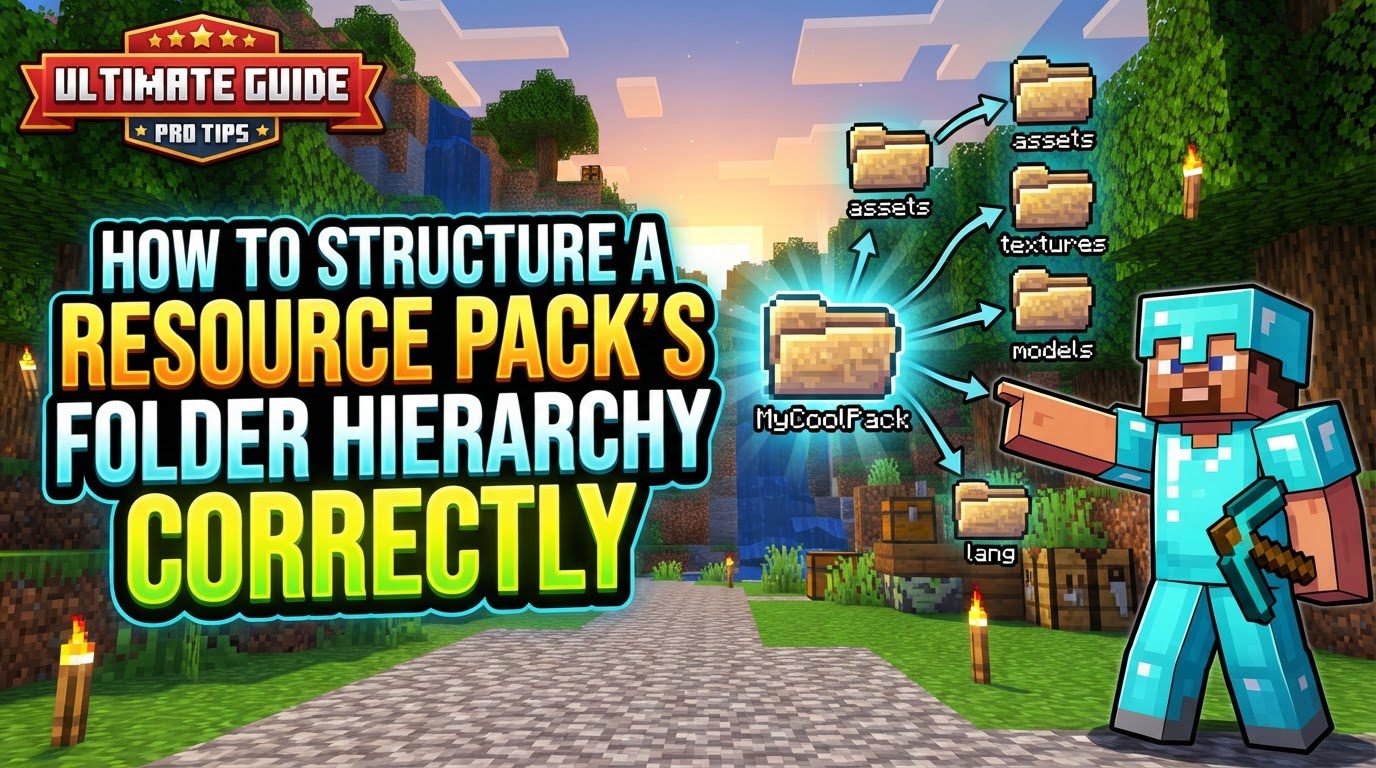
In the Java Edition, resource packs are loaded directly from the .minecraft/resourcepacks folder. They can exist either as individual sub-folders containing all the pack’s assets or as compressed .zip files. A critical aspect of resource pack management is their application order: if multiple packs are enabled, those positioned higher in the game’s selection list will override assets of the same name found in packs lower down. This allows for layered customization and fine-tuned control over the final in-game appearance.
At the very core of any Java Edition resource pack are two indispensable elements that must reside at the pack’s root level: the pack.mcmeta file and the assets folder. These two components serve as the entry point and primary container for all custom content, respectively. For Bedrock Edition, while the overall concept is similar, the root element is a manifest.json file, which holds crucial identification and versioning information.
The Core Components of a Java Edition Resource Pack
The correct structure for a Java Edition resource pack begins with a well-defined root directory, which will house the essential configuration file and the main content folder.
-
The
pack.mcmetaFile: This file is mandatory for every Java Edition resource pack. It is a JSON-formatted file that provides the game with fundamental information about your pack.-
pack_format: This key indicates the Minecraft version compatibility of your resource pack. Using an incorrectpack_formatnumber will result in the pack being displayed as incompatible within the game’s resource pack menu, preventing its proper use. For instance,"pack_format": 22would be used for recent Minecraft versions, but this number changes with major game updates. -
description: This field allows you to provide a brief text description for your resource pack, which will be visible in the resource pack selection screen in Minecraft. This helps users understand what your pack offers.
An example of the content for a
pack.mcmetafile might look like this (though only the JSON structure should be described, not actual code output):
{ "pack": { "pack_format": 22, "description": "My Custom Resource Pack" } } -
-
The
assetsFolder: This folder is the central repository for all your custom content. Within theassetsfolder, you will replicate the game’s internal structure to ensure that your custom files are correctly recognized and loaded.-
Namespace Folder: Inside
assets, the first subfolder is typically a “namespace” folder. The most common namespace isminecraft, which is used when you intend to override vanilla game assets. However, you can also create custom namespaces for new assets that your pack might introduce, particularly when working with custom content added by mods or datapacks. -
Specific Content Folders: Following the namespace, you will create specific folders for different types of assets. These folders must precisely match the game’s internal structure. Common examples include:
textures: For all visual elements like blocks, items, entities, GUI, etc.models: For 3D models of blocks and items.sounds: For custom sound effects and music.lang: For custom language files, allowing you to change in-game text.blockstates: For defining how blocks change appearance based on their state (e.g., facing direction, power level).
-
Namespace Folder: Inside
-
The
pack.pngFile (Optional): While not strictly required for functionality, including apack.pngimage file at the root of your resource pack folder is highly recommended. This 128×128 pixel image will serve as the icon for your resource pack in the game’s selection menu, providing a visual representation that enhances user experience.
The Core Component of a Bedrock Edition Resource Pack
For Bedrock Edition resource packs, the structure deviates slightly from Java Edition, primarily concerning the initial configuration file.
-
The
manifest.jsonFile: This file is absolutely mandatory at the root of any Bedrock Edition resource pack. It serves a similar purpose to Java’spack.mcmetabut contains more extensive metadata.- It must include essential information such as a unique identifier (UUID), the pack’s version, and a description. These details are crucial for the game to properly identify and manage the pack.
Step-by-Step Process for Structuring a Java Edition Resource Pack
Creating a resource pack involves a methodical approach to ensure every file is in its correct place.
- Create a Root Folder: Begin by creating a new folder on your computer. Give it a descriptive name that reflects your resource pack, for example, “MyAwesomeTexturesPack”. This folder will be the container for your entire pack.
-
Add
pack.mcmeta: Inside the root folder you just created, make a new file namedpack.mcmeta. Open this file with a plain text editor (like Notepad++ or VS Code, which are excellent for JSON editing) and populate it with the necessary JSON content. This content must specify thepack_format, corresponding to your target Minecraft version, and a user-friendlydescriptionfor your pack. -
Create
assetsFolder: Next, within your root resource pack folder, create a new folder and name itassets. This folder will be the parent directory for all your custom textures, models, sounds, and other assets. -
Replicate Game Structure: Inside the
assetsfolder, you will create a namespace folder. For overriding vanilla assets, this will typically be namedminecraft. If you are adding entirely new assets not found in the vanilla game, you might use a custom namespace. Following this, you must replicate the exact subfolder structure of the vanilla game for every asset type you wish to modify. For instance, if you want to change a block’s texture, you would createassets/minecraft/textures/block. For an item model, it would beassets/minecraft/models/item. Precision in naming and hierarchy here is paramount. -
Place Custom Files: Once the folder structure is in place, you can carefully place your custom files into their corresponding directories.
- Custom textures should be
.pngimage files. - Custom models (for blocks and items) and language files are typically
.jsonfiles. - Custom sound files must be in the
.oggformat. Their metadata, including volume and pitch settings, is often managed in a separatesounds.jsonfile, usually located withinassets/minecraft/sounds.jsonor a similar path, referencing your.oggfiles.
- Custom textures should be
-
Add Pack Icon (Optional): To give your resource pack a professional touch, place a
pack.pngimage file (128×128 pixels) directly into your resource pack’s root folder. This image will appear next to your pack’s name in the game’s resource pack selection menu. -
Install and Test: After structuring your pack, place the entire resource pack folder (or a
.ziparchive of it) into your Minecraft installation’s.minecraft/resourcepacksdirectory. Launch Minecraft, navigate to “Options” -> “Resource Packs”, and activate your pack by moving it from the “Available” list to the “Selected” list. Ensure it is positioned correctly relative to other packs if you are using multiple.
Important Tips for Resource Pack Creation
-
Reference the Vanilla Game: For an accurate understanding of the game’s internal asset structure, you can extract the vanilla game’s
.jarfile. Locate your Minecraft version’s.jarfile (e.g.,1.20.jar) in the.minecraft/versions/[version_number]folder, rename it to.zip, and then open it. This will allow you to browse its contents, particularly theassetsfolder, which serves as the ultimate template for your resource pack’s hierarchy. -
Lowercase Names: Always ensure that all folder names within your
assetsdirectory and all file names are entirely lowercase. Minecraft’s asset loading system is case-sensitive, especially on certain operating systems, and incorrect capitalization will prevent your assets from loading. -
Use a Capable Text Editor: When editing JSON files (like
pack.mcmeta,.jsonmodels, or language files), use a dedicated text editor such as Notepad++, Visual Studio Code, or Sublime Text. These editors offer syntax highlighting, error checking, and proper encoding support, which are crucial for preventing subtle JSON formatting issues that can break your pack. -
World-Specific Resource Packs: You have the option to bundle a resource pack directly with a specific Minecraft world. To do this, save your resource pack as a
resources.zipfile and place it inside the world’s save folder. When that world is loaded, the bundled resource pack will be automatically applied. - Keep it Concise: To minimize file size and potential conflicts, only include the files you have actually modified in your resource pack. There’s no need to copy entire vanilla directories if you’re only changing a few textures.
Common Mistakes to Avoid
-
Incorrect
pack_format: One of the most frequent errors is using apack_formatnumber that does not correspond to the Minecraft version you are playing. Always verify the correctpack_formatfor your current game version, as this number changes with major updates. -
Typographical Errors and Case Sensitivity: Misspellings or incorrect capitalization in folder or file names are critical errors. Minecraft expects exact matches for asset paths. For example,
textureis not the same astextures, andBlockis not the same asblock. -
Missing Core Files or Folders: Forgetting to include the mandatory
pack.mcmetafile at the root of your Java Edition pack, or neglecting to create the primaryassetsfolder, will render your pack unusable. Similarly, for Bedrock Edition, themanifest.jsonis essential. -
Incorrect File Types: Using unsupported file formats for assets is a common pitfall. For instance, attempting to use an
.mp3file for sounds instead of the required.oggformat will lead to sound assets not playing in-game. Ensure all image files are.png. -
Nested Root Folder in Zipped Packs: When downloading or creating a zipped resource pack, ensure that the
pack.mcmeta(ormanifest.json) andassetsfolder are directly at the root of the.zipfile. A common mistake is a nested structure likeMyPack.zip/MyPack/assets. If this occurs, you must extract the innerMyPackfolder and place it directly into your.minecraft/resourcepacksdirectory. -
Editing the Game JAR Directly: Never attempt to modify the game’s
.jarfile directly to customize assets. This is an incorrect and unsupported method that can corrupt your game installation. Resource packs are the intended and safe way to alter game assets.
Tags:
YOU MAY ALSO LIKE...


