

Troubleshooting Desync Issues in Multiplayer (Step by Step)
Desynchronization, commonly referred to as “desync,” is a frustrating issue in Minecraft multiplayer that can significantly hinder gameplay. It occurs when your game client and the server you’re connected to have conflicting information regarding the position or state of a player or an entity. This discrepancy leads to a disjointed experience where what you see on your screen doesn’t accurately reflect the server’s reality, resulting in problems like players appearing to teleport erratically, blocks reappearing after being broken, or even being unable to interact with the world.
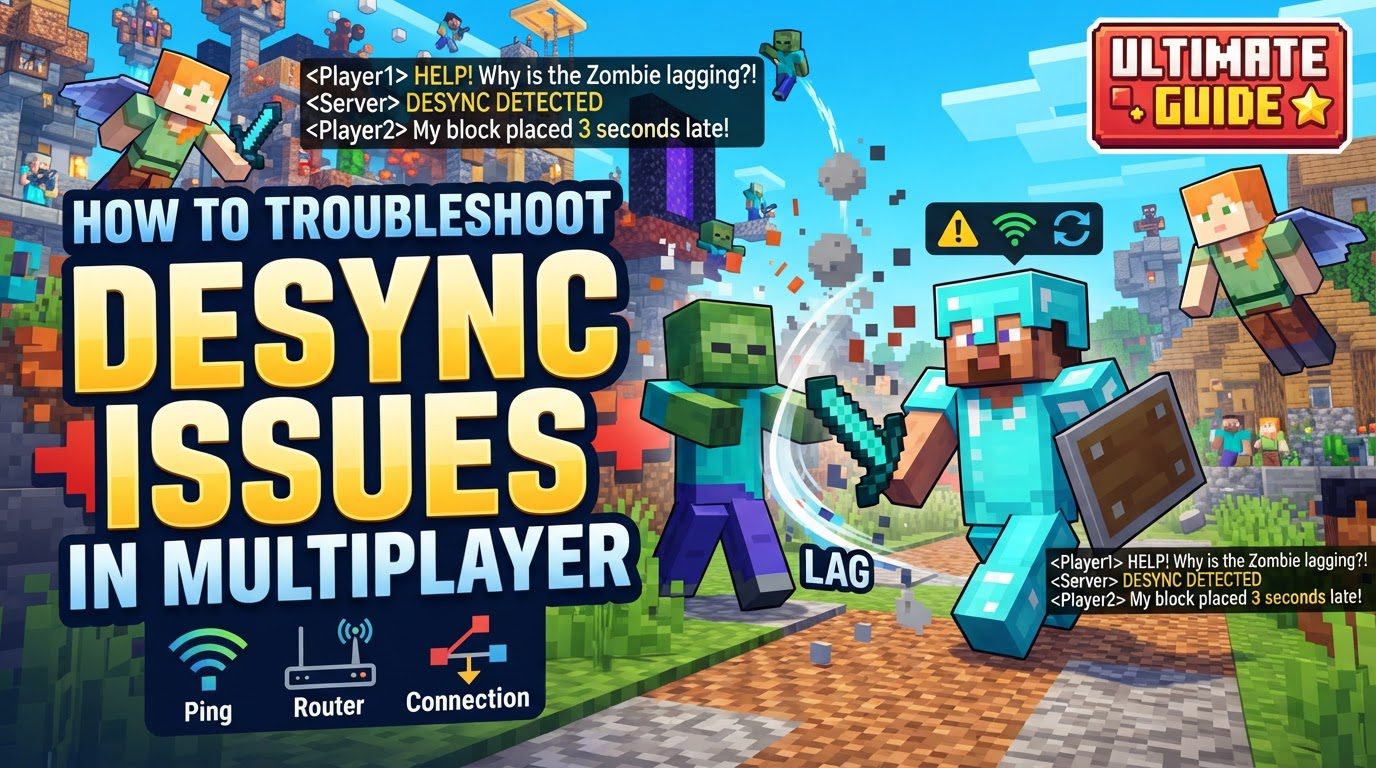
Understanding Desynchronization in Minecraft
The core cause of desynchronization is often packet loss, where vital movement data fails to transmit successfully between your game client and the server. Minecraft utilizes two primary types of packets for movement: “relative movement” packets for minor position changes and “teleportation” packets for larger movements (exceeding four blocks) or changes in the player’s “on-ground” status. If a relative movement packet is lost, your client might display a player in a different location than the server perceives, leading to desync.
Several specific manifestations of desync can occur:
- Ghost blocks: These are blocks that appear visible and present on your client, but the server registers that space as empty or air. You might try to mine them repeatedly, only for them to reappear, or be unable to place blocks where a ghost block is present.
- Ghost mode or desynchronized entity position: In this state, your client allows you to move freely within the world, even though the server believes your player is stationary. This can lead to you “snapping back” to a previous position or being unable to interact with the environment effectively.
It’s worth noting that Minecraft Bedrock Edition is particularly susceptible to desync issues, making robust troubleshooting even more critical for players on this platform.
Step-by-Step Troubleshooting Guide
Addressing desync requires a systematic approach, starting with the most common and easiest fixes before moving to more technical solutions.
Initial Checks and Reconnections
- Restart Everything: Begin by closing and reopening your Minecraft game. Follow this by restarting your device (PC, console, or mobile) and, crucially, your internet router. A fresh start often resolves temporary network glitches.
- Reconnect Your Account: Within Minecraft, sign out of your Microsoft account and then sign back in. This can refresh your connection to Xbox Live services and the Minecraft servers.
Network Optimization
- Verify Internet Stability: Perform a thorough check of your internet connection’s stability. If you are using Wi-Fi, try moving your device closer to the router to improve signal strength. For the most stable connection, switching to a wired Ethernet connection is highly recommended, as it offers significantly more reliability than Wi-Fi for multiplayer gaming.
- Bandwidth Management: Close all other applications running in the background that might be consuming significant internet bandwidth. This includes streaming services, large downloads, other online games, or video conferencing software. Freeing up bandwidth ensures Minecraft has the resources it needs.
- DNS Configuration: Consider changing your DNS (Domain Name System) servers. You can set them to public DNS servers like Google’s (8.8.8.8 and 8.8.4.4) in your network adapter settings on your device or directly in your router’s configuration. This can sometimes improve connection routing and speed.
Software and System Maintenance
- Software Updates: Ensure that your operating system (Windows, macOS, etc.) is fully updated. Equally important is to update all device drivers, paying particular attention to your graphics card drivers, as outdated drivers can lead to performance issues that indirectly contribute to desync.
- Firewall and Antivirus Check: Your firewall or antivirus software might be inadvertently blocking Minecraft’s connection or slowing it down. Check their settings to ensure Minecraft is allowed. Minecraft often requires specific ports to be open for multiplayer functionality, including 80, 443, 3748, 19132, and 19133.
- Minecraft Application Repair (Windows): For Windows users, you can attempt to terminate, repair, or reset the Minecraft application through your system settings. This can resolve corrupted game files or settings without requiring a full reinstallation.
Host-Specific Actions (If You Are Hosting the Game)
If you are the one hosting the multiplayer world or server, there are additional steps you can take to minimize desync for all players:
- Use High-Spec Hardware: Always use the device with the highest specifications (CPU, RAM, network card) available to host the game. A more powerful host can handle more players and processes without lag.
- Optimize Host Settings: On the host device, lower in-game video settings, such as render distance, and close any background applications that are consuming resources. This dedicates more processing power and memory to running the Minecraft server.
- Self-Hosting Verification: If you are self-hosting a dedicated server, double-check that the server IP address and port are correct and that the server software is actively running. Ensure that port forwarding is correctly configured on your router to allow incoming connections to your server.
Important Tips for Prevention and Resolution
- Latency Sensitivity: Understand that Minecraft’s multiplayer performance is highly sensitive to latency (ping). High latency significantly increases the chances of desync.
- Wired Connection Priority: Whenever possible, prioritize using a wired Ethernet connection over Wi-Fi. The stability and lower latency of a wired connection are invaluable for a smooth multiplayer experience.
- Resource Minimization: Always minimize the number of background applications using internet bandwidth and system resources while playing Minecraft. This helps dedicate maximum resources to the game.
- Player Count Management: If you are hosting a world and the host device struggles to maintain performance, consider reducing the number of players connected to the server.
- Version Matching: It is absolutely crucial that both the server and every connected game client are running the exact same version of Minecraft. Version mismatches are a common cause of connectivity and desync issues.
- Server Proximity: Connect to a server that is geographically closer to your location. This reduces the physical distance data has to travel, thereby lowering your ping and potential for desync.
- Specific Speedrun Tip (Eye of Ender): For specific desync observed during Eye of Ender measurements in speedruns, ensure your client and the server’s perception of your position are synced. This can be achieved by exiting a boat, jumping while standing still, or waiting for over a second before throwing the eye.
Common Mistakes to Avoid
Being aware of common pitfalls can help you prevent desync issues before they even start:
- Sole Reliance on Wi-Fi: Relying exclusively on Wi-Fi for multiplayer, especially if a more stable wired connection is an option, is a common mistake that introduces network instability.
- Excessive Background Applications: Allowing numerous background applications to consume network bandwidth and system resources during gameplay starves Minecraft of the resources it needs to run smoothly.
- Overloading the Host: Attempting to host a game with too many players or on a device with insufficient hardware resources (CPU, RAM) will inevitably lead to lag and desync for everyone.
- Neglecting Updates: Failing to regularly update your operating system, device drivers, or the game software itself can leave you vulnerable to bugs and performance issues that have already been patched.
- Ignoring Security Software Warnings: Disregarding warnings from your firewall or antivirus, or not properly configuring them, can result in these programs inadvertently blocking or throttling Minecraft’s network traffic.
- Distant Server Connections: Consistently connecting to servers that are geographically very distant from your location will inherently lead to higher latency and a greater risk of desync.
- Using Very Fast Tools: Sometimes, using extremely fast tools to break blocks can cause your client to register the block as broken before the server does, resulting in the frustrating appearance of “ghost blocks.”
Tags:
YOU MAY ALSO LIKE...


