

Fixing Missing Textures After Applying a Resource Pack
Understanding Missing Textures in Minecraft Resource Packs
Encountering missing textures, often appearing as jarring purple and black squares or simply invisible blocks, can be a frustrating experience when trying to customize your Minecraft world with a resource pack. These visual glitches typically indicate that Minecraft cannot locate or properly render the necessary image files. Resolving these issues requires understanding the fundamental mechanics of how resource packs interact with the game and a systematic troubleshooting approach.
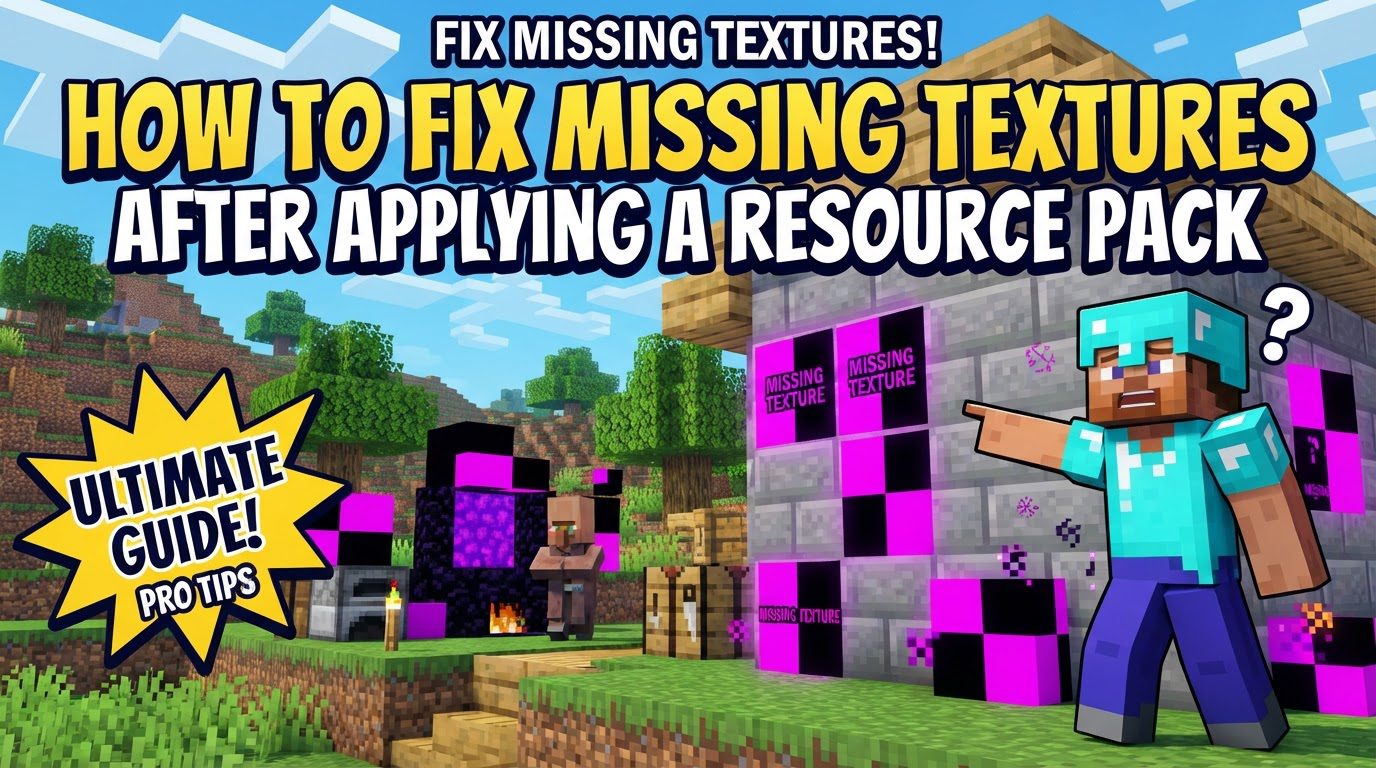
Core Mechanics Behind Resource Pack Functionality
To effectively fix missing textures, it’s crucial to grasp the underlying principles that govern resource pack loading and display. Several key factors determine whether a pack functions correctly:
- Version Compatibility: A resource pack is designed for a specific version of Minecraft. If the pack is too old or too new for your game version, it will likely fail to load textures correctly, as the game’s internal asset structure or `pack_format` might have changed.
- File Structure: Minecraft expects resource packs to adhere to a precise internal file structure. The critical components, such as the
assetsfolder and thepack.mcmetafile, must reside directly at the root level of the resource pack’s.zipfile or folder. If they are nested within an extra folder, Minecraft will not detect them. - Loading Order: When multiple resource packs are active, they are loaded in a specific hierarchy: from the bottom to the top of the selection list in the game’s resource pack menu. Textures from packs positioned higher in this list will override any conflicting textures from packs below them. Incorrect loading order can lead to unintended texture displays if you expect a certain pack to take precedence.
- Corrupted Files: Missing, purple, or black textures are strong indicators of issues with the texture files themselves. This could mean the files are corrupt, incomplete, or incorrectly referenced within the resource pack’s internal structure.
pack.mcmeta: This small but vital file, located at the root of your resource pack, defines the pack’s format number. This number must correspond to your specific Minecraft version for the game to properly recognize and load the pack. An incorrect `pack_format` can prevent the pack from appearing or functioning.
Step-by-Step Troubleshooting Process
Follow these steps systematically to diagnose and resolve missing texture issues:
- 1. Check Version Compatibility: Before attempting to install any resource pack, always verify that it explicitly supports your current Minecraft version. This is the most common cause of texture loading failures.
- 2. Redownload the Pack: If textures are missing or corrupted, the initial download might have been incomplete or flawed. Redownload the resource pack entirely to ensure you have a fresh, uncorrupted copy.
- 3. Inspect Internal File Structure:
- Open the resource pack’s
.zipfile using a file archiver (like 7-Zip or WinRAR). - Upon opening, confirm that you immediately see the
assetsfolder and thepack.mcmetafile. They should not be enclosed within another folder. - If you find an extra folder inside the
.zipthat contains both theassetsfolder andpack.mcmeta, you have two options:- Extract that inner folder directly into your Minecraft resource packs directory.
- Alternatively, extract the contents of that inner folder (the
assetsfolder andpack.mcmeta) and re-zip them into a new.zipfile, ensuring they are at the root.
- Open the resource pack’s
- 4. Install/Reinstall Correctly:
- Launch Minecraft, navigate to “Options,” then “Resource Packs,” and finally click “Open Pack Folder.”
- Drag the correctly structured
.zipfile (or the extracted, correctly structured folder) directly into this opened folder. - If you are reinstalling a problematic pack, first remove the old, potentially corrupted or incorrectly structured version from this folder before adding the new one.
- 5. Activate and Adjust Loading Order: In the Minecraft Resource Packs menu, locate your pack in the “Available” column and move it to the “Selected” column. If you are using multiple packs, carefully adjust its position in the “Selected” column to ensure it overrides or is overridden by other packs as intended.
- 6. Restart Minecraft: After making any significant changes to your resource packs, such as adding, removing, or reordering them, it is essential to completely close and then reopen Minecraft. This ensures the game properly reloads all assets and configurations.
- 7. Isolate Problematic Packs: If you’re using several resource packs and experiencing issues, activate them one by one. This method helps pinpoint which specific pack is causing the texture conflicts or loading errors.
Important Tips for Smooth Resource Pack Operation
Beyond the core troubleshooting steps, these tips can prevent future issues and aid in resolution:
pack.mcmetaFormat: Always ensure yourpack.mcmetafile contains the correctpack_formatnumber for your Minecraft version. If you are manually editing this file (e.g., to adjust the format number), ensure you save it with ANSI encoding, especially if using a basic text editor like Notepad, to prevent character corruption.- Enable File Name Extensions: In your operating system’s folder options, enable “File name extensions.” This allows you to see the full file type (e.g.,
.zip,.mcmeta) and prevents accidental naming errors, such as saving a file aspack.mcmeta.txt. - Valid Naming Conventions: Within your resource pack, all folder and file names should adhere to strict naming rules. Use only numbers, lowercase English letters, underscores (
_), hyphens (-), and dots (.). Avoid capital letters, spaces, or any other special characters, as these can cause textures to fail to load on certain operating systems or Minecraft versions. - Update Java: An outdated Java installation can sometimes contribute to various loading problems in Minecraft, including resource pack issues. Ensure your Java is up-to-date for optimal performance.
- Reload Textures In-Game (Modded Minecraft): For players using modded Minecraft, texture loading can occasionally take a long time or encounter temporary glitches. Pressing
F3 + Tin-game can sometimes force a reload of all textures without requiring a full game restart, potentially resolving minor display issues.
Common Mistakes to Avoid
Being aware of these frequent errors can save you significant troubleshooting time:
- Incompatible Versions: The most common oversight is attempting to use a resource pack designed for a different Minecraft version than the one you are currently running. Always double-check compatibility.
- Incorrect Nesting: A prevalent error is having the actual resource pack content (the
assetsfolder andpack.mcmeta) buried within an extra folder inside the main.zipfile. Minecraft will not look for these files if they are not at the root. - Corrupted Downloads: Downloads that are interrupted, incomplete, or corrupted can result in missing or damaged texture files within the pack, leading to purple/black squares or invisible elements.
- Conflicting Packs/Mods: Activating too many resource packs simultaneously, or using mods that interfere with texture loading, can lead to unexpected overrides, graphical glitches, or even game crashes.
- Memory Overload: Very high-resolution resource packs demand significant system resources. Using such packs on a system with insufficient RAM can cause the game to crash, fail to load textures entirely, or experience severe performance issues.
By understanding these mechanics, carefully following the troubleshooting steps, and avoiding common pitfalls, you can efficiently resolve missing texture issues and fully enjoy your customized Minecraft experience.
Tags:
YOU MAY ALSO LIKE...


