Configuring Pack.mcmeta Version Compatibility — A Quick Guide
Minecraft Java Edition resource and data packs rely on a critical file named pack.mcmeta to define their compatibility with different game versions. Understanding and correctly configuring the pack_format value within this file is essential for ensuring your custom content works as intended across various Minecraft updates. This guide will walk you through the process, detailing the core mechanics, step-by-step instructions, useful tips, and common pitfalls to avoid.
Understanding pack.mcmeta and pack_format
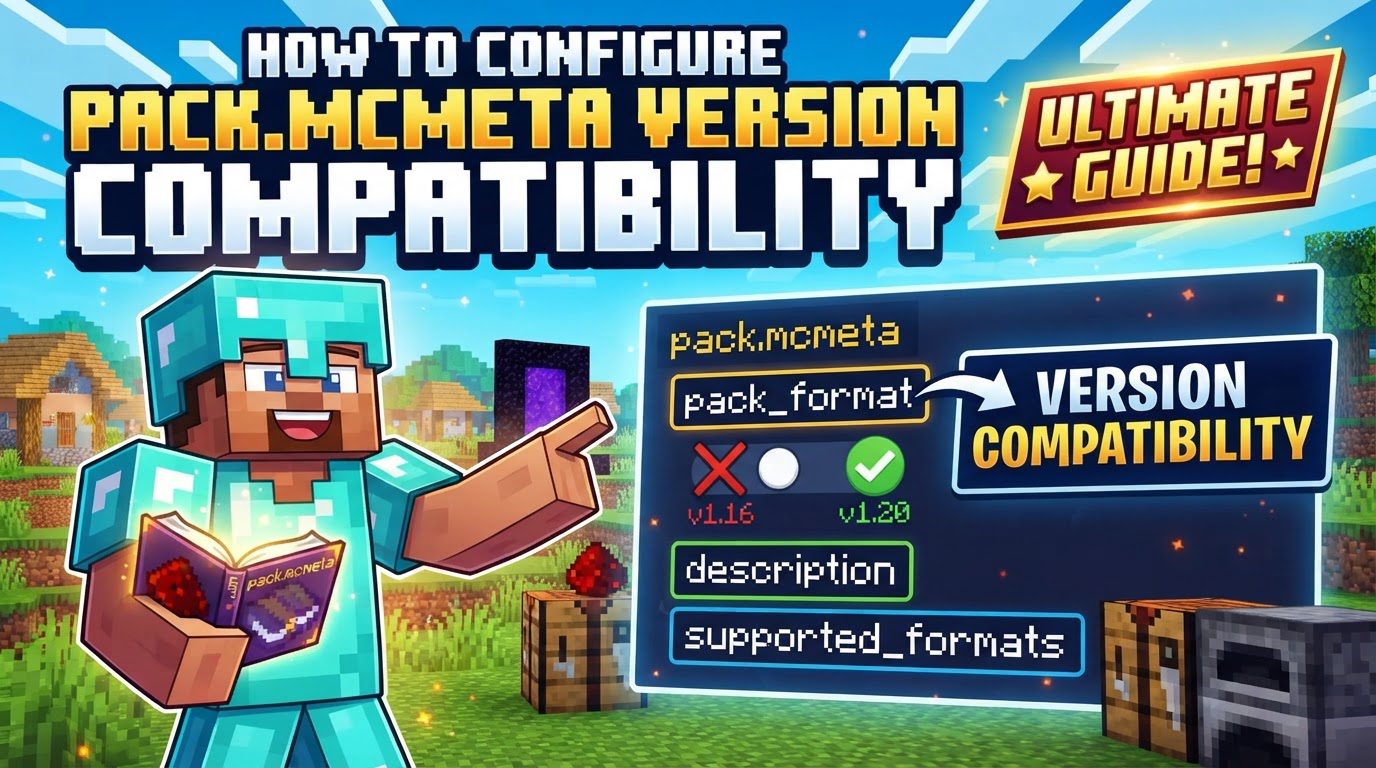
The pack_format field, located within your pack’s pack.mcmeta file, serves as a version number that groups together specific Java Edition versions with compatible assets. It acts as a flag, informing the game which Minecraft version the resource or data pack was designed to be compatible with.
This pack_format value is not static; it frequently changes with most Minecraft updates. These changes signify alterations in how resource packs and texture packs function, encompassing modifications to elements like texture file paths and model formats. For instance, a resource pack crafted for Minecraft 1.8.9 will typically not automatically function on a significantly different version like 1.21 without some form of adjustment to its pack_format or underlying assets.
More recent Minecraft versions have introduced enhanced compatibility features. For Minecraft 1.20.1 and above, the pack.mcmeta file can incorporate a supported_formats field. This field allows pack creators to define a range of compatible pack_format values, expressed as an array (e.g., [min_format, max_format]). This provides broader compatibility and helps prevent warning messages.
Further evolving this system, from Minecraft 1.21.9 and beyond, the explicit pack_format field itself becomes optional. Instead, compatibility ranges are defined using min_format and max_format fields directly within a pack object in the pack.mcmeta file.
It is important to note that this system is exclusive to Minecraft Java Edition. Minecraft Bedrock Edition utilizes a distinct format_version system, typically found at the beginning of most files, which defines the available syntax and features for each asset type. This is not directly equivalent to the pack.mcmeta system in Java Edition.
Step-by-Step Configuration Process
1. Locate the pack.mcmeta file
- First, you need to access your resource pack’s internal files. In Minecraft, navigate to “Options,” then “Resource Packs,” and finally click on “Open Pack Folder.” This will open the directory where your resource packs are stored.
- If the resource pack you wish to modify is distributed as a
.zipfile, you must first extract its contents. Create a new folder, copy the.zipfile into it, and then use your operating system’s tools to extract all the files. - The
pack.mcmetafile is almost always located at the root level of the resource pack’s folder structure, meaning it’s not nested inside another subfolder within the main pack directory. Alongside it, you’ll typically find anassetsfolder and apack.pngimage.
2. Edit pack.mcmeta
- Open the
pack.mcmetafile using a plain text editor. Suitable options include Notepad on Windows, TextEdit on Mac (ensure it’s in plain text mode), or more advanced editors like Notepad++ or Visual Studio Code. Avoid word processors like Microsoft Word, as they can introduce formatting that corrupts the JSON structure. - Inside the file, you will find a JSON structure. Locate the line that contains
"pack_format". It will look something like"pack_format": 15(the number will vary). - Change the number associated with
"pack_format"to the value corresponding to your desired Minecraft version. You will need to refer to a current list ofpack_formatvalues, which can be found on resources like the Minecraft Wiki or community sites (e.g.,htg-george.com). - For packs targeting Minecraft 1.20.1 and newer, you have the option to add or modify the
"supported_formats"field. This is highly recommended for broader compatibility and to suppress “Made for an older version” warning pop-ups. You would add a line similar to"supported_formats": [min_format, max_format]within the same JSON object as"pack_format". Replacemin_formatandmax_formatwith the appropriate integer values for your desired range. For example, to support versions from 1.20.1 up to the latest 1.20.x, you might use[15, 18], depending on the exactpack_formatvalues for those versions. - For packs targeting Minecraft 1.21.9 and newer, the structure changes. The
pack_formatfield itself may be omitted. Instead, compatibility is defined using"min_format"and"max_format"fields, which are nested within a"pack"object. The structure would look more like:{"pack": {"pack_format": 20, "min_format": 20, "max_format": 23}, "description": "My awesome pack"}(example numbers). - While editing, you can also modify the
"description"text, which is the text displayed in the resource pack selection screen in Minecraft.
3. Save and Re-compress (if necessary)
- After making your changes, save the
pack.mcmetafile. Ensure you save it with the exact filenamepack.mcmeta, without any extra extensions like.txt. - If you originally extracted a
.zipfile, you now need to re-compress the modified contents. Select all the items that were at the root of the original pack (typically theassetsfolder,pack.mcmeta, andpack.png). Then, use your operating system’s function to compress these selected items into a new.zipfile. It is crucial thatpack.mcmetaand theassetsfolder are directly at the root of this new.zipfile, not nested within an additional folder inside the.zip.
4. Place the Pack Back
- Move the newly created
.zipfile (or the modified folder, if you opted to keep it as an unzipped folder pack) back into your Minecraft resource pack folder. This is the same folder you opened in the first step. - Restart Minecraft or refresh your resource pack list (usually by going back to the title screen or re-entering the resource pack selection menu) for the changes to take effect.
Using Online Converters
For users who prefer an automated solution or are dealing with complex conversions, several online services and tools can help. Services like PacksMC offer free online utilities designed to automatically convert resource packs between different Minecraft Java Edition versions, covering a wide range from 1.8.9 to 1.21+. These tools typically handle fixing the pack_format and can even update texture paths where necessary. Similarly, tools like Itsme64’s Texture Pack Updater provide comparable functionality, streamlining the conversion process.
Important Tips
- Warning Messages: Often, an older resource pack will still function perfectly well on newer Minecraft versions, even if the game displays a warning message stating it was “Made for an older version.” This warning simply indicates a discrepancy in the
pack_formatvalue and doesn’t always imply functional issues. - Simple Fix: For many packs, especially those only a few versions old, simply changing the
pack_formatnumber inpack.mcmetais sufficient to resolve the “Made for an older version” warning. - Long-Term Compatibility: To future-proof your pack and ensure compatibility across a broader range of versions without constant manual updates, leverage the
supported_formatsfield for Minecraft 1.20.1+ (e.g.,[minimum_version_number, maximum_version_number]). For 1.21.9+, use themin_formatandmax_formatfields within the pack object. - Backup First: Always create a backup copy of your original resource pack before attempting any manual modifications. This safeguards your original content in case of errors during the editing process.
- Complex Conversions: For very complex packs or when attempting large version jumps (e.g., from Minecraft 1.8 to 1.20), merely changing the
pack_formatmight not be enough. Significant changes in the game’s internal structure might necessitate manual conversion or adjustment of assets like textures and models to ensure everything displays correctly.
Common Mistakes to Avoid
- Incorrect
pack_formatValue: Using apack_formatnumber that does not accurately correspond to your target Minecraft version will either result in persistent warning messages or prevent the pack from loading correctly altogether. Always double-check the correct value for your desired version. - Editing Inside a Zipped File: Attempting to directly edit the
pack.mcmetafile while it is still inside a.ziparchive is a common error. You must always extract the pack’s contents first, make your edits, and then re-compress it. - Incorrect Folder Structure After Re-zipping: When re-compressing a pack, ensure that
pack.mcmeta, theassetsfolder, and anypack.pngfile are located directly at the root level of the new.zipfile. If they are nested inside an additional folder within the.zip, Minecraft will not recognize the pack. - Ignoring the “Made for Older Version” Warning Blindly: While often harmless, it’s not always safe to ignore this warning. For very old packs, particularly those from early versions of Minecraft, the game’s internal technical structure might have changed so drastically that ignoring the warning could lead to severe visual glitches, missing textures, or even game crashes.
- Expecting Complete Functionality with Only
pack_formatChanges for Very Old Packs: As mentioned, for packs originally made for Minecraft 1.8 or earlier, simply altering thepack_formatnumber is unlikely to be sufficient. These older versions had fundamentally different asset structures and rendering pipelines, requiring more extensive manual conversion of assets. - Using
pack_formatfor Bedrock Edition: The entirepack.mcmetafile and itspack_formatsystem are specific to Minecraft Java Edition. Bedrock Edition uses a completely different compatibility and asset definition system, so attempting to apply these steps to a Bedrock pack will yield no results.
Tags:
YOU MAY ALSO LIKE...