Formatting Colored Text in a Sign — A Quick Guide
Minecraft offers a rich environment for creativity, extending even to the seemingly simple act of placing a sign. Beyond merely conveying messages, players can enhance their signs with vibrant colors and distinct formatting, drawing attention and adding aesthetic flair to their builds. This guide delves into the comprehensive methods for formatting colored text on signs, covering both Bedrock and Java Editions of Minecraft, from basic color changes to advanced multi-colored displays.
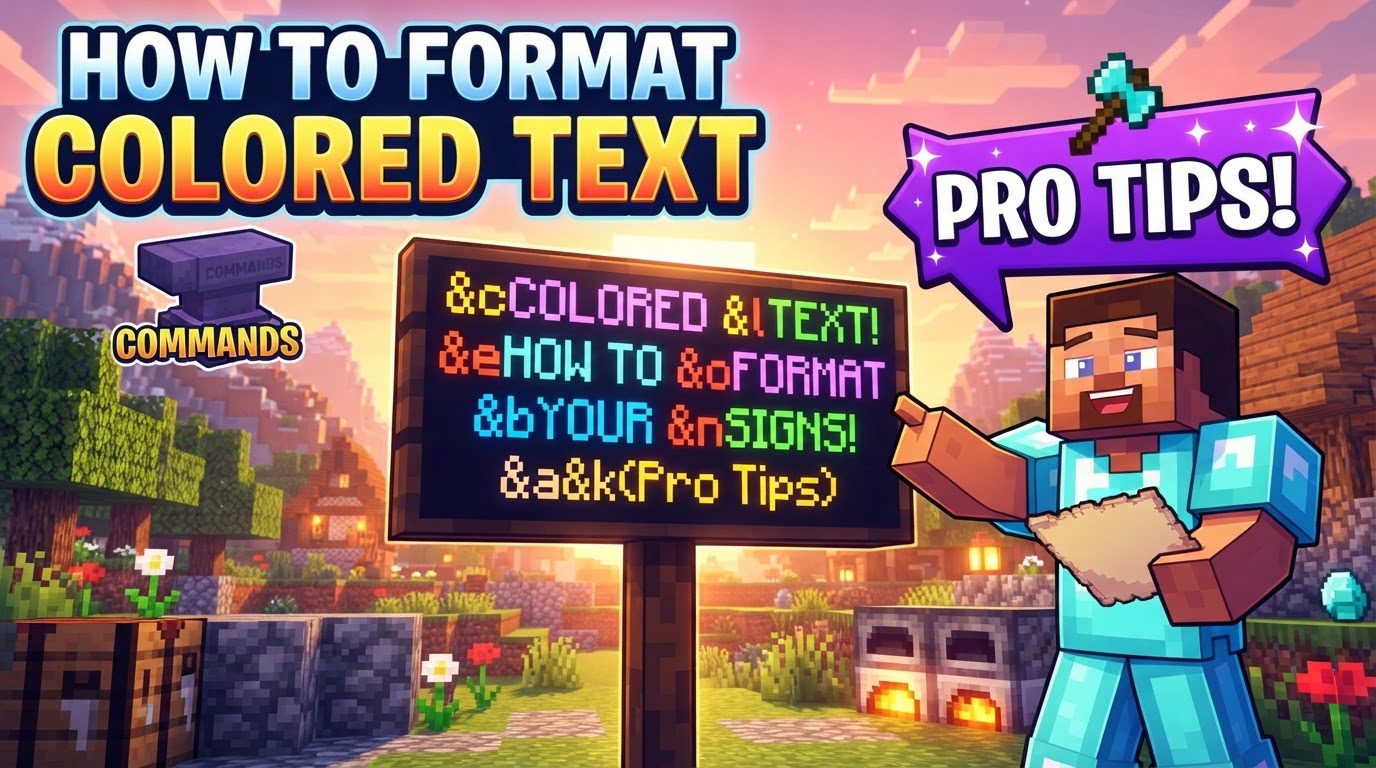
Understanding the Core Mechanics of Text Formatting
At the heart of Minecraft’s text formatting system lies a special character: the section sign (§). This symbol acts as a prefix, signaling to the game that the subsequent character is a formatting code, dictating either a color or a style for the text that follows. Understanding how and where to use this symbol is crucial for successful sign customization.
- The Section Sign (§) and Its Role: Text formatting in Minecraft universally employs the section sign (§) followed by a specific character. This character, which can be a number or a letter, directly corresponds to a particular color or a text style, such as bold, italic, or underline. For instance, §c would make text red, while §l would make it bold.
- Edition-Specific Input Differences:
- Bedrock Edition: Players on Bedrock Edition enjoy a more straightforward experience. The § symbol can be directly typed or inserted into virtually any text input field within the game, including signs, world names, books, anvils, and chat. This direct input capability simplifies the process of applying colors and styles.
- Java Edition: The Java Edition presents a different challenge for direct § input. Typically, typing the § symbol directly into signs or chat fields through normal gameplay is not supported. This distinction necessitates alternative methods for applying formatting, especially in survival mode or for complex designs.
- Color Codes: These codes are used to define the actual color of the text. Each code consists of the § symbol followed by a specific alphanumeric character.
- §0: Black
- §1: Dark Blue
- §2: Dark Green
- §3: Dark Aqua
- §4: Dark Red
- §5: Dark Purple
- §6: Gold
- §7: Gray
- §8: Dark Gray
- §9: Blue
- §a: Green
- §b: Aqua
- §c: Red
- §d: Light Purple
- §e: Yellow
- §f: White
- Formatting Codes: In addition to colors, specific codes allow players to apply various styles to their text, enhancing readability or emphasis.
- §k: Obfuscated (randomly changing characters)
- §l: Bold
- §m: Strikethrough
- §n: Underline
- §o: Italic
- The Reset Code (§r): An essential code for managing formatting is §r. This code serves to reset all previously applied formatting and colors, reverting the text to its default style. This is particularly useful when you want to switch between different colors or styles within the same line or sign without previous formatting bleeding into new sections.
Step-by-Step Process for Formatting Signs
For Bedrock Edition (and direct § input fields)
In Bedrock Edition, the process is intuitive due to the direct support for the § symbol in text fields. This method is also applicable in any context where direct § input is allowed.
- Step 1: Place Your Sign. Begin by placing a sign in your desired location in the world.
- Step 2: Insert the Section Symbol. When the sign’s text input interface appears, insert the § symbol.
- Step 3: Type the Desired Code. Immediately after the § symbol, type the character corresponding to your desired color or formatting style. For example, use §c for red text or §l for bold text.
- Step 4: Type Your Text. Proceed to type the message you wish to display. The formatting you just applied will affect all subsequent text until another formatting code is introduced or the formatting is reset.
- Step 5: Apply New Formatting (Optional). To introduce different formatting or colors within the same sign, simply insert new § codes as needed, followed by their respective characters and the text you want to format.
For Java Edition (Survival Mode – Simple Color)
For Java Edition players in survival mode who want to apply a single color to an entire sign, a unique interaction with dyes is available.
- Step 1: Place Your Sign. First, place a sign where you intend for it to be.
- Step 2: Obtain a Dye. Acquire a dye corresponding to the color you wish to apply to the sign’s text. For example, to make the text red, you would need red dye.
- Step 3: Right-Click with Dye. While holding the dye in your hand, right-click on the placed sign. This action will change the color of all text on that sign to the color of the dye. Note that this method changes the entire sign’s text to a single color and does not support multi-colored text or styling like bold or italic.
For Java Edition (Advanced – Multi-Colored Text Using Commands)
To achieve multi-colored text, apply various formatting styles, or combine colors on a single sign in Java Edition, players must leverage commands. This method offers the most flexibility and control.
- Step 1: Place a Sign. Position a sign in your world. The text on the sign initially doesn’t matter, as it will be overwritten by the command.
- Step 2: Use a Command. Open the chat window (typically by pressing ‘T’) or use a command block to execute a data modification command. The primary commands for this purpose are
/data modify blockor/data merge block. These commands allow you to directly manipulate the sign’s NBT (Named Binary Tag) data, specifically its text components. - Example Command Structure: A common command format involves using JSON (JavaScript Object Notation) text components to specify the text, its color, and other formatting.
/data modify block <coordinates> front_text set value {messages:['[{"text":"Your Text","color":"#HEXCODE"}]']}- Replace
<coordinates>with the X Y Z coordinates of your sign. front_textrefers to the text on the front side of the sign. For the back, you would useback_text.messagesis an array that holds the individual lines of text on the sign.{"text":"Your Text","color":"#HEXCODE"}is a JSON text component. You can specify the actual text and its color. Hexadecimal color codes (e.g.,#FF0000for red) offer a broader spectrum of colors than the standard Minecraft color codes.
- Replace
- Step 3: Specify Multiple Text Components (for multi-color/style). For signs with multiple lines, different colors on the same line, or various styles, you can include multiple text components within the
messagesarray. Each component can have its own text, color, and formatting properties./data modify block ~ ~ ~ front_text set value {messages:['[{"text":"Hello ","color":"red","bold":true},{"text":"World!","color":"blue","italic":true}]','{"text":"Line 2","color":"green"}']}This example would create a sign where “Hello” is red and bold, “World!” is blue and italic, all on the first line, and “Line 2” is green on the second line.
Important Tips for Effective Sign Formatting
- Copying the § Symbol: Since the § symbol isn’t readily available on all keyboards, you may need to copy and paste it. Common methods include:
- Windows: Hold down the Alt key and type 21 or 0167 on the numeric keypad.
- Mac: Press Option + 6.
- Alternatively, copy it from an online source or another Minecraft text field where it’s already present.
- Formatting Persistence in Bedrock: In Bedrock Edition, once a formatting code is applied, it tends to persist across new lines within the same sign. This means if you start a new line, the previous formatting might carry over. You may need to re-apply codes or use
§rto reset the formatting explicitly. - Order of Codes in Java (when using §): When combining both color and formatting codes (e.g., bold red text), it’s generally best practice to place the color code first, followed by the formatting code. If you later change the color, remember to re-apply the formatting code afterward if you want it to persist with the new color.
- Explicitly Resetting Formatting with §r: To ensure predictable text appearance, always use
§rto explicitly reset all previous formatting. This prevents unintended styles or colors from affecting subsequent text, especially when transitioning between complex formatting schemes. - Glow Ink Sacs: To further enhance the visibility of your colored text, Glow Ink Sacs can be applied to signs. This makes the text glow, significantly improving its readability in low-light conditions and making colored text stand out even more.
- Alternative Symbols: Be aware that while
§is standard for Minecraft’s internal formatting, some server MOTDs (Message of the Day) or plugins might utilize the ampersand (&) symbol instead. Additionally, in some configuration files, the Unicode representation\u00A7might be used for the section symbol.
Common Mistakes to Avoid
- Forgetting the § Symbol: The most common error is simply forgetting to place the § symbol directly before the color or formatting code. Without this prefix, the game will treat the code as plain text, and no formatting will be applied.
- Incorrectly Typing § in Java Edition: As mentioned, direct input of § into signs or chat in Java Edition usually doesn’t work through standard keyboard entry. Attempting to do so will often result in the symbol not appearing or the formatting not being recognized. Remember to use dyes for simple color or commands for advanced formatting.
- Not Resetting Formatting: Failing to use
§rwhen switching between different text styles or colors can lead to unexpected results. Subsequent text might unintentionally inherit the formatting from a previous section, creating an inconsistent and messy appearance. - Expecting Advanced Multi-Colored Signs in Java Survival Without Commands: It’s a common misconception that Java Edition survival players can achieve multiple colors or complex formatting on a single sign simply by typing. This level of customization almost exclusively requires the use of console commands, NBT editors, or server plugins, not just typing.
- Assuming Universal Code Usage: While the § symbol is standard, always remember that certain plugins, server configurations, or specific contexts might use an alternative symbol like
&for color codes. If your formatting isn’t working as expected, consider if an alternative symbol might be in use.
Tags:
YOU MAY ALSO LIKE...