

Using a Structure Block in Corner Mode, Explained
The structure block in Minecraft is a powerful tool for builders and mapmakers, allowing for the easy saving and loading of complex builds. Among its various modes, the “Corner” mode offers a streamlined approach to defining the boundaries of a structure for saving. This guide will delve into the intricacies of utilizing the structure block in corner mode, ensuring you can efficiently capture and reuse your creations.
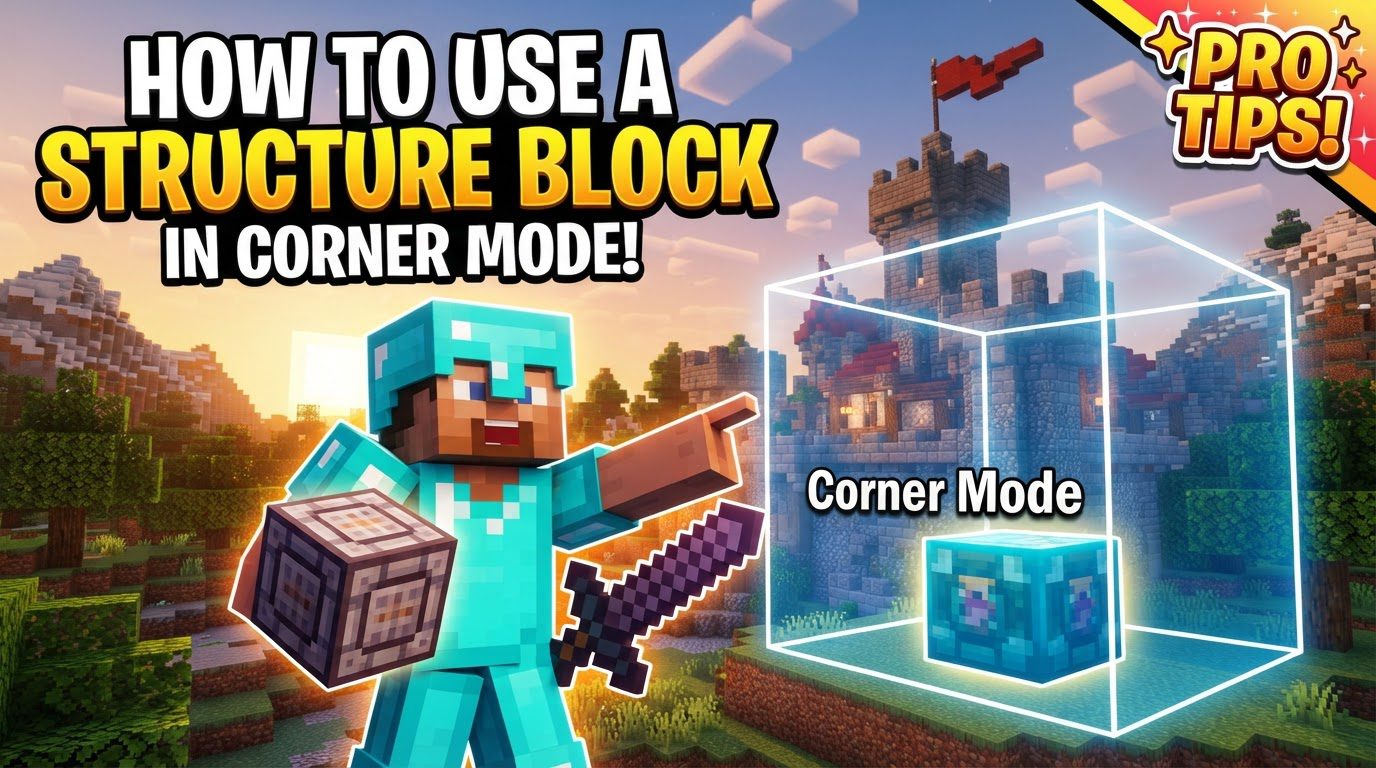
Understanding Corner Mode Mechanics
Corner mode is designed to significantly simplify the process of saving structures by automating the calculation of their size and precise position. Unlike manual methods that require you to input specific coordinates or dimensions, corner mode leverages a spatial definition system.
- Automatic Calculation: Corner mode eliminates the need for manual input of size and offset coordinates. Instead, it intelligently determines these values based on the placement of designated corner blocks. This automation reduces potential errors and speeds up the saving process.
- Two Corner Blocks: The core of this method involves placing two distinct structure blocks, both set to “Corner” mode. These two blocks are strategically positioned at diagonally opposite corners of the structure you intend to save. Their relative positions establish the spatial extent of your build.
- A Third Save Block: To complete the setup, a third structure block is required, this one set to “Save” mode. This “Save” block acts as the central control unit. It gathers the positional and dimensional information from the two “Corner” blocks to accurately define the area that will be saved.
- Eliminating Manual Input: The primary advantage of this system is that it completely removes the necessity of manually entering numerical size and offset coordinates within the “Save” block’s interface. The system handles all these calculations behind the scenes, making it more user-friendly and less prone to human error.
Step-by-Step Process for Using Corner Mode
Follow these detailed steps to successfully save your Minecraft structures using the corner mode functionality.
-
1. Obtain Structure Blocks:
Before you can begin, you need to acquire the necessary structure blocks. These are not available in the Creative inventory directly. To get them, you must be in Creative mode and use the specific command:
/give @p structure_block. This command will grant you one structure block, which you can then duplicate or use the command again to obtain additional blocks as needed. -
2. Place First Corner Block:
Identify one corner of the structure you wish to save. This should be one of the outermost points. Place a structure block at this location and then interact with it (right-click) to open its graphical user interface (GUI). In the GUI, ensure that the “Mode” setting is toggled to “Corner”.
-
3. Name the Corner:
Within the GUI of the first corner block, you will find a field for “Structure Name”. Assign a unique and descriptive name to your structure here (e.g., “my_epic_base”, “village_house_1”). It is crucial to remember that this name is case-sensitive, so pay close attention to capitalization.
-
4. Place Second Corner Block:
Now, move to the diagonally opposite corner of your structure. This second corner block, along with the first, will define the full rectangular prism encompassing your build. Place another structure block at this second corner and set its mode to “Corner” in its GUI.
-
5. Name the Second Corner:
Upon opening the GUI for the second corner block, you must enter the exact same name that you assigned to the first corner block. This includes matching capitalization precisely. This identical naming is how the structure block system links the two corner definitions together.
-
6. Place Save Block:
With both corner blocks in place and named, you now need the “Save” block. Place a third structure block anywhere convenient in the world. This “Save” block does not need to be adjacent to your structure or the corner blocks; its location is irrelevant to the area being saved. Once placed, open its GUI and ensure its mode is set to “Save”.
-
7. Name the Save Block:
In the GUI of the “Save” block, locate the “Structure Name” field. Just as with the two corner blocks, you must input the exact same name here, ensuring perfect consistency in spelling and capitalization. This name acts as the unique identifier that connects the “Save” block to its corresponding “Corner” definitions.
-
8. Detect Structure:
Within the “Save” block’s GUI, after entering the correct name, you will find a button labeled “Detect”. Click this button. This action prompts the “Save” block to search for the two “Corner” blocks bearing the matching structure name and calculate the dimensions and position of the area they define.
-
9. Verify Outline:
Upon clicking “Detect”, a visible bounding box, usually a translucent white outline, should appear in the game world. This outline visually represents the area that the structure block system has detected based on your corner placements. It is absolutely essential to visually inspect this outline to confirm that it accurately encompasses your entire structure and nothing more or less than intended.
-
10. Save Structure:
Once you are completely satisfied that the bounding box outline correctly defines your structure, proceed to click the “Save” button within the “Save” block’s GUI. This action will finalize the process, saving your structure to the world’s structure folder, ready to be loaded elsewhere.
Important Tips for Effective Use
To maximize your efficiency and avoid common pitfalls when using corner mode, keep these tips in mind:
- Name Consistency is Key: The most critical aspect of using corner mode is ensuring that the name entered in both “Corner” blocks and the “Save” block is absolutely identical. This includes matching every character, space, and capitalization. Any discrepancy will prevent the “Save” block from detecting the defined area.
- Strategic Placement of Corner Blocks: Corner blocks should always be placed *outside* the actual structure you intend to save. Think of them as markers for the outermost edges. Crucially, the blocks on which the corner structure blocks are placed, and the corner blocks themselves, are generally not included in the saved region. They define the boundary, not the content.
- Adhere to Bounding Box Limits: While structure blocks are powerful, they do have limitations. The maximum size for a structure that can be saved is typically 64 blocks in the X and Z dimensions (width and length) and 256 blocks in the Y dimension (height). Exceeding these limits will result in an incomplete save or an error.
- Always Perform Visual Confirmation: After pressing the “Detect” button in the “Save” block’s GUI, make it a habit to always visually confirm the bounding outline that appears in the game world. This step is your last chance to ensure that the detected area precisely matches your desired structure before committing to the save.
- Utilize Structure Voids: Structure voids are special blocks that can be placed within your build to control how air blocks are handled when the structure is loaded. By incorporating structure voids, you can specify which air blocks should be preserved and which should be removed, allowing for more precise integration of your saved structures into existing environments.
Common Mistakes to Avoid
Being aware of common errors can save you significant time and frustration when working with structure blocks in corner mode:
- Mismatched Names: This is by far the most frequent mistake. Failing to use the exact same name for both “Corner” blocks and the “Save” block will prevent the system from linking them. Always double-check spelling and capitalization across all three blocks.
- Incorrect Placement of Corner Blocks: Placing corner blocks *inside* the structure, or too close together without encompassing the full diagonal, can lead to incorrect size detection or an entirely missing bounding box. Ensure they are at the true, diagonally opposite outer limits of your build.
- Forgetting to “Detect”: Many users forget that simply naming the “Save” block is not enough. You must actively click the “Detect” button in the “Save” block’s GUI for it to register the definitions from the corner blocks and calculate the structure’s boundaries.
- Ignoring Case Sensitivity: Remember that structure names are case-sensitive. “MyStructure” is treated as a completely different name from “mystructure” or “My_Structure”. Inconsistent capitalization will result in detection failure.
- Neglecting to Save Entities: If your structure includes entities such as mobs, item frames, armor stands, or items within chests and furnaces, you must ensure that the “Include Entities” option is toggled on in the “Save” block’s GUI. Forgetting this will save only the blocks, leaving entities behind.
Tags:
YOU MAY ALSO LIKE...


