Rolling Back From a Snapshot to a Stable Release
Understanding the Risks of Rolling Back from a Snapshot
Rolling back your Minecraft game or server from a snapshot version to a stable release is a process that requires careful consideration and preparation due to inherent risks. Snapshots are development versions of Minecraft, released for testing purposes, and are by nature unstable and prone to changes. Downgrading a Minecraft world, whether for single-player or a server, is generally not officially supported and can lead to significant issues, including world corruption or the irreversible loss of game data.
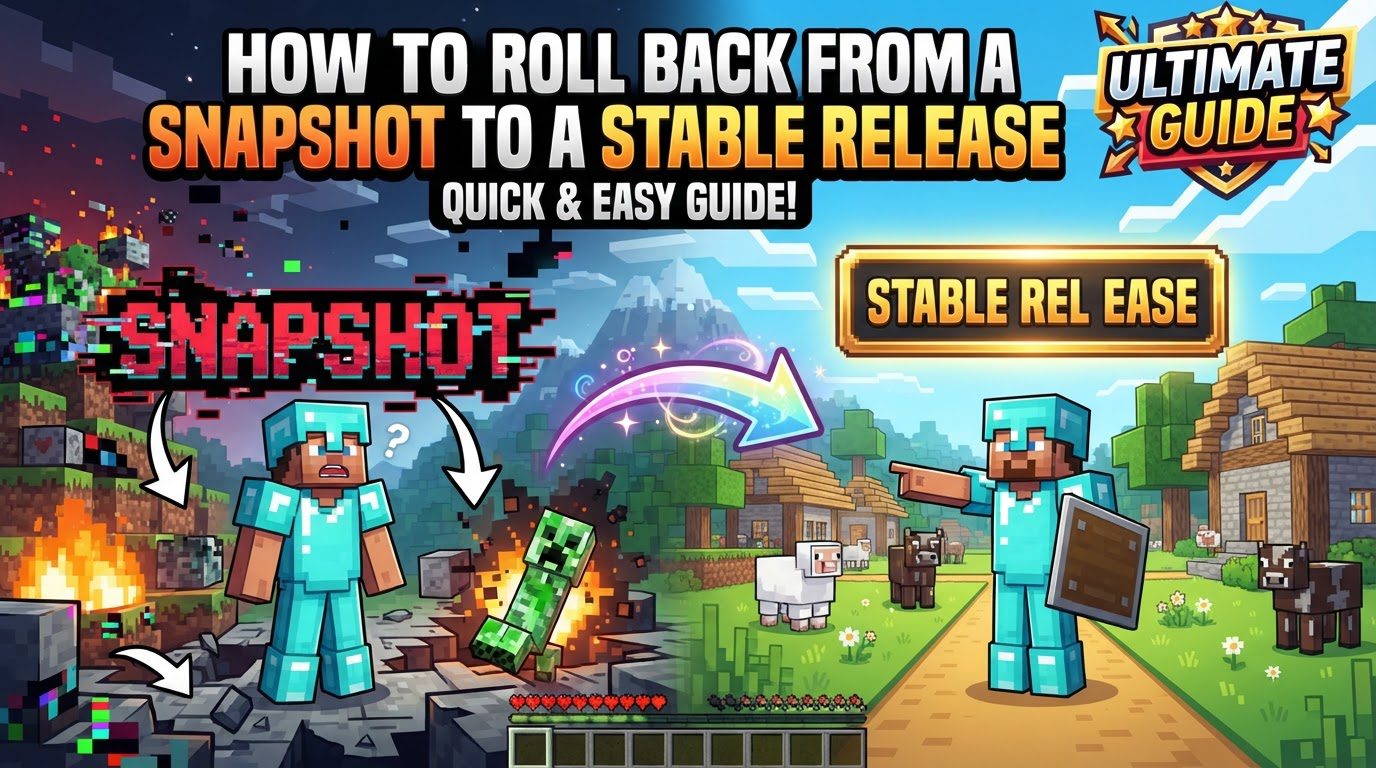
The primary reason for these risks lies in how Minecraft handles game data across different versions. When a world is loaded and played in a snapshot, it may incorporate new features, blocks, items, entities, enchantments, or biome generation mechanics that do not exist in older, stable releases. If you then attempt to load this world in a stable version that predates these snapshot features, the game’s engine will not know how to interpret or render the newer data. This discrepancy can result in the removal or alteration of these snapshot-specific features, leading to corrupted chunks, missing items, or other unpredictable game behavior.
Essential Precautionary Measures Before Any Rollback
Given the significant risks involved, taking preventative measures is not merely recommended but absolutely crucial before attempting any version change, especially when moving from a snapshot to a stable release. These steps are designed to protect your valuable game data and minimize potential losses.
- Always Create a Complete Backup of Your World Data: This is the single most important step. Before initiating any rollback process, whether for a client or a server, you must create a full and complete backup of your entire world folder. This backup should be stored in a safe location, separate from your main game directory. In the event of corruption or data loss during the rollback, this backup will be your only recourse to restore your world to its pre-rollback state. Without a recent backup, any irreversible damage to your world will result in permanent data loss.
- Utilize Separate Game Directories for Snapshot Installations: To protect your main, stable-release worlds from potential corruption by unstable snapshot versions, it is highly recommended to use separate game directories for any snapshot installations. This practice ensures that worlds created or played in snapshots are isolated from your stable release worlds. If a snapshot world becomes corrupted, it won’t affect your primary game saves. This segregation is a simple yet effective way to manage the risks associated with experimental game versions.
Rolling Back Your Minecraft Client (Single-Player Worlds)
If you’ve been playing a single-player world in a snapshot and wish to return to a stable release for other gameplay, the safest approach is to create a new installation within the Minecraft Launcher. It’s important to reiterate that playing a world that has been opened in a snapshot on an older stable release is highly discouraged due to the risk of corruption. Instead, it is generally recommended to continue playing such worlds only in future snapshots or the stable release they eventually lead to.
Here’s how to set up a stable release installation:
- Open the Minecraft Launcher: Launch the official Minecraft Launcher application on your computer. This is the central hub for managing your game versions and installations.
- Navigate to the “Installations” Tab: At the top of the launcher window, locate and click on the “Installations” tab. This section displays all your existing Minecraft game installations.
- Create a New Game Installation: Click on the “+ New” button, typically found near the top of the “Installations” tab. This action will open a configuration window for a new installation.
- Provide a Name for Your New Installation: In the “Name” field, enter a descriptive name for this new installation, such as “Minecraft 1.XX Stable” (where 1.XX is your desired stable version). This will help you easily identify it later.
- Select the Desired Stable Release Version: From the “Version” dropdown menu, scroll through the list and select the specific stable release version of Minecraft you wish to roll back to. Ensure you pick a version that is not a snapshot or pre-release.
- (Optional but Highly Recommended) Change the “Game Directory”: Below the version selection, you’ll find an option for “Game Directory.” It is strongly advised to change this to a separate, dedicated folder. This will ensure that any worlds played with this new stable installation are kept completely isolated from any snapshot worlds you may have. For example, you could create a folder like “C:\Users\YourUser\AppData\Roaming\.minecraft_stable”. This prevents accidental loading of snapshot worlds in a stable version, which could lead to corruption.
- Finalize the New Installation: Click the “Create” or “Save Profile” button at the bottom of the configuration window to save your new stable release installation.
- Launch the Stable Release: Return to the main launcher screen. From the version dropdown menu (usually next to the “Play” button), select your newly created stable release installation. Once selected, click “Play” to start Minecraft using the stable version.
Remember, if you previously opened a world in a snapshot, attempting to load that specific world in your new stable installation is highly likely to cause issues. It’s best to start new worlds with stable versions or continue snapshot-affected worlds in future snapshot or their eventual stable counterparts.
Rolling Back Your Minecraft Server
Rolling back a Minecraft server from a snapshot to a stable release follows a similar principle of version management but involves directly replacing server files. This process also carries significant risks of world data incompatibility and corruption, making prior backups absolutely essential.
Here are the steps to roll back your Minecraft server:
- Stop and Save Your Minecraft Server: Before making any changes, ensure your Minecraft server is completely stopped and that all world data has been saved. Do not simply close the server window; use the appropriate stop command (e.g., `stop` in the server console) to ensure a graceful shutdown and prevent data loss.
- Obtain the Stable Server JAR File: You need the official server `.jar` file for the specific stable Minecraft version you intend to roll back to. This can often be found directly through the Minecraft launcher. In the “Installations” tab, select the desired stable version, and then look for a “Server” button or link that allows you to download its corresponding server `.jar` file. Download this file to your server’s root directory.
- Replace Your Current Server’s JAR File: Locate the `.jar` file that your server is currently using (this will be the snapshot version). Rename it (e.g., `server_snapshot.jar`) or move it to a backup folder. Then, place the newly downloaded stable version `.jar` file into your server’s root directory. Ensure the filename matches what your server’s start script expects, or you will need to update the script.
- Update Your Server’s Start Script (If Necessary): If you previously renamed your original server `.jar` file or if you use a custom start script (e.g., `server.bat` on Windows or `server.sh` on Linux), you must ensure that your server’s start script is updated. The script needs to point to the correct filename of the new stable `.jar` file. Forgetting this step is a common mistake that will prevent your server from launching correctly. Open your start script in a text editor and modify the `java -Xmx… -jar your_server_name.jar nogui` line to reflect the new JAR file’s name.
- Start Your Server with the Stable Release JAR: Once the `.jar` file is replaced and the start script is updated (if needed), you can now start your server using the stable release `.jar`. Monitor the server console for any error messages during startup.
When downgrading a server, especially across multiple major versions, it is advisable to consider making incremental version changes if possible, backing up your world data at each step. This can sometimes help mitigate corruption, although it’s not a guarantee against issues when downgrading a world played in a snapshot.
Common Mistakes to Avoid During Rollbacks
Being aware of common pitfalls can help you navigate the rollback process more safely:
- Downgrading a World Without a Recent Backup: This is the most critical mistake. Any issues during the rollback, such as world corruption or data loss, will be irreversible without a backup. Always prioritize creating a complete world backup before any version change.
- Assuming Full Compatibility of Snapshot Worlds with Older Releases: A world played in a snapshot will almost certainly not be fully compatible with an older stable release. New blocks, items, or world generation features from the snapshot will either be removed, altered, or cause corrupted chunks when loaded in an older version. This assumption often leads to significant world damage.
- Not Using Separate Game Directories for Snapshot Installations: Failing to isolate snapshot installations can lead to your main, stable worlds being accidentally opened or corrupted by unstable snapshot versions. This can happen if the launcher defaults to the snapshot version and you inadvertently load a stable world.
- Forgetting to Update the Server Start Script: After replacing the server’s `.jar` file, a common oversight is not updating the server’s start script (e.g., `server.bat` or `server.sh`) to reflect the new JAR filename. This will prevent the server from launching, leading to confusion and troubleshooting.
By understanding the inherent risks, taking diligent preparatory steps like comprehensive backups and using separate directories, and carefully following the version management procedures, you can minimize the potential for data loss and successfully transition back to a stable Minecraft release.
Tags:
YOU MAY ALSO LIKE...