

Rebinding Inventory and Hotbar Keys — A Quick Guide
Minecraft, a game renowned for its expansive worlds and endless possibilities, also offers a deep level of personalization, extending to how players interact with its rich environment. A crucial aspect of this interaction is through keybindings – the assignment of specific actions to keys on your keyboard or buttons on your controller. Mastering how to customize these keybindings, particularly for your inventory and hotbar, can dramatically enhance your gameplay experience, making actions quicker, more intuitive, and ultimately, more enjoyable. This comprehensive guide will walk you through the process, providing insights into the underlying mechanics, a step-by-step approach, essential tips, and common pitfalls to avoid, all aimed at helping you tailor Minecraft to your unique playstyle.
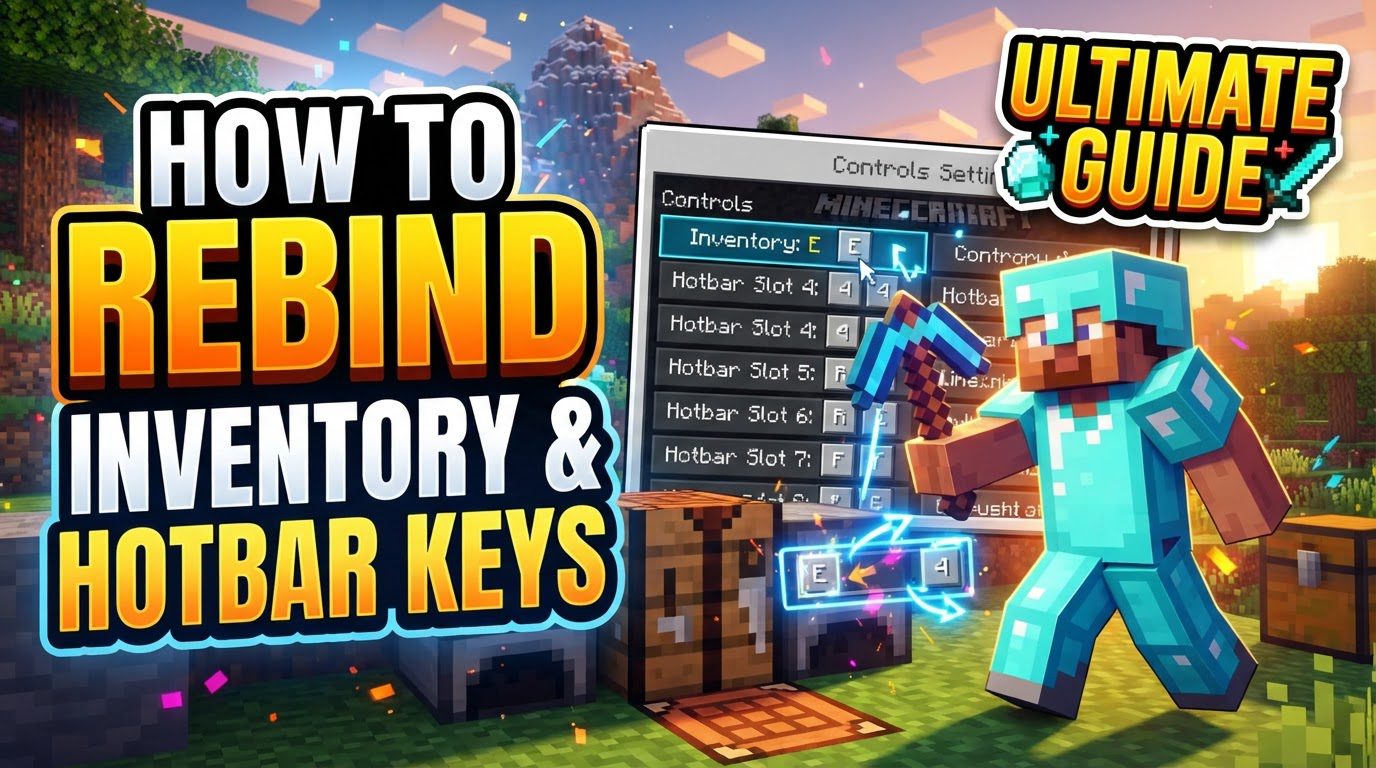
Understanding Keybinding Mechanics in Minecraft
At its core, Minecraft is designed to be adaptable. The game allows players to extensively customize keyboard and controller keybindings. This flexibility is not just a convenience; it’s a fundamental feature that empowers players to optimize their control scheme to suit their individual preferences, whether they prioritize combat efficiency, building precision, or resource management.
- The “Controls” or “Keybinds” Section: All keybinding adjustments are centralized within the game’s settings menu. Specifically, you’ll find a dedicated “Controls” or “Keybinds” section. This area serves as your command center for remapping virtually every in-game action, from movement to inventory management.
- One Action Per Key: A key aspect of vanilla Minecraft’s keybinding system is its simplicity: only one action can be assigned to a single key. This design choice prevents conflicts and maintains clarity in controls, though it means players cannot create complex macros or dual-purpose keys without external modifications. Understanding this limitation is crucial when planning your custom layout.
- Restoring Defaults: Should you ever find yourself in a control scheme that doesn’t quite work, or if you simply wish to revert to the game’s original settings, Minecraft provides options to restore default keybindings. This can be done for individual actions, allowing you to selectively undo changes, or for all settings simultaneously, providing a clean slate for your control configuration. This feature offers peace of mind, knowing that experimentation with keybindings is never permanent.
Step-by-Step Process: Rebinding Your Keys
Adjusting your keybindings in Minecraft is a straightforward process, accessible to all players regardless of their technical expertise. Follow these steps to customize your inventory and hotbar controls:
-
Open Settings: The first step is to access the game’s settings.
- If you are on the Minecraft main menu, simply click on “Settings” or “Options”.
- If you are already in-game, press the ‘Escape’ key to bring up the pause menu, then click on “Settings” or “Options” from there.
- Navigate to Controls: Within the “Settings” or “Options” menu, locate and select the “Controls” menu. This section is dedicated to all input-related configurations.
- Select Keybinds (If Applicable): In some versions or configurations of Minecraft, “Controls” might have sub-options. If you see a “Keybinds” sub-option, click on it to proceed to the list of actions and their assigned keys.
-
Locate the Action You Wish to Rebind: Scroll through the extensive list of actions until you find the specific one you want to change. For inventory and hotbar management, you’ll commonly look for:
- “Open/Close Inventory” (which by default is often assigned to the ‘E’ key).
- “Toolbar Slot Quick Select” actions, typically labeled 1 through 9, corresponding to your hotbar slots.
- Click on the Current Binding: Once you’ve identified the action, click on the button that displays the key currently assigned to it. This action will put the game into a “listening” mode, waiting for your new input.
- Press Your New Key: With the game listening, press the new key on your keyboard that you wish to assign to that action. The display next to the action name will update to reflect your new choice.
- Confirm Your Changes: After making your desired alterations, it’s crucial to confirm them. Click “Done” at the bottom of the screen, or simply back out of the menus. The game will automatically save your new keybinding configurations.
Important Tips for Optimal Play
Beyond the basic remapping process, certain strategic keybinding changes can significantly enhance your Minecraft experience, especially concerning inventory and hotbar management:
- Rebind Hotbar Slots 6-9: The default assignment of hotbar slots 6 through 9 often places them far from the ‘WASD’ movement keys, making them difficult to reach quickly during intense gameplay, such as combat or intricate building. Consider remapping these slots to more accessible keys near your primary movement controls. Examples include ‘C’, ‘X’, ‘Z’, ‘R’, ‘F’, or ‘G’. This allows for quicker access to frequently used items and tools, providing a notable advantage in fast-paced situations.
- Change the “Drop Item” Key: The default “Drop Item” key, ‘Q’, is often located very close to common movement keys (‘W’, ‘A’). This proximity makes it prone to accidental presses, which can lead to inadvertently dropping valuable items, particularly in stressful situations. Reassigning this action to a less frequently used or less accessible key can save you from frustrating losses.
- Utilize ‘Shift + Click’: While not a rebindable key, understanding the functionality of ‘Shift + Click’ is paramount for efficient inventory management. This combination allows you to quickly move entire stacks of items between your inventory, chests, crafting grids, and hotbar. It streamlines the process of sorting, storing, and preparing for adventures, saving considerable time compared to dragging and dropping individual stacks.
-
Leverage ‘Middle-click’: The middle-click button (often the scroll wheel button) offers two distinct, highly useful functions related to item selection:
- When looking at a block in the world, ‘Middle-click’ will select that specific block type from your hotbar, provided you have it in your inventory. This is incredibly useful for builders who need to quickly switch between block types.
- In Creative mode, ‘Middle-click’ duplicates the block or item you are looking at directly into your hotbar, allowing for rapid construction and experimentation without needing to constantly open the inventory.
- Press ‘Ctrl + Q’ to Drop a Stack: Similar to ‘Shift + Click’, ‘Ctrl + Q’ is a powerful default hotkey that allows you to drop an entire stack of items from your hand. This is distinct from the single-item drop of the ‘Q’ key and is invaluable for quickly clearing inventory space or transferring multiple items to another player or container.
- Consider Mods for Advanced Options: While vanilla Minecraft offers extensive keybinding options, some advanced users might seek even greater customization. Mods like “RebindAllTheKeys” can extend the game’s capabilities, providing options for keybinds not natively available in the vanilla game, such as assigning multiple actions to a single key or creating more complex control schemes.
Common Mistakes to Avoid
While customizing your keybindings offers many advantages, there are several common mistakes that can hinder your gameplay rather than improve it:
- Attempting to Bind a Single Key to Multiple Actions: As previously mentioned, vanilla Minecraft does not support assigning one key to perform multiple actions simultaneously. Trying to force this will lead to frustration, as the game will simply overwrite the previous binding or display an error. Stick to the “one action per key” rule for vanilla setups.
- Forgetting to Adjust Related Keybindings: When you rebind a key, especially a commonly used one, it’s easy to overlook other actions that might have been assigned to that same key by default. Forgetting to adjust these related keybindings can lead to unexpected behavior or render certain functions unusable. Always review your entire control scheme after making significant changes to ensure there are no unintended conflicts.
- Creating Conflicting Keybindings: A major pitfall is assigning a key that is crucial for one function (e.g., a movement key) to an entirely different, unrelated function (e.g., an inventory action). For instance, binding your “forward” movement key to “open inventory” would severely hinder your ability to navigate the world. Such conflicts can make gameplay frustrating and inefficient. Always ensure your keybindings complement each other and do not interfere with core game mechanics.
- Relying Solely on the Scroll Wheel for Hotbar Selection: While the scroll wheel is convenient for minor hotbar adjustments, relying on it as your primary method for selecting items, especially in combat or other fast-paced situations, can be less reliable than direct key presses. The scroll wheel can sometimes overshoot or react unpredictably under pressure. Direct keybinds for hotbar slots (1-9 or your remapped keys) offer precise, immediate access, which is crucial when every second counts.
By carefully considering your playstyle and following these guidelines, you can transform your Minecraft experience. Customizing your inventory and hotbar keybindings is not just about convenience; it’s about optimizing your interaction with the game world, allowing for smoother building, more effective combat, and more efficient resource management. Take the time to experiment, find what works best for you, and enjoy a truly personalized Minecraft adventure.
Tags:
YOU MAY ALSO LIKE...


