Configuring Graphics Quality Settings
Optimizing your Minecraft graphics settings is crucial for achieving a smooth and enjoyable gameplay experience, whether you’re battling mobs, exploring vast landscapes, or building intricate structures. The game offers a wide array of options to fine-tune visuals, allowing players to balance performance with graphical fidelity. Understanding each setting and its impact can transform your game from a stuttering mess to a silky-smooth adventure. This guide will walk you through the key graphics mechanics, provide a step-by-step configuration process, and offer essential tips to maximize your game’s performance and visual appeal.
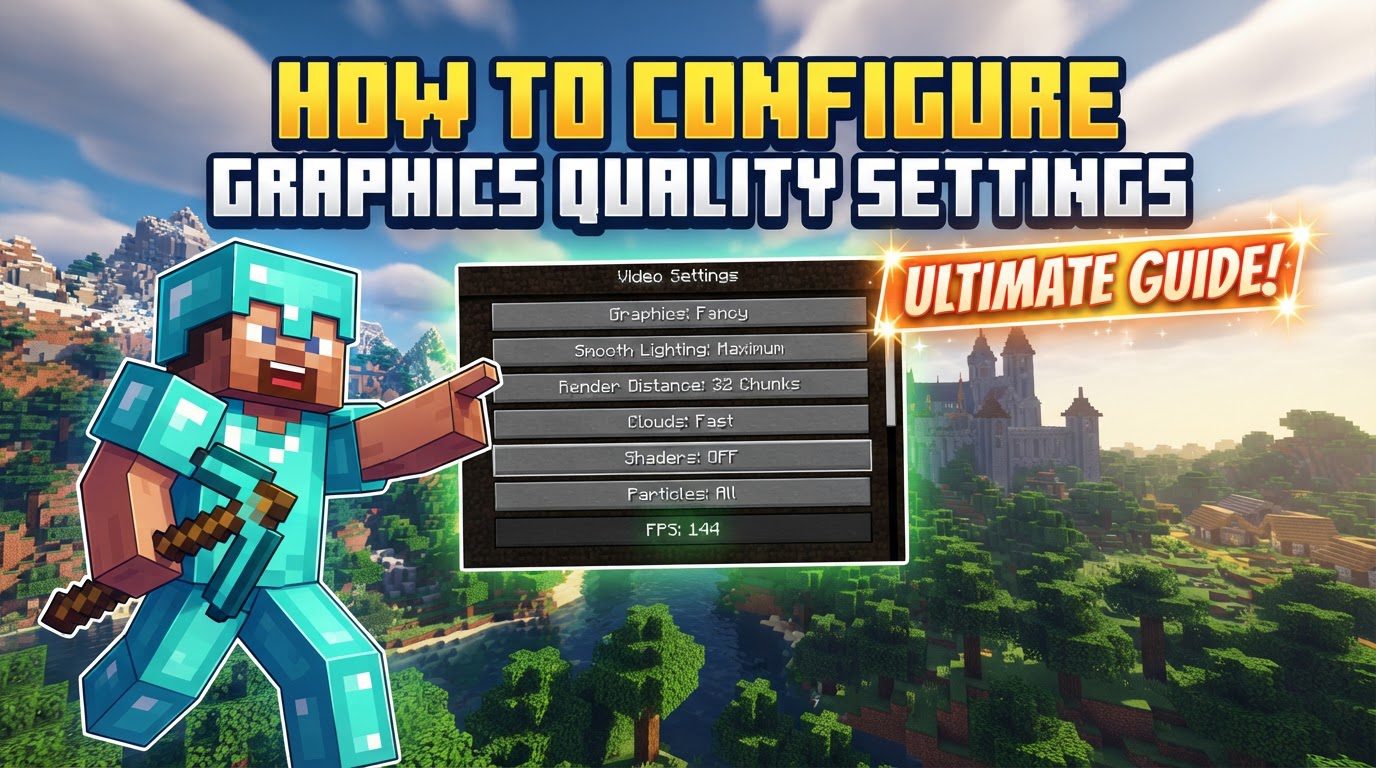
Key Graphics Settings Explained
- Render Distance: This setting controls how many chunks of the world are visible around your player. It has a drastic impact on performance, as rendering more chunks requires significantly more processing power. For many players, a range of 14-18 chunks strikes a good balance between performance and visual scope. However, for extremely low-end PCs, reducing this to 2-6 chunks might be necessary. It’s important to note that increasing render distance from, for example, 16 to 32 chunks can quadruple the load on your system.
- Simulation Distance: Independent of render distance, simulation distance dictates how far game logic, such as entity updates, crop growth, and redstone activity, is processed. This setting primarily affects your CPU load. A common recommendation is to set your simulation distance approximately 6 chunks lower than your render distance to maintain a good balance.
- Graphics (Fast/Fancy/Fabulous): This is a master toggle that adjusts various visual effects.
- Fast: Disables features like transparent leaves and certain weather particles, offering a significant boost to FPS.
- Fancy: Enables higher quality effects, improving the visual fidelity of various game elements.
- Fabulous: Utilizes screen shaders to draw weather, clouds, and particles correctly behind translucent blocks and water. While visually impressive, this setting can heavily impact performance, particularly on portable devices or systems running at 4K resolution.
- Smooth Lighting: This option calculates lighting per block or across adjacent blocks, adding a more realistic and ambient look to the game world. Turning smooth lighting off can provide a major FPS boost, but it results in a more blocky and less natural lighting appearance.
- Clouds: You have three options for clouds: none, fast, or fancy.
- None: Disables clouds entirely, offering the best performance.
- Fast: Renders clouds as flat-textured sprites.
- Fancy: Renders clouds as 3D volumetric objects, which are more visually appealing but can impact performance.
Turning clouds off or setting them to “Fast” can improve overall performance.
- Mipmap Levels: Mipmapping helps to smooth textures at a distance, reducing shimmering effects that can occur on detailed surfaces. While it generally improves visual quality, it can have a slight performance impact.
- Particles: This setting allows you to control the visibility of particles in the game. Options typically include showing all, some, or no particles. Reducing or completely disabling particles can help improve performance, especially during intense combat or when many effects are active.
- V-Sync: Vertical Synchronization attempts to synchronize your game’s frame rate (FPS) with your monitor’s refresh rate. While it can help prevent screen tearing, it can also introduce input lag and limit your FPS to your monitor’s maximum refresh rate. For those aiming for the highest possible frame rate, turning V-Sync off is often recommended.
- Resolution: Lowering the game’s resolution can significantly improve FPS, as it reduces the number of pixels your graphics card needs to render. However, this often comes at the cost of visual clarity, potentially making the game appear pixelated and less enjoyable. It’s generally best to use your screen’s native resolution, but if FPS is consistently too low, consider a common lower resolution like 1280×720.
- Biome Blend: This setting controls the smoothness of color transitions for elements like water, grass, and leaves when moving between different biomes. It typically has a minimal impact on FPS, making it a setting you can usually keep at a higher value without much concern.
- Entity Shadows: This option toggles the shadows cast by players, mobs, and dropped items. Disabling entity shadows can offer a noticeable improvement in performance, especially in areas with many entities.
- Transparent Leaves: When your “Graphics” setting is set to “Fast Graphics,” leaves will appear opaque. This specific optimization can significantly boost FPS, particularly in dense forest biomes where many leaf blocks are present.
- Entity Distance: This setting allows you to adjust how far entities are rendered relative to your chosen render distance. Reducing this can help performance by rendering fewer distant mobs or items.
Step-by-Step Configuration Process
Adjusting your graphics settings in Minecraft is a straightforward process, though it differs slightly between Java and Bedrock editions.
- For Java Edition:
- Launch Minecraft.
- From the home screen, select “Options.”
- Navigate to “Graphics Settings” or “Video Settings.”
- Adjust individual settings according to your preferences and system capabilities. Hovering your mouse over most options will often provide a short description of what they do.
- Click “Done” to apply your changes.
- For Bedrock Edition:
- Access “Settings” from the launch screen.
- Go to the “Video” tab.
- If you are making changes that affect “Vibrant Visuals” or other world-specific rendering options, it’s often recommended to save and exit your world first, then access settings from the launch screen before re-entering.
- Adjust settings as desired.
- Click “Done” to apply changes.
Important Tips for Optimization
- Balance Performance and Visuals: Don’t aim for maximum settings immediately. Start by using the game’s preset sliders (Fast, Fancy, Fabulous, Custom) as a baseline. From there, fine-tune individual options to find the perfect balance between improved graphics and smooth gameplay for your system.
- Prioritize Key Settings: When looking for the biggest impact on your FPS, focus your adjustments on Render Distance, Simulation Distance, the main Graphics (Fast/Fancy) toggle, and Smooth Lighting. These settings generally have the most significant effect on performance.
- Pre-Game System Optimization: Before even launching Minecraft, you can take steps to optimize your system.
- Dedicated GPU for Laptops: If you’re on a laptop with both integrated and dedicated graphics, ensure Minecraft uses your dedicated GPU. In Windows, add `javaw.exe` to the Graphics Settings and set it to “High Performance.”
- Update Graphics Drivers: Always keep your graphics drivers up to date. Download them directly from your manufacturer’s website (NVIDIA, AMD, Intel) rather than relying on Windows Update. Outdated drivers are a common cause of performance issues.
- Windows Power Plan: Set your Windows Power Plan to “High Performance” or “Ultimate Performance” to ensure your CPU and GPU are running at their full potential.
- Close Background Applications: Close any unnecessary background applications like web browsers (e.g., Chrome), communication apps (e.g., Discord), or other demanding software to free up CPU and RAM resources for Minecraft.
- Operating System Updates: Ensure your operating system is up to date, as updates often include performance improvements and bug fixes.
- Gradual Adjustment: If you’re experiencing significant lag, start by turning down many settings to their lowest or “Fast” options. Then, gradually re-enable or increase settings one by one until you find a balance that provides both improved graphics and smooth, playable frame rates.
- Brightness: For gameplay advantages, especially in dark areas, it’s often recommended to set your in-game brightness to full.
- Fullscreen: Playing Minecraft in fullscreen mode can help your operating system prioritize the game’s view and allocate more resources to it, potentially improving performance.
- Allocate RAM: Ensure you allocate the correct amount of RAM to Minecraft. Too much or too little RAM allocated can both hinder performance. For most users, 4-8GB is a good range, depending on your total system RAM and whether you’re using mods.
- Consider Mods: For significant FPS boosts beyond what vanilla settings can offer, consider using performance-enhancing mods like Optifine (for shader support and extensive optimization options) or Sodium (a modern rendering engine for substantial frame rate improvements).
Common Mistakes to Avoid
- Excessive Render Distance: This is arguably the most common mistake. Setting render distance too high is a primary cause of poor performance due to its exponential impact on system load. Resist the urge to max it out unless your system can truly handle it.
- Ignoring Simulation Distance: While render distance gets a lot of attention, overlooking simulation distance can lead to significant CPU bottlenecks, especially in areas with complex redstone contraptions or many active entities.
- Keeping V-Sync On for Max FPS: If your goal is to achieve the highest possible frame rate, keeping V-Sync on will limit your FPS to your monitor’s refresh rate, which might be lower than what your system can actually produce.
- Not Updating Drivers: Outdated graphics drivers are a frequent culprit behind stuttering, low FPS, and even game crashes. Always ensure your drivers are current.
- Playing in Windowed Mode with Performance Issues: If you’re struggling with performance, playing in windowed mode can prevent the game from getting full resource priority from your operating system. Switch to fullscreen for better results.
- Disabling Smooth Lighting if Visuals are Important: While turning off smooth lighting provides an FPS boost, it makes the game look significantly less realistic and dull. If aesthetics are a priority, try to keep this enabled and optimize other settings first.
- Setting Render Chunk Number Less Than 8: While extremely low render distances (e.g., below 8 chunks) will boost FPS, they can lead to an unpleasant and disorienting viewing experience, making it difficult to navigate or appreciate the world.
Tags:
YOU MAY ALSO LIKE...