Enabling Subtitles for Sound Effects (Step by Step)
Understanding Minecraft Subtitles for Sound Effects
Minecraft, a game renowned for its immersive worlds and intricate soundscapes, offers a powerful accessibility feature known as subtitles, or captions, for its sound effects. These visual cues translate the game’s audio into on-screen text, providing invaluable assistance to players who are deaf or hard of hearing, or simply prefer to play with the sound off. While primarily designed as an accessibility tool, subtitles also serve to significantly enhance overall player awareness and strategic gameplay for everyone.
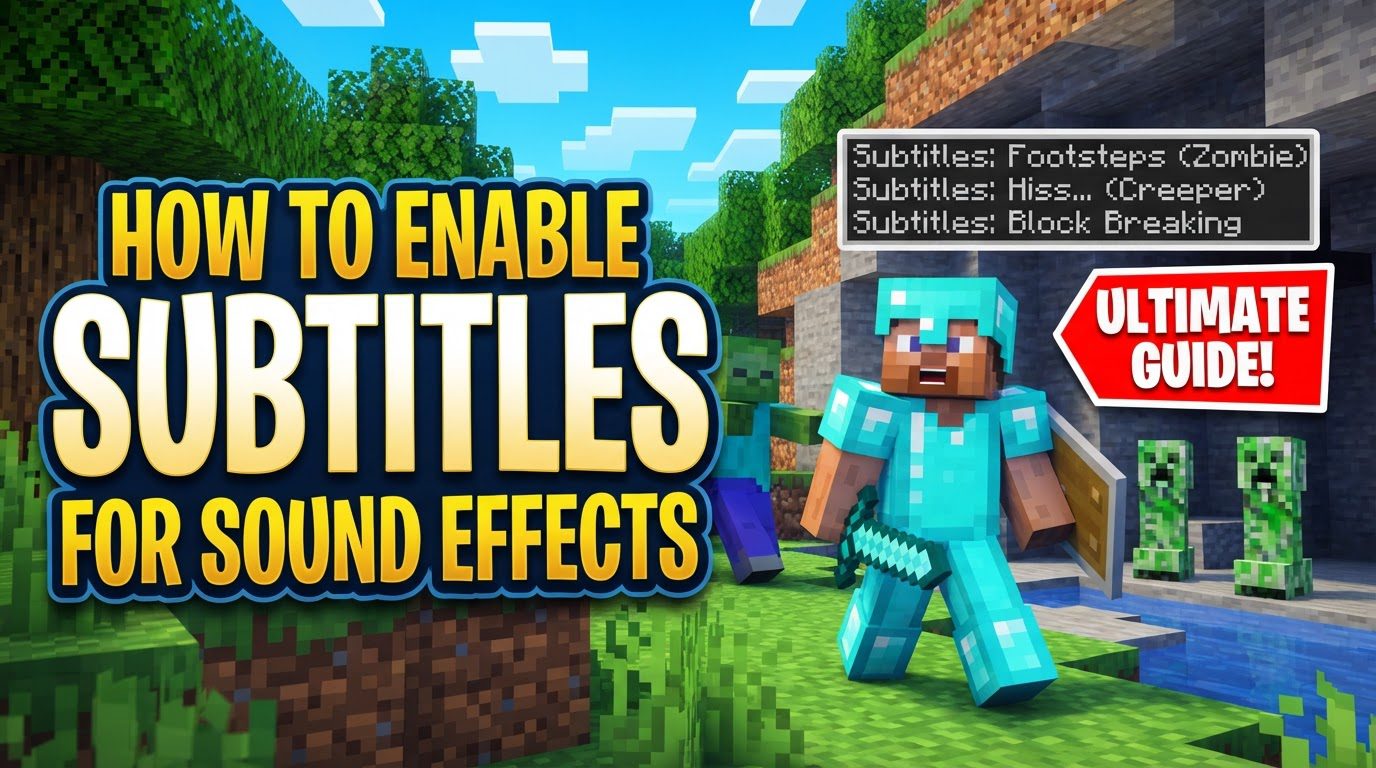
Subtitles typically manifest as text within a dedicated box on the screen. In Minecraft Java Edition, this box usually resides in the bottom right corner, whereas in Bedrock Edition, subtitles appear more dynamically on-screen. This text lists nearby sounds as they occur, offering a clear visual representation of audio events. A crucial aspect of these subtitles is their ability to provide directional cues. For sounds originating off-screen, indicators such as “<” or “>” will appear next to the subtitle, guiding players towards the source of the noise. Furthermore, the textual representation of a sound is designed to fade gradually as the corresponding in-game sound diminishes, offering a natural and intuitive experience.
The system is comprehensive, covering a vast array of in-game sounds. This includes ambient environmental noises, distinct sounds made by various entities (such as “Rabbit squeaks” or “Villager mumbles”), and even the subtle sounds associated with block interactions. Each of these sounds is assigned an individualized subtitle, ensuring that players receive precise and contextual information about their auditory environment.
Enabling Subtitles: A Step-by-Step Guide
Activating subtitles in Minecraft is a straightforward process, though the exact steps vary slightly between the Java and Bedrock editions of the game.
For Minecraft Java Edition:
-
Step 1: Access the Options Menu.
Whether you are at the game’s main menu or currently in-game, you can access the necessary settings. If in-game, press the ‘Esc’ key to bring up the pause menu. From either location, select the “Options” button. This will lead you to a new screen with various game settings.
-
Step 2: Navigate to Sound or Accessibility Settings.
Within the “Options” menu, you will need to find the relevant section. Look for “Music & Sounds” or, alternatively, “Accessibility Settings.” Both paths can lead you to the subtitle toggle, depending on your game version or specific interface configuration.
-
Step 3: Toggle “Show Subtitles” to ON.
Once you are in the appropriate settings section, locate the option labeled “Show Subtitles.” This will typically be a button or a toggle switch. Click on it to change its state from “OFF” to “ON.” A visual confirmation, such as the text changing or the switch moving, will indicate that the feature is now active.
-
Step 4: Save Your Changes.
After enabling “Show Subtitles,” it is imperative to save your changes. Look for a “Done” button, usually located at the bottom of the screen. Clicking this will apply your new settings and return you to the previous menu or the game itself.
For Minecraft Bedrock Edition:
-
Step 1: Go to “Settings.”
From the main menu of Minecraft Bedrock Edition, locate and select the “Settings” option. This will open the comprehensive game settings interface.
-
Step 2: Select “Accessibility.”
Within the “Settings” menu, scroll down or look for the “Accessibility” category. Click on this option to access all the game’s accessibility-related features and configurations.
-
Step 3: Enable “Closed Captions” (or “Subtitles”).
Inside the “Accessibility” menu, you will find an option specifically for “Closed Captions” or, in some versions, “Subtitles.” Toggle this option to enable it. Once activated, you may also find additional customization settings available within this section, allowing you to fine-tune your subtitle experience.
-
Step 4: Adjust Customization Settings (Optional).
Bedrock Edition often provides further options to personalize subtitles. These might include adjusting their duration on screen, their on-screen position, or even filtering which specific sounds are displayed. Take some time to explore these additional settings to optimize them to your preference.
Enhancing Your Gameplay with Subtitles
Beyond their primary role as an accessibility feature, subtitles offer significant advantages that can enhance the gameplay experience for all players. They act as an extra layer of sensory input, providing visual cues that can be critical in various situations.
One of the most immediate benefits is enhanced player awareness. Subtitles provide visual alerts for sounds that might otherwise go unnoticed, especially in chaotic environments or when playing with low volume. This includes critical information like footsteps, the distinct sounds of mob movements, and the tell-tale hiss of a creeper. By providing a visual indicator of these threats, subtitles can significantly improve your reaction time and overall survival chances in dangerous situations.
Furthermore, subtitles can be an invaluable tool for locating hidden elements within the game world. For instance, the sound of flowing lava in a dark cave might be difficult to pinpoint audibly, but a subtitle with a directional cue can guide you directly to its source. This applies to various other environmental sounds or even distant entity noises, helping players discover resources, hidden passages, or even track down elusive mobs more efficiently.
In Minecraft Bedrock Edition, the customization options available for subtitles further expand their utility. Players can often adjust the duration for which subtitles remain on-screen, ensuring they have ample time to read and process the information. The ability to modify their on-screen position allows players to place them where they are least intrusive yet still easily visible. Moreover, Bedrock Edition offers filtering capabilities, letting players choose which sounds are displayed. This means you can, for example, hide subtitles for your own actions (personal sounds) or environmental effects like weather, allowing you to focus only on external or more critical sound cues.
Common Pitfalls and Important Considerations
While subtitles are a highly beneficial feature, it’s important to be aware of certain common misunderstandings and potential limitations to ensure the best experience.
One prevalent misconception relates to platform exclusivity. For nearly a decade, subtitles were a feature exclusive to Minecraft Java Edition. However, this is no longer the case; Minecraft Bedrock Edition now fully supports closed captions, offering a similar, if not more customizable, experience. Therefore, players on either platform can leverage this powerful tool.
Another crucial point is game version requirements. To access the subtitle feature in Minecraft Java Edition, players must ensure they are playing on version 1.9 or newer. Older versions of the game will not have this functionality available, so updating your game client is necessary if you intend to use subtitles.
Players often inquire about subtitle text transparency, assuming they can adjust how opaque the subtitle text itself appears. However, it’s important to clarify that transparency options within Minecraft settings typically apply to elements like the chat background or other UI components, not specifically to the subtitle text. The subtitle text usually maintains a default level of visibility to ensure readability.
Finally, it’s worth noting that Mojang, the developers of Minecraft, acknowledge that there might be occasional issues with the subtitle system. These potential inconsistencies can include incorrect or inconsistent sound displays, where a subtitle might not accurately reflect the sound or its source. Furthermore, in vertically complex areas, directional indicators (like “<” or “>”) might sometimes be confusing or less precise than desired, leading to minor disorientation. While these occurrences are generally rare, it’s good to be aware that the system, like any complex feature, may not always be perfectly flawless.
By understanding how to enable and effectively utilize subtitles, and by being aware of their nuances, Minecraft players can significantly enhance their immersion, awareness, and overall enjoyment of the game world.
Tags:
YOU MAY ALSO LIKE...