Configuring Chat Text Size
Mastering Your Minecraft Chat: A Comprehensive Guide to Text Size Configuration
In the vast and dynamic worlds of Minecraft, communication is key. Whether you’re coordinating with friends on a build, trading with villagers, or simply chatting with fellow players on a server, the in-game chat system is an indispensable tool. However, for an optimal and comfortable experience, the readability of chat text is paramount. This guide will walk you through the essential steps and nuanced considerations for configuring your chat text size in both Minecraft Java Edition and Bedrock Edition, ensuring your communication is always clear and perfectly scaled to your preferences.
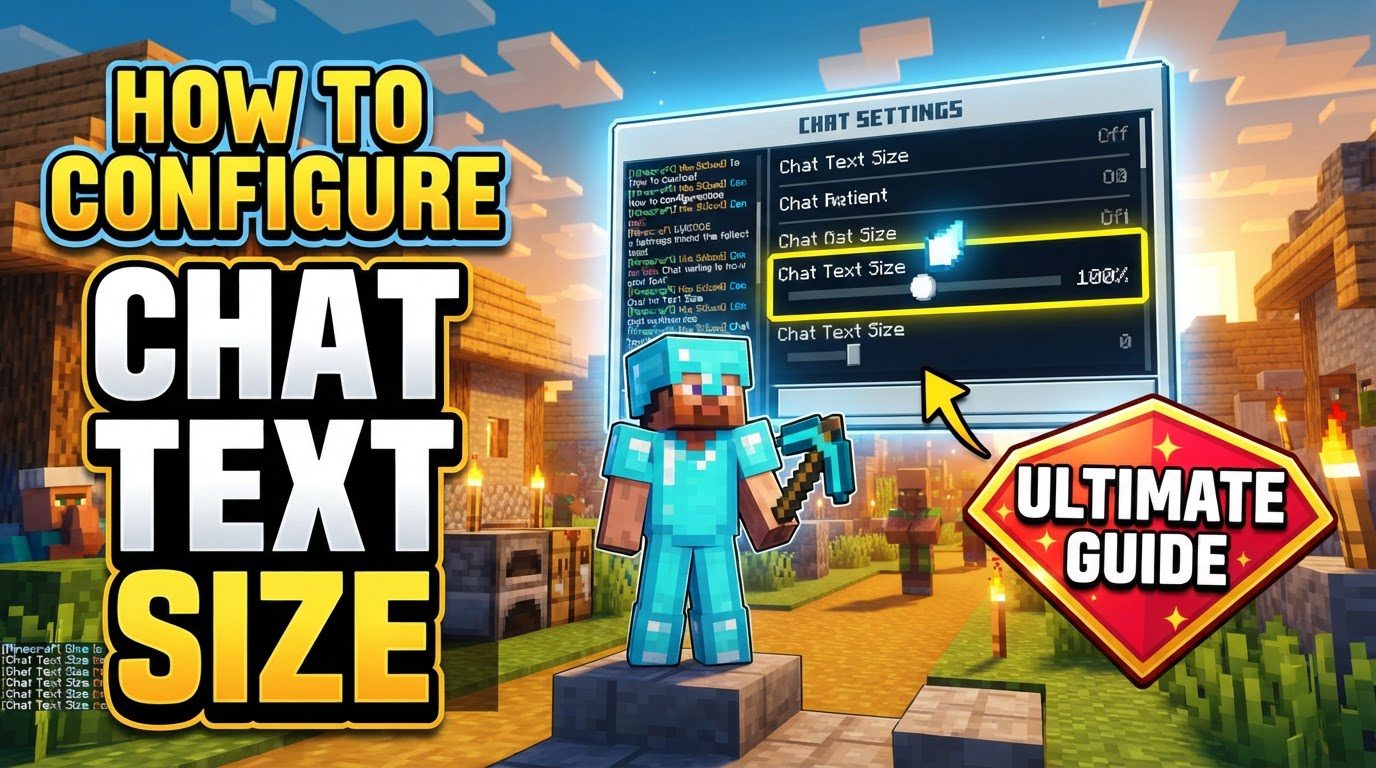
Understanding how to adjust chat text size goes beyond a simple aesthetic choice; it’s about optimizing your gameplay experience. Text that is too small can strain your eyes and lead to missed messages, while text that is excessively large can obstruct your view of the game world. Minecraft provides dedicated settings to fine-tune this aspect, allowing players to achieve the ideal balance for their display and personal comfort.
Key Mechanics of Chat Text Size Adjustment
Minecraft offers intuitive and dedicated chat settings designed specifically for text size configuration across its main editions. Recognizing these core mechanics is the first step towards achieving your desired display:
- Dedicated Chat Settings: Both Minecraft Java Edition and Bedrock Edition feature specific menus within their options where chat-related preferences can be managed. These menus house the primary control for chat text size.
- Adjustable Slider Control: Within these dedicated chat settings, you will find a specific slider. This interactive element allows for precise adjustment of the chat text size, typically offering a broad range of options to suit various needs.
- Influence of GUI Scale: A crucial factor to understand is that the overall Graphical User Interface (GUI) scale can significantly impact the perceived size of the chat text. This is particularly noticeable in Java Edition, where the GUI scale setting can either complement or counteract your specific chat text size adjustments. In essence, the GUI scale acts as a global magnifier or reducer for all on-screen interface elements, including the chat window and its contents.
Step-by-Step Process for Java Edition
Configuring chat text size in Minecraft Java Edition is a straightforward process, primarily involving a dedicated setting within the game’s options menu. Follow these steps to tailor your chat display:
- Accessing Options: From the main menu of Minecraft Java Edition, locate and select the “Options…” button. This is your gateway to all in-game settings, including those for chat and video.
- Navigating to Chat Settings: Within the “Options…” menu, you will find various categories. Look for and select “Chat Settings…”. This menu is specifically designed to control how your in-game chat appears and behaves.
- Adjusting Chat Text Size: Inside the “Chat Settings…” menu, you will encounter a control labeled “Chat Text Size”. This is typically presented as a slider. Carefully adjust this slider to your preferred size. The range usually spans from 0% (making the text extremely small or nearly invisible) to 100% (displaying the text at its maximum default size). Experiment with different percentages to find what feels most comfortable and readable on your screen.
- Considering GUI Scale (Optional but Recommended): After adjusting the chat text size, you might find that the chat still doesn’t look quite right in relation to other on-screen elements. To further fine-tune the overall display, especially if the chat appears disproportionately large or small, navigate back to the main “Options…” menu. From there, select “Video Settings…”. Within the “Video Settings…” menu, you will find an option to modify the “GUI Scale”. Adjusting this setting will scale all interface elements, including the chat window and its text, uniformly. This can be particularly useful for achieving a harmonious look across your entire user interface.
Step-by-Step Process for Bedrock Edition
Minecraft Bedrock Edition also provides clear pathways to adjust chat text size, ensuring players on various platforms can customize their communication experience. The process is similar to Java Edition but with some distinct navigational points:
- Accessing Options: From the main menu of Minecraft Bedrock Edition, begin by selecting “Options…”. This will lead you to the game’s primary settings configurations.
- Navigating to Chat Settings: After entering the “Options…” menu, proceed to “Chat Settings…”. Alternatively, in some versions or contexts, you might find that chat settings are conveniently accessible directly from within the chat screen itself. This allows for quick adjustments without leaving your current gameplay session entirely.
- Locating Chat Text Size Option: Within the chat settings, actively look for an option specifically designed to change “Chat Text Size”. Similar to Java Edition, this will likely be a slider or a clear numerical input that allows you to increase or decrease the size of the text displayed in the chat window. Adjust this to match your viewing preferences and screen resolution.
- Utilizing GUI Scale Modifier: Bedrock Edition, like Java, also incorporates a global interface scaling option that can influence the final appearance of your chat. To access this, navigate to the “Video Settings” menu. Here, you will find a “GUI Scale Modifier” option. Adjusting this modifier will scale all graphical user interface elements, which in turn will affect the size of the chat text. This setting is crucial if the chat text, even after specific chat size adjustments, still appears too large or too small relative to other UI components. It provides an overarching control for the scale of your entire on-screen display.
Important Tips for Optimal Chat Display
Beyond the basic steps, several tips can help you achieve the best possible chat text size and overall chat experience:
- Recommended Chat Text Size: A commonly recommended chat text size, particularly when adjusting the dedicated slider, is around 60%. This percentage often provides a balanced view, making the text easily readable without occupying an excessive amount of screen space or appearing too small on most display setups. However, this is a general guideline; your personal preference and monitor size should ultimately dictate your choice.
- Bedrock Edition Customization: In Bedrock Edition, your customization options extend beyond just text size. You can also personalize the chat’s color and font. These additional settings allow for a more unique and perhaps more accessible chat experience, letting you choose colors that are easier on your eyes or fonts that you find more legible. Explore these options within the chat settings to truly make the chat your own.
- Checking GUI Scale: If, after making adjustments within the “Chat Settings” menu, the chat text still seems disproportionately large or small, it is imperative to check the “GUI Scale” (in Java Edition) or “GUI Scale Modifier” (in Bedrock Edition) within your “Video Settings”. These global scaling options can significantly impact how all on-screen elements, including the chat window and its text, are displayed. They can override or heavily influence the specific chat text size setting, so ensuring they are set appropriately is key to achieving your desired final look.
Common Mistakes to Avoid
While configuring chat text size might seem straightforward, there are a couple of common pitfalls that players often encounter. Being aware of these can save you time and frustration:
- Exclusively Checking Chat Settings: A frequent mistake is to focus solely on the “Chat Settings” menu when trying to adjust text size. While this menu is the primary location for chat-specific adjustments, it’s not always the complete solution. If the chat appears disproportionately large or small compared to other UI elements, or if changes in the chat text size slider don’t have the expected impact, the “Video Settings” (specifically, the GUI Scale) might also need adjustment. Overlooking this can lead to a less-than-ideal visual balance.
- Underestimating GUI Scale Influence: Another common error is assuming that the chat size setting is the only factor determining the final text presentation. This is incorrect. The “GUI Scale Modifier” in Bedrock Edition (or “GUI Scale” in Java Edition) can exert a powerful influence, effectively overriding or heavily influencing the final perceived size and appearance of the chat text. It acts as a master scale for all UI elements. Therefore, if your chat text still isn’t quite right after adjusting the dedicated chat size slider, always remember to check and potentially modify the global GUI scale setting to achieve the perfect balance.
By understanding these mechanics, following the step-by-step guides for your specific Minecraft edition, applying the helpful tips, and avoiding common mistakes, you can effectively configure your chat text size. This attention to detail ensures that your Minecraft experience is not only engaging but also comfortable and visually optimized for clear and effortless communication within the game.
Tags:
YOU MAY ALSO LIKE...