

Configuring OptiFine’s Dynamic Lighting — A Quick Guide
Understanding OptiFine’s Dynamic Lighting
OptiFine’s Dynamic Lighting feature revolutionizes how light interacts with your Minecraft world, offering a significantly more immersive visual experience. At its core, this functionality allows certain light-emitting items to cast light onto their surroundings not just when they are placed, but also when they are held by the player or even when they are dropped. Imagine exploring a deep, dark cave, and as you hold a torch in your hand, a circle of light moves with you, illuminating the treacherous path ahead without the constant need to place and break torches. This is the magic of dynamic lighting.
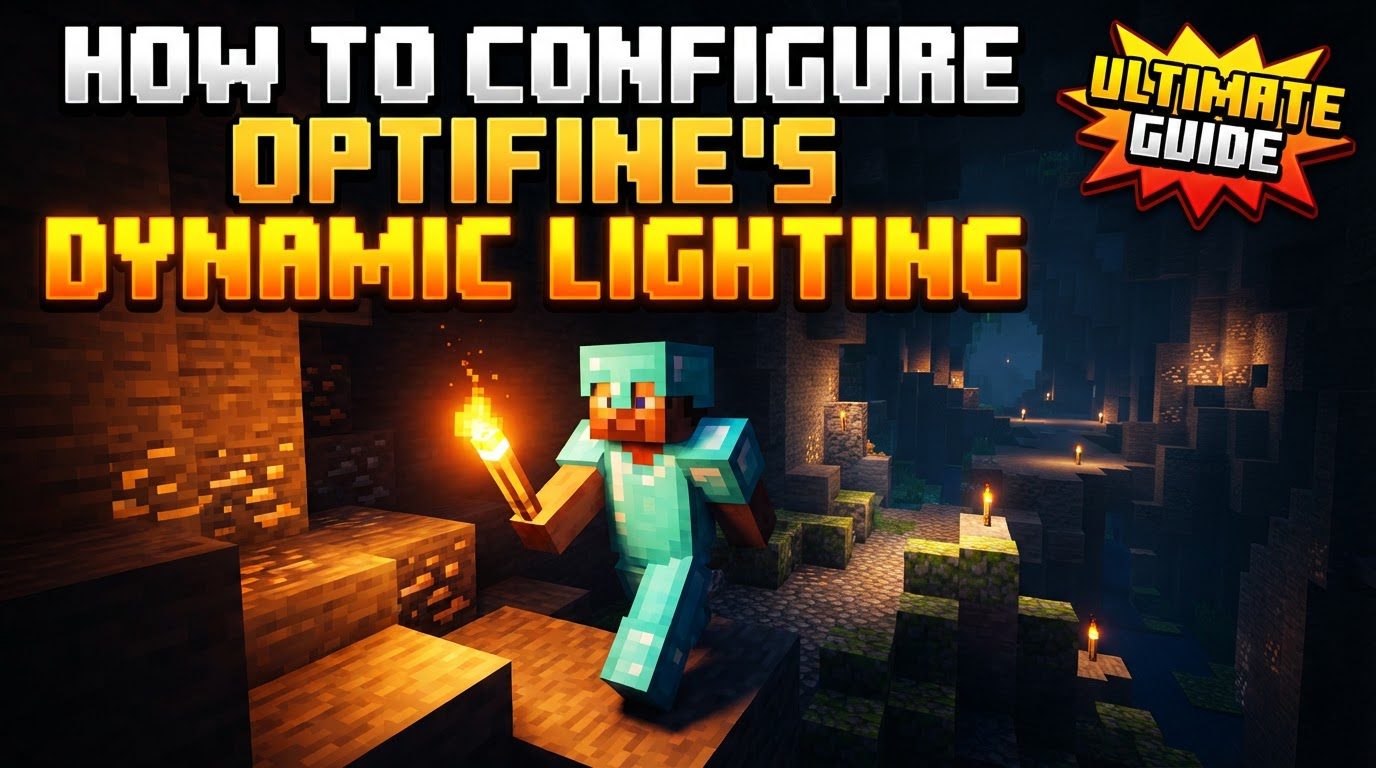
It’s crucial to understand that dynamic lighting is a purely visual, client-side effect. This means it only affects what you, the player, see on your screen. It does not alter the actual block light level within the game world. Consequently, while your screen may appear brightly lit by a held torch, the game engine still registers those blocks as dark. This distinction has a significant implication: dynamic lighting does not affect mob spawning. Mobs will continue to spawn in visually dark areas, even if your held torch makes them appear well-lit to you. OptiFine holds a historical place in the Minecraft modding community as one of the pioneering modifications to introduce this highly sought-after feature, transforming the way players interact with light in their adventures.
Step-by-Step Guide to Configuring Dynamic Lighting
Installing OptiFine
Before you can enjoy the benefits of dynamic lighting, OptiFine must be correctly installed. This process is straightforward but requires attention to detail.
- Download OptiFine: Your first step is to visit the official OptiFine website. It is imperative to download the latest compatible version of OptiFine for your specific Minecraft game version. Downloading from unofficial sources can pose security risks or lead to compatibility issues. Always double-check that the OptiFine version matches your Minecraft client version (e.g., OptiFine 1.20.1 for Minecraft 1.20.1).
- Install OptiFine: Once downloaded, the OptiFine file will typically be a `.jar` file. Locate this file and double-click it. This will open an installer window. The installer will usually detect your Minecraft directory automatically. Before proceeding with the installation, ensure you have run the corresponding vanilla Minecraft version at least once. This step is vital as it allows Minecraft to generate necessary game files and folders that the OptiFine installer relies upon. Without running the vanilla version first, the installer might encounter errors or fail to properly integrate OptiFine into your game. Click the “Install” button in the installer window.
- Launch Minecraft with OptiFine: After a successful installation, close and then reopen your Minecraft launcher. On the launcher screen, locate the “Installations” tab or the version selection dropdown menu. You should now see a new game version profile labeled “OptiFine” (or similar, depending on the version). Select this OptiFine-modded game version. This ensures that when you launch Minecraft, it loads with all the enhancements and features OptiFine provides, including the dynamic lighting functionality.
Enabling Dynamic Lighting In-Game
Once OptiFine is installed and you’ve launched Minecraft using its profile, you can proceed to enable and configure dynamic lighting within the game itself.
- Access Game Settings: While in your Minecraft world or on the main menu, press the ‘Esc’ key to open the game menu. From there, click on “Options…” to access the general game settings.
- Navigate to Video Settings: Within the “Options” menu, select “Video Settings.” This section houses all of OptiFine’s graphical enhancements and performance optimizations.
- Locate Dynamic Lights: Scroll through the various video settings until you find the option labeled “Dynamic Lights.” By default, after a fresh OptiFine installation, this setting is often turned “Off,” requiring manual activation.
-
Choose Your Setting: Click on “Dynamic Lights” to cycle through its available options. You will typically be presented with two choices:
- “Fast”: This setting provides a more rudimentary version of dynamic lighting. Light updates occur approximately every 500 milliseconds. While not as smooth as the “Fancy” option, “Fast” is an excellent choice for players with slower or less powerful machines, as it demands fewer computational resources, helping to maintain a stable frame rate. The visual effect is still present, but the transitions might appear slightly choppier.
- “Fancy”: This option offers a smoother and visually more appealing dynamic lighting experience. Light updates are more frequent and seamless, resulting in a more fluid and realistic illumination effect. “Fancy” is recommended for players with more robust systems that can handle the increased graphical demands without significant performance degradation.
Important Tips for Optimal Dynamic Lighting Usage
- Performance Considerations: The choice between “Fast” and “Fancy” dynamic lighting settings is primarily dictated by your system’s performance capabilities. “Fancy” provides a superior visual quality with smoother light transitions, but this comes at the cost of increased CPU and GPU usage. If you experience noticeable frame rate drops, stuttering, or an overall sluggish game experience with “Fancy” enabled, switching to “Fast” is highly recommended. Experiment with both settings to find the optimal balance between visual fidelity and smooth gameplay for your specific hardware configuration.
- Strategic Off-Hand Usage: To maximize the practical utility of dynamic lighting, particularly during activities like mining or combat in dark areas, strategically place a light-emitting item in your off-hand slot. Items such as torches, glowstone, or even lava buckets can be held in your off-hand. This allows you to continuously illuminate your immediate surroundings while keeping your main hand free for tools (like pickaxes for mining) or weapons (for fending off mobs). This eliminates the tedious process of repeatedly placing and breaking torches, greatly enhancing exploration and resource gathering efficiency in dark environments.
- Advanced Customization via Properties File: While OptiFine’s in-game menu doesn’t offer direct customization for the light levels of vanilla Minecraft entities or items, advanced users have a powerful tool at their disposal: the `dynamic_lights.properties` file. This configuration file, typically found within your Minecraft directory’s OptiFine configuration folder, allows for granular control. By editing this file, you can set specific light levels (ranging from 0, no light, to 15, maximum light) for custom items and entities introduced by other mods. This level of customization enables modpack creators or technically savvy players to integrate dynamic lighting seamlessly with their custom content, ensuring that even unique items cast appropriate light. This requires careful editing and understanding of file structures, but it unlocks significant potential for personalized lighting effects.
- Synergy with Shaders: Dynamic lighting often achieves its most stunning and immersive effects when used in conjunction with shader packs. Many modern shader packs incorporate advanced lighting systems, such as physically based rendering (PBR) or global illumination, which can interact beautifully with OptiFine’s dynamic lighting. When combined, the dynamic light sources can cast more realistic shadows, reflect off surfaces in a more natural way, and contribute to a more atmospheric and visually coherent world. The smoother and more sophisticated lighting calculations performed by shaders can enhance the perceived quality and smoothness of OptiFine’s dynamic lighting, making the experience even more captivating.
Common Mistakes to Avoid
- Forgetting to Enable in Settings: One of the most frequent oversights is simply forgetting to activate dynamic lighting. Upon installing OptiFine, the “Dynamic Lights” option in the video settings is typically set to “Off” by default. If you’ve installed OptiFine but aren’t seeing any dynamic illumination, always remember to navigate to “Video Settings” and turn the feature “On,” selecting either “Fast” or “Fancy.”
- Incorrect Expectations for Mob Spawning: As previously emphasized, dynamic lighting is purely a visual effect. It does not alter the game’s internal light level calculations that govern mob spawning. A common misconception is that holding a torch will prevent hostile mobs from spawning in dark caves. This is incorrect. While the area may appear brightly lit to you, the game still registers it as dark, allowing mobs to spawn normally. Always rely on placed torches or other permanent light sources if your goal is to prevent mob spawns.
- Compatibility Issues with Other Mods: OptiFine, especially due to its deep integration with Minecraft’s rendering engine, can sometimes encounter compatibility issues with other mods. This is particularly true for mods that also modify lighting, rendering, or visual effects. If dynamic lights are not functioning as expected, or if you experience crashes or graphical glitches, it’s prudent to check for potential mod conflicts. Try running OptiFine with only the core game and then gradually add other mods to identify the conflicting one. Troubleshooting mod conflicts often involves checking mod forums or community wikis for known incompatibilities.
- Using an Outdated OptiFine Version: Minecraft updates frequently, and OptiFine is continuously updated to maintain compatibility. Attempting to use an OptiFine version that is not specifically designed for your current Minecraft game version is a common cause of errors, crashes, or features not working, including dynamic lighting. Always ensure your OptiFine installation precisely matches your Minecraft client version to guarantee stability and full functionality. Regularly check the official OptiFine website for updates.
Tags:
YOU MAY ALSO LIKE...


