

Updating a Modpack Without Losing World Data, Explained
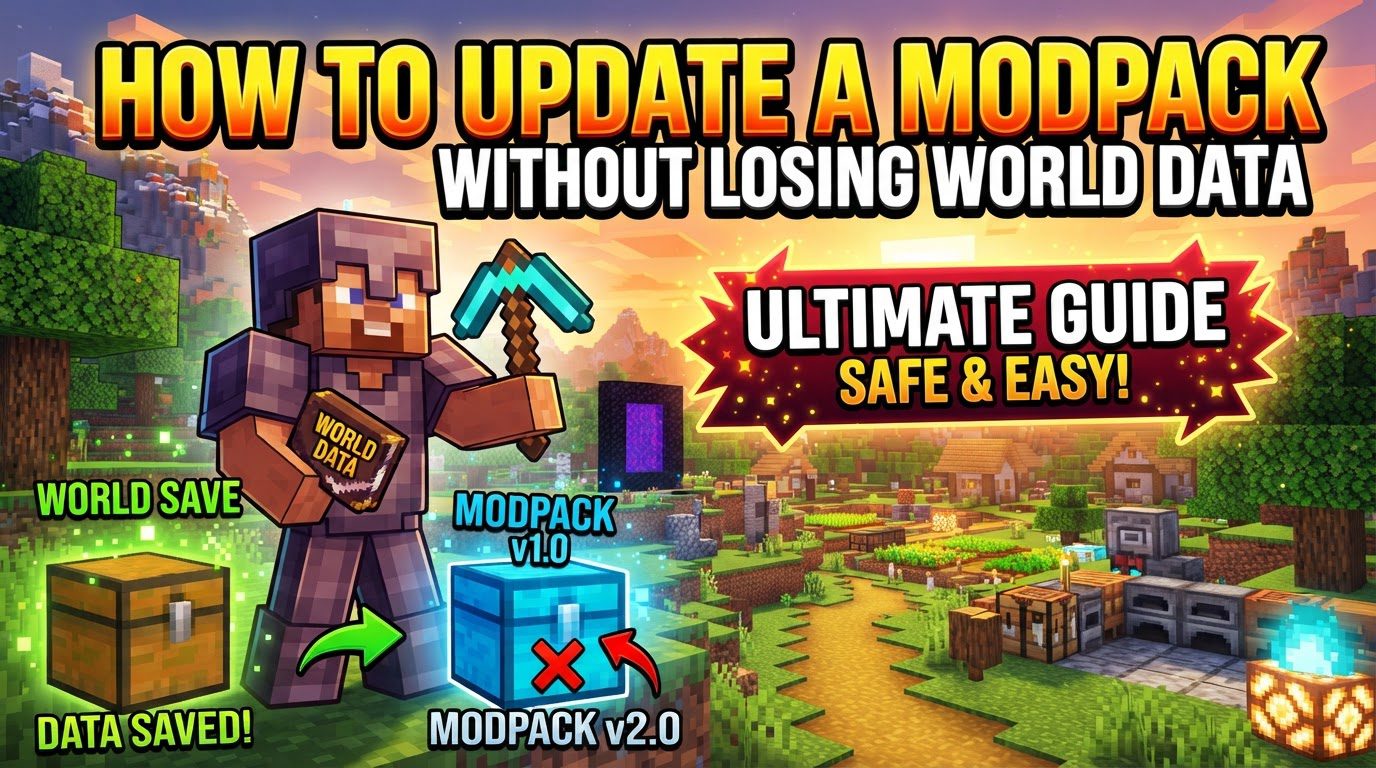
Updating a Minecraft modpack without losing your precious world data is a critical process that requires careful attention to detail and a thorough understanding of how game files and modpack updates interact. The primary goal is to ensure the continuity of your gameplay experience while benefiting from new features, bug fixes, and performance improvements offered by modpack updates. The most crucial step in this entire procedure is the creation of comprehensive backups, serving as your safety net against unforeseen complications.
Key Mechanics of Modpack Updates
Understanding the fundamental mechanics behind Minecraft modpacks and their updates is essential for a smooth transition. These core concepts dictate how you should approach the update process to safeguard your world data.
- World Data Location: Your Minecraft world data, which includes all your builds, progress, and inventory, is consistently stored in a specific location. For client-side installations, this data is typically found within the “saves” folder, located inside your main Minecraft directory or the specific modpack instance folder. On server-side setups, the world data is usually housed within a designated world folder, often simply named “world,” but can sometimes have a custom name defined by the server administrator. Knowing this location is paramount for successful backups and restoration.
- Modpack Structure: A Minecraft modpack is not a single, monolithic file but rather a collection of various components. It comprises numerous individual mods, each with its own functionalities, alongside critical configuration files that dictate how these mods interact and how the game behaves. Additionally, some modpacks may include custom assets like resource packs or scripts. Updates can introduce changes to any of these components, making the process potentially complex.
- Compatibility: A significant factor to consider is that not all modpack updates are inherently “world-compatible.” This means that due to substantial changes in the underlying mods, an update might introduce elements that conflict with data from an older world. Such incompatibilities can regrettably lead to world corruption, rendering your progress unplayable, or cause unexpected and game-breaking issues within your existing save. Always approach updates with caution, especially major version changes.
- Backup Importance: Without a doubt, creating a complete backup of your world data stands as the single most critical step in the entire modpack update process. This backup acts as an indispensable safety net, providing a restore point should any part of the update go awry. It is your only guarantee against permanent data loss and should never be skipped, regardless of how minor an update may seem.
Step-by-Step Process for Updating Your Modpack
The update process varies slightly depending on whether you are updating a client-side modpack on your personal computer or a server-side modpack hosted online. Both scenarios prioritize data integrity.
Client-Side Update (e.g., CurseForge App)
For client-side modpacks managed by launchers like the CurseForge App, the process is streamlined but still requires careful attention to detail.
- Access Modpacks: Begin by navigating to the “My Modpacks” section within your chosen launcher. This area lists all the modpacks you have installed.
- Select Modpack: Identify and select the specific modpack you intend to update from your list.
- Initiate Update: Look for an “Update” or “Change Version” option associated with the selected modpack. Launchers typically provide the flexibility to update to the very latest available version or to select a specific prior version from a dropdown menu, giving you control over the update path.
- Consider Separate Profile: Some advanced launchers offer an option to update to a separate modpack profile. This can be a strategic choice, as it allows you to keep your current, working installation intact as a backup, providing an easy rollback option if the new version presents unforeseen issues.
- Updating Individual Mods: If your goal is to update only a single mod within your existing modpack, you’ll first need to enable “Allow content management for this profile” within the modpack’s profile options. Once enabled, you can then navigate to the “Installed Mods” tab to locate and update the specific mod you wish to change.
Server-Side Update (General Steps, often through a hosting panel)
Updating a server-side modpack involves more direct file management, often facilitated by your hosting provider’s control panel.
- Stop the Server: Before making any modifications, it is absolutely crucial to completely stop your Minecraft server. Attempting to update files while the server is running can lead to file corruption, data loss, or an unstable server state.
- Backup World: Create a full backup, often referred to as a snapshot, of all your server files. Pay particular attention to the world folder (e.g., “world”) as this contains all your in-game progress. Most hosting panels offer a dedicated backup tab for this purpose, simplifying the process.
- Identify Essential Files: Before proceeding, make a mental or physical note of critical files that you must retain. These typically include your `world` folder (or whatever custom name your world uses), the `ops.json` file which lists server operators, and optionally, your `server.properties` file if you have custom server settings you wish to preserve.
- Clean Up Old Files: To ensure a clean installation and prevent conflicts, it is generally recommended to remove old modpack files. Only retain the essential files identified in the previous step. Be cautious not to delete any world-related files unless explicitly instructed.
- Install New Modpack Version: Proceed to install the updated modpack version. This is frequently done directly from your hosting panel, where you will look for options like “Change version” or “Update.” Crucially, choose options that explicitly state they will keep your existing world and configurations untouched. Actively avoid any options that mention full resets or complete wipes, as these will delete your world data.
- Upload World (if necessary): If, during the backup process, you downloaded your world folder to your local machine, you will now need to upload it back to the server’s designated world folder, replacing any default or placeholder world that the new modpack installation might have created.
- Restart and Test: Once the new modpack is installed and your world data is in place, restart your server. After it has fully loaded, connect to it and thoroughly test all functionalities to ensure everything is working as expected and your world is intact.
Important Tips for a Smooth Update
Adhering to these best practices will significantly reduce the risk of issues during a modpack update.
- Always Back Up: Reiterate this golden rule: before initiating *any* update, regardless of its perceived minor nature, create a complete and verified backup of your world data. This is your ultimate safety net.
- Read Changelogs: Make it a habit to carefully read the modpack’s changelog or update notes. These often contain vital information about known issues, significant changes that might impact world compatibility, or specific instructions that must be followed for a successful update.
- Test on a Copy: For major modpack updates, especially those that involve significant changes to core mods, consider making a copy of your world and testing the updated modpack with that copy first. This allows you to identify and troubleshoot issues without risking your primary save.
- Client-Server Match: When playing on a server, it is absolutely essential that both your client-side modpack version and the server’s modpack version are identical. Mismatched versions are a common cause of connection issues, game crashes, and various mod-related errors.
- Understand Mod Loaders: Be aware of the specific mod loader (e.g., Forge, Fabric, NeoForge) your modpack utilizes. When performing updates or adding new mods, ensure you select the correct type compatible with your modpack’s loader to prevent fundamental compatibility issues.
- Patience with Updates: Some modpack updates, particularly larger ones, might take a considerable amount of time to download and apply. Similarly, after a server-side update, the server might require a few minutes upon restart to process all the changes and load the world correctly. Patience is key.
Common Mistakes to Avoid
Being aware of these pitfalls can help you steer clear of common issues that can lead to frustration and data loss.
- Not Backing Up: This is the most critical and frequently made mistake. Failing to create a backup before an update is akin to gambling with your world data, and it can lead to irreversible loss of all your progress.
- Blindly Deleting Files: Never delete core world files, such as `level.dat`, or entire folders like `region` or `playerdata`, unless you are explicitly and reliably instructed to do so by the modpack developer or a trusted guide. These files are fundamental to your world’s existence.
- Ignoring World Incompatibility Warnings: If a modpack’s changelog or update notes warn about potential world incompatibility, take these warnings seriously. Attempting to update a world that is not designed to be compatible with a new version can lead to severe corruption.
- Updating to an Incompatible Minecraft Version: Many mods are specifically designed for particular Minecraft versions. Updating your base Minecraft version without ensuring corresponding mod updates are available and compatible will almost certainly break your modpack and potentially your world.
- Mismatched Client/Server Versions: As mentioned, using different versions of the modpack on your client and the server is a recipe for disaster. This leads to connection failures, synchronization errors, and an unplayable experience.
- Not Checking Mod Versions: When updating a modpack, especially if you’re managing individual mods, ensure that all individual mods are compatible not only with each other but also with the updated modpack version and the correct underlying Minecraft version.
- Choosing Full Reset Options: When interacting with a server hosting panel, be extremely cautious of any options that suggest performing full server resets or complete wipes. These actions will irrevocably delete your existing world data if you intend to keep it. Always select options that preserve your world.
Tags:
YOU MAY ALSO LIKE...


