

Switching Between Java and Bedrock Profile Settings (Step by Step)
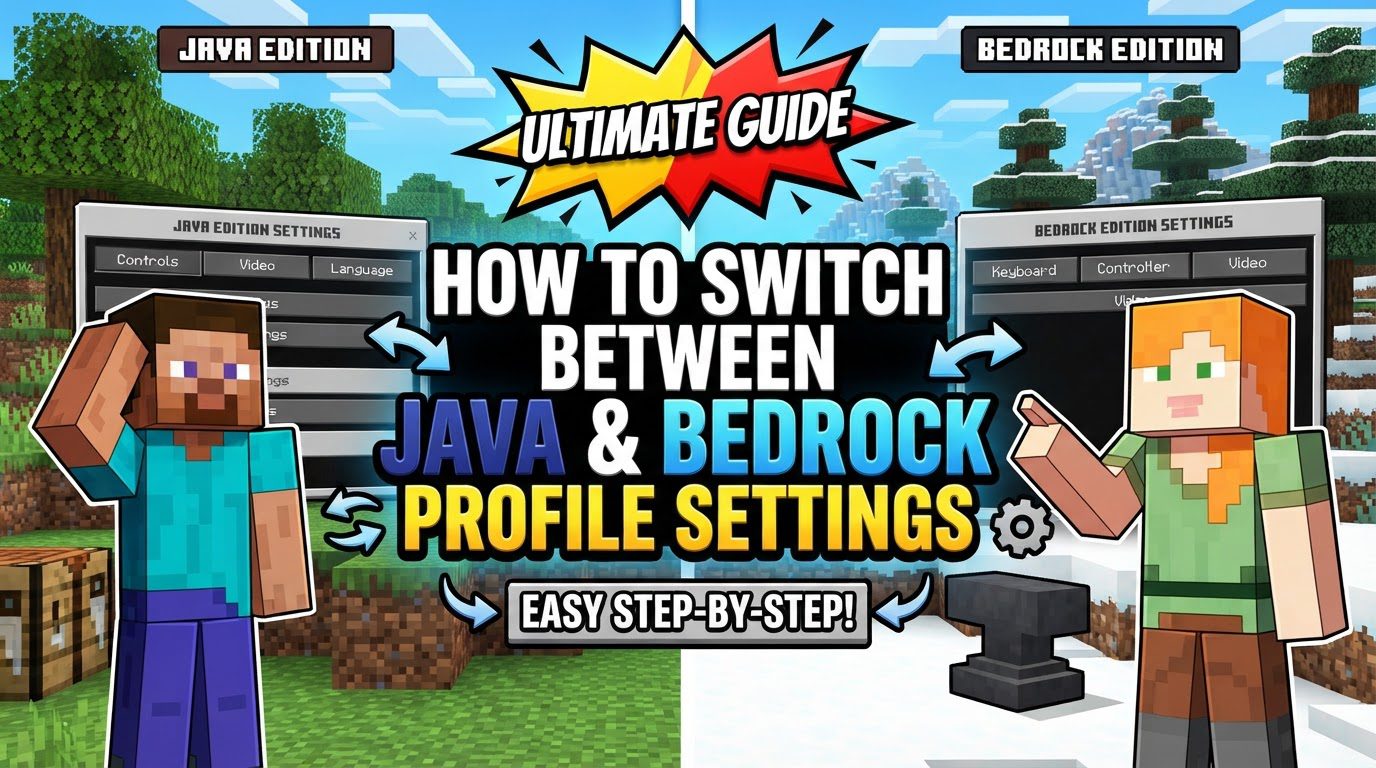
Think of it not as changing a setting, but as choosing which game to play. While your Minecraft account, linked to a Microsoft account, manages your ownership of both, the actual gameplay experience and underlying mechanics are separate. This guide will clarify these distinctions and provide a comprehensive walkthrough on how to manage your experience when you own both editions, primarily focusing on the seamless process available on PC.
Understanding the Fundamental Differences
Before diving into the “how-to,” it’s essential to grasp the core mechanics that differentiate these two editions:
- Separate Editions: Minecraft: Java Edition and Minecraft: Bedrock Edition are built on entirely different foundations. Java Edition, as its name suggests, is written in Java and is primarily available on PC (Windows, macOS, Linux). Bedrock Edition, on the other hand, is written in C++ and powers the game across a wider array of platforms, including Windows 10/11, Xbox, PlayStation, Nintendo Switch, and mobile devices. This fundamental difference means they operate independently, offering distinct features and performance characteristics. There is no single “profile setting” that can magically transform one into the other.
- Unified Launcher (PC Specific): For players on PC running Windows 10 or 11, a significant convenience is the unified Minecraft Launcher. If you own both editions, this single application acts as a gateway, allowing you to select and launch either Java Edition or Bedrock Edition (“Minecraft for Windows”) from the same interface. This is the primary method for “switching” between the two on a computer.
- Cross-Play Limitations: Due to their separate codebases and server architectures, Java and Bedrock players cannot natively play together. They connect to different types of servers. While third-party tools like GeyserMC exist to bridge this gap for server owners, enabling some form of cross-play, it’s not a native feature of the game itself. This means you need to coordinate with your friends to ensure everyone is playing on the same edition.
- World Formats: Each edition stores its game worlds in a unique format. Java Edition uses the Anvil format, while Bedrock Edition utilizes LevelDB. This incompatibility means you cannot directly open a Java world in Bedrock, or vice versa. Attempting to do so will result in errors or corrupted data. Special conversion tools are required if you wish to transfer a world between editions.
- Account Management: Your Minecraft account is intrinsically linked to a Microsoft account. This central account manages your purchases, allowing you to access both editions if you own them. It also oversees your associated profiles, such as your in-game username for Java Edition and your gamertag for Bedrock Edition, along with any skins or cosmetic items you’ve acquired.
The Practical Steps: Switching Between Editions on PC
For PC users (Windows 10/11) who own both editions, the process of choosing which version to play is straightforward, thanks to the unified Minecraft Launcher. This is the closest you’ll get to “switching” between the two experiences:
- Open the Minecraft Launcher: Begin by launching the Minecraft application on your personal computer. This is the central hub for accessing all your Minecraft games.
- Select Your Desired Edition: Once the launcher loads, observe the left-hand navigation pane. You will clearly see distinct options labeled “Minecraft: Java Edition” and “Minecraft for Windows.” The “Minecraft for Windows” option refers to the Bedrock Edition.
- Choose and Initiate Play: Simply click on the specific edition you intend to play. After making your selection, locate and click the prominent “Play” button. The launcher will then proceed to download any necessary updates and open the selected version of the game.
- Switching Between Editions: To transition to the other edition, you must first completely close the game you are currently playing. Once the game client is shut down, reopen the Minecraft Launcher. From there, you can repeat step 2 and 3, selecting the alternative edition you wish to launch.
Essential Considerations for Seamless Switching
To ensure a smooth experience when managing both Minecraft editions, keep the following important tips in mind:
- Ownership is Key: You must genuinely own both editions to be able to switch between them using the unified launcher on PC. Many players acquire both through the “Minecraft: Java & Bedrock Edition for PC” bundle, which grants access to both versions simultaneously. Without ownership, you will only see and be able to launch the edition(s) you possess.
- World Conversion is Necessary: If you’ve spent countless hours building a magnificent world in one edition and wish to experience it in the other, direct transfer is impossible. You will need to utilize a third-party world converter tool, such as Chunker, to translate the world data from one format (Anvil for Java, LevelDB for Bedrock) to the other. This process is often external to the game itself.
- Multiplayer Compatibility Check: Before planning multiplayer sessions with friends, always confirm which edition everyone intends to play. Since Java and Bedrock players cannot natively interact, ensure all participants are on the same version to avoid disappointment and connection issues.
- Account Management for In-Game Identity: Your in-game identity is managed slightly differently for each edition. Your username for Java Edition is controlled and changed through the official Minecraft.net website, specifically via your linked Microsoft account. Conversely, your gamertag for Bedrock Edition is managed through Xbox.com, as Bedrock is deeply integrated with the Xbox ecosystem.
- Saving Your Progress: Be aware of how your worlds are saved. Minecraft Java Edition does not feature native cloud syncing for your locally stored worlds, meaning you are responsible for backing them up manually. For Bedrock Edition, while local saves are standard, you can opt for a paid subscription to Minecraft Realms, which provides cloud-synced worlds accessible across all Bedrock platforms, offering a convenient backup and multiplayer solution.
Navigating Potential Pitfalls: Common Mistakes to Avoid
Understanding what not to do is as important as knowing what to do. Here are common misconceptions and mistakes to steer clear of:
- Assuming a Direct In-Game Switch: Do not expect to find an option within the game’s settings menu to instantly toggle between Java and Bedrock editions. As established, they are separate game clients, and switching requires closing one and opening the other via the launcher.
- Expecting Native Cross-Play: It’s a frequent misunderstanding that Java and Bedrock players can simply join each other’s games. This is not natively supported. While server-side plugins like GeyserMC can facilitate this, it’s a server modification, not an inherent game feature that allows direct player-to-player connection across editions.
- Attempting Direct World Transfer: Trying to load a Java world file directly into your Bedrock game folder (or vice versa) will inevitably lead to failure, data corruption, or simply an unplayable world. The different file formats make this impossible without a dedicated conversion tool.
- Confusing “Settings” with “Editions”: Always remember the core distinction: you are not altering a “profile setting” within a single game; you are choosing to launch and play one of two distinct Minecraft games. This fundamental understanding prevents much confusion.
- Ignoring Account Logins: Ensure you are consistently logged into the correct Microsoft account within the Minecraft Launcher. Your ownership of both editions, as well as access to your specific saved worlds and profiles, is tied directly to this account. Logging in with the wrong account might prevent you from seeing or launching your purchased editions.
By internalizing these distinctions and following the outlined steps and tips, you can effectively navigate between Minecraft: Java Edition and Minecraft: Bedrock Edition, enjoying the unique experiences each version offers without unnecessary confusion.
Tags:
YOU MAY ALSO LIKE...


