

Using the Official Minecraft Launcher, Explained
The Official Minecraft Launcher: Your Gateway to the Minecraft Universe
The official Minecraft Launcher serves as the essential central portal for all your Minecraft adventures. It provides a unified platform from which players can access, manage, and launch various editions of the game, including Minecraft: Java Edition, Minecraft for Windows (Bedrock Edition), and even Minecraft Dungeons. This comprehensive application is designed to streamline your gaming experience, ensuring you always have access to the latest versions, your purchased content, and important game news.
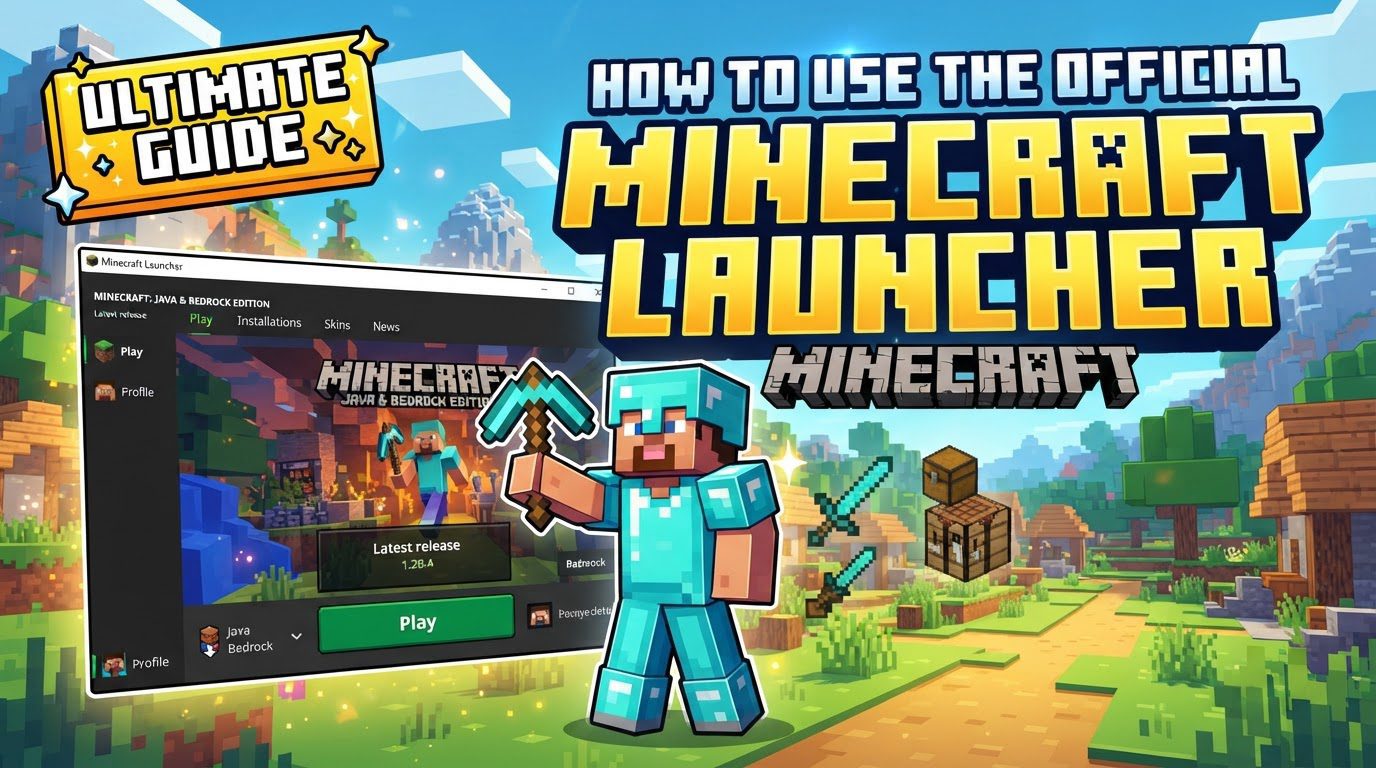
Beyond simply launching games, the launcher is a powerful tool for managing your entire Minecraft ecosystem. It facilitates the download and installation of new game versions, ensures your existing installations are up-to-date, and allows for seamless switching between different Minecraft versions. This flexibility is particularly beneficial for players who wish to explore experimental snapshots, delve into older releases, or manage multiple game editions simultaneously. Integrated account management is another cornerstone feature, requiring users to sign in with their Microsoft account. This sign-in process is crucial as it validates your Minecraft license, granting you access to the games you own and linking your progress and purchases to your profile. Furthermore, the launcher acts as a dynamic information hub, consistently providing users with the latest game news, updates, and announcements directly within its interface, keeping you informed about the ever-evolving world of Minecraft.
Getting Started: A Step-by-Step Guide
To begin your journey with the official Minecraft Launcher, follow these essential steps:
- Purchase Minecraft: Before you can use the launcher to play, you must first own a version of Minecraft. Many players opt for the “Standard PC Edition,” which typically includes both Minecraft: Java Edition and Minecraft for Windows (Bedrock Edition), offering comprehensive access to the game’s diverse experiences. Ensure your purchase is complete and associated with your Microsoft account.
-
Download the Launcher: There are several convenient methods to obtain the official Minecraft Launcher, depending on your preference and operating system:
- Via Microsoft Store (Windows): For Windows users, the Microsoft Store provides a straightforward path. Open the Microsoft Store application on your PC, utilize the search bar to find “Minecraft Launcher,” and then click either “Get” or “Install” to initiate the download and installation process directly through the store.
- Via Minecraft.net: The official Minecraft website is a reliable source for the launcher. Navigate to minecraft.net, proceed to the dedicated download section, and select the appropriate download option for your operating system, typically “Download for Windows” for PC users, or other relevant options for different platforms.
- Via Xbox App (Windows): Another option for Windows users is through the Xbox app. Open the Xbox application on your device, search for “Minecraft Launcher” within its interface, and then proceed with the installation from there.
- Install the Launcher: Once the launcher installer file has been downloaded (for example, `MinecraftInstaller.exe` if downloaded from the website), locate and run it. Follow the on-screen prompts diligently, which will guide you through the installation process. This typically involves agreeing to the software license terms and selecting an installation directory.
- Sign In: Upon successfully installing and opening the Minecraft Launcher for the first time, you will be prompted to sign in. It is critically important to use the exact Microsoft account that holds your Minecraft license. This ensures that the launcher correctly identifies your game ownership and allows you to access your purchased editions.
- Select Game Version: From the launcher’s main interface, or by navigating to the “Installations” tab, you can choose which Minecraft edition or specific version you wish to play. This might involve selecting “Minecraft: Java Edition,” “Minecraft for Windows” (Bedrock Edition), or even a specific Java snapshot or older release. The launcher provides a clear overview of your available options.
- Play: After selecting your desired game version, simply click the prominent “Play” button. The launcher will then initiate the download of any necessary game files (if it’s a new installation or update) and launch your chosen Minecraft game, allowing you to dive into your blocky adventures.
Important Tips for an Optimal Experience
To ensure a smooth and enjoyable Minecraft experience, keep the following important tips in mind:
- Keep Updated: Regularly checking for and installing updates is crucial for both the Minecraft Launcher itself and your various Minecraft game versions. These updates frequently include vital bug fixes, performance improvements, and sometimes new features, which can significantly enhance game stability and overall enjoyment. Running outdated software can lead to unexpected issues.
- Allocate RAM: For players engaging in resource-intensive gameplay, such as using numerous mods, playing on large, complex worlds, or running server instances, allocating sufficient RAM (Random Access Memory) is essential. This can be done through the launcher’s settings, typically within the “Installations” tab under individual profile settings. Providing more RAM helps prevent lag, crashes, and improves overall game performance.
- Backup Worlds: Before undertaking any significant changes to your game, such as installing new mods, updating to a major game version, or attempting troubleshooting steps, always make a backup of your Minecraft worlds. This simple precaution can save countless hours of progress and effort should something go wrong during the modification or update process.
- Java Installation: Minecraft: Java Edition, as its name suggests, relies on Java to run. It is imperative to ensure that you have a 64-bit version of Java installed and that it is kept updated to the latest stable release. An outdated or incorrect Java installation can lead to various issues, including the game failing to launch or experiencing poor performance.
- Understand Game Modes: Familiarize yourself with the different game modes available in Minecraft, such as Survival, Creative, and Hardcore, as well as their respective difficulty settings. Each mode offers a distinct gameplay experience, from resource gathering and combat in Survival to unlimited resources and flight in Creative, and the unforgiving permadeath of Hardcore. Understanding these options will allow you to tailor your gameplay to your preferences.
Common Mistakes to Avoid
Even experienced players can encounter issues. Being aware of these common mistakes can help you troubleshoot and prevent problems:
- Incorrect Account: A frequent cause of access issues is signing in with the wrong Microsoft account. Always ensure that you are signed into both the Minecraft Launcher and, if applicable, the Microsoft Store, with the *exact same* Microsoft account that holds your Minecraft license. Using different accounts will prevent the launcher from validating your ownership.
- Outdated Drivers: Outdated graphics drivers are a common culprit for technical problems. They can prevent the Minecraft Launcher from starting correctly, cause the game to crash unexpectedly, or lead to visual glitches. Regularly update your graphics drivers to the latest version provided by your hardware manufacturer (e.g., NVIDIA, AMD, Intel) to maintain optimal performance and stability.
- Corrupted Files: If the launcher begins to misbehave, exhibiting strange errors or failing to launch games, corrupted local files might be the cause. Specifically, files like `launcher_profiles.json` or `launcher_msa.json` located within your `.minecraft` folder can become corrupted. A common troubleshooting step is to delete these specific files; the launcher is designed to regenerate them upon next startup, often resolving the issue.
- Firewall/Antivirus Interference: Security software, such as firewalls and antivirus programs, can sometimes erroneously identify Minecraft or its launcher as a threat, blocking its internet access or preventing it from running properly. If you suspect this is the case, try temporarily disabling your security software to test if the issue resolves. If it does, you will need to create specific exceptions for Minecraft and the launcher within your firewall/antivirus settings to allow them to operate without interference.
- Ignoring Dependencies: Minecraft, like many software applications, relies on certain system dependencies to function correctly. Missing or improperly installed system dependencies can lead to various launcher issues, from startup failures to in-game errors. While the launcher often handles some of these, ensuring your operating system is up-to-date and has necessary runtime environments can prevent problems.
- Keeping Launcher Running: While convenient, keeping the Minecraft Launcher running in the background while you are actively playing the game can sometimes lead to performance issues. The launcher consumes system resources, and in some cases, these resources might be better utilized by the game itself. For optimal performance, it is generally recommended to close the launcher once the game has successfully launched.
Tags:
YOU MAY ALSO LIKE...


