

Fixing Low FPS on a High-end PC
Minecraft, despite its blocky aesthetics, can be surprisingly demanding on PC hardware, often leading to frustratingly low frame rates (FPS) even on high-end systems. This phenomenon is largely due to the game’s inherently CPU-intensive nature and the way Java manages resources. Understanding these core mechanics is the first step toward unlocking smoother gameplay.
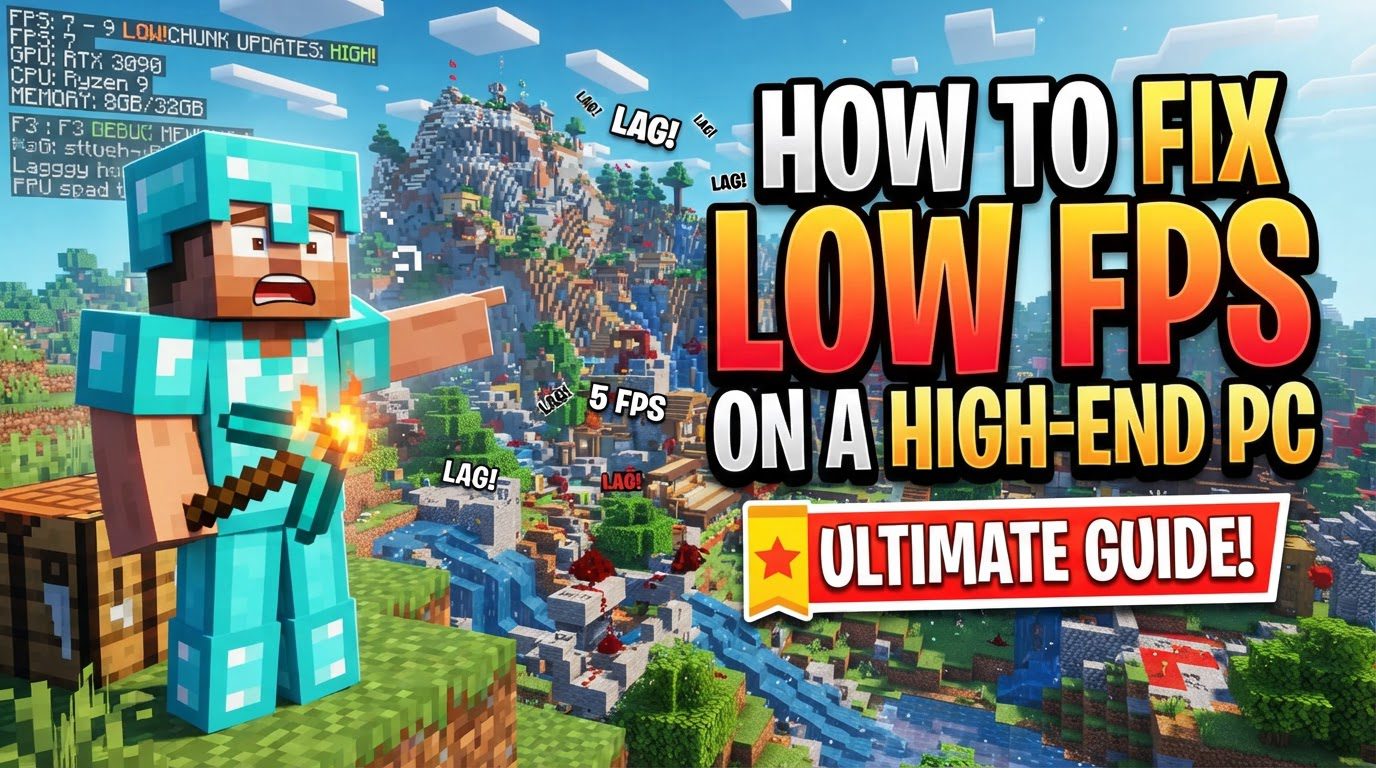
The game’s performance is heavily influenced by CPU usage because it primarily utilizes a single CPU core. This can create a bottleneck, meaning even powerful multi-core processors might not be fully utilized, and the game’s performance can suffer. Furthermore, Java’s memory management can be inefficient. Counter-intuitively, allocating too much RAM to Minecraft can sometimes hinder performance rather than help, leading to stuttering and lag. Optimal RAM allocation typically falls between 6-8 GB for modded instances, while 3-4 GB is often sufficient and recommended for vanilla Minecraft.
Beyond the core architecture, several in-game settings and external factors significantly impact FPS. Render distance and simulation distance are critical, as reducing them dramatically lessens the load on your system. Other graphics settings such as smooth lighting, clouds, particle effects, and mipmaps can consume considerable resources. V-Sync, when enabled, caps your FPS to your monitor’s refresh rate, preventing higher frame rates. External influences like background applications and operating system processes can compete for vital CPU, RAM, and GPU resources, directly impacting in-game performance. Finally, outdated graphics drivers can prevent your high-end PC from performing optimally in Minecraft, while modern performance mods like Sodium, Lithium, and Iris (for Fabric) or Rubidium (for Forge) are specifically designed to deliver substantial FPS improvements, often surpassing the effectiveness of OptiFine for newer versions of the game.
Step-by-Step Optimization Process
To systematically address low FPS, follow this structured approach:
-
Measure Current FPS
Before making any adjustments, it’s crucial to establish a baseline. You can view your current FPS in-game by pressing the F3 key. Alternatively, consider using third-party monitoring software for more detailed performance metrics.
-
Update Drivers
Ensure your system’s critical drivers are up to date. This includes your graphics card drivers, which can be found on the manufacturer’s website (Nvidia, AMD, or Intel). Additionally, confirm that your Java installation is current, often manageable through the Java Control Panel or by checking for updates via your system’s Device Manager. Outdated drivers are a common cause of suboptimal performance, even on powerful hardware.
-
Adjust In-Game Video Settings
Minecraft’s video settings offer numerous levers to pull for performance gains:
- Set “Max FPS” to Unlimited to allow the game to render as many frames as possible. While lower-to-mid-range PCs might experience stuttering with this setting, high-end systems can benefit. Alternatively, capping FPS to your monitor’s refresh rate can offer smoother gameplay by preventing screen tearing.
- Reduce “Graphics” from the demanding “Fabulous!” setting to Fancy or even Fast. This significantly simplifies how certain visual elements are rendered.
- Turn down “Render Distance” and “Simulation Distance”. These are arguably the most impactful settings for FPS. While 4 chunks is a solid starting point for maximum performance, 6-12 chunks for render distance and 12-14 for simulation distance are often suggested as good compromises for high-end systems seeking better performance.
- Turn off “Smooth Lighting” and “Clouds”. These visual enhancements consume considerable resources.
- Set “Particles” to Minimal. While this should be a last resort to maintain visual fidelity, it can provide an FPS boost.
- Turn off “V-Sync”. This prevents your FPS from being artificially capped to your monitor’s refresh rate, allowing for potentially higher frame rates.
- Disable “Mipmaps” and “Biome Blending”. These settings, while improving visual transitions and texture detail at a distance, do come with a performance cost.
- Reduce your Field of View (FOV). A wider FOV means more of the world is rendered, increasing the load.
- Consider reducing the display resolution. Playing at a lower resolution than your monitor’s native setting can significantly reduce the GPU workload.
- Play in fullscreen mode. This can help your GPU prioritize Minecraft, potentially leading to better performance than windowed mode.
-
Optimize System Settings
Your operating system and background processes can directly impact Minecraft’s performance:
- Close unnecessary background programs. Resource-intensive applications like web browsers with many tabs open, streaming services, or other games running in the background can hog CPU and RAM, starving Minecraft of crucial resources.
- Set Minecraft’s process priority to “High” in Task Manager. Locate the
javaw.exeprocess, right-click, and adjust its priority. This tells your operating system to allocate more resources to Minecraft. - Ensure your PC’s power plan is set to “High-performance”. This prevents your system from throttling CPU and GPU speeds to save power.
- Disable fullscreen optimizations for the Minecraft executable. This can sometimes prevent Windows from interfering with the game’s direct access to hardware resources.
-
Allocate RAM
Adjust the RAM allocated to Minecraft within the launcher settings. While it might seem intuitive to allocate as much RAM as possible on a high-end PC, excessive allocation can lead to performance issues due to Java’s garbage collection processes. Recommended amounts are typically 3-4GB for vanilla Minecraft or 6-8GB for heavily modded instances. Allocating more than 8GB is rarely beneficial and often detrimental.
-
Install Performance Mods
For significantly better performance, especially on newer versions of Minecraft, consider using dedicated performance mods. For Fabric installations, a combination of Sodium (for rendering optimization), Lithium (for general game engine optimizations), and Iris (for shader support) is highly effective. If you are using Forge, alternatives like Rubidium (a Sodium port) offer similar benefits. These mods are often more optimized than OptiFine for recent Minecraft versions.
Important Tips for Sustained Performance
- Utilize performance-enhancing mods like Sodium (Fabric) or Rubidium (Forge) for substantial FPS improvements. These are often superior to OptiFine for newer Minecraft versions.
- In multiplayer environments, avoid densely populated areas or regions with many item frames, as these can cause significant server-side and client-side lag.
- If you wish to use shaders, pair them with optimized mod loaders. Use Iris with Sodium for Fabric or Oculus with Rubidium for Forge to achieve better performance and compatibility.
- Regularly clean out dust from your PC. Dust accumulation can lead to overheating and thermal throttling, where your components intentionally slow down to prevent damage, especially critical for laptops.
- Consider using alternative Minecraft launchers or performance-focused modpacks that are pre-configured for optimal performance.
Common Mistakes to Avoid
- Allocating too much RAM: While it seems counter-intuitive, allocating excessive RAM (e.g., more than 8GB for most setups) to Minecraft Java Edition can paradoxically lead to performance issues and stuttering due to inefficient garbage collection.
- Leaving V-Sync enabled: V-Sync limits your FPS to your monitor’s refresh rate. If your goal is to achieve the highest possible frame rates, V-Sync will prevent you from reaching them.
- Ignoring background processes: Running other demanding applications while playing Minecraft can significantly reduce available CPU, RAM, and GPU resources, directly leading to low FPS.
- Outdated drivers: Neglecting to update graphics card and Java drivers is a common oversight that can lead to suboptimal performance, even on powerful hardware. Always ensure your drivers are current.
- Assuming a high-end PC automatically means high FPS: Minecraft’s unique architecture, particularly its reliance on a single CPU core, means that even a top-tier PC won’t always deliver high FPS without specific optimizations and adjustments.
- Relying solely on OptiFine for newer versions: While historically popular, newer optimization mods like Sodium and Rubidium often offer superior performance for recent Minecraft versions and should be considered first.
Tags:
YOU MAY ALSO LIKE...


