Configuring a Mining Depth Restriction
Understanding Mining Depth Restrictions in Minecraft
In the vast, blocky world of Minecraft, players are free to explore, build, and mine to their heart’s content. However, server administrators or individual players might occasionally wish to implement specific limitations, such as restricting mining below a certain Y-level. This can serve various purposes, from balancing gameplay to preserving certain areas of a world. It’s important to note that vanilla Minecraft does not offer a direct, in-game setting to restrict a player’s ability to mine below a specific depth. Instead, achieving this requires more advanced methods, primarily involving either modifying world generation parameters to prevent desirable blocks from appearing at lower Y-levels, or utilizing mods and data packs that enforce player-specific mining limitations.
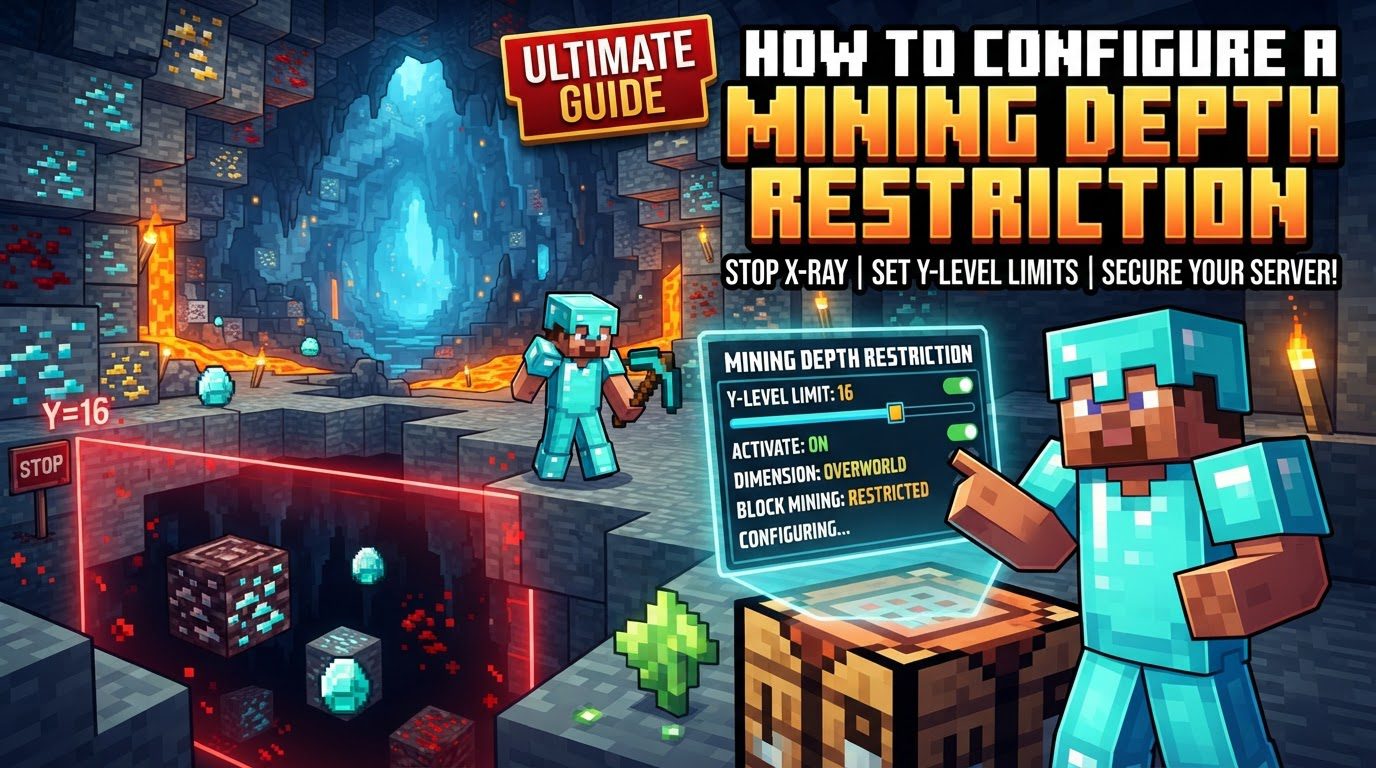
Key Mechanics for Implementing Restrictions
To effectively configure a mining depth restriction, it’s crucial to understand several core mechanics of Minecraft:
- Y-Levels: Minecraft worlds are three-dimensional, and vertical position is denoted by Y-coordinates. Understanding these levels is fundamental to setting any vertical restriction. In modern Minecraft versions (1.18 and above), Y=-64 represents the deepest point, typically bedrock, while Y=320 is the maximum build height. Any depth restriction will be defined relative to these Y-coordinates.
- World Generation (Vanilla): The way Minecraft generates its terrain, biomes, and especially ore veins, is governed by a complex set of parameters. These parameters are stored in JSON files, often referred to as “noise settings” and other world generation files. By modifying these files, it’s possible to alter how the world generates blocks and ores, thereby influencing where players can find valuable resources.
- Data Packs: Data packs are essentially ZIP archives that allow players and server owners to introduce custom content into the game. They are a powerful tool for vanilla-friendly modifications, capable of altering aspects like ore distribution, biome generation rules, and even dimension properties. For depth restriction, data packs can be used to modify the world generation JSON files, making it appear as if certain blocks simply don’t exist below a specified Y-level.
- Server-side Mods/Plugins: For those running a Minecraft server, dedicated modifications (often called “mods” for Forge/Fabric or “plugins” for Bukkit/Spigot/Paper servers) offer a more direct approach. Mods like “Mining Limits” can directly intervene in player actions, preventing them from mining blocks above or below specified Y-levels. This method offers explicit player-based restrictions rather than indirect world generation changes.
Step-by-Step Process: Two Primary Methods
The approach you choose will depend on your server setup, technical comfort, and desired level of control. Here are the conceptual steps for both primary methods:
Method 1: Using Data Packs (Modifying World Generation)
This method focuses on preventing valuable resources from generating below a certain depth, effectively making mining there pointless or impossible for desired materials. It doesn’t restrict player movement or block-breaking, but rather the availability of resources.
- Step 1: Obtain Default World Generation JSON Files. To begin, you’ll need the default world generation files that Minecraft uses. These can be extracted from the Minecraft client or server JAR file. Look specifically for files within `worldgen/noise_settings` and other related folders, as these define how terrain and features are distributed vertically.
- Step 2: Create a New Data Pack Structure. Within your world’s `datapacks` folder, create a new subfolder for your custom data pack. Inside this, you’ll replicate the directory structure of the world generation files you intend to modify. This ensures Minecraft recognizes and applies your custom settings.
- Step 3: Modify Relevant Noise Settings or Biome Configurations. This is the core of the process. You will need to locate and edit specific JSON files. For example, parameters like `final_density` within `worldgen/noise_settings/overworld.json` or `depth.json` can be adjusted to influence the vertical distribution of blocks. Alternatively, you can target ore generation parameters directly, altering their spawn ranges or peak Y-levels to effectively eliminate their presence below your desired depth. This could involve setting the maximum Y-level for an ore to be higher than your restriction, or replacing the ore with an unmineable block (like deepslate) below that Y-level.
- Step 4: Reload the World or Restart the Server. Once your data pack is correctly structured and modified, you must either reload the world (using the
/reloadcommand if you have sufficient permissions) or restart your Minecraft server for the changes to take effect. For changes to world generation, it is often best to apply the data pack to a new world or to previously unexplored chunks in an existing world, as already generated chunks will not be affected.
Method 2: Using a Mod (e.g., “Mining Limits”)
This method directly restricts player actions, preventing them from breaking blocks below a specified Y-level. This is a more explicit and immediate form of restriction.
- Step 1: Download and Install the Appropriate Mod. You will need to find a mod compatible with your Minecraft version and mod loader (e.g., Fabric, Forge). Search for mods specifically designed for mining restrictions, such as “Mining Limits.” Download the mod file.
- Step 2: Access the Mod’s Configuration File or In-game Mod Menu. After installing the mod, launch your game or server. Many mods generate a configuration file, often found in a `.minecraft/config/mining-limits/config.toml` path (the exact path may vary). Some mods also provide an in-game configuration menu accessible through a mod menu.
- Step 3: Set the Desired Lowest Y-level for Mining. Within the mod’s configuration, locate the setting that defines the mining depth limit. You will typically input a Y-coordinate, and the mod will prevent players from mining below this level. Some advanced mods may also allow setting a highest mining Y-level or restricting mining to a single chunk for specific purposes.
- Step 4: Restart the Game or Server. For the mod’s settings to be applied correctly, you will generally need to restart your Minecraft game client or server. This ensures the mod initializes with the new configuration parameters.
Important Tips for Successful Implementation
Regardless of the method you choose, following these tips will help ensure a smooth process and prevent potential issues:
- Backup Your World: This cannot be stressed enough. Always create a complete backup of your Minecraft world before making any modifications to world generation files or installing new mods. This safeguard allows you to revert to a working state if anything goes wrong.
- Understand Y-Levels: A clear understanding of Minecraft’s coordinate system, particularly Y-levels, is crucial. Remember that Y=-64 is the bottom of the world and Y=320 is the build limit in modern versions. Your restriction values will directly correspond to these coordinates.
- Test Thoroughly: After implementing any changes, whether via data pack or mod, test them extensively. Ideally, create a new world or a copy of your existing world for testing. This allows you to verify that the restrictions function as intended without any unintended side effects on your main world.
- JSON Syntax: When working with data packs and modifying JSON files, precision is paramount. Pay extremely close attention to JSON syntax, including commas, brackets, braces, and quotation marks. A single misplaced character can prevent your data pack from loading or functioning correctly.
- Version Compatibility: Always ensure that any mods or data pack examples you utilize are fully compatible with your specific Minecraft version. Using incompatible files can lead to crashes, unexpected behavior, or simply a failure for the modifications to take effect.
Common Mistakes to Avoid
Even experienced players can make mistakes. Being aware of these common pitfalls can save you time and frustration:
- Incorrect File Paths: When setting up data packs, placing files in the wrong directory or using incorrect namespaces within the data pack structure will prevent it from loading. Double-check your folder structure against standard data pack conventions.
- Syntax Errors in JSON: As mentioned, JSON is unforgiving. A missing comma, an extra bracket, or a typo in a key or value will render the entire data pack invalid, and it will fail to load. Use a JSON validator if you’re unsure.
- Mod/Data Pack Conflicts: Running multiple mods or data packs that attempt to modify the same aspect of the game (e.g., two mods trying to control mining limits, or a data pack and a mod altering the same ore generation) can lead to unpredictable behavior, errors, or even server crashes.
- Not Backing Up: Failing to create a world backup is perhaps the most significant mistake. Without a backup, a critical error in your modifications could lead to irreversible damage to your world save.
- Misunderstanding Ore Distribution: When using data packs to modify world generation, be mindful of how different ores naturally distribute. For instance, diamonds are significantly more common at lower Y-levels. Simply limiting mining depth without careful consideration might mean players miss out on certain essential ores, fundamentally altering the game’s progression.
Tags:
YOU MAY ALSO LIKE...