Setting Up Region-based PvP Toggling, Explained
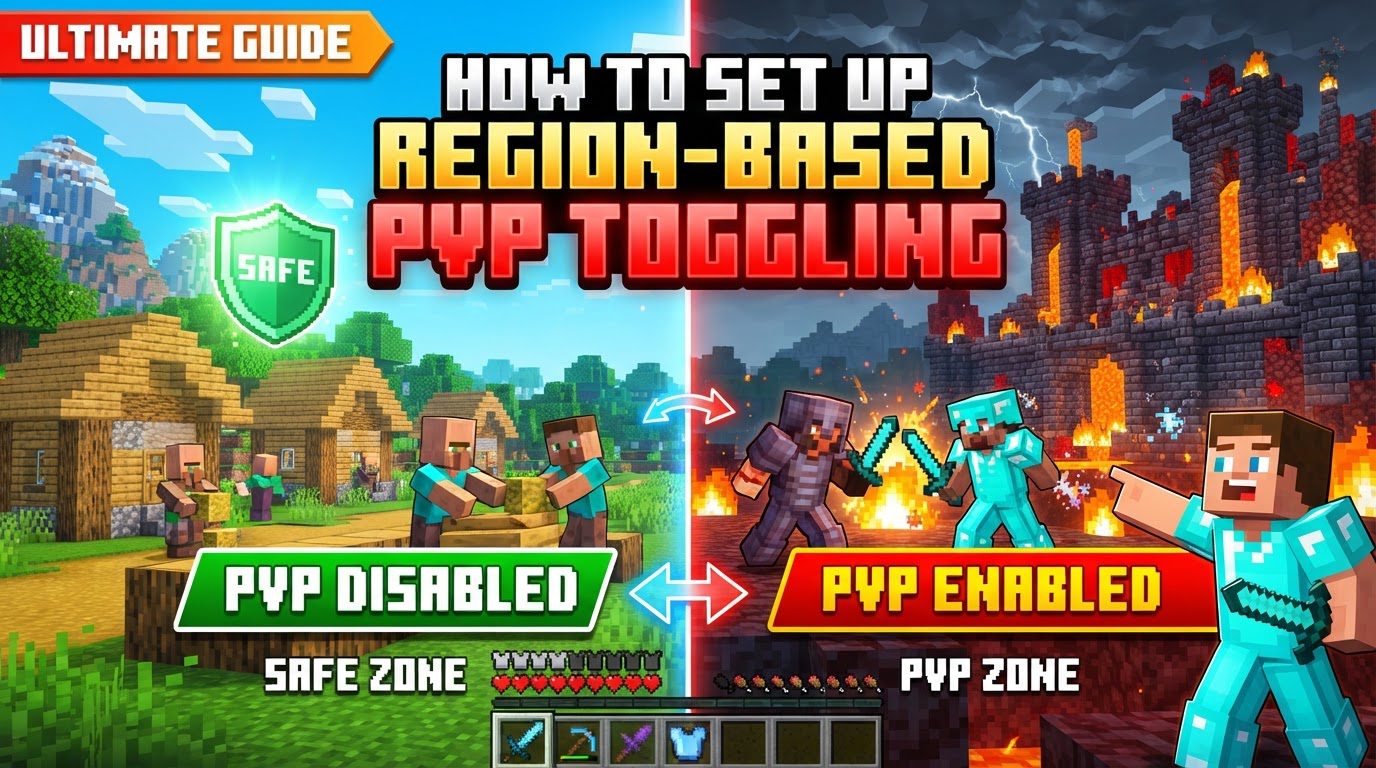
Setting up region-based Player versus Player (PvP) toggling in Minecraft allows server administrators and world creators to designate specific areas where combat is permitted or restricted. This provides a structured environment for players, enabling safe zones in towns or challenging arenas for battle. The approach to implementing this functionality differs significantly between Minecraft Java Edition and Bedrock Edition, primarily due to their distinct architectural designs and available tools.
For Minecraft Java Edition (using WorldGuard)
In Minecraft Java Edition, the most robust and widely used method for managing region-based PvP involves server-side plugins, with WorldGuard being the cornerstone. This powerful tool, often accompanied by WorldEdit, grants granular control over various aspects of gameplay within defined areas.
Key Mechanics
- WorldGuard Plugin: This is a server-side plugin essential for defining and managing distinct regions across your Minecraft worlds. It allows administrators to customize game mechanics within these boundaries.
- WorldEdit Plugin: A crucial companion to WorldGuard, WorldEdit is used specifically for selecting areas. These selections then form the basis for defining new WorldGuard regions.
- PvP Flag: WorldGuard utilizes “flags” to control diverse game mechanics, and the
pvpflag is specifically designed for combat. This flag can be set to eitherallowordenywithin any given region. - Global Region (
__global__): Every world managed by WorldGuard inherently includes a predefined region named__global__. This region covers the entire world, and its flags apply universally unless they are explicitly overridden by more specific, higher-priority regions. - Region Priority: This system enables specific regions to override the settings of larger, overlapping regions. Regions with higher priority numbers will take precedence over those with lower priority numbers, allowing for fine-tuned control.
Step-by-step process
- Install WorldGuard and WorldEdit: Begin by ensuring that both the WorldGuard and WorldEdit plugins are correctly installed on your Bukkit, Spigot, or Paper server.
- Enable PvP in
server.properties: Navigate to your server’sserver.propertiesfile and set the lineallow-pvp=true. This is a crucial foundational step, as WorldGuard cannot enable PvP if it’s disabled at the server level. - Disable PvP Globally (Optional but Recommended): For a controlled environment, it’s often best to disable PvP across the entire world by default. Use the command
/rg flag __global__ pvp deny. This strategy allows you to then enable PvP selectively in designated zones. - Select the Desired Region: Obtain a WorldEdit wand by typing
//wand(this is typically a wooden axe). Use the wand to define your area: left-click one corner of the area and right-click the opposite corner. This creates a 3D cuboid selection. - Expand Vertically (Optional): To ensure your region covers the entire vertical space, from bedrock to the build limit, use the command
//expand vertimmediately after selecting your corners. This prevents players from bypassing restrictions by moving above or below the defined area. - Define the Region: With your area selected, create the new WorldGuard region using the command
/rg define, replacingwith a unique identifier for your PvP zone. - Set Region Priority: Assign a higher priority number to your newly created PvP region than the default
__global__region. For example, use/rg setpriority 5. A higher number ensures your specific region’s flags override the global settings. - Enable PvP for the Region: Finally, activate PvP within your defined area by using the command
/rg flag pvp allow.
Important Tips
- 3D Selection: Always remember that WorldGuard regions are three-dimensional. Ensure your selection encompasses the full height range where players might interact, preventing unintended bypasses.
//expand vert: This command is invaluable for making regions cover the complete vertical space, from the lowest bedrock layer to the highest build limit, ensuring comprehensive coverage.- Check Region Info: To verify that your flags are applied correctly, stand within a region and use the command
/rg info. This will display all active flags and their settings for that area. - Server Restart: Be aware that certain changes, particularly those made within the
server.propertiesfile, may necessitate a full server restart to take effect properly.
Common Mistakes to Avoid
- PvP not enabled in
server.properties: If PvP is disabled at the server level, WorldGuard regions will not be able to enable it, leading to unexpected behavior. - Incorrect Region Selection: Failing to cover the entire desired area or its full height can result in players being able to engage in or avoid PvP at the edges of the region.
- Priority Issues: A region with a lower priority will not successfully override the settings of a higher-priority region. Always ensure your specific PvP zones have a higher priority than the global region.
- Conflicting Plugins: Other plugins installed on your server that manage PvP or player interactions might interfere with WorldGuard’s settings. It’s important to be aware of potential conflicts.
For Minecraft Bedrock Edition (using Command Blocks)
In Minecraft Bedrock Edition, region-based PvP toggling is achieved through the ingenious use of command blocks. Since Bedrock Edition does not support server-side plugins like WorldGuard, command blocks provide the necessary logic and automation to create dynamic PvP zones.
Key Mechanics
- Command Blocks: These special blocks are designed to execute specific commands automatically and repeatedly, forming the backbone of any complex Bedrock world logic.
- Ticking Areas: A critical concept for Bedrock Edition command block setups. Ticking areas guarantee that specific chunks remain loaded and that command blocks within them continue to function, even when no players are physically nearby.
/tagcommand: This command is used to add or remove custom tags from players. These tags can then be used as selectors in other commands to target specific groups of players./effectcommand: The/effectcommand is employed to apply status effects to players. For PvP toggling, effects like “Resistance” (for invincibility) or “Weakness” (to prevent damage) are used to simulate PvP being on or off.
Step-by-step process
- Identify PvP Zone Coordinates: First, accurately determine the
x, y, zcoordinates and the overall dimensions (length, width, height) of your intended PvP zone. These coordinates will be vital for targeting players within the area. - Add a Ticking Area: To ensure your command blocks function consistently, create a ticking area that encompasses your command block setup and the PvP zone. You can use commands like
/tickingarea add circle ~ ~ ~ [name]or/tickingarea add [name]. - Place Command Blocks: Strategically set up a series of command blocks. These are often arranged in a chain, utilizing repeaters and conditional settings to execute commands in sequence. Ensure they are placed within your established ticking area.
- Create “Safe Zone” Logic (PvP Deny):
- Place a repeating, unconditional, always active command block.
- In this block, use the command:
/tag @a[x=,y=,z=,dx=,dy=,dz=] add safe. Replace, , , , ,with the precise coordinates and dimensions of your desired safe zone. This tags players entering the safe zone as “safe.” - Place additional repeating, unconditional, always active command blocks. These blocks will apply protective effects to players with the “safe” tag, effectively disabling PvP for them. Examples include:
/effect @a[tag=safe] resistance 1 255 true(grants invincibility)/effect @a[tag=safe] weakness 1 255 true(prevents damage output)
- Create “PvP Zone” Logic (PvP Allow):
- Place another repeating, unconditional, always active command block.
- In this block, use the command:
/tag @a[x=,y=,z=,dx=,dy=,dz=] remove safe. Here,, , , , ,should correspond to your PvP zone’s coordinates. This command removes the “safe” tag from players entering the PvP area, thereby removing their protective effects and re-enabling PvP.
Important Tips
- Gamerule
commandblockoutput false: To prevent your chat from being flooded with command block execution messages, set this gamerule to false using/gamerule commandblockoutput false. - Coordinate Precision: Accurate definition of boundaries is paramount. Utilize the
x,y,z,dx,dy,dzselector arguments to precisely target players within your intended regions. - Redstone Clocks: Ensure all command blocks are consistently powered and activating. Repeating command blocks set to “Always Active” are ideal for continuous functionality.
- Behavior Packs: For more intricate or dynamic PvP toggling mechanisms, consider developing custom behavior packs. These can offer advanced ways to modify game rules and player interactions based on location.
Common Mistakes to Avoid
- Untagged Players: Players might incorrectly retain or lose their “safe” tags if the tag removal or addition commands do not trigger correctly or if their coordinates are inaccurate.
- Ticking Area Issues: Command blocks situated outside a ticking area will cease to function when no players are nearby. This can lead to inconsistent or non-functional PvP toggling.
- Overlapping Zones: Carefully manage the logic for players moving between safe zones and PvP zones. Ensure the tag system correctly adds and removes tags to prevent players from retaining unwanted effects.
- Incorrect
dx, dy, dz: Miscalculating these relative coordinates can result in regions that are either too small, too large, or incorrectly shaped, leading to unintended PvP behavior.
Whether you’re managing a Java Edition server with plugins or building intricate systems with command blocks in Bedrock Edition, understanding these core mechanics and following the detailed steps will enable you to create engaging and fair PvP experiences within your Minecraft world.
Tags:
YOU MAY ALSO LIKE...