

Configuring a Tab List Format Plugin (Step by Step)
Configuring a tab list format plugin in Minecraft is a fundamental aspect of server customization, allowing administrators to enhance the player experience by providing valuable information and a professional aesthetic directly within the game’s interface. The tab list, accessible by pressing the ‘Tab’ key, traditionally displays connected players. With a dedicated plugin, this space transforms into a dynamic display panel.
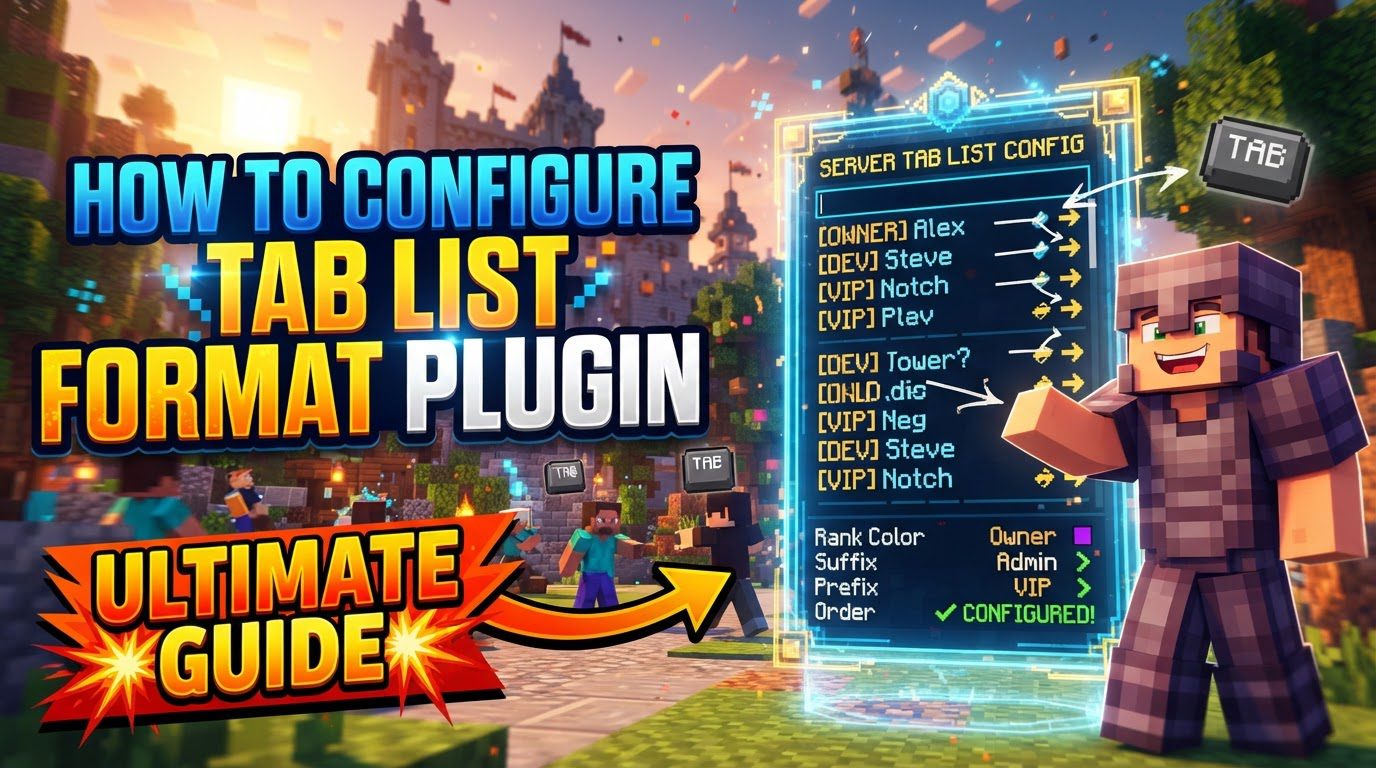
The ability to format the tab list became a standard feature in Minecraft versions 1.8 and newer. Servers running older versions, specifically 1.7 and below, operate under different constraints, primarily a 16-character name limit for tab list entries. These older versions typically rely on client-sided modifications, often through `tagprefix` and `tagsuffix` settings, to alter how names are displayed to individual players.
Key Mechanics of Tab List Formatting
Understanding the core mechanics of how tab list plugins operate is essential for effective configuration. These mechanics dictate what can be customized and how different elements interact.
- Player Name Composition: In the tab list, a player’s displayed name is typically a composite of three distinct parts: the `tabprefix`, the `customtabname`, and the `tabsuffix`. The `tabprefix` appears before the player’s actual name, often used for ranks or server-specific tags. The `customtabname` is usually the player’s in-game name, though some plugins allow this to be replaced with a placeholder for more dynamic content. Finally, the `tabsuffix` appends information after the name, such as a faction tag or a player’s current status. These three components are seamlessly combined to form the final, customized display for each player.
- Header and Footer Customization: Beyond individual player entries, most robust tab list plugins offer the capability to customize a header and a footer. The header is a block of text or information that appears at the very top of the tab list, above all player names. Conversely, the footer is displayed at the bottom, beneath all player entries. These sections are ideal for displaying server rules, website links, current server statistics (like online player count), or important announcements, providing persistent information to players.
- Player Sorting: Advanced tab list plugins often include functionality for sorting players within the list. This sorting can be based on various criteria, such as player groups, ranks, or other custom attributes. This feature is frequently integrated with permission plugins, allowing for a logical and organized display where, for example, staff members appear at the top, followed by VIPs, and then regular players. This enhances readability and provides a clear hierarchy.
- Plugin Conflicts: A critical consideration for server administrators is the potential for conflicts when multiple plugins attempt to control tab list formatting. If several plugins try to modify player names or the overall tab list display, unpredictable behavior can occur, leading to undesired formatting or elements overriding each other. To prevent this, a dedicated tab list plugin is usually designed to take full control, blocking or overriding other plugins’ attempts to modify names to ensure consistent and controlled formatting.
- Uniform Entry Width: It’s important to note that tab list entries are rendered with a uniform width. This width is dynamically determined by the longest entry currently present in the tab list. While this ensures alignment, it also means that overly long prefixes, suffixes, or custom names can lead to text overlap, especially if the total length exceeds the available screen space, making parts of the tab list unreadable. Keeping formats concise is key to maintaining legibility.
- Ping Bar Limitation: The green connection bar that indicates a player’s ping (latency) is a client-sided graphical element. This means that its appearance, color, or removal cannot be directly customized or influenced by server-side plugins. It is rendered by the player’s Minecraft client based on their connection quality to the server.
Step-by-Step Process: General Example using “TAB” plugin
While specific steps may vary slightly between plugins, the general procedure for configuring a tab list plugin follows a common pattern. We’ll use “TAB” as a representative example to illustrate the process.
- Download and Install: The first step is to acquire the plugin’s executable file. This typically involves navigating to a reputable resource such as SpigotMC, searching for your chosen tab list plugin (e.g., “TAB”), and downloading its `.jar` file. Once downloaded, this file must be placed into your Minecraft server’s `plugins` folder. It is crucial to ensure that the plugin version you download is compatible with your specific server software (e.g., Spigot, Paper) and Minecraft version to avoid compatibility issues.
- Restart Server: After placing the plugin’s `.jar` file into the `plugins` directory, you must restart your Minecraft server. A simple reload command is often insufficient for new plugins. Restarting allows the server software to fully recognize and load the newly installed plugin, integrating its functionalities into the server environment and generating its initial configuration files.
- Access Configuration Files: Once the server has restarted, the plugin will have created its dedicated folder within your `plugins` directory. For example, if you installed “TAB,” you would find a folder named `/plugins/TAB/`. Inside this folder, you will locate various configuration files, typically in YAML format (`.yml`). Common and important files often include `config.yml` (for global settings), `groups.yml` (for group-specific formatting), `users.yml` (for individual player overrides), and `animations.yml` (for animated text effects).
- Edit `config.yml`: This file is the central hub for global settings. Open `config.yml` with a text editor. Here, you will typically find options to define the default tab list header and footer content. You can use Minecraft color codes (e.g., `&c` for red, `&l` for bold) to add visual flair and placeholders (e.g., `%online%` for the number of online players) to display dynamic content. This file often also contains other server-wide settings for the plugin.
- Configure Prefixes/Suffixes: To define how player names appear, you’ll need to modify `groups.yml` and `users.yml`. `groups.yml` is used to set `tabprefix`, `customtabname`, and `tabsuffix` based on player groups or ranks, providing a standardized look for different player tiers. `users.yml` allows for individual overrides, enabling unique prefixes or suffixes for specific players, which is useful for special roles or custom rewards. Define these elements using color codes and placeholders as needed.
- Set Up Animations: If your chosen plugin supports animated text, you can configure these sequences in `animations.yml`. This file allows you to define a series of text frames that will cycle through, creating animated effects for your header, footer, or even prefixes/suffixes. Once defined, you will typically reference these animations within your `config.yml` (or other relevant files) to apply them to specific elements.
- Configure Sorting: To organize players efficiently within the tab list, adjust the sorting options, usually found in `config.yml`. This feature allows you to dictate the order in which players appear. Many plugins integrate with permission plugins like LuckPerms, enabling you to sort players by their assigned rank, group, or a custom weight associated with their permissions, ensuring a logical and easily navigable list.
- Reload Plugin: After making any modifications to the plugin’s configuration files, it is imperative to apply these changes. This is done by executing the appropriate reload command, typically in-game or via the server console. For the “TAB” plugin, this command is usually `/tab reload`. Failing to reload means your changes will not take effect, and the tab list will retain its previous configuration.
Important Tips for Effective Configuration
Mastering tab list configuration involves more than just following steps; it requires strategic design choices to create an informative and visually appealing display.
- Utilize Placeholders: Placeholders are powerful tools for displaying real-time, dynamic information. Incorporate them extensively to provide valuable data without constant manual updates. Examples include `%player%` (for the player’s name), `%online%` (for the total online player count), `%ping%` (for a player’s latency), or more advanced placeholders provided by PlaceholderAPI, which can pull data from various other plugins (e.g., economy balances, faction power, custom stats). This keeps your tab list fresh and informative.
- Strategic Formatting: Use Minecraft color and formatting codes (`&c`, `&l`, `&k`, etc.) judiciously to create a visually appealing and organized tab list. Colors can highlight important information, distinguish ranks, or simply make the list more engaging. For Minecraft 1.16 and newer versions, you can also utilize HEX colors for an even broader spectrum of customization, allowing for precise branding and aesthetic alignment with your server’s theme.
- Keep it Clean and Concise: While it’s tempting to cram as much information as possible into the tab list, restraint is key. Avoid overcrowding the display with excessive text or too many placeholders. Focus on essential information that players frequently check or find most useful, such as the current online count, server TPS (Ticks Per Second), player balance, or progress towards their next rank. A clean and concise tab list is far more readable and user-friendly.
- Integrate with Permission Plugins: For servers with a structured rank system, integrating your tab list plugin with a robust permission manager like LuckPerms is highly recommended. This integration streamlines the process of managing prefixes and suffixes, allowing you to define them once per group in your permission plugin, and have the tab list plugin automatically apply them. It also facilitates efficient group-based sorting, ensuring consistency and reducing manual configuration effort.
- Per-World/Per-Server Customization: Many advanced tab list plugins offer options for different tab list configurations across various worlds or server instances within a BungeeCord/Velocity network. Leverage these features to tailor the tab list experience to the specific context of each environment. For example, a survival world might display different information than a minigame lobby or a creative plot world, enhancing relevance for players in different areas.
Common Mistakes to Avoid
Even experienced administrators can fall prey to common pitfalls when configuring tab list plugins. Being aware of these can save significant troubleshooting time.
- Outdated Plugin Versions: One of the most frequent issues arises from using a tab list plugin that is not updated for your current Minecraft server version. Running an outdated plugin can lead to a range of problems, including critical functionality issues, visual bugs, or complete failure of the plugin to load. Always ensure your plugin is compatible with your server software and Minecraft version.
- Incorrect YAML Syntax: Configuration files for tab list plugins are almost universally written in YAML format. YAML is highly sensitive to spacing, indentation, and syntax. Errors such as incorrect indentation, missing colons, or misaligned lists will prevent the plugin from loading or applying settings correctly, often resulting in error messages in the server console or default behavior instead of your custom settings. Always use a YAML-aware text editor and be meticulous with formatting.
- Forgetting to Reload: After making any modifications to the plugin’s configuration files, a common mistake is forgetting to reload the plugin. Changes made to `.yml` files will not take effect until the plugin is explicitly reloaded using its specific in-game command (e.g., `/tab reload`) or the server is restarted. Without this step, the tab list will continue to display its previous configuration, leading to confusion.
- Conflicting Plugins: Running multiple plugins that attempt to manage or modify the tab list simultaneously is a recipe for unpredictable behavior. These conflicts can result in parts of the tab list being overridden, flickering displays, or elements simply not appearing as intended. It’s best practice to use a single, dedicated tab list management plugin to avoid such issues.
- Overly Long Text: As previously mentioned, tab list entries have a uniform width determined by the longest entry. If your prefixes, suffixes, header, or footer content are excessively long, they can cause text to overlap, especially when many players are online or if the player names themselves are long. This leads to an unreadable and cluttered tab list, negating the purpose of customization. Strive for brevity and clarity.
- Accidentally Deleting Key Sections: When editing complex configuration files, it’s easy to accidentally delete crucial sections, tags, or default entries that are essential for the plugin’s functionality or default behaviors. Always make a backup of your configuration files before making significant changes. If you encounter issues, compare your modified file with the original or a known working version to identify missing elements.

