How to configure a plot-based world for building servers
Building servers in Minecraft offer a creative outlet for players, and a plot-based world provides an organized and controlled environment for construction. This guide will walk you through setting up such a world, primarily utilizing the powerful PlotSquared plugin in conjunction with WorldEdit, to create a seamless building experience for your community.
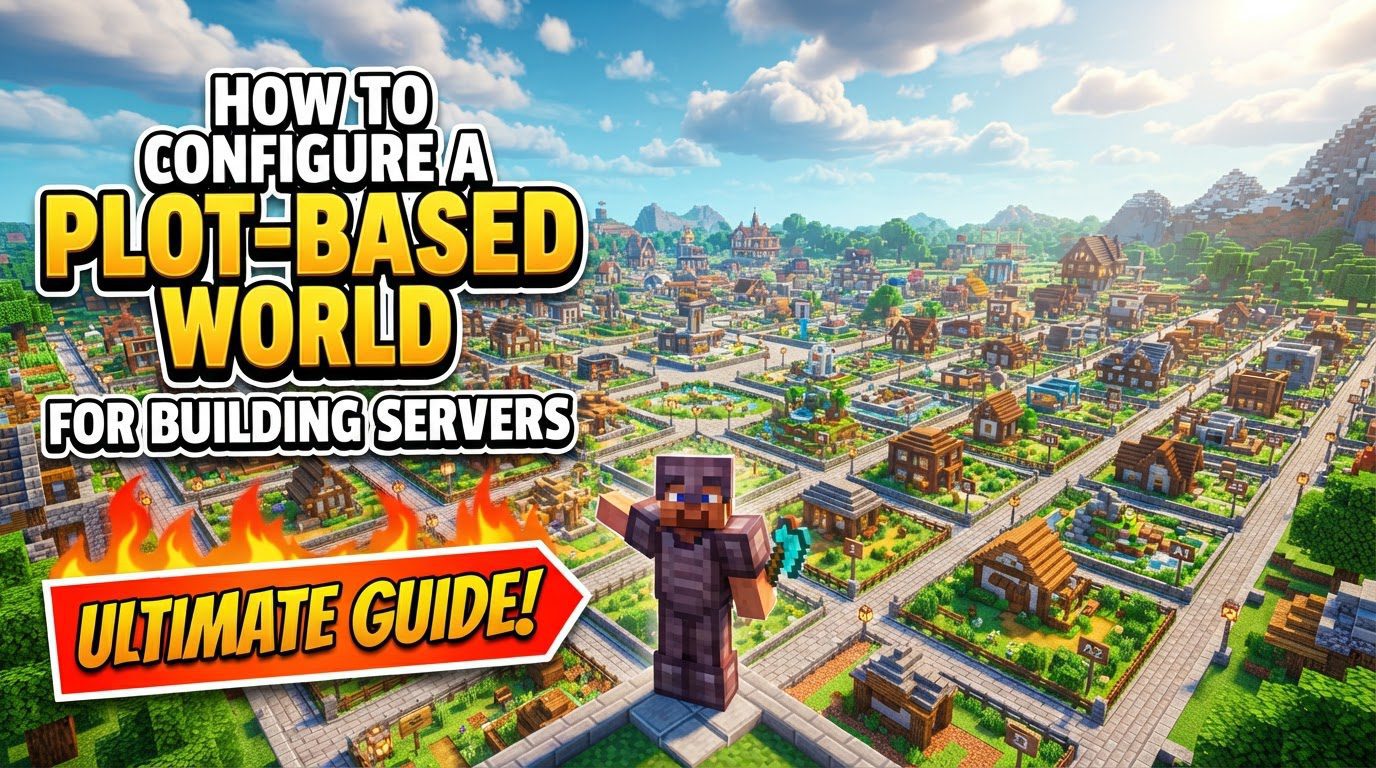
A plot-based world, at its core, is a customizable flat world where players can claim individual plots of land. These plots serve as personal building spaces where players have exclusive rights to build, modify, and manage permissions. PlotSquared, the leading plugin for this functionality, works hand-in-hand with WorldEdit, a crucial in-game editing tool, to provide comprehensive control over your server’s building landscape. Permissions can be finely tuned, allowing players to invite others to build on their plots or simply visit. The system offers extensive customization, from defining plot dimensions and road widths to specifying the exact blocks used for plots, borders, and roads. A key feature is the ability for players to merge adjacent plots they own, creating larger, more expansive building areas.
Essential for managing player access and limitations, permissions plugins like LuckPerms are integral. These plugins control who can claim plots and set limits on the maximum number of plots each player can own, ensuring a balanced and fair environment for all builders.
Step-by-Step Process for Plot World Configuration
Configuring your plot-based world using PlotSquared involves several key steps:
- Install Plugins: Begin by downloading the necessary plugin files. Obtain the PlotSquared and WorldEdit (ensure version 7.2.x or higher for compatibility)
.jarfiles. Once downloaded, place these files directly into your server’spluginsfolder. - Restart Server: After placing the plugin files, it is crucial to restart your Minecraft server. This action enables the newly installed plugins, allowing them to initialize and become active within your server environment.
- Configure
bukkit.yml: This step is optional but highly recommended to prevent potential world generation issues. Navigate to your server’s root directory and locate thebukkit.ymlfile. Edit this file to explicitly specify PlotSquared as the world generator for your new world. This ensures a consistent and predictable generation process. - Initiate World Creation: With the plugins installed and the server restarted, you can now begin the interactive setup process in-game. Type the command
/plot setup createto start the wizard. - Follow Setup Prompts: The setup wizard will guide you through a series of configuration options. For each prompt, you will confirm your choice using the command
/plot setup [value]. Key configurations include:- Generator Selection: Choose “PlotSquared” as your world generator.
- World Type: Select the desired world type, such as “DEFAULT” for a standard flat plot world.
- Dimensions: Define the plot height, plot width, and road dimensions to suit your server’s building style.
- Block Types: Specify the block types for various elements: the plot’s base, its top layer, the borders for both unclaimed and claimed plots, and the roads. This allows for extensive aesthetic customization.
- World Name: Finally, provide a unique name for your new plot world.
- Await Generation: After confirming all settings, allow your server sufficient time to generate the new plot world. The duration will depend on your server’s hardware and the complexity of the chosen settings.
- Set Permissions: Once the world is generated, integrate a permissions plugin (e.g., LuckPerms) to manage player access. Grant players the
plots.usepermission to enable them to interact with plots. Additionally, use permissions likeplots.plot.Xto define the maximum number of plots a player can own, where ‘X’ is the numerical limit. - Further Customization: For advanced configurations, such as altering the default biome or floor block, you can manually modify the
plugins/PlotSquared/worlds.ymlconfiguration file after the world has been created.
Important Tips for a Thriving Plot Server
- Plugin Synergy: Remember that PlotSquared relies heavily on WorldEdit for its functionality. Ensure both plugins are installed and compatible. A robust permissions plugin is also indispensable for managing player interactions and plot ownership.
- Understand Commands: Familiarize yourself and your players with essential PlotSquared commands:
/plot auto: To automatically claim an available plot./plot add: To allow another player to build on your plot while you are online./plot trust: To grant a player permission to build on your plot even when you are offline./plot remove: To revoke building access from a player./plot merge: To combine adjacent plots that you own into a larger building space./plot visit: To teleport to a specific player’s plot.
- Customization Power: Leverage PlotSquared’s extensive customization options to create a unique environment. Adjust plot sizes, customize road aesthetics, and even create custom road schematics to align with your server’s theme and appeal to a specific building style.
- Engage Your Community: A welcoming spawn area, unique server promotions, and a friendly atmosphere are crucial for fostering a thriving building community. Organize regular building contests and events to boost player engagement and creativity.
- Server Performance: Choose appropriate server hardware and consider implementing performance-enhancing plugins. This is vital to prevent lag, especially as your player base grows and builds become more elaborate.
Common Mistakes to Avoid
To ensure a smooth setup and operation of your plot-based server, be mindful of these common pitfalls:
- Incomplete Plugin Installation: Failing to install both PlotSquared and WorldEdit, or neglecting to restart the server after installation, will prevent the plot system from functioning correctly.
- Skipping
bukkit.ymlConfiguration: Neglecting to set PlotSquared as the world generator in yourbukkit.ymlfile can lead to unpredictable or broken world generation, resulting in an unplayable plot world. - Neglecting Permissions: Without correctly configured permissions via a permissions plugin, players will be unable to claim, build on, or interact with plots, rendering the system unusable.
- Careless Plot Merging/Unmerging: Unmerging plots without careful planning can irreversibly cut through existing builds, leading to loss of player creations. Always exercise caution.
- Lack of Uniqueness: In a crowded Minecraft server landscape, servers that are not customized or unique in their offerings may struggle to attract and retain players. Differentiate your server through aesthetics and community.
- Ignoring Performance: Overlooking server hardware specifications and optimization can lead to significant lag as the player base and the complexity of world builds grow, negatively impacting the player experience.
- Violating Build Rules: Many plot servers have rules against inappropriate or excessively lag-inducing builds. Failure to adhere to these rules can result in plot resets or even player bans. Clearly communicate and enforce your server’s building guidelines.
By following this comprehensive guide, you can successfully configure a robust and engaging plot-based world, providing an ideal canvas for your Minecraft building community.