Adding a Second Controller for Split-screen Play
Understanding Minecraft Split-Screen Play
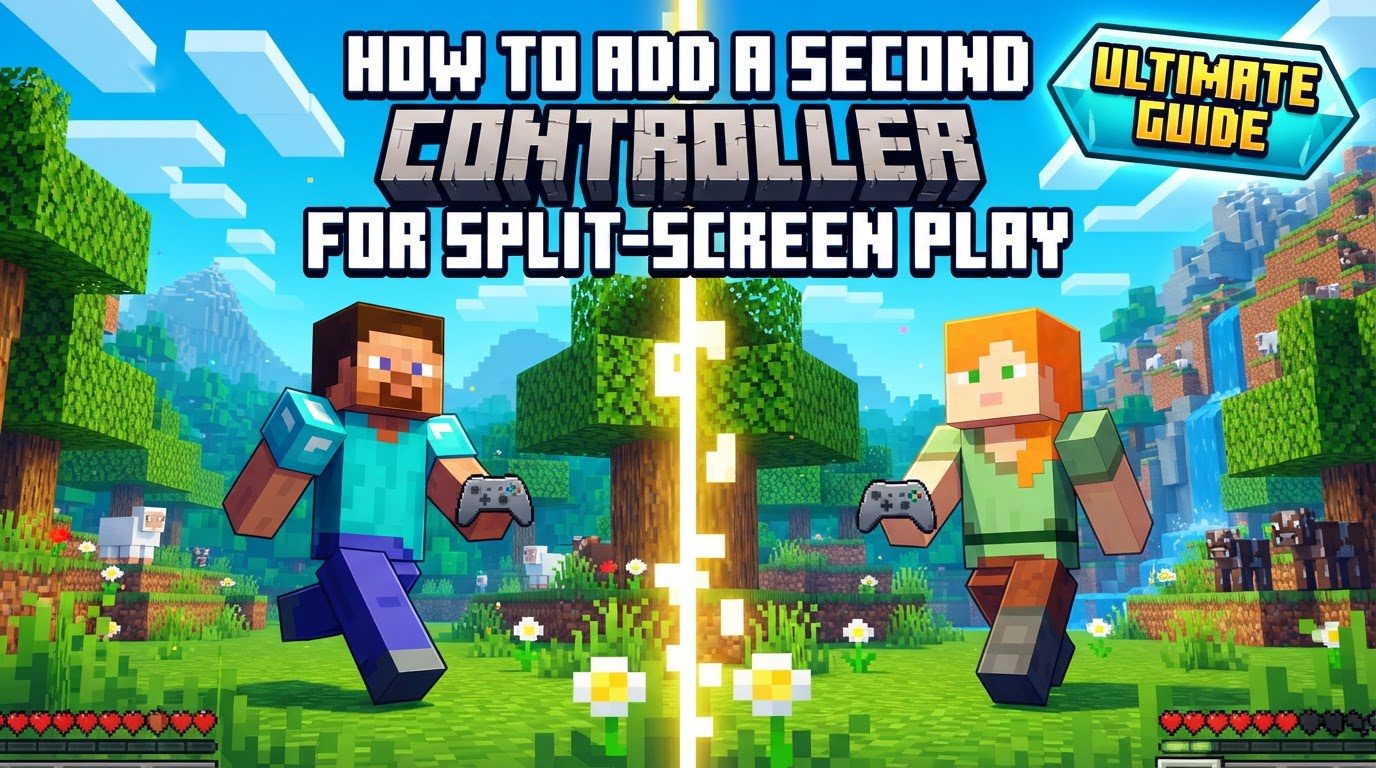
Minecraft offers a highly engaging and social split-screen multiplayer experience, designed specifically for console versions of the Bedrock Edition. This popular feature allows multiple players to share the same screen simultaneously, transforming your living room into a hub for collaborative building, adventurous exploration, or even friendly competition within the expansive blocky worlds of Minecraft. Up to four players can join a single world, each with their own distinct perspective and independent controls, fostering a truly shared gaming session.
To fully immerse yourselves in this shared adventure, a fundamental and non-negotiable requirement is that each participant must possess their own dedicated controller. This ensures that every player has independent input and precise control over their in-game character, making the split-screen experience seamless, fair, and enjoyable for everyone involved. Beyond the controllers, the console itself must be connected to a television or monitor that supports a minimum resolution of 720p. This resolution standard is critical for ensuring that the split views for each player remain clear, legible, and visually appealing. For those playing on a Nintendo Switch, an even higher visual standard applies: the console must be securely docked and connected to a TV with a resolution greater than 1080p, and it must also be HDMI compatible. These specific display requirements are paramount for maintaining visual fidelity and readability when the screen is divided among multiple players.
The player who initiates the game session, often referred to as the host, is required to be signed into their Microsoft account. This account serves as the primary identity for the game session, managing world saves and online connectivity if applicable. For guest players who wish to join, the need for their own console user profiles can vary. Depending on the specific console platform in use and whether online play is intended, guest players may or may not need to have dedicated user profiles established on the console. This flexibility can streamline the process for quick, impromptu local play sessions, allowing friends and family to jump in without extensive setup.
It is absolutely crucial to understand that split-screen functionality is an exclusive feature of Minecraft: Bedrock Edition on consoles. This means that if you are attempting to play Minecraft: Bedrock Edition on Windows 10, or any version of Minecraft: Java Edition, split-screen play is simply not supported. These PC versions are inherently designed for individual play or online multiplayer where each player utilizes their own separate computer and game client. Therefore, any attempts to enable split-screen on these platforms will be unsuccessful.
Step-by-Step Guide to Adding a Second Controller for Split-Screen
Adding a second, third, or even a fourth player to your Minecraft world for an engaging split-screen cooperative or competitive experience on a console is a remarkably straightforward process. By following these clear steps, you can quickly get your friends or family members into the game and sharing your blocky adventures:
- Launch Minecraft and Enter a World as Player One: The very first step involves powering on your console and initiating the Minecraft application. The primary player, who will act as the host of the game session, should then proceed to select an existing world or create a brand new one, and fully load into it. This action effectively establishes the initial game session, creating the environment that all subsequent players will join. Ensuring Player One is fully immersed in the world before attempting to add others is key to a smooth process.
- Power On and Connect the Second Controller to the Console: Once Player One is actively playing within the Minecraft world, the next step is to activate the second controller. This typically involves pressing the central power or home button on the controller itself. It is imperative to ensure that the controller is not only powered on but also properly connected and recognized by your console. A stable connection is absolutely vital for the console to accurately register the second player’s inputs and actions.
- Select a User Profile for the Second Player: After the second controller has successfully established a connection with the console, the system will usually prompt you to select a user profile for this new player. This choice is important: you can opt for an existing profile that is already set up on the console, allowing the player to retain their personal settings and progress; alternatively, a temporary guest profile can be chosen for a quick, one-off session without saving specific data; or a brand new profile can be created if the player intends to have persistent progress and customized settings for future sessions. Choosing the appropriate profile effectively links the physical controller to a distinct player identity within the console’s ecosystem.
- Player Two Joins the Game: With the second controller now active and correctly linked to a user profile, Player Two needs to signal their intention to join the ongoing Minecraft world. This is achieved by pressing a specific, designated button on their controller while within the game interface. This button varies depending on the console platform: for Xbox users, it is typically the Menu button; for PlayStation users, it is often the Options button; and for Nintendo Switch players, it is the ‘+’ button. Pressing this specific button initiates the join sequence, prompting the game to integrate the second player.
- Automatic Screen Splitting: Upon the successful connection and integration of Player Two, the game screen will automatically undergo a transformation – it will split. This dynamic division allows both players to simultaneously view their own unique perspective of the game world. The screen might split horizontally or vertically, or even into quadrants if more players are joining, depending on the total number of active players and the console’s specific implementation. This clever visual arrangement enables each player to control their character independently, fostering individual exploration and interaction within the shared virtual space without needing separate displays.
- Repeat for Additional Players: Should your console support more than two players in split-screen mode (Minecraft Bedrock Edition on consoles typically supports up to four players in total), you can seamlessly repeat steps 2 through 4 for each additional player you wish to incorporate into your game session. For each new participant, it is crucial to ensure they have their own connected controller and an assigned user profile before they attempt to join the game from within Minecraft. This systematic approach ensures that all players are properly integrated and ready to play.
Important Tips for an Optimal Split-Screen Experience
To guarantee that your split-screen Minecraft sessions run as smoothly as possible and are free from unexpected hitches, keep these important tips in mind:
- Check Multiplayer Game Toggle Settings: Your console’s system-level settings for multiplayer games can, at times, inadvertently interfere with the setup of local split-screen play. For purely local split-screen gaming, especially if your group is not planning to connect to online servers and individual players do not possess online subscriptions, it might be necessary to ensure the console’s multiplayer game toggle is set appropriately. In some scenarios, this toggle might need to be turned off to prevent the game from requiring online authentication for local players, which is often unnecessary for couch co-op.
- Understanding Online Subscription Requirements: If your intention is to play split-screen while simultaneously connected to an online Minecraft server or to engage with other players over the internet, the situation regarding online subscriptions becomes more nuanced. In such cases, each individual player may indeed require their own active online subscription service, such as Xbox Game Pass Core (formerly known as Xbox Live Gold), PlayStation Plus, or Nintendo Switch Online. However, there’s often a beneficial workaround: if the host’s console is designated as their primary or home console, their active online subscription can frequently be shared with other user profiles on that same console. This allows guest players to participate in online activities without needing to purchase individual subscriptions. Always take the time to verify your specific platform’s subscription sharing policies to avoid surprises.
- Troubleshooting Join Issues: Occasionally, you might encounter a situation where the option for a second player to join split-screen does not immediately appear, or the joining process doesn’t work as expected. Should you face this minor hurdle, a simple yet remarkably effective troubleshooting step is to completely close the Minecraft application and then restart it from scratch. Once the game has relaunched, wait patiently until Player One is fully loaded into their world before attempting to connect the second controller and initiating the join sequence once more. This often resolves minor software glitches or synchronization issues that might prevent new players from connecting.
- Nintendo Switch Controller Specifics: On the Nintendo Switch platform, the configuration for multiple players has a unique and important consideration concerning controllers. For each player to participate effectively, they will need either two individual Joy-Cons (which can be used as a pair, one in each hand, or sometimes a single Joy-Con can function as a full controller) or a dedicated Pro Controller. While it is technically possible for two players to share a single pair of Joy-Cons by each using one, for optimal control, comfort, and a more traditional gaming experience, providing two Joy-Cons per player or a Pro Controller is highly recommended.
Common Mistakes to Avoid for Seamless Split-Screen Play
Being fully aware of potential pitfalls and common errors can significantly save you time and frustration when you’re setting up split-screen Minecraft. By avoiding these frequent mistakes, you can ensure a smoother and more enjoyable gaming session:
- Attempting Split-Screen on Unsupported Platforms: One of the most frequent and significant mistakes is trying to enable split-screen functionality on platforms where it is simply not natively supported. It is crucial to remember that split-screen play is not available on Minecraft: Bedrock Edition for Windows 10, nor is it present in any version of Minecraft: Java Edition. These PC-based versions are fundamentally designed for individual play or online multiplayer experiences where each participant uses their own separate device. Therefore, any attempts to activate split-screen on these platforms will inevitably lead to disappointment as the feature simply does not exist there.
- Insufficient Number of Controllers: Split-screen play inherently relies on the principle of individual control. A very common oversight is not having a dedicated controller for every single player who intends to join the game. If you lack a sufficient number of controllers for all your intended participants, additional players will simply be unable to join the split-screen session. Always ensure you have one fully functional controller per person before starting your multiplayer session.
- Absence of Separate Console User Profiles: While guest profiles can often suffice for quick, local play sessions, failing to have separate user profiles properly set up on the console for each player can become problematic, particularly if you plan for individual players to save their unique progress, customize their settings, or participate in online multiplayer. Creating distinct user profiles for each participant ensures that their achievements, inventory, and preferences are properly managed and saved independently, preventing data overwrites or confusion.
- Incorrect Controller Connection or Sign-in Sequence: A common procedural error is attempting to join the game from within Minecraft before the second controller (or subsequent controllers) has been properly connected to the console and signed in with an associated user profile. The correct sequence is critical for the console and game to recognize the new player: first, establish a stable connection for the controller; second, assign a user profile to that connected controller; and only then, from within the Minecraft game, attempt to initiate the join command. Deviating from this order can lead to the game not recognizing the incoming player.
- Using an Inadequate Display Resolution: Employing a television or monitor that does not meet the specified minimum resolution requirements can severely detract from, or even render unplayable, the split-screen experience. Ensure your display device is capable of at least 720p resolution. For Nintendo Switch players who are docked, the requirement is even more stringent: the connected TV must support greater than 1080p resolution and be HDMI compatible. A low-resolution screen, when divided into multiple smaller views, can make the game interface, text, and environmental details incredibly difficult to discern, leading to frustration rather than fun.
By diligently following this comprehensive guide and being thoroughly mindful of these crucial tips and potential pitfalls, you can successfully set up and fully enjoy unforgettable split-screen Minecraft adventures with your friends and family right on your console.
Tags:
YOU MAY ALSO LIKE...