Fixing “Java Exception Has Occurred” Errors, Explained
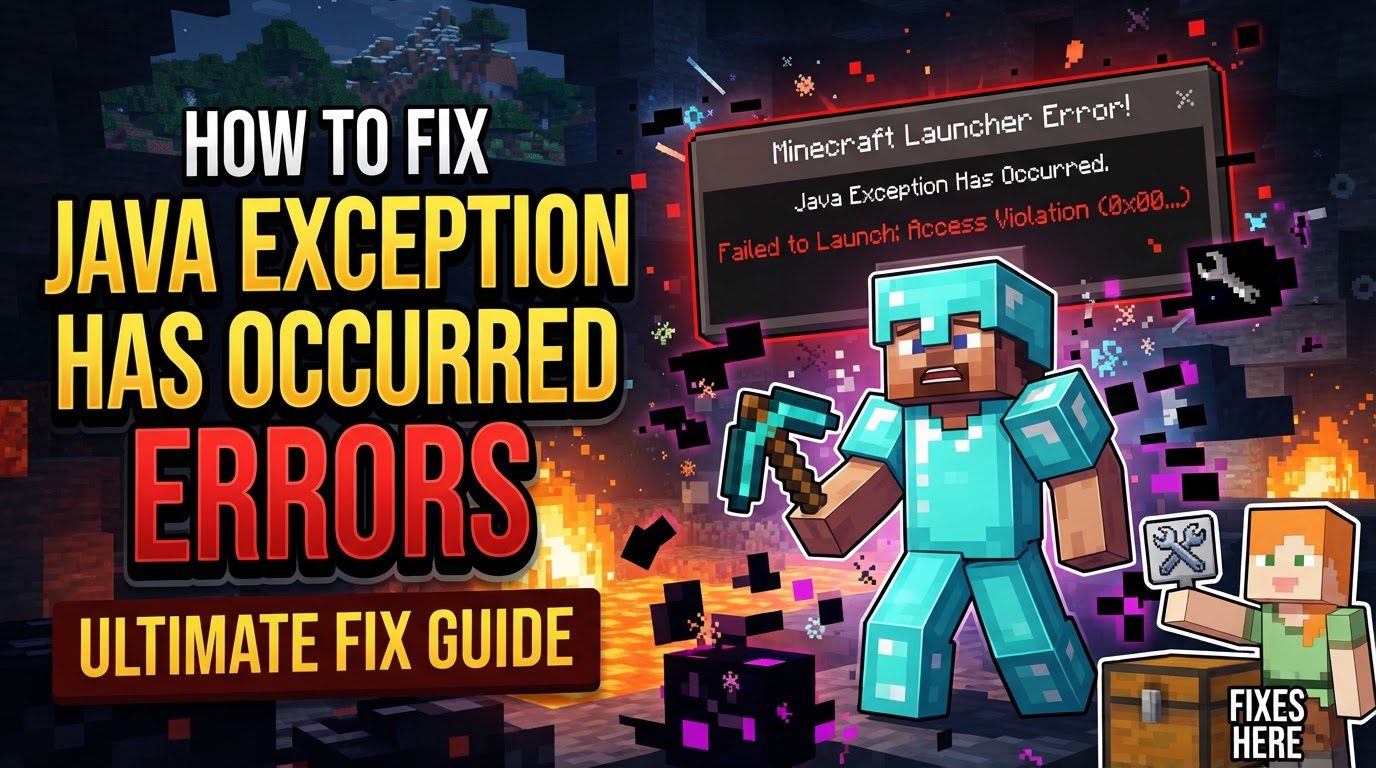
Encountering a “Java exception has occurred” error while trying to play Minecraft can be frustrating, as it often prevents the game from launching or causes unexpected crashes during gameplay. This error message indicates that the underlying Java runtime environment, which Minecraft relies on, has encountered a problem it cannot resolve. The root causes are varied, ranging from issues with your Java installation to system configurations or even in-game settings. Fortunately, many of these issues can be resolved with systematic troubleshooting.
Understanding the Common Causes of Java Exceptions
The “Java exception has occurred” error typically arises from several key areas. Identifying the potential source is the first step towards a lasting solution.
- Outdated or Incompatible Java Version: Minecraft’s reliance on Java means that an incorrect, outdated, or corrupted Java installation is a primary suspect. Different Minecraft versions require specific Java versions (e.g., Java 21 for recent Java Edition releases, Java 8 for older ones). Using an incompatible version can lead to immediate exceptions.
- Insufficient RAM Allocation: Modern Minecraft, especially with mods, resource packs, or high render distances, can be quite demanding on system memory. If Minecraft isn’t allocated enough RAM through its launcher settings, Java can run out of memory, triggering an exception. This is a very common issue for players using extensive modifications.
- Conflicting Software and Network Settings: Security software like antivirus programs or firewalls, along with VPNs, can sometimes mistakenly identify Java or Minecraft processes as threats, blocking their necessary network access or file operations. This interference can prevent the game from communicating properly, leading to errors.
- Outdated Game, Incompatible Mods, or Corrupted Files: An outdated Minecraft client, incompatible or outdated mods, or corrupted core game files can all disrupt the game’s stability. Mods designed for one game version might cause conflicts with another, and corrupted files can lead to unexpected behaviors and exceptions.
-
Network Issues for “Internal Exception” Errors: Specifically for “Internal Exception” messages, particularly those mentioning
java.net.SocketException: Connection Reset, the problem often points to network instability. High render distances can exacerbate these issues by increasing data load, and server-side problems can also manifest as client-side network exceptions.
Step-by-Step Solutions to Fix Java Exceptions
Addressing these errors usually involves a series of diagnostic and corrective actions. Follow these steps methodically to resolve your issue.
- Update Java: Ensure you have the correct and latest stable Java Development Kit (JDK) or Java Runtime Environment (JRE) version installed for your specific Minecraft client. For example, recent Minecraft Java Edition versions often require Java 21, while older versions might need Java 8. Always download directly from Oracle’s official website to ensure authenticity and stability. Incorrect Java versions are a frequent cause of these errors.
-
Allocate More RAM: Insufficient memory is a common bottleneck. Open your Minecraft launcher, navigate to the “Installations” tab, select your profile, and click “Edit.” Under “More Options” or “JVM Arguments,” locate the
-Xmxargument (e.g.,-Xmx2G) and increase the number to allocate more RAM (e.g.,-Xmx4Gfor 4 gigabytes). Ensure you don’t allocate more RAM than your system physically has available. -
Configure Firewall/Antivirus: Your security software might be interfering. Temporarily disable your antivirus or VPN to check if it resolves the issue. If it does, add exceptions for both Java (
javaw.exe) and Minecraft (minecraft.exeand the launcher) in your Windows Defender Firewall settings. Ensure that these exceptions allow communication over both private and public networks. - Update Game and Mods: Verify that your Minecraft game client is fully updated to its latest version. Similarly, ensure that all installed mods, resource packs, and plugins are up to date and explicitly compatible with your current Minecraft version and each other. Incompatible or outdated modifications are a significant source of stability issues.
- Restart Components: A simple restart can often clear temporary glitches. Start by restarting Minecraft itself. If the problem persists, perform a full restart of your computer. Additionally, restarting your internet router can refresh your network connection, which is crucial if the error is network-related.
-
Reinstall Minecraft: If previous steps haven’t worked, your game files might be corrupted. Completely uninstall Minecraft from your system, including deleting the
.minecraftfolder (back up your saves first!). Then, download and reinstall the game from the official Minecraft website. This ensures a fresh, clean installation. - Update Graphics Drivers: Outdated graphics drivers can lead to various performance and stability issues, including Java exceptions that might indirectly relate to rendering. Visit your graphics card manufacturer’s website (NVIDIA, AMD, Intel) to download and install the latest drivers for your specific GPU model.
- Run as Administrator: Sometimes, Minecraft or Java might require elevated permissions to function correctly, especially when accessing certain system resources or writing to specific directories. Right-click on the Minecraft launcher executable and select “Run as administrator” to grant it the necessary privileges.
- Adjust DNS Settings: For network-related exceptions, changing your Domain Name System (DNS) server can improve connection reliability. Go to your network adapter settings, find your active connection, and change the preferred and alternate DNS server addresses to public ones like Cloudflare’s (1.1.1.1 and 1.0.0.1) or Google’s (8.8.8.8 and 8.8.4.4).
- Decrease Render Distance: If you’re experiencing “Internal Exception” errors, particularly during multiplayer sessions, a very high render distance can strain your network and system resources. Lower your in-game render distance setting through Minecraft’s video options to reduce the load and potentially resolve connection issues.
- Enable Java Native Sandbox: This is a less common solution but can sometimes help. Open the Java Control Panel (search for it in your Windows search bar). Go to the “Advanced” tab and check the option “Enable the operating system’s restricted environment (native sandbox).” This can enhance Java’s security and stability.
Important Tips for Troubleshooting
- Optimal Java Version: Always strive to use the most recent, stable, and officially recommended Java version that is specifically compatible with your current Minecraft version. This alignment is critical for optimal performance and stability.
- Mod Compatibility Checks: If you’re running a heavily modded Minecraft setup, dedicate extra time to cross-checking the compatibility of each mod with your Minecraft version and with other installed mods. Incompatibility is a frequent source of exceptions.
- Restart PC After Changes: After making significant changes to your Java installation, firewall settings, or graphics drivers, always restart your entire computer. Many system-level changes only take full effect after a complete reboot.
- No Universal Fix: Understand that there isn’t a single, magic bullet solution for all “Java exception” errors. Often, a combination of several troubleshooting steps will be required to pinpoint and resolve the specific underlying issue.
- Server-Side Issues: If the “Internal Exception” error persists and affects all players on a specific server, the problem is very likely on the server’s end. In such cases, contacting the server administrators or support team is the most effective course of action.
Common Mistakes to Avoid
Being aware of common pitfalls can help you troubleshoot more efficiently and prevent future occurrences of Java exceptions.
- Using Incorrect Java Version: A frequent mistake is using an outdated Java version or one that is not compatible with your Minecraft client or server. Always verify the required Java version for your specific Minecraft setup.
- Insufficient RAM Allocation: Neglecting to allocate enough RAM, especially when running resource-intensive setups like mod packs or high-resolution textures, will almost certainly lead to “out of memory” Java exceptions.
- Incompatible Mods: Mixing mods that are not compatible with your current Minecraft version or with each other is a recipe for instability and crashes. Always check mod requirements and compatibility lists.
- Firewall/Antivirus Interference: Failing to properly configure your firewall or antivirus software to allow Minecraft and Java processes can lead to them being blocked, causing network-related exceptions or preventing the game from launching.
- Ignoring Graphics Driver Updates: Overlooking prompts or recommendations to update your graphics drivers can result in performance issues, visual glitches, and various errors, some of which may manifest as Java exceptions.
- Excessively High Render Distance: Setting your in-game render distance too high, particularly on less powerful systems or with unstable network connections, can overstrain resources and lead to connection issues or system crashes.
Tags:
YOU MAY ALSO LIKE...