

Using the Cubion Launcher to Install Modpacks, Explained
Unleashing Modded Minecraft: A Comprehensive Guide to the Cubion Launcher
The world of Minecraft is vast and ever-expanding, but for many players, the true depth and excitement come from its incredible modding community. Installing and managing these modpacks, however, can often be a complex and frustrating endeavor. This is where the Cubion Launcher steps in, offering a streamlined, secure, and user-friendly solution designed specifically for modded Minecraft. Whether you’re a seasoned modded veteran or just starting your journey into custom content, Cubion aims to simplify the entire process, from installation to ongoing maintenance.
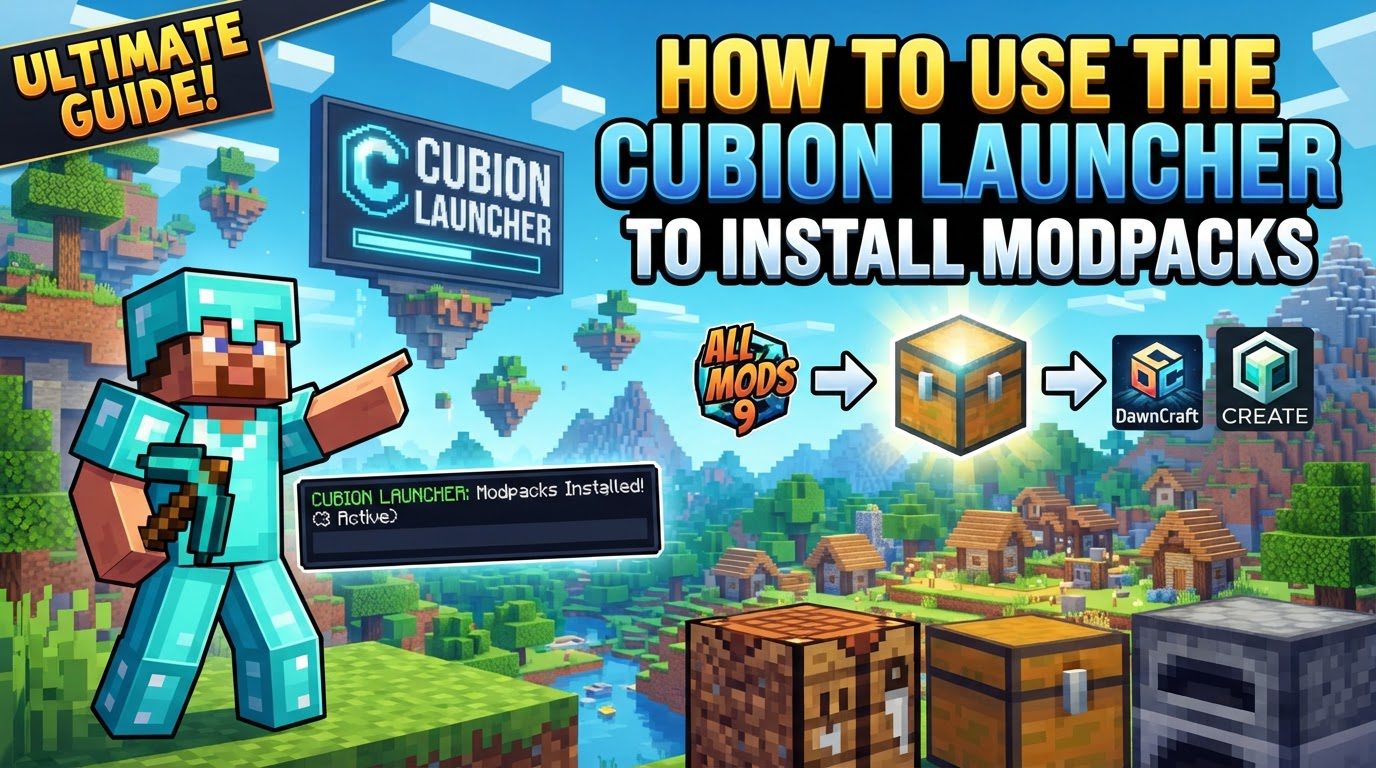
Cubion is not just another launcher; it’s a dedicated platform built from the ground up to enhance your modded Minecraft experience. It prides itself on delivering a seamless journey into the expansive world of community-created content, ensuring that your focus remains on playing, not troubleshooting. By understanding its core mechanics and following a straightforward installation process, you can unlock a new level of customization and adventure in Minecraft.
Understanding Cubion’s Core Mechanics
Cubion distinguishes itself through several key features that address common pain points associated with modded Minecraft. These mechanics are designed to provide a stable, efficient, and secure environment for all your modding needs.
- One-Click Installation and Updates: One of Cubion’s most significant advantages is its support for one-click installation and updates of modpacks, individual mods, and resource packs. This functionality extends to content sourced directly from popular platforms like CurseForge and Modrinth. This eliminates the need for manual file downloads, intricate folder navigation, and version compatibility checks, which are often major hurdles for users. With a single click, Cubion handles all the underlying complexities, ensuring that your desired content is correctly installed and kept up-to-date, saving you considerable time and effort.
- Official Microsoft/Mojang Login: Security is paramount, and Cubion prioritizes it by exclusively using official Microsoft/Mojang login procedures. This means that when you sign in, you are redirected to the official authentication portal in your web browser. Crucially, Cubion never asks for your password directly within the application. This approach ensures a highly secure and legal login experience, protecting your account credentials from potential risks associated with third-party launchers that might request direct password input.
- Efficient Disk Space Management: Modpacks, especially larger ones, can consume a significant amount of disk space due to shared assets like resource packs or common libraries. Cubion addresses this by allowing for shared resource storage between different modpack instances. Instead of duplicating common files for every modpack, it intelligently stores them once and links them across instances. This smart management significantly reduces the overall disk space required, which is particularly beneficial for users with multiple modpacks or limited storage capacity.
- Smart Crash Recovery: Troubleshooting crashes in modded Minecraft can be a daunting task, often requiring extensive knowledge of logs and mod conflicts. Cubion features smart crash recovery, which automatically detects and attempts to repair common issues that lead to crashes. This proactive approach minimizes the time spent on troubleshooting, allowing you to get back into the game faster. The launcher’s ability to diagnose and mitigate problems automatically provides a much smoother and less frustrating user experience.
- Clean, Separate Instances: To maintain stability and prevent conflicts, Cubion ensures that each modpack is installed and run in a clean, separate instance. This isolation means that changes or issues within one modpack do not affect others. You can quickly switch between different modpack setups without worrying about breaking worlds or encountering compatibility problems between unrelated mods. This modular approach is essential for players who enjoy experimenting with various modpacks without compromising their existing saves.
- Fast Content Delivery Network (CDN): Downloads and updates are critical components of the modding experience. Cubion utilizes a fast Content Delivery Network (CDN) to provide lightning-fast downloads and updates for all content. This ensures that you spend less time waiting for files to download and more time playing, even with large modpacks or frequent updates. The efficiency of the CDN contributes significantly to a responsive and enjoyable user experience.
- Clean, Ad-Free, and Community-Driven: Cubion offers a clean, uncluttered, and ad-free interface, focusing solely on functionality and user experience. This commitment to an ad-free environment ensures that there are no distractions or intrusive advertisements. Furthermore, being community-driven means that its development is often influenced by user feedback and focused on delivering features that the modded Minecraft community truly values.
Step-by-Step Guide: Installing Modpacks with Cubion
Getting started with Cubion is a straightforward process. Follow these steps to download, install, and begin enjoying your favorite modpacks.
-
Download the Launcher:
Your first step is to visit the official Cubion website. It is absolutely critical to only download Cubion from its legitimate source: cubion.io. Downloading from unofficial or third-party sites can expose your system to malware, viruses, or compromised versions of the launcher, jeopardizing your security. Once on the website, locate the download section and select the installer appropriate for your operating system – whether you are running Windows, macOS, or Linux. Choosing the correct version ensures compatibility and a smooth installation process.
-
Install Cubion:
After downloading, locate the installer file and run it. If you are on Windows, you might encounter a “SmartScreen” pop-up. This is a security feature designed to warn about unrecognized applications. If this occurs, do not be alarmed; simply click “More info” and then “Run anyway” to proceed, as you are installing from the official source. The installation wizard will then guide you through the process. During this phase, you will typically be prompted to choose an installation directory for the launcher and decide whether to create desktop shortcuts. It’s generally recommended to stick with the default directory unless you have a specific reason to change it.
-
First Launch & Login:
Once the installation is complete, launch Cubion. Upon its initial launch, the launcher will automatically check for and download any necessary updates to ensure you are running the latest, most stable version. After updating, you will be greeted by the main screen. Click the “Login” button. This will initiate the secure login process. You will be prompted to select either a Microsoft or Mojang account. Upon selection, Cubion will open your default web browser and redirect you to the official Microsoft or Mojang authentication page. Complete the sign-in flow there, providing your credentials securely through their trusted portal. Once successfully authenticated, your browser will redirect back to Cubion, and you will be logged in.
-
Configure Settings (Optional but Recommended):
Before diving into modpacks, it’s highly recommended to configure some essential settings for optimal performance. Click the gear icon, typically located in the corner of the launcher, to access the settings menu. The most crucial setting to adjust is RAM allocation. Modded Minecraft, especially with larger or more complex modpacks, is very memory-intensive. While the default might work for vanilla, it’s often insufficient for mods. A general recommendation for modded Minecraft is to allocate between 4GB and 8GB of RAM. Allocating too little can lead to lag, stuttering, and frequent crashes, while allocating too much (beyond your system’s available RAM) can also cause issues. Cubion intelligently handles Java versions, automatically detecting and using the best Java environment required for each modpack, so you typically won’t need to manually configure Java settings.
-
Install a Modpack:
With your settings optimized, you’re ready to install your first modpack. On the main Cubion screen, click “Browse Modpacks.” This will open a vast library of available modpacks, seamlessly integrated from popular platforms like CurseForge and Modrinth. You can browse by popularity, search for specific packs, or filter by game version. Once you’ve found a modpack that piques your interest, select it. You’ll then see an option to either “Play” (if it’s already installed and you want to launch it) or “Install” (for new modpacks). Clicking “Install” will prompt Cubion to download all necessary files – including the modpack itself, associated mods, and any required dependencies – and set up a new, isolated instance for that modpack. Once the download and setup are complete, the “Install” button will change to “Play,” allowing you to launch your modded adventure.
Important Tips for a Smooth Cubion Experience
To ensure you get the most out of the Cubion Launcher and avoid common pitfalls, keep these important tips in mind:
- Always Download from Official Sources: Reiterate this crucial point: always download the Cubion Launcher exclusively from its official website, cubion.io. This is your primary defense against malware, corrupted versions, and potential security breaches. Unofficial sources cannot guarantee the integrity or safety of the software.
- Allocate Sufficient RAM: As highlighted in the setup, proper RAM allocation is vital for performance. For most modpacks, allocating between 4GB and 8GB of RAM is recommended. Heavy modpacks might benefit from more if your system can spare it. Insufficient RAM is a leading cause of poor performance, lag spikes, and game crashes in modded Minecraft.
- Automatic Updates are Your Friend: Cubion is designed to automatically check for and install updates upon launch. This feature ensures that you always have the latest version of the launcher, benefiting from bug fixes, new features, and improved compatibility without any manual intervention on your part.
- Let Cubion Handle Java: A common headache for modded Minecraft players is managing Java versions. Cubion simplifies this by automatically handling the Java versions needed for your modpacks. It detects and uses the optimal Java environment for each instance, removing the need for you to download, install, or configure Java manually, which can be a complex process for many users.
Common Mistakes to Avoid
Being aware of common mistakes can save you a lot of frustration and potential security risks when using Cubion and playing modded Minecraft.
- Downloading from Unofficial Sources: This cannot be stressed enough. Downloading Cubion from any third-party or unofficial site is a significant security risk. These sources may distribute malware, viruses, or compromised versions of the launcher, potentially stealing your personal information or damaging your computer. Always, without exception, use cubion.io.
- Using Cracked Accounts: Cubion is built on a foundation of security and legality. It only supports official Microsoft and Mojang accounts. Attempting to use “no-premium” or cracked accounts is not supported and can pose severe security risks, as these accounts often bypass legitimate authentication processes and can be easily compromised. Stick to your official, purchased Minecraft account for a secure and legitimate experience.
- Ignoring RAM Allocation: Failing to allocate enough RAM to Minecraft through the launcher is a frequent cause of poor game performance. If your game is lagging, stuttering, or crashing frequently, especially with larger modpacks, insufficient RAM is a likely culprit. Always ensure you’ve allocated a suitable amount (4-8GB is a good starting point) based on your system’s capabilities and the modpack’s requirements.
- Entering Login Credentials into Unknown Forms: Be extremely cautious of any launcher that asks for your Minecraft password directly within its application. This is a common phishing tactic. Cubion, as a secure launcher, utilizes the official, browser-based Microsoft/Mojang login flow. This means you enter your sensitive credentials directly on Microsoft’s or Mojang’s trusted website, not within the launcher itself, significantly enhancing your account’s security.
By adhering to these guidelines and leveraging Cubion’s powerful features, you can ensure a secure, stable, and highly enjoyable modded Minecraft experience, allowing you to focus on exploration, creativity, and adventure.
Tags:
YOU MAY ALSO LIKE...


