Adding Friends Using Minecraft’s New Native Friends List
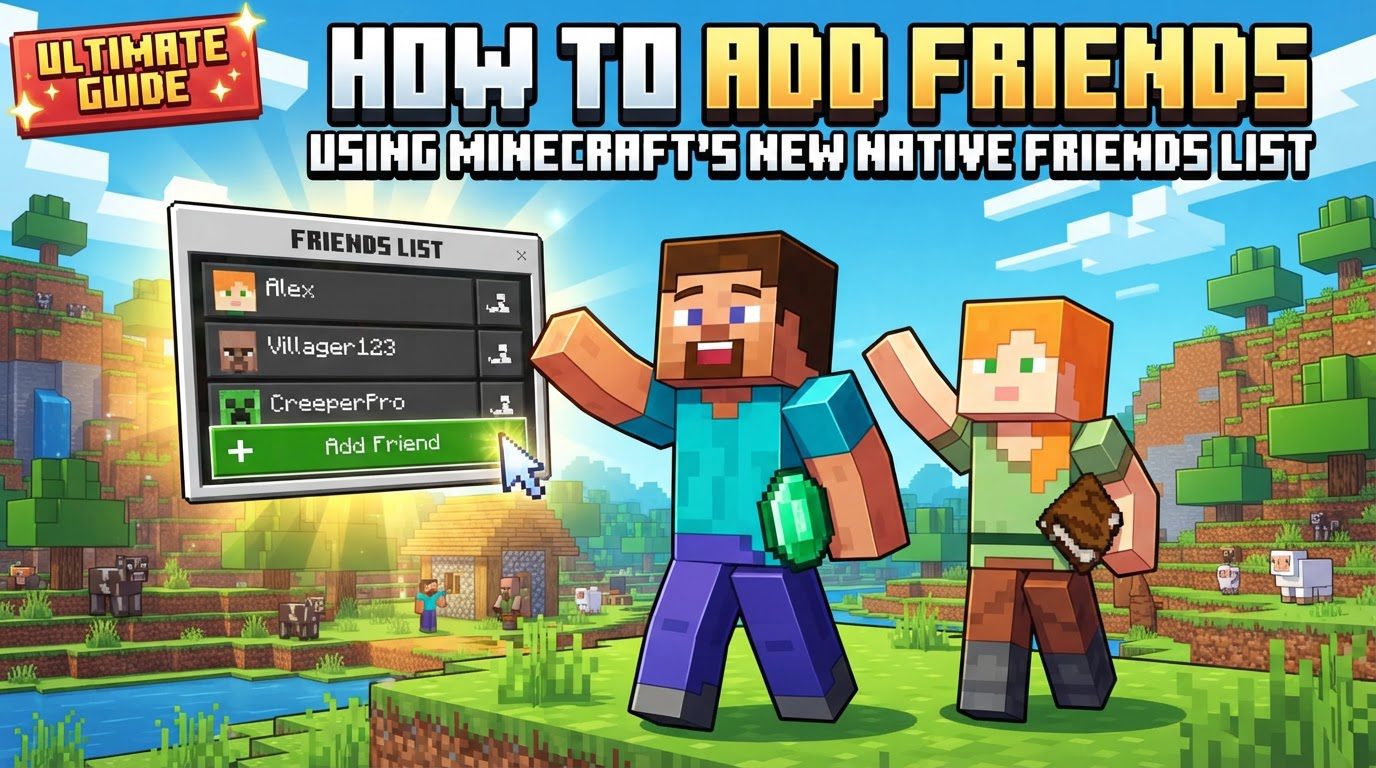
Minecraft’s native friends list provides a direct and efficient way for players to connect, collaborate, and share adventures across its blocky worlds. This integrated system allows you to manage social connections, add friends, send and accept requests, view online/offline status, and invite companions to your current world, transforming solo journeys into shared expeditions.
Understanding the distinct mechanics between Minecraft Java Edition and Minecraft Bedrock Edition is crucial, as these differences dictate connection methods and cross-platform capabilities.
Understanding the Mechanics: Java vs. Bedrock Edition
For Minecraft Java Edition, the native friends list facilitates peer-to-peer connections. Inviting friends turns your single-player world into a temporary server, allowing direct joins. Crucially, this world remains online only while the host player is actively playing; if the host leaves, the temporary server shuts down, disconnecting friends.
In contrast, Minecraft Bedrock Edition leverages Microsoft account gamertags for friend connections. This integration is pivotal, enabling seamless cross-platform play across PC, console, and mobile devices. The Bedrock friends list is deeply tied to your Microsoft account, ensuring a consistent social experience.
An interesting point of convergence is that friends added via Xbox will also appear in your Java Edition friends list, provided they own both versions. This helps bridge the gap between the two distinct Minecraft experiences, offering a more unified social network.
Adding Friends in Minecraft Java Edition
Connecting with friends in Minecraft Java Edition is a straightforward process:
-
Launch Minecraft Java Edition: Open your Minecraft launcher and start the Java Edition.
-
Locate the Friends Button: On the main menu, find the “Friends” button, identifiable by the Steve and Alex heads icon, typically below “Minecraft Realms.”
-
Enter Username: In the “Friends” tab, accurately type your friend’s exact Minecraft Java username into the text box. Java Edition’s system is case-sensitive, requiring precise matching.
-
Send the Request: Click the small letter icon to the right of the text box to send the friend request.
-
Friend Must Accept: Your friend must then open their Minecraft Java Edition, go to their “Friends” menu, and accept your pending request from the “Requests” tab.
Adding Friends in Minecraft Bedrock Edition
Adding friends in Minecraft Bedrock Edition, which supports cross-platform play, primarily uses Microsoft account gamertags:
-
Start Your Game: Launch Minecraft: Bedrock Edition and join a single-player world or a Realm to access social features.
-
Access the Social Menu: Pause the game and select the “Social” button in the top-right corner of the pause menu.
-
Search for Players: Within the Social menu, select “Search for players.”
-
Enter Gamertag: In the “Find Players by gamertag” field, accurately type your friend’s Microsoft account gamertag. Precision is key, as gamertags are case-sensitive.
-
Send the Invitation: Select the “Add” button next to their gamertag to send a friend request.
-
Share Your Gamertag: You can also share your own gamertag via a unique QR code or copy it to your clipboard for others to add you more easily.
Important Tips for a Seamless Friends List Experience
To ensure the best experience when adding and playing with friends, keep these crucial tips in mind:
-
Enable “Friends List” Setting: Both you and your friend must have the “Friends List” setting turned ON. Access this via Options > Online > Friends List. If disabled for either party, friend requests may not send or receive.
-
Verify Exact Usernames or Gamertags: Accuracy is paramount. Minecraft’s friend systems are case-sensitive; even minor capitalization errors in Java usernames or Bedrock gamertags can prevent requests from reaching the intended player. Confirm every character.
-
Keep In-Game Notifications On: To receive prompt alerts for incoming friend requests, keep your in-game notifications active. Otherwise, you’ll need to manually check the “Requests” tab in the Friends menu.
-
Pre-add for Bedrock Cross-Platform: For Bedrock cross-platform play, ensure both players have added each other to their Microsoft account friend lists before connecting in Minecraft. This can resolve many connectivity issues.
-
Update to the Latest Version: Always ensure your Minecraft client is updated. Outdated versions commonly cause synchronization problems with friends lists and difficulties in sending requests or seeing friends online.
-
Check Xbox Privacy Settings: Due to Microsoft account integration (relevant for both editions), Xbox privacy settings significantly impact friend actions and multiplayer. Confirm that settings for multiplayer and friend visibility are allowed, especially for child accounts with stricter defaults.
Common Mistakes to Avoid When Adding Friends
Awareness of common pitfalls can save time and frustration when trying to add friends:
-
Incorrect Game Settings: Forgetting to enable crucial settings like “Friends List” or “Allow Requests” in your game options will prevent sending or receiving invitations. Always double-check these.
-
Restrictive Privacy Settings: Xbox privacy settings, affecting both Bedrock and Java via Microsoft account integration, can block friend actions and cross-network play. Review these to ensure they permit desired social interactions.
-
Wrong Username or Gamertag: A common error, even minor typos, incorrect capitalization, or extra spaces in usernames (Java) or gamertags (Bedrock) will prevent requests from reaching the intended player. Confirm exact spelling with your friend.
-
Outdated Game Version: Playing on an older Minecraft version than your friend can lead to connectivity and friends list issues. Mismatched versions cause sync problems; keep your game updated.
-
Server-Side Glitches: Sometimes issues stem from temporary server-side glitches. If other solutions fail, try restarting Minecraft or your PC, or wait a short period for Microsoft’s servers to stabilize.
-
Friend Cancelled Request: If a sent request disappears, your friend might have canceled it before you could accept. They would need to resend, or you could send it again if they are ready.
-
Friend Has “Allow Requests” Off: Even if their general “Friends List” is on, if “Allow Requests” is off, others cannot accept their outgoing requests. Ensure they check this specific setting.
Tags:
YOU MAY ALSO LIKE...