

Inviting a Friend Without a Server Using the Friends List
Minecraft offers various ways to enjoy its blocky worlds with friends, and one of the most convenient methods, especially for those who don’t want to set up a dedicated server, is by utilizing the in-game friends list. This guide will walk you through the process for both Minecraft: Bedrock Edition and Minecraft: Java Edition, allowing you to seamlessly connect with your friends without the need for complex server configurations.
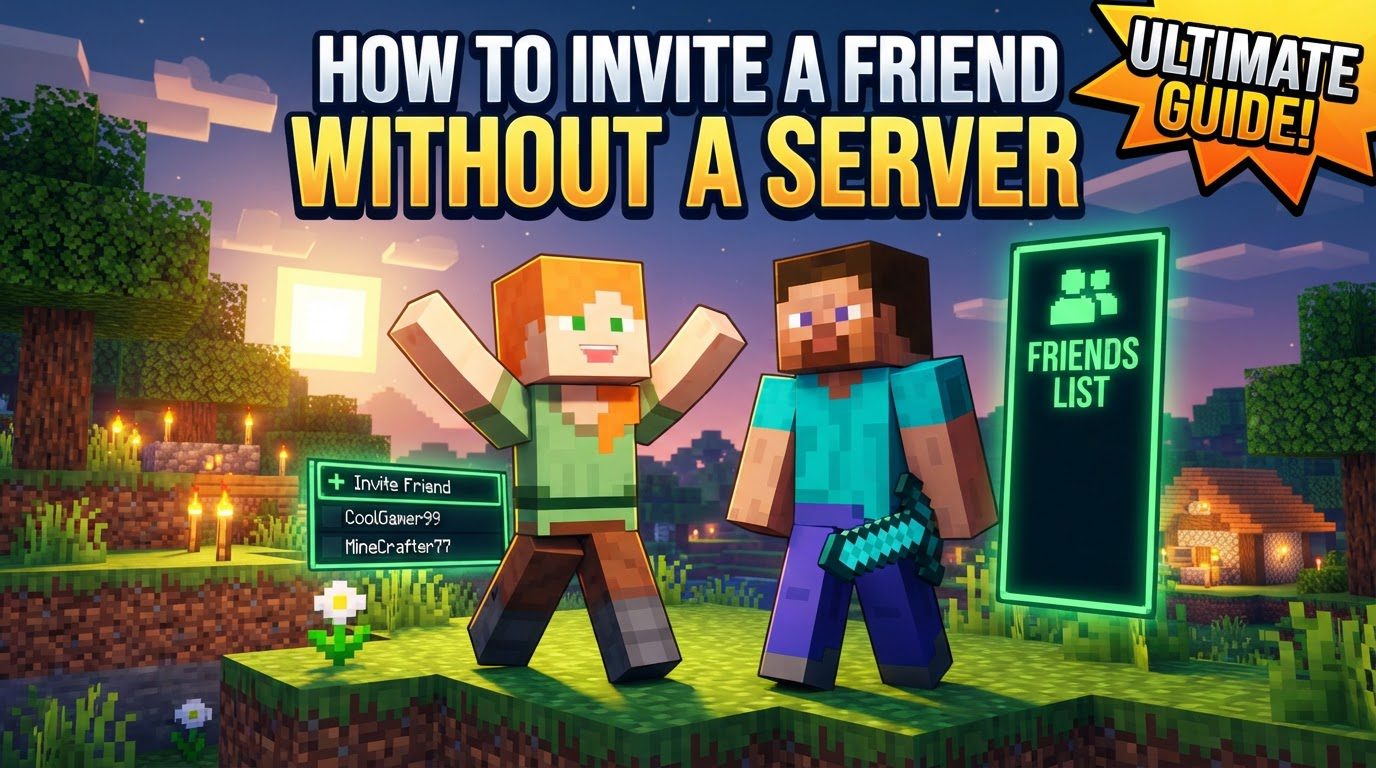
In Minecraft: Bedrock Edition, multiplayer functionality is intrinsically built into the game. It leverages your Xbox Live/Microsoft account to facilitate connections. When you invite a friend in Bedrock Edition, your hosted world essentially becomes a temporary, peer-to-peer connection for that session. As long as you, the host, remain online, your friends can join directly into your world. This system makes it incredibly straightforward to jump into a game together.
For Minecraft: Java Edition, the concept of a “Friends List” and direct peer-to-peer connections for local worlds is a more recent and welcome addition. Previously, playing Java Edition with friends without a dedicated server typically involved either local area network (LAN) play, which required friends to be on the same physical network, or the use of virtual LAN (VPN) software like Hamachi or ZeroTier for remote play. The new Friends List feature simplifies this greatly; when you invite a friend, your single-player world temporarily acts as a host, allowing your friend to join as long as you are online and in that world.
Inviting Friends in Minecraft: Bedrock Edition
The process for inviting friends in Bedrock Edition is streamlined and integrated directly into the game’s interface. Follow these steps to get your friends into your world:
- Launch Minecraft and select “Play.” This is your gateway to all your saved worlds and multiplayer options.
- Select the “Worlds” tab from the top menu. Here, you’ll see a list of all your single-player worlds.
- Click the pencil icon next to the world you wish to play. This action opens the world settings, allowing you to modify various parameters before loading it.
- Go to “Multiplayer” in the left menu. Within the world settings, navigate to the multiplayer section.
- Enable the “Multiplayer game” toggle. This is a crucial step; if this toggle is off, no one will be able to join your world. You should also ensure that “Player access” is set appropriately, such as “invited players,” “friends,” or “friends of friends,” depending on your preference for who can join.
- Start the world by selecting “Play” or “Play on Realms.” Once multiplayer is enabled, load into your chosen world.
- Pause the game once you are in the world. While in-game, press the escape key (or equivalent on your platform) to bring up the pause menu.
- Select the “Social” button (top-right). This button typically looks like a few overlapping figures and will open your in-game friends list and invitation options.
- Select “Invite to Play.” This will display a list of your Xbox Live/Microsoft friends who are currently online or available to invite.
- Check the boxes next to the friends you want to add. Go through your friend list and select everyone you wish to invite to your game.
- Select “Send # Invites.” After selecting your friends, confirm your choice. Your selected friends will then receive an in-game notification that you’ve invited them to your world, which they can accept to join.
Inviting Friends in Minecraft: Java Edition (Using the In-Game Friends List)
The Java Edition’s Friends List provides a modern solution for peer-to-peer play. Here’s how to use it:
- Open Minecraft Java Edition. Launch your game client as you normally would.
- Select the “Friends” button. This button is often depicted as two heads or a similar social icon, usually found on the main menu.
- Enter your friend’s Minecraft Java username in the “Friends” tab and send a friend request. For this system to work, you and your friend must be connected through this in-game friends list. Your friend will need to accept your request.
- Load into your single-player world. Once your friend request is accepted and your friend is online, start playing in the single-player world you wish to share.
- Press ‘O’ (default key) to open the friends list in-game. While playing in your world, use the default hotkey ‘O’ to quickly access your friends list.
- Select “invite” next to your friend’s name. Find your friend in the list and click the “invite” option next to their name. This will send an invitation directly to them. Your friend can then accept the invite to join your world.
- Note: Your friend can also initiate the connection by requesting to join your world through their own friends list, removing the need for you to send an explicit invite. They would see your online status and the option to “Request to Join” your world.
Important Tips for Smooth Multiplayer Experience
To ensure a seamless experience when inviting friends, keep the following tips in mind:
- Microsoft Account: All players, regardless of edition, need to be signed in with a Microsoft account to utilize the friends list and multiplayer features effectively. This is particularly crucial for Bedrock Edition and the newer Java Friends List functionality. Without it, online multiplayer is generally not possible.
- Multiplayer Settings: Always double-check that “Multiplayer game” is enabled in your world settings for Bedrock Edition. For Java Edition, ensure the “Friends List” option is turned on in your game options (typically found under Options > Online > Friends List). Also, verify that “Allow Requests” is enabled to receive invites from friends.
- Game Version: It is paramount that all players involved are running the most recent and compatible version of Minecraft. Mismatched game versions are a common cause of connection failures and can prevent friends from joining each other’s worlds.
- Online Services: If you are playing on a console (e.g., Xbox, PlayStation, Nintendo Switch), you will likely require an active subscription to your platform’s respective online service (such as Xbox Game Pass Core, Nintendo Switch Online, or PlayStation Plus) to access online multiplayer features.
- Privacy Settings: Your Xbox/Microsoft account privacy settings play a significant role. Ensure that your settings allow you to join multiplayer games, add friends, and receive invites. Strict privacy settings can inadvertently block these essential multiplayer functions.
Common Mistakes to Avoid
Even with a straightforward system, certain pitfalls can prevent successful connections. Be aware of these common mistakes:
- Not being signed in to a Microsoft account: This is the most fundamental requirement for online multiplayer using the friends list in both Bedrock Edition and the new Java Friends List. Without being signed in, the system cannot authenticate your identity or connect you to friends.
- Multiplayer game disabled: Forgetting to enable the “Multiplayer game” toggle in your world settings (Bedrock Edition) is a frequent oversight that will prevent anyone from joining your world.
- Incorrect username/gamertag: When adding friends, ensure you are entering the exact Minecraft Java profile name or Xbox Gamertag. A single typo can lead to the friend request not reaching the intended person.
- Outdated game version: Playing on an outdated version of Minecraft while your friends are on a newer one, or vice-versa, will almost always result in connection issues or an inability to even see each other’s games. Always update your game.
- Privacy settings blocking invites: Overly strict privacy settings on your Microsoft/Xbox account can silently prevent friend requests or game invites from being sent or received. Review these settings if you encounter issues.
- Assuming Java Edition has built-in direct invites for all situations: While the Friends List for Java Edition now supports peer-to-peer for local worlds, it’s important to remember that traditional dedicated servers (including Realms) are still the primary method for persistent, always-on multiplayer experiences in Java Edition. The Friends List is for temporary, host-dependent sessions.
- Firewall/Antivirus interference: Occasionally, your computer’s firewall or antivirus software might mistakenly identify Minecraft’s connection attempts as a threat and block them. If you’ve tried everything else, temporarily disabling your firewall or adding Minecraft as an exception might resolve the issue.
By following these steps and keeping the important tips and common mistakes in mind, you and your friends can easily connect and explore the vast worlds of Minecraft together, all without the complexities of setting up a dedicated server.
Tags:
YOU MAY ALSO LIKE...


