

Fixing a Mod Breaking After a Game Drop Update, Explained
182
views ❘
July 6, 2026
Understanding Why Mods Break After an Update
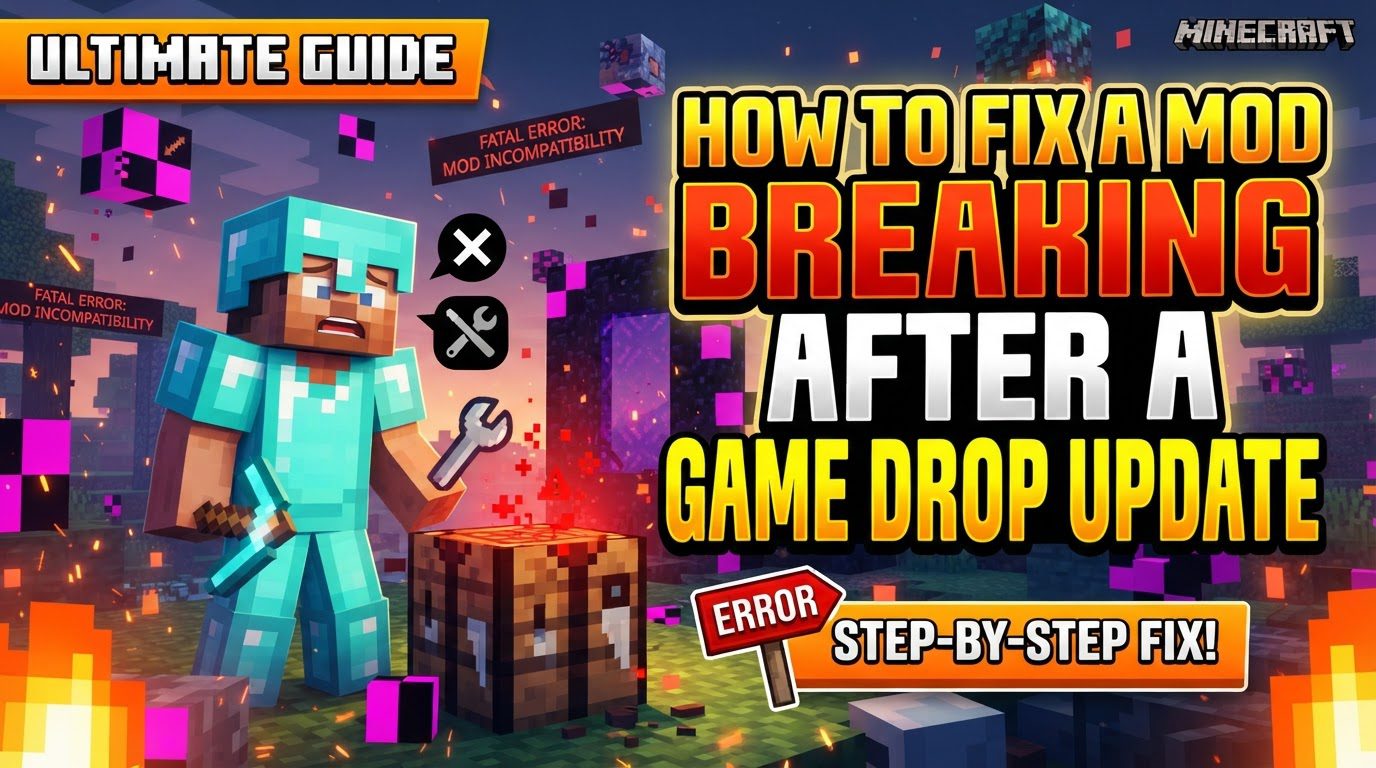
When a Minecraft mod ceases to function correctly or causes game instability following a new “Game Drop” update, it’s almost always a direct result of incompatibility. Minecraft updates frequently introduce significant changes to the game’s underlying code, which can render older mod versions obsolete. Resolving these issues requires a methodical approach, focusing on ensuring every component – from the game itself to individual mods and their loaders – is aligned in terms of version compatibility.
Key Mechanics of Mod Incompatibility
- Version Compatibility: Every single mod in the Minecraft ecosystem is meticulously developed and compiled against a specific version of the game. Attempting to use a mod designed for Minecraft 1.16 on a 1.20 game client, for instance, will almost certainly lead to immediate crashes, severe errors, or the mod simply failing to load. It is paramount that the version of each mod precisely matches the target Minecraft version you intend to play.
- Mod Loaders: Essential tools such as Forge and Fabric act as the bridge between Minecraft and your installed mods. These loaders themselves are version-specific and must be updated to correspond with the new Minecraft version you are aiming to use. An outdated mod loader will effectively prevent even correctly updated mods from initializing and loading into the game, making it a critical first step in troubleshooting.
- Breaking Changes: With each new major Minecraft version, Mojang often implements substantial alterations to the game’s internal code, its APIs, and core functionalities. These are known as “breaking changes” because they directly invalidate the code that older mods rely upon. Mod developers must then invest time and effort to adapt their creations to these new code structures, which is why updates for mods don’t always appear immediately after a game update.
- Dependencies: Many sophisticated mods do not operate in isolation. Instead, they rely on other foundational mods, known as dependencies, to provide shared code, libraries, or core functionalities. If these required dependency mods are either missing entirely, or are themselves outdated and incompatible with the new game version or the main mod, the primary mod will inevitably fail to function correctly, often leading to crashes.
- Mod Conflicts: While less common than direct incompatibility, sometimes two or more mods, though individually compatible with the game version, can interfere with each other. This interference might stem from attempts to modify the same game elements, conflicting ID assignments, or unexpected interactions between their respective codebases, resulting in unpredictable behavior or game crashes.
Step-by-Step Process for Fixing Broken Mods
- Back Up Everything: Before initiating any changes to your modded Minecraft setup, the absolute first and most crucial step is to create comprehensive backups. This includes your entire `saves` folder, which contains all your valuable worlds, and your `mods` folder, preserving your current mod collection. For maximum safety, consider backing up your entire Minecraft game directory. This safeguard ensures that if any step goes awry, you can revert to a working state without losing progress or configurations.
- Identify Target Version: Clearly determine the specific Minecraft version you wish to play with your mods. This decision will dictate which versions of your mod loader and individual mods you need to seek out. For example, if you want to play on Minecraft 1.20.1, all your components must explicitly support this version.
- Update Mod Loader: Once your target Minecraft version is established, proceed to download and install the very latest version of your chosen mod loader (either Forge or Fabric) that is explicitly compatible with that specific Minecraft version. Always obtain these installers directly from their official websites (e.g., files.minecraftforge.net or fabricmc.net) to ensure authenticity and stability. An outdated mod loader is a common roadblock to getting mods working.
- Find Compatible Mods: With your mod loader updated, the next task is to find updated versions of each of your preferred mods. Visit trusted mod distribution platforms such as CurseForge or Modrinth. For each mod you use, navigate to its dedicated page and meticulously search for a version that explicitly states compatibility with your newly updated Minecraft version and your chosen mod loader (e.g., “Minecraft 1.20.1 – Forge” or “1.19.4 – Fabric”).
- Install Updated Mods: After downloading the compatible versions of your mods, carefully replace your old, potentially incompatible mod files with these newly acquired versions. This involves placing the new `.jar` files directly into your Minecraft installation’s `mods` folder. Ensure that no old, incompatible versions of the same mod remain in the folder, as this can cause conflicts.
- Check Dependencies: Do not overlook dependency mods. Many mods require specific foundational libraries or APIs to function. For Fabric users, the Fabric API is a common example that almost all Fabric mods require. Verify that all such required dependency mods are also updated to the correct version for your target Minecraft version and are present in your `mods` folder alongside their dependent mods.
- Update Java (if necessary): Minecraft, and by extension its mod loaders and mods, relies on a specific Java Runtime Environment (JRE). Verify that your installed Java version is compatible with your target Minecraft version and mod loader. For instance, Minecraft 1.18 and newer typically require Java 17 or higher, while older versions like Minecraft 1.12.2 often use Java 8. An incorrect Java version can prevent the game from launching or cause crashes.
- Test Gradually: If you are managing a large collection of mods and encounter crashes after updating, a highly effective troubleshooting strategy is to test them gradually. Begin by launching the game with only your mod loader and essential dependencies. Once confirmed stable, add your other mods back into the `mods` folder in small groups (e.g., 5-10 mods at a time). This incremental approach will help you isolate and identify the specific mod or group of mods that are causing the problem.
Important Tips for Mod Management
- Read Crash Reports: Whenever your game crashes, it generates a crash report file (usually in the `crash-reports` folder within your Minecraft directory). These reports are invaluable. They often contain specific error messages, mod IDs, or file paths that can point directly to the problematic mod or the nature of the issue, such as a missing dependency or an incompatibility. Learning to skim these reports can save significant troubleshooting time.
- Consult Mod Pages: Always make it a habit to check the mod’s official page or documentation on platforms like CurseForge or Modrinth. Mod developers frequently post specific compatibility information, known issues, troubleshooting tips, and detailed update instructions for their mods. This is often the most direct source for resolving specific mod-related questions.
- Be Patient: Mod developers are often volunteers who dedicate their personal time to maintaining and updating their creations. After a new Minecraft game version is released, it takes considerable time and effort for them to adapt their mods to the breaking changes. Exercise patience and understand that updates for your favorite mods may not be available immediately.
- Use Reputable Sources: To protect your computer from malware and ensure the stability of your game, always download mods and mod loaders exclusively from official or widely recognized and trusted platforms. These include the official Forge website, the official Fabric website, CurseForge, and Modrinth. Avoid obscure, unofficial download sites.
Common Mistakes to Avoid
- Using Incompatible Versions: This is arguably the most frequent error. Never attempt to run a mod that is explicitly designed for an older Minecraft version on a newer one, or vice-versa, without first confirming its compatibility. This will almost always lead to immediate game failures.
- Ignoring Mod Loader Updates: Failing to update your chosen mod loader (Forge or Fabric) to a version that specifically matches your target Minecraft game version is a guaranteed way to prevent any mods from working, even if the mods themselves are updated. The mod loader is the foundation.
- Skipping Dependencies: Overlooking or failing to install and update required dependency mods will inevitably lead to crashes or the main mod simply not loading. Always check a mod’s requirements section for any listed dependencies.
- Mixing Mod Loaders: Forge and Fabric are distinct and incompatible mod loading architectures. Do not attempt to use Fabric mods within a Forge instance of Minecraft, nor try to run Forge mods with a Fabric instance. Choose one loader and stick with mods designed for that specific loader.
- Adding Too Many Mods At Once: When troubleshooting after an update, or even when setting up a new modpack, adding all your mods simultaneously makes it incredibly difficult to pinpoint the source of any issues or crashes. Always add mods in small batches to simplify the identification of problematic ones.
Click to rate this post!
[Total: 0 Average: 0]
Tags:
YOU MAY ALSO LIKE...

Recording a Replay Using the Replay Mod — A Quick Guide
100
views
The Replay Mod for Minecraft is an invaluable tool for players looking to record, replay,…

Recovering a Deleted World From Backups, Explained
108
views
Losing a Minecraft world can be a disheartening experience, whether due to accidental deletion, file…
Recovering a Lost End City or Stronghold Seed Location
140
views
Minecraft's vast and procedurally generated worlds hide some of its most crucial structures: Strongholds and…

Recovering a Lost Minecraft Account
103
views
Understanding Minecraft Account Recovery Losing access to your Minecraft account can be a frustrating experience,…

Reducing Battery Drain While Playing Minecraft Mobile (Step by Step)
147
views
Understanding Battery Drain in Minecraft Mobile Playing Minecraft mobile offers endless creative possibilities and adventures,…
Reducing Boat Friction Using Packed Ice — A Quick Guide
92
views
The fundamental principle behind this rapid transit method lies in the significantly reduced friction boats…

Reducing Crossbow Reload Time with Quick Charge (Step by Step)
55
views
Mastering Crossbow Reload Speed with Quick Charge The crossbow is a versatile and powerful ranged…

Reducing Entity Lag From Item Buildup, Explained
86
views
Understanding Entity Lag and Its Impact In the vast, blocky world of Minecraft, performance can…

Reducing Explosion Damage Using Resistant Blocks — A Quick Guide
112
views
To reduce explosion damage in Minecraft using resistant blocks, understanding block properties and strategic building…