

Pinning a Mod Loader Version in a Launcher Profile, Explained
Understanding Mod Loader Version Pinning in Minecraft
In the world of Minecraft modding, “pinning” a mod loader version within a launcher profile is a fundamental practice for any player looking to customize their game experience. This process involves explicitly specifying and associating a particular version of a mod loader, such as Forge or Fabric, with a distinct game instance or profile. The primary goal of this precise configuration is to guarantee that whenever you launch that specific profile, it consistently utilizes the intended mod loader and its exact version. This level of control is absolutely critical for maintaining mod compatibility and ensuring a stable, enjoyable modded gameplay session.
Why Pin a Mod Loader Version? The Importance of Specificity
The ability to pin a mod loader version is not just a convenience; it’s a necessity for effective Minecraft modding. Mod loaders like Forge, Fabric, Quilt, and NeoForge are designed to enable the use of various modifications for specific Minecraft versions. Without a designated mod loader, Minecraft runs in its vanilla state, unable to recognize or load any mods.
Minecraft launchers, whether official or third-party, play a crucial role by allowing players to create isolated “instances” or “profiles.” Each of these profiles is designed to be self-contained, capable of running a different Minecraft version and a unique mod loader setup. This isolation is key to preventing conflicts between different mod sets or Minecraft versions.
When a mod loader is installed, it typically registers itself as a new selectable “version” or “profile” within the Minecraft Launcher. This new entry represents the specific combination of Minecraft version and mod loader version that you’ve prepared. It’s vital to remember that mods are generally compatible only with specific Minecraft versions and, more granularly, with specific mod loader versions. For instance, a mod designed for Minecraft 1.18.2 Forge will likely not work with Minecraft 1.19.2 Fabric. Furthermore, Forge and Fabric mods are inherently incompatible; they cannot be mixed within the same game instance due to their distinct architectural designs. Pinning ensures that your chosen mods always find the correct environment to function.
Step-by-Step Guide: Pinning a Mod Loader in the Official Minecraft Launcher
The official Minecraft Launcher provides a straightforward method for pinning mod loader versions once the loader itself has been installed. Follow these steps carefully to set up your modded profile:
- Download the Mod Loader Installer: Begin by obtaining the correct installer for your chosen mod loader. For Forge, visit files.minecraftforge.net. For Fabric, go to fabricmc.net. Ensure you select the installer that corresponds to your desired Minecraft version.
- Run the Installer: Before proceeding, make sure the Minecraft Launcher is completely closed. This is a critical step to prevent installation errors. Once the launcher is closed, run the downloaded mod loader installer. Select the “Install Client” option (this is the default for most users) and click “OK” to proceed with the installation. The installer will place the necessary files in your Minecraft directory and register the new mod loader version with the launcher.
- Open the Minecraft Launcher: Relaunch the Minecraft Launcher.
- Navigate to the Installations Tab: Within the launcher, locate and click on the “Installations” tab at the top. This section lists all your available Minecraft versions and profiles.
- Create a New Installation: Click on the “New Installation” button. (In older versions of the launcher, this might be labeled “New Profile”). This action opens a configuration window for your new game instance.
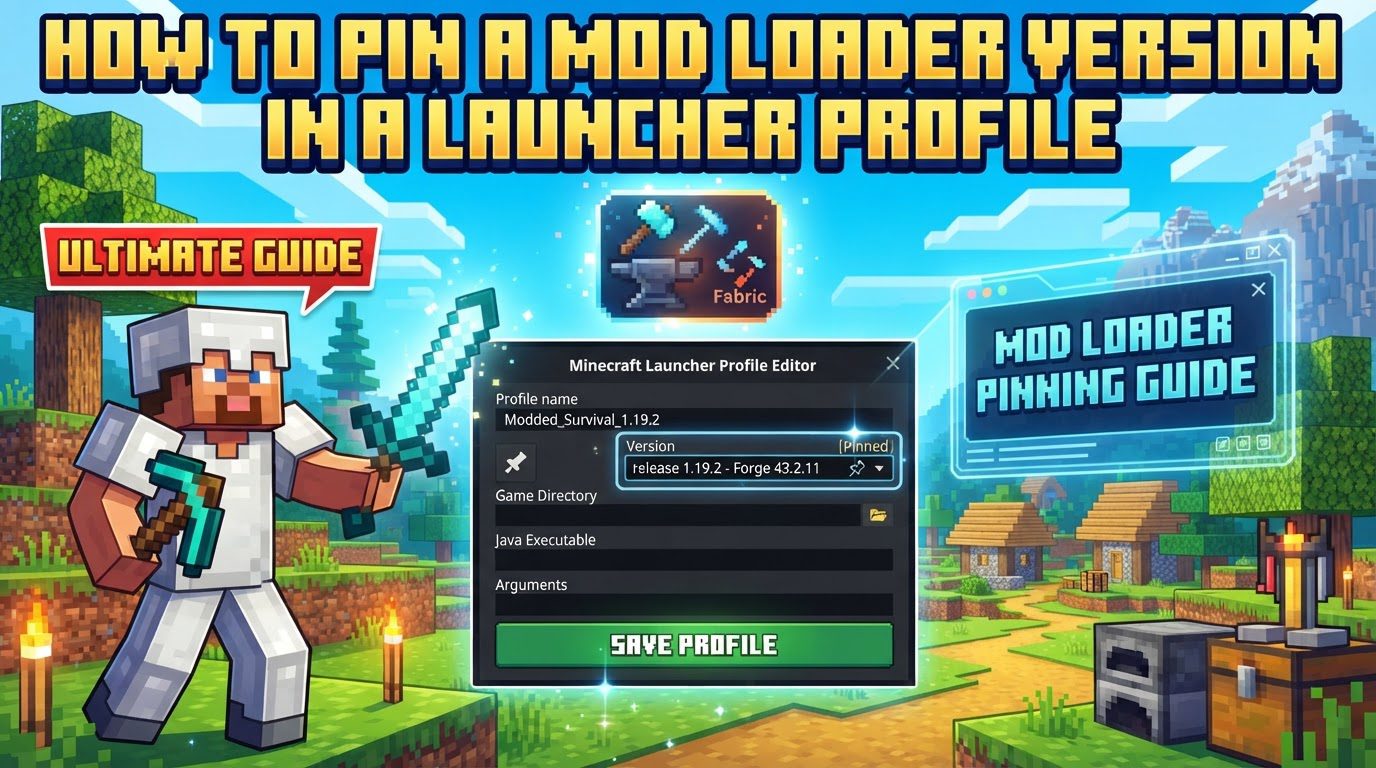
- Select the Pinned Mod Loader Version: In the “Version” dropdown menu within the new installation window, you will now find an entry for your recently installed mod loader. This entry typically follows a format like “release 1.19.2-forge-43.2.0” for Forge or a similar naming convention for Fabric versions. Select this specific mod loader version from the list. This is the act of “pinning” it to this profile.
- Assign a Name and Save: Give your new profile a descriptive name, such as “My Modded World 1.19.2 Forge” or “Fabric Adventures.” This helps you easily identify it later. Finally, click “Create” or “Save” to finalize the profile.
Your new modded profile is now ready. You can select it from the dropdown menu on the main “Play” tab of the launcher and launch your modded Minecraft game.
Streamlined Pinning with Third-Party Launchers
Third-party launchers, such as the CurseForge App, MultiMC, ATLauncher, and GDLauncher, are designed to significantly streamline the process of creating and managing modded Minecraft instances, including pinning mod loader versions. These launchers offer a more integrated experience compared to the official launcher’s manual installation process.
- Create a New Instance/Profile: The general process involves initiating the creation of a new instance or profile within your chosen third-party launcher. This is typically done through a “New Instance,” “Add Instance,” or similar button.
- Select Minecraft Version and Mod Loader: During the instance creation wizard, you will be prompted to select your desired Minecraft version. Following this, the launcher will present you with options to choose a specific mod loader (Forge, Fabric, Quilt, NeoForge) and its exact version from a convenient dropdown list. This integrated selection directly pins the mod loader to your new instance.
- Automatic Version Selection: Many third-party launchers are intelligent enough to automatically suggest or select the recommended or latest stable mod loader version for your chosen Minecraft version, further simplifying the process.
These launchers handle the download and installation of the mod loader behind the scenes, effectively pinning the chosen version to your instance with minimal manual intervention.
Important Tips for a Smooth Modding Experience
To ensure a stable and enjoyable modded Minecraft experience, keep the following tips in mind:
- Official Sources are Key: Always download mod loaders from their official websites (e.g., files.minecraftforge.net, fabricmc.net). This guarantees authenticity, stability, and reduces the risk of malicious software.
- Maintain Separate Instances: It is crucial to maintain separate instances or profiles for different Minecraft versions and mod loader setups. This practice prevents conflicts between diverse sets of mods and ensures that save data from one modded world doesn’t interfere with another.
- Verify Mod Compatibility: Before adding any mods, meticulously verify that they are compatible with both your chosen Minecraft version and the specific mod loader version you have pinned. Incompatible mods are a leading cause of crashes.
- Back Up Your Data: Always back up your Minecraft worlds and configuration files before installing new mod loaders or updating existing ones. This safeguards your progress against unforeseen issues or corruptions.
- Allocate Sufficient RAM: Modded Minecraft can be resource-intensive. Allocate sufficient RAM (e.g., 4GB or more) to your modded Minecraft instances, especially when running large modpacks, to prevent performance issues and crashes.
- Close the Launcher During Installation: When using the official launcher, always ensure the Minecraft Launcher is completely closed before running a mod loader installer. This prevents file access issues and ensures a clean installation.
Common Mistakes to Avoid
Steering clear of these common pitfalls will save you a lot of troubleshooting time:
- Incompatible Mod Loaders: Never attempt to use Forge mods with a Fabric mod loader or vice versa within the same instance. They are fundamentally incompatible and will inevitably lead to game crashes.
- Mismatched Versions: Failing to match the mod loader version to the specific requirements of your chosen mods or modpack is a frequent error. This mismatch can result in crashes, mods failing to load, or unexpected game behavior.
- Outdated Mod Loaders: Neglecting to update the mod loader itself when a new mod requires a more recent version can cause compatibility issues. Always keep your mod loader updated if your mods demand it.
- Untrusted Sources: Downloading mod loaders or mods from unofficial or untrusted sources poses significant security risks, including malware and unstable software. Stick to official and reputable platforms.
- Incorrect Java Version: Using an incorrect or outdated Java version for the specific Minecraft and mod loader combination can lead to launch failures or in-game errors. Ensure your Java installation is appropriate for your setup.
- Client vs. Server Confusion: Confusing client-side mod loader installation with server-side mod loader installation is a common mistake. These are distinct processes, and a client-side installer will not properly set up a modded server, and vice-versa.
By understanding and applying these guidelines for pinning mod loader versions, you will be well-equipped to manage your modded Minecraft experiences effectively and minimize potential issues.
Tags:
YOU MAY ALSO LIKE...


