

Installing JEI Alongside Create for Recipe Help — A Quick Guide
Integrating JEI with Create for Enhanced Recipe Management in Minecraft
Minecraft’s modding community continually innovates, offering tools that transform gameplay. Among the most essential utilities for modded Minecraft is Just Enough Items (JEI), an indispensable companion for managing vast inventories and understanding complex crafting recipes. When paired with the highly popular Create mod, JEI becomes an even more powerful asset, especially with the addition of “Create JEI Compat,” streamlining the learning curve for Create’s intricate machinery and multi-step processes. This guide will walk you through the comprehensive steps to install and effectively utilize JEI alongside Create, ensuring you have all the recipe assistance you need.
Key Mechanics and Features
Understanding how JEI functions and its specific integration with the Create mod is crucial for an optimized experience. These mechanics are designed to provide quick access to information and simplify complex crafting.
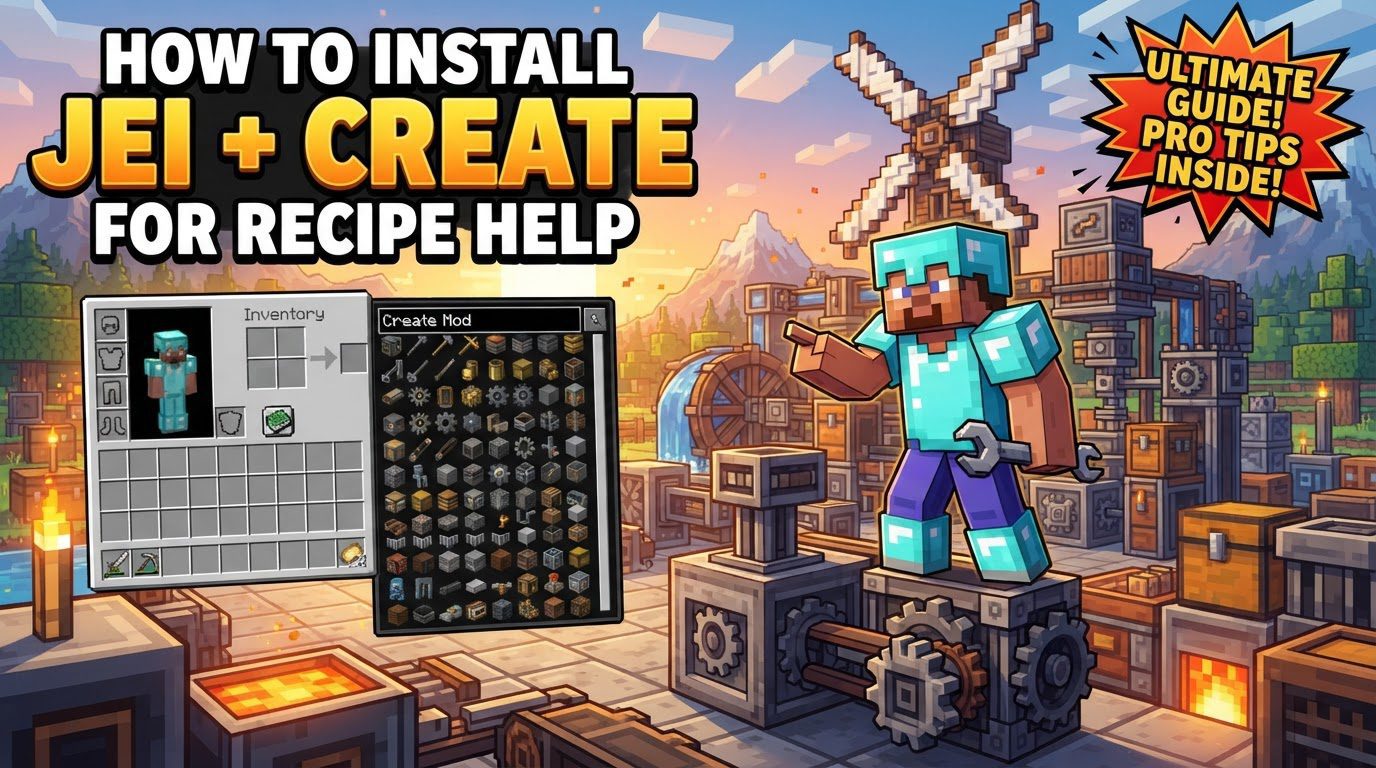
- Item and Recipe Display: Just Enough Items (JEI) fundamentally displays all items available in your game, encompassing not only vanilla Minecraft items but also those introduced by any installed mods, including Create. This comprehensive list typically appears on the right side of your inventory screen, offering a searchable database of every block, item, and resource.
- Recipe and Usage Lookup: JEI provides intuitive shortcuts for recipe discovery. By hovering your mouse over any item in JEI or your inventory and pressing the ‘R’ key, you can instantly reveal its crafting recipe or how it is processed. Conversely, pressing the ‘U’ key while hovering over an item will show you all its uses in other recipes, allowing you to trace dependencies and plan your crafting efficiently.
- Powerful Search Bar: Located at the bottom of the JEI interface, the search bar is a highly versatile tool. You can filter items by their exact name, or use special prefixes for more advanced searches. For instance, typing `@modname` (e.g., `@create`) will display items exclusively from that mod. You can also search by tooltip using `#`, by ore dictionary entries with `$`, or even exclude items by prefixing your search with `-`. This functionality is invaluable for navigating extensive modpacks.
- Automatic Ingredient Transfer: Within a recipe display, JEI often features a ‘+’ button. Clicking this button can automatically transfer all available ingredients from your inventory directly into an open crafting grid, assuming you have the necessary items. This significantly speeds up the crafting process, especially for recipes with many components.
- Enhanced Create Recipe Display with “Create JEI Compat”: The Create mod introduces complex “sequenced assembly” recipes that can involve many steps. To properly visualize these, the “Create JEI Compat” mod is highly recommended. It enhances JEI’s display for these multi-step processes by adding useful features like pagination and scroll navigation, making it much easier to follow recipes that exceed JEI’s default six-step display limit.
- Create’s “Ponder” Feature: Unique to the Create mod, the “Ponder” feature offers interactive video demonstrations of how specific Create mechanics and blocks work. This invaluable learning tool can be accessed directly through JEI by holding the ‘W’ key over a Create item. It provides a visual, step-by-step explanation of complex machinery, significantly aiding in understanding Create’s intricate systems.
- Cheat Mode: For players in creative mode or with cheats enabled, JEI includes a “cheat mode.” This feature, toggleable by performing a Ctrl + Left Click on the wrench icon within the JEI interface, allows you to instantly obtain any item by simply clicking on it in the JEI item list. This is incredibly useful for testing builds or quickly gathering resources.
- Bookmarks: To save frequently accessed recipes or items, JEI offers a bookmarking feature. By pressing the ‘A’ key while hovering over an item, you can add it to a dedicated bookmark list, which provides quick access without needing to search for it repeatedly. This is perfect for ongoing projects or common crafting components.
Step-by-Step Installation Process
Installing JEI alongside Create is a straightforward process, but attention to detail, especially regarding version compatibility, is key.
- Download Mods:
Begin by acquiring the necessary `.jar` files. You will need:
- Just Enough Items (JEI)
- The Create mod
- The “Create JEI Compat” mod (highly recommended for an optimal experience with Create’s unique recipes).
It is paramount to ensure that all these mods are downloaded in versions that are compatible with your specific Minecraft version (e.g., 1.18.2, 1.19.2, 1.20.1) and your chosen mod loader (Forge, Fabric, or NeoForge). Mismatched versions are a common cause of game crashes.
- Install Mods:
Next, you need to place these downloaded `.jar` files into your Minecraft installation. Locate your Minecraft installation folder, which varies by operating system but is often found in `%appdata%\.minecraft` on Windows. Within this folder, look for a directory named `mods`. If this folder does not exist, simply create one. Once found or created, drag and drop all the downloaded `.jar` files (JEI, Create, and Create JEI Compat) directly into this `mods` folder. Do not place them in subfolders.
- Launch Game:
With the mods in place, launch your Minecraft launcher. Select the profile associated with your mod loader (e.g., “Forge” or “Fabric Loader”) from the dropdown menu, then click “Play.” This ensures that Minecraft starts with the mod loader active, allowing it to load your installed mods.
- Verify Installation:
Once Minecraft has loaded and you are in-game (either in a world or on the main menu), open your inventory. If the installation was successful, the JEI interface should now be visible, typically on the right side of the screen, displaying a comprehensive list of items. You should also be able to see Create items in this list.
- Server Setup (if applicable):
If you plan to play on a multiplayer server, JEI and all other mods, including Create and “Create JEI Compat,” must be installed on both the client (your game) and the server for full functionality. This is particularly critical for Minecraft versions 1.21.2 and newer, where recipe handling has been shifted to the server side. Without server-side installation, certain features like recipe synchronization and item cheating may not work correctly or at all.
Important Tips for Optimal Use
To get the most out of your JEI and Create setup, keep these tips in mind:
- Always Verify Compatibility: Before downloading, double-check that all mod versions (JEI, Create, Create JEI Compat) are explicitly listed as compatible with your specific Minecraft version and mod loader to prevent frustrating crashes.
- Install “Create JEI Compat”: For an enhanced and intuitive experience with Create’s unique and often complex multi-step processing recipes, installing the “Create JEI Compat” mod is strongly recommended.
- Utilize Advanced Search: Master JEI’s advanced search functionalities (e.g., `@modname`, `#tooltip`) to quickly pinpoint specific items or recipes, saving considerable time, especially in large modpacks.
- Familiarize with ‘R’ and ‘U’ Keys: The ‘R’ key (recipe lookup) and ‘U’ key (usage lookup) are fundamental JEI commands. Integrating them into your workflow will significantly streamline your crafting and resource management.
- Engage with the Ponder Feature: Don’t overlook Create’s “Ponder” feature. Holding ‘W’ over a Create item in JEI provides interactive video tutorials, which are invaluable for understanding intricate Create mechanics without needing external guides.
Common Mistakes to Avoid
Even with a clear guide, modding can sometimes lead to issues. Being aware of these common pitfalls can save you time and frustration.
- Version Incompatibility: A very frequent problem is using mismatched versions of JEI, Create, or “Create JEI Compat” with each other or with your Minecraft client. This almost always results in game crashes, preventing you from even reaching the title screen.
- Incorrect Mod Placement: Mods must be placed directly into the `mods` folder within your Minecraft directory. Placing them in subfolders or outside this designated folder will prevent the mod loader from recognizing and loading them, rendering them ineffective.
- Missing Server-Side JEI: When playing on a multiplayer server, installing JEI only on the client (your computer) can lead to significant limitations. Features like synchronizing recipes with server-side configurations or utilizing cheat mode will either not work or be severely restricted, especially in newer Minecraft versions.
- JEI Not Displaying Create Recipes: If you find that specific Create recipes (such as those involving crushing wheels, mechanical presses, or sequenced assembly) are missing from JEI, first ensure all your mods are updated. Crucially, confirm that you have “Create JEI Compat” installed, as it’s designed to properly integrate and display these unique Create recipes.
- Overlapping Interfaces: On rare occasions, conflicts with other installed mods might cause visual glitches, such as JEI menus overlapping with other UI elements. Updating all your mods to their latest compatible versions or checking mod compatibility lists can often resolve these visual inconsistencies.
Tags:
YOU MAY ALSO LIKE...


