

Barrier Block Placement Command Reference
Imagine a block that is completely solid, yet utterly invisible, defying the very essence of Minecraft’s visible, tangible world. This paradoxical marvel is the Barrier Block, a powerful tool that offers unparalleled control over player movement and environmental design. Far from being a mere decorative item, the Barrier Block is a critical asset for map makers, server administrators, and creative builders looking to craft truly unique and controlled experiences in their Minecraft worlds.
The Unseen Guardian: Core Mechanics of Barrier Blocks
At its heart, a Barrier Block is an invisible, impassable solid block. This fundamental property makes it an incredibly versatile element for shaping the game world without visually intruding upon it. Unlike regular blocks, Barrier Blocks are completely transparent to light, meaning they will not cast shadows or obstruct light sources in any way. This also extends to beacons; placing a Barrier Block above a beacon will not impede its beam, allowing for hidden pathways or structural supports without breaking the beacon’s functionality.
Beyond their invisibility, Barrier Blocks possess an extraordinary resilience. They are utterly impervious to all forms of explosive damage, whether from a rogue creeper, a meticulously placed TNT charge, or even the most powerful Wither boss. In Survival mode, these blocks are unbreakable, resisting even the most enchanted tools. This makes them ideal for creating permanent, indestructible boundaries that players cannot bypass through brute force.
Their solid nature means that almost any dependent block can be placed directly upon them. Torches, redstone components, plants, and even other blocks can sit atop an invisible Barrier Block, creating the illusion of floating elements or providing hidden structural support. Furthermore, Barrier Blocks are hostile to mob spawns; no creature, hostile or passive, can naturally appear on their surface, making them excellent for securing areas from unwanted visitors. Interestingly, pistons, the workhorses of complex contraptions, are rendered powerless against Barrier Blocks – they cannot be pushed or pulled, reinforcing their static, unyielding nature.
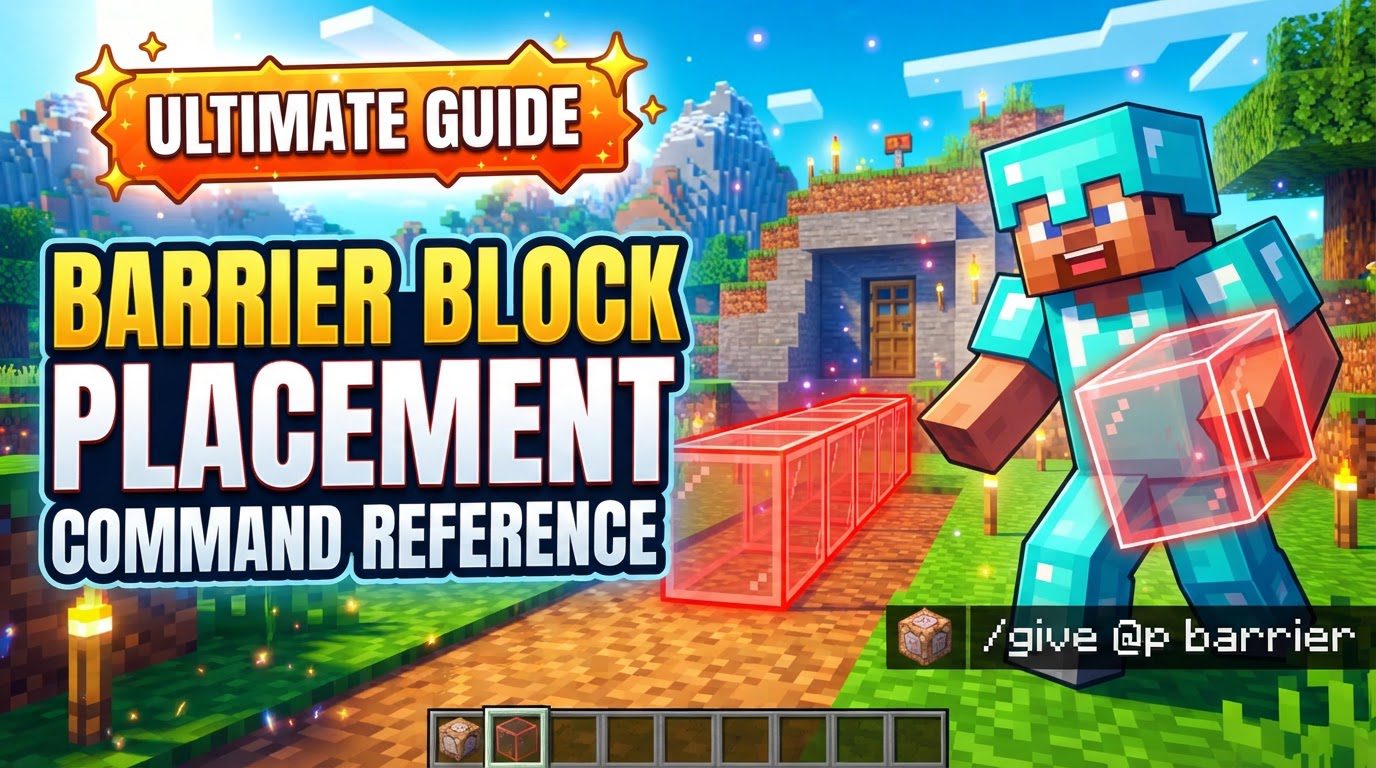
A crucial mechanic to understand is their visibility in Creative mode. When a player is holding a Barrier Block in their hand, all placed Barrier Blocks within their render distance instantly become visible as a distinctive red icon with a diagonal slash through it. The moment the player switches to another item or puts the Barrier Block away, they vanish from sight, returning to their invisible state. This unique feature allows for precise placement and easy modification during the building phase, without affecting the final, invisible appearance.
Summoning the Invisible: Your Guide to Obtaining Barrier Blocks
Unlike most blocks, Barrier Blocks cannot be found naturally in the world, nor are they typically available in the Creative inventory (with some minor exceptions in Java Edition’s debug settings). To acquire this elusive block, you must turn to the power of commands. The process is straightforward, but requires cheats to be enabled in your world.
- Enable Cheats: Before anything else, ensure that cheats or commands are activated in your Minecraft world settings. This is usually done when creating a new world or can be toggled in the world options if you have operator permissions on a server.
- Open the Command Bar: In Java Edition, press the ‘T’ key to open the chat window, then type a forward slash (/) to initiate a command. In Bedrock Edition, pressing the slash (/) key directly opens the command bar.
- Enter the ‘/give’ Command: The command to obtain a Barrier Block utilizes the
/givecommand, which grants items to a specified player. The exact syntax varies slightly between editions:- For Java Edition: Type
/give @s minecraft:barrier. Whileminecraft:is technically optional for most vanilla items, it’s good practice to include the namespace for clarity and compatibility. - For Bedrock Edition: Type
/give @s barrier. Theminecraft:prefix is not used in Bedrock for this item.
The
@sselector targets yourself, ensuring the block appears in your inventory. You could also use@pfor the nearest player,@afor all players, or specify a player’s exact username if you’re giving it to someone else. - For Java Edition: Type
- Execute the Command: After typing the command, press Enter. A Barrier Block will instantly appear in your inventory, usually in your hotbar if there’s space. In Creative mode, you will typically receive an infinite stack of the item.
- Place the Block: With the Barrier Block in your hotbar, select it and then right-click (or use the equivalent “place block” action on your platform) to place it just like any other block. Remember, it will only be visible while you hold another Barrier Block in your hand.
Mastering the Art of Invisible Architecture: Practical Applications
The true power of Barrier Blocks lies in their diverse applications, making them a favorite among creative players and map designers:
- Invisible Walls and Boundaries: This is their most common use. Create impassable borders for adventure maps, guide players through specific paths, or protect sensitive areas of a build without obstructing views. They are perfect for creating “glass ceilings” in open-air builds or preventing players from falling off custom terrain.
- Enhancing Adventure Maps: For map creators, Barrier Blocks are indispensable. Use them to design intricate mazes, create invisible floors for parkour challenges, or block off secret areas until a specific condition is met. They can cleverly control player flow and add layers of mystery to a narrative.
- Redstone Integration and Concealment: Barrier Blocks can serve as invisible platforms for redstone components, allowing you to hide complex circuitry behind walls or under floors while still providing the necessary support for dust, repeaters, and comparators. This keeps builds clean and aesthetically pleasing, even with advanced redstone mechanics.
- Visual Aid for Building: When constructing with Barrier Blocks, always keep one in your hand. This simple trick makes all placed Barrier Blocks visible, allowing you to precisely see your work. Once you’re satisfied with the placement, simply switch to another item in your hotbar, and all the Barrier Blocks will seamlessly disappear, leaving your invisible structure intact.
Beyond the Veil: Essential Considerations for Barrier Block Users
While incredibly useful, Barrier Blocks come with a few quirks and important considerations that new users should be aware of to avoid frustration:
- Not Visible in Creative Inventory: This is a common point of confusion. Unless specific debug settings are enabled in Java Edition (like the “Operator Items Tab” in control settings), you will not find Barrier Blocks listed in the Creative inventory tabs. They must be obtained via the
/givecommand. - Absolute Invisibility in Survival/Adventure Mode: Unlike Creative mode where holding a Barrier Block reveals others, players in Survival or Adventure mode will never see Barrier Blocks. They are completely and utterly invisible to them, regardless of what they are holding. This is crucial for maintaining the illusion of invisible boundaries.
- Permanent Placement in Survival: Once placed, a Barrier Block cannot be broken by players in Survival mode, even with the highest-tier tools or enchantments. If you need to remove one in Survival, you will have to switch to Creative mode or use specific commands like
/setblock X Y Z airto destroy it. Plan your placements carefully! - Particle Settings and the Red Cross: The distinctive red icon with a slash that appears when holding a Barrier Block to reveal others is technically a particle effect. If a player’s particle settings are set to “minimal” in their video options, this visual indicator might not be visible, making it difficult to see where Barrier Blocks are placed even in Creative mode. Ensure particle settings are at “decreased” or “all” for optimal visibility.
The Barrier Block, despite its unassuming appearance (or lack thereof), is a cornerstone of advanced Minecraft building and map design. Understanding its mechanics, acquisition, and practical applications opens up a world of possibilities for creating truly immersive, controlled, and visually stunning environments that push the boundaries of what’s possible in Minecraft.
Tags:
YOU MAY ALSO LIKE...


