

Light Block Level Command Reference
Fifteen distinct light levels can be precisely controlled by an often-overlooked yet incredibly powerful tool in Minecraft: the Light Block. This invisible, command-only item grants players, particularly mapmakers and builders, unparalleled precision over illumination, allowing for stunning aesthetic effects and effective mob-proofing without the visual clutter of traditional light sources.
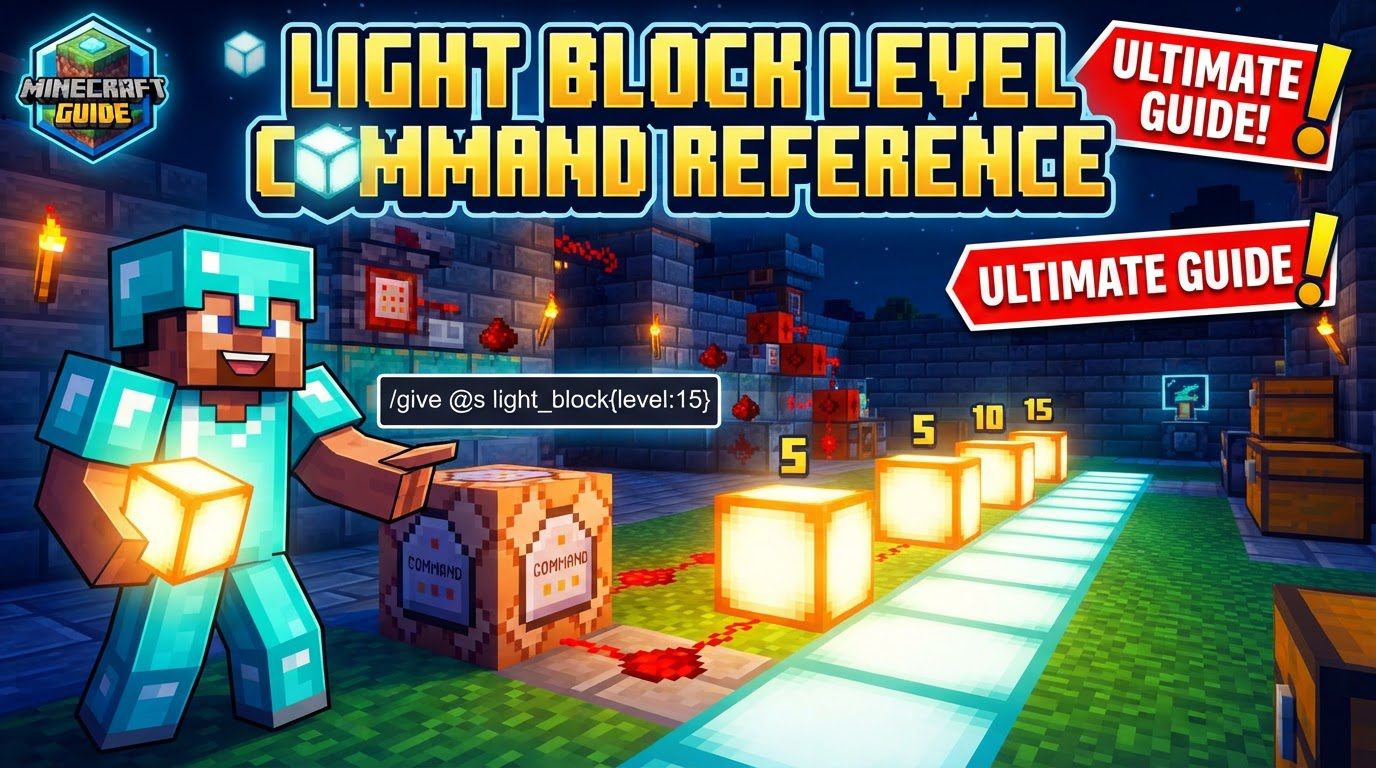
The Unseen Illuminator: An Introduction to Light Blocks
Minecraft’s Light Blocks are a unique utility, fundamentally different from any naturally occurring or craftable light source. They are entirely transparent and invisible within the game world unless the player is actively holding a light block item in their hand. This core characteristic makes them indispensable for creating atmospheres, solving design challenges, and managing gameplay mechanics without compromising visual fidelity.
At their heart, Light Blocks are designed to emit light across a spectrum of intensities, ranging from 0 (absolute darkness) to a brilliant 15. A light level of 15 is equivalent to the brightest natural light sources available in Minecraft, such as glowstone, sea lanterns, or beacons. This granular control over light output is their primary advantage.
The primary purpose of these blocks is to illuminate areas discreetly. Imagine grand halls, intricate cave systems, or custom maps that require specific lighting conditions without any visible light-emitting blocks interrupting the scene. They are also highly effective for preventing hostile mob spawns, which typically require a light level of 0 to appear. By strategically placing Light Blocks set to level 7 or higher, builders can effectively mob-proof an area while maintaining its intended aesthetic.
It’s crucial to understand that Light Blocks are not part of the standard survival or adventure mode experience. They cannot be crafted, found in chests, or obtained through mining. Their acquisition is exclusively through console commands, making them a tool primarily for creative mode, command block creations, and server administration. Once placed, Light Blocks do not attach to adjacent blocks and cannot be mined in the traditional sense. To remove them, another block must be placed directly into their space. Interestingly, they can be manipulated by redstone mechanisms like pistons (pushed or pulled) and can be detected by observers, opening up possibilities for dynamic lighting systems.
Acquiring and Manipulating Light Blocks: Your Command Guide
Obtaining and utilizing Light Blocks requires a few straightforward steps, beginning with enabling cheats in your Minecraft world. Without cheats activated, the necessary commands will not function.
- Enable Cheats: Before anything else, ensure that cheats are enabled in your world settings. This is a prerequisite for using any console commands.
-
Open the Command Interface: Press the
/key to open the chat window, which doubles as the command input interface. -
Obtain a Light Block: The command syntax varies slightly between Java and Bedrock Editions.
-
Java Edition:
To acquire a light block with a specific light level, the command requires NBT (Named Binary Tag) data. For example, to get a light block emitting light at level 7:
/give <target> minecraft:light{BlockStateTag:{level:"<int>"}}Replace
<target>with your username or@p(for the nearest player, usually yourself). Replace<int>with any number from 0 to 15. For a maximum brightness light block:/give @s minecraft:light{BlockStateTag:{level:"15"}}A simpler command,
/give @p light 1, will provide a default light block, which in Java Edition, typically defaults to light level 15. -
Bedrock Edition:
Bedrock’s command structure is more streamlined for this purpose. To get a light block with a specific level, such as level 9:
/give <target> light_block [amount] [data: int (0-15)]Here,
<target>can be your username or@s(for yourself).[amount]specifies the quantity of blocks you want, and[data: int (0-15)]is where you input the desired light level. For a level 15 light block:/give @s light_block 1 15If you type
/give @s light_blockwithout specifying a data value, you will receive a light block set to light level 0.
-
Java Edition:
- Place the Light Block: Once you have the light block item in your inventory, select it in your hotbar. When holding the item, all placed light blocks will become visible, showing a distinct texture and their current light level number. You can then place them just like any other block.
- Adjust Light Level After Placement: A highly convenient feature allows you to modify a placed light block’s intensity. While holding any light block item in your hand, right-click on an already placed light block. This action will cycle its light level through the full range from 0 to 15. This functionality is consistent across both Java and Bedrock Editions.
-
Remove Light Blocks: Since light blocks cannot be mined, removing them involves placing any other solid block directly into their space. This action will cause the light block to break. In Bedrock Edition, for larger scale removal, the
/fillcommand can be used to replace areas containing light blocks with air, for example:/fill X1 Y1 Z1 X2 Y2 Z2 air replace light_block.
Illuminating Your World: Practical Applications
The versatility of Light Blocks opens up a plethora of creative and functional possibilities within Minecraft:
- Mob-Proofing: Hostile mobs typically spawn in light levels of 0. By placing Light Blocks set to level 7 or higher throughout your builds, you can effectively prevent unwanted spawns without needing visible torches, glowstone, or other traditional light sources that might clash with your aesthetic.
- Creative Building Enhancements: Light Blocks are invaluable for illuminating dark corners of elaborate builds, large interior spaces like temples or castles, or intricate redstone contraptions. They allow you to maintain architectural purity while ensuring adequate visibility.
- Underwater Lighting: Unlike many conventional light sources, Light Blocks can be waterlogged. This means you can place them underwater to brilliantly illuminate submerged structures, aquatic builds, or simply the ocean floor, creating stunning aquatic environments.
- Dynamic Lighting Effects: When combined with command blocks and redstone, Light Blocks can be used to create dynamic lighting. Imagine lights that follow a player, illuminate areas based on specific in-game events, or pulse and flicker to create atmospheric effects for adventure maps.
- Visibility Toggle: Remember that Light Blocks only appear visible when you are holding a light block item in your hand. This feature acts as a convenient toggle, allowing you to easily see where your invisible light sources are placed for adjustments, and then have them disappear once you switch items.
Navigating the Shadows: Common Issues and Best Practices
While powerful, Light Blocks come with their own set of considerations and potential pitfalls that users should be aware of to ensure smooth implementation:
-
Cheats Requirement: The most common oversight is forgetting to enable cheats. Without them, the
/givecommand for obtaining Light Blocks simply won’t work, returning an error message. - Edition-Specific Commands: The command syntax for obtaining Light Blocks differs between Java and Bedrock Editions. Using the incorrect command for your specific game version will lead to command failures. Always double-check which edition you’re playing and use the appropriate command.
- Invisible Placement Challenges: When not holding a light block item, placed Light Blocks are completely invisible. This can make it challenging to accurately place them or locate them for adjustment if you accidentally switch items. Always have a light block item in your inventory when working with them.
- Light Level 0 Behavior: A Light Block set to level 0 emits no light at all. In essence, it acts as an invisible, non-collidable block that serves no lighting purpose. While not inherently a mistake, it’s a consideration if you intend for it to provide illumination.
- Visual Update Lag (Java Edition): In Java Edition, when cycling through light levels by right-clicking a placed light block, there might occasionally be a slight delay or a minor visual glitch before the light level updates correctly. This is usually temporary and resolves itself quickly.
-
/fillCommand Limitations: When using the/fillcommand to manipulate Light Blocks, especially for replacing them with different light levels, be precise with your target block type and data values. Attempting to replace Light Blocks with other Light Blocks of a different level using a single/fill replacecommand might not yield the expected results. It’s often more reliable to perform a two-step process: first, replace the existing Light Blocks with air, and then fill the area with new Light Blocks set to the desired level.
Mastering the use of Light Blocks significantly expands your creative toolkit in Minecraft. By understanding their unique properties and command usage, you can craft truly immersive, visually stunning, and functionally optimized environments without compromise.
Tags:
YOU MAY ALSO LIKE...


