How to Use Decoration Table Sophisticated Storage
A subtle, yet sometimes perplexing, inconsistency can arise when decorating your storage blocks with the Sophisticated Storage mod’s Decoration Table: the unexpected removal of a block’s wood_type property. While applying a fresh coat of digital paint, you might find that the underlying wood type, once part of the block’s identity, simply vanishes from its internal data. This intriguing behavior is just one facet of the powerful, yet sometimes quirky, customization options offered by the Decoration Table, a utility block designed to transform the aesthetic and organizational prowess of your Minecraft storage solutions.
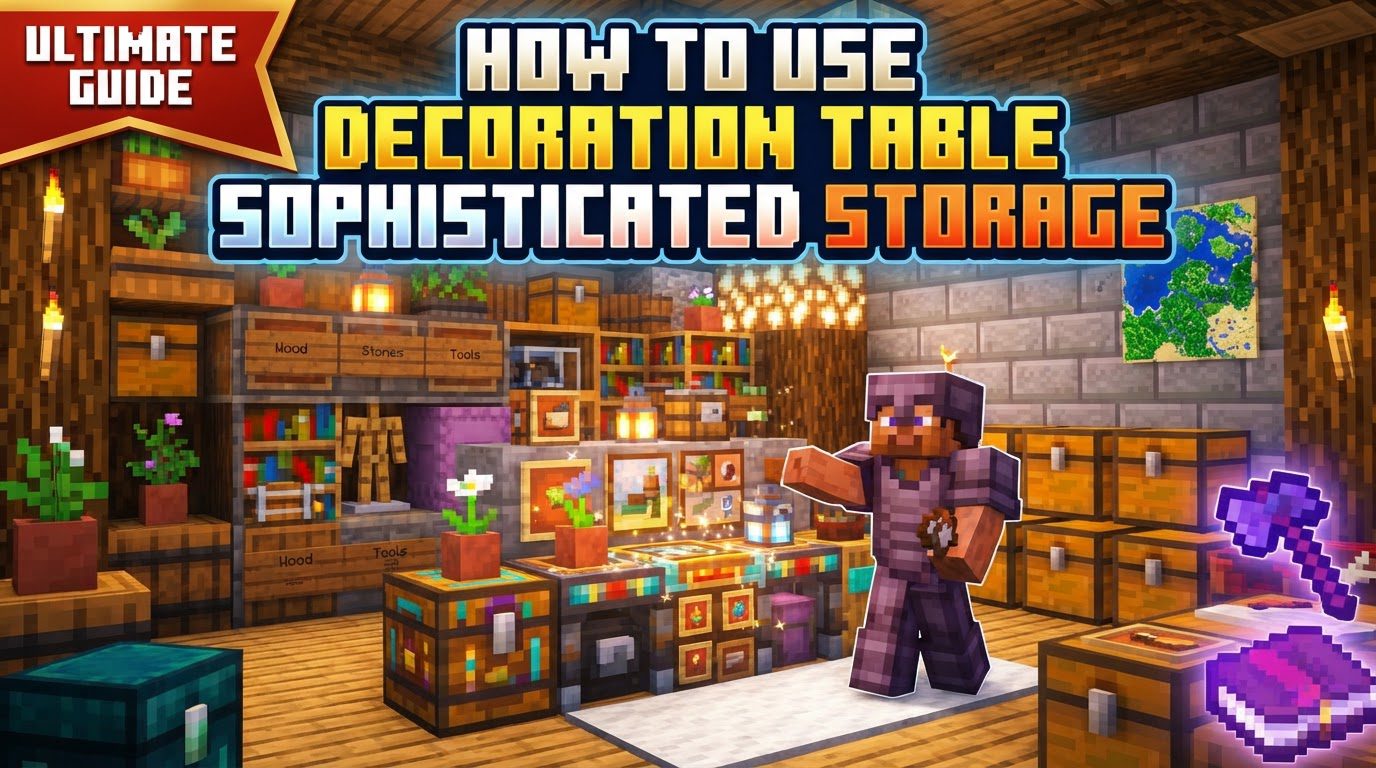
The Sophisticated Storage mod significantly enhances Minecraft’s storage capabilities, moving beyond basic chests to introduce highly customizable barrels, chests, and shulker boxes. While their functional upgrades are immediately apparent, the Decoration Table is where these blocks truly come alive visually. This guide delves deep into leveraging this versatile utility block, ensuring your storage solutions are not only efficient but also perfectly integrated into your base’s design.
The Heart of Customization: Understanding the Decoration Table’s Core Functionality
At its core, the Decoration Table is a dedicated workstation for aesthetic modification within the Sophisticated Storage ecosystem. Its primary purpose revolves around applying various colors and materials to your specialized storage blocks. This isn’t merely about superficial changes; it’s about providing a granular level of control over how your barrels, chests, and shulker boxes appear in your world, allowing for both personal expression and functional visual cues.
Visual Transformation: Colors and Materials
The graphical user interface (GUI) of the Decoration Table is intuitive, centered around a clear “crafting” slot where you place the storage block you wish to modify. Once a block is inserted, the GUI reveals a color picker, allowing players to select up to two distinct colors. These colors can be applied to different sections of the storage block, offering a dual-tone aesthetic. Beyond color, the table also facilitates the application of certain materials, which alter the visual texture of the block. This means you can not only change the hue of your storage units but also give them the appearance of different base materials, greatly expanding design possibilities beyond simple dye applications.
The Indispensable Paintbrush
While direct application at the Decoration Table is useful for single items, the mod introduces a critical tool for efficiency: the Paintbrush. This item, when placed into the Decoration Table’s crafting slot, can be configured with your chosen colors and materials. Once loaded, the Paintbrush becomes a portable applicator. By simply holding the configured Paintbrush and right-clicking on any Sophisticated Storage block in the game world, you can instantly apply the stored decoration. This feature is a game-changer for decorating multiple blocks, saving significant time and effort compared to processing each item individually at the table.
Elevating Aesthetics: Advanced Barrel Customization
For those seeking even greater detail, the Decoration Table offers advanced customization options, particularly for higher-tier Limited Barrels (II, III, and IV). These advanced barrels feature an inner accent material on their top surface. Crucially, this accent material can be customized independently of the main barrel’s colors and materials. This flexibility allows for intricate design work, enabling players to create unique visual identifiers or simply add a touch of refined detail to their most valuable storage units.
Your Guide to Transformation: A Step-by-Step Approach
Utilizing the Decoration Table is a straightforward process once you understand its workflow. Follow these steps to begin customizing your Sophisticated Storage blocks.
Preparing Your Storage Block
The first step involves placing the Sophisticated Storage block you intend to decorate into the designated “crafting” slot within the Decoration Table’s GUI. This could be any barrel, chest, or shulker box from the mod. Ensure the block is empty before placing it, as some interactions might be restricted with items inside, though the notes don’t explicitly state this, it’s good practice.
Mastering the Color and Material Palette
Once your storage block is in the slot, the Decoration Table’s interface will present you with options for customization. Navigate the color picker to select your desired hues. You can typically choose two distinct colors to apply. Additionally, explore the material application options to select any specific textures you wish to impart to your block. Experiment with combinations to find the perfect look that matches your build or organizational scheme.
Finalizing Your Design
After making your color and material selections, confirm your choices within the GUI. The chosen decorations will then be applied directly to the storage block in the crafting slot. You can then retrieve your newly customized block, ready to be placed in your world.
Efficiency through the Paintbrush
For decorating multiple blocks or applying a consistent theme across your storage system, the Paintbrush is invaluable. First, place an unconfigured Paintbrush into the Decoration Table’s crafting slot. With the Paintbrush present, select your desired colors and materials as you would for a storage block. Once configured, retrieve the Paintbrush. Now, armed with your personalized decorator, you can right-click on any Sophisticated Storage block in the world to instantly apply the stored design. This method streamlines the decoration process immensely.
Beyond the Basics: Advanced Decorating Strategies
While the fundamental use of the Decoration Table and Paintbrush is simple, several advanced strategies can maximize their utility and transform your base’s aesthetics and functionality.
Synchronized Styling with Storage Controllers
One of the most potent features for large-scale decoration is the Paintbrush’s interaction with the Storage Controller. If you have a network of Sophisticated Storage blocks connected to a Storage Controller, you don’t need to right-click each individual block. Instead, configure your Paintbrush with the desired decoration, then simply right-click the Storage Controller itself. This action will apply the chosen colors and materials to all connected storage blocks in the network. This is an incredible time-saver for maintaining a cohesive visual theme across expansive storage systems.
Resource Management for the Paintbrush
It’s important to understand how the Paintbrush sources the materials and colors it applies. When you use a configured Paintbrush to decorate a block in the world, it draws the necessary resources from your player inventory. If the required colors (e.g., dyes) or materials are not directly in your inventory, the Paintbrush is smart enough to check any container items you possess, such as backpacks. This intelligent resource sourcing means you don’t have to constantly juggle items in your main inventory, allowing for more fluid and continuous decorating sessions.
Unlocking Unique Designs for High-Tier Barrels
Don’t overlook the specialized customization offered for higher-tier Limited Barrels. The ability to independently customize the top inner accent material on Limited Barrels II, III, and IV provides an opportunity for truly unique designs. This granular control allows you to create subtle contrasts, bold highlights, or even encode organizational information directly into the visual design of your most important storage units. Experiment with different material combinations to make these premium barrels stand out.
Navigating the Nuances: A Known Anomaly
While the Decoration Table is a powerful tool, it’s important to be aware of a specific quirk that has been observed. This inconsistency relates to how the table handles the internal properties of a storage block, particularly its sophisticatedstorage:wood_type component.
The Curious Case of the Vanishing Wood Type
An observed behavior indicates that when a storage block is decorated directly at the Decoration Table, it may inadvertently remove the sophisticatedstorage:wood_type component from that block’s internal data. This means that while the block might visually adopt new colors and materials, its underlying wood type property could be lost. In contrast, applying decoration with the Paintbrush might retain this property. The practical implication is that a storage block’s name might still display a wood type (e.g., “Oak Barrel”) even if its visual appearance no longer reflects oak wood, and its internal data no longer registers it as such. This behavior suggests an unintended side effect that primarily impacts the block’s internal properties and, potentially, its name display, rather than its core functionality. While not a critical bug, it’s a detail worth noting for those who delve into block data or expect absolute consistency between visual and internal properties.
The Sophisticated Storage Decoration Table is an invaluable addition for any Minecraft player looking to elevate their base’s aesthetics and organization. By understanding its mechanics, mastering the Paintbrush, and leveraging advanced strategies, you can transform your functional storage into an integral and beautiful part of your world. Embrace the customization and let your creativity flow!
Tags:
YOU MAY ALSO LIKE...