

MCPE Pathmod vs Normal Version – Easy Explanation for Beginners
111
views ❘
20 hours ago
There are two versions of the game: Normal Version and Pathmod Version. The main difference is where the game stores its data and how easy it is to access those files.
1) Normal Version
Storage Location:
/data/user/(userid)/- Or
/data/media/(userid)/Android/data/
This is Android’s default protected storage location.
✅ Advantages:
- Works like the original official version.
- No need to manually grant storage permission.
- Stable and safe for normal players.
- Less risk of errors when updating.
❌ Disadvantages:
- Game files are difficult to access.
- Usually requires root or special tools to modify files.
- Not convenient for modding or development.
2) Pathmod Version
Storage Location:
/storage/self/primary/games/com.mojang- Internally stored at:
/data/media/(userid)/games
Pathmod allows the game to use an easier-to-access folder, making file management much simpler.
⚠ Important:
- If you switch from Normal to Pathmod, you will NOT see your old data.
- You must manually copy all game data or reinstall the Normal version.
- You must manually grant storage permissions.
✅ Advantages:
- Easy access to game files using a file manager.
- No root required.
- Perfect for developers and addon creators.
- Supports development pack folder usage.
❌ Disadvantages:
- Requires manual storage permission setup.
- Can confuse beginners if they don’t understand file paths.
- Switching versions requires copying data manually.
Quick Comparison
| Feature | Normal Version | Pathmod Version |
|---|---|---|
| Beginner Friendly | ✅ Yes | ⚠ May be confusing |
| Easy File Access | ❌ Difficult | ✅ Easy |
| Needs Storage Permission | ❌ No | ✅ Yes (manual) |
| Best for Developers | ❌ Not ideal | ✅ Recommended |
| Data When Switching | Keeps existing data | Requires manual data copy |
Which Version Should You Use?
- If you just want to play normally → Use Normal Version
- If you create addons, mods, or edit game files → Use Pathmod
Important: Grant Storage Permission Before Starting (Pathmod Only)
If you installed the Pathmod version, you must manually allow storage access before launching the game. Without this permission, the game may not detect worlds, resource packs, or other files.
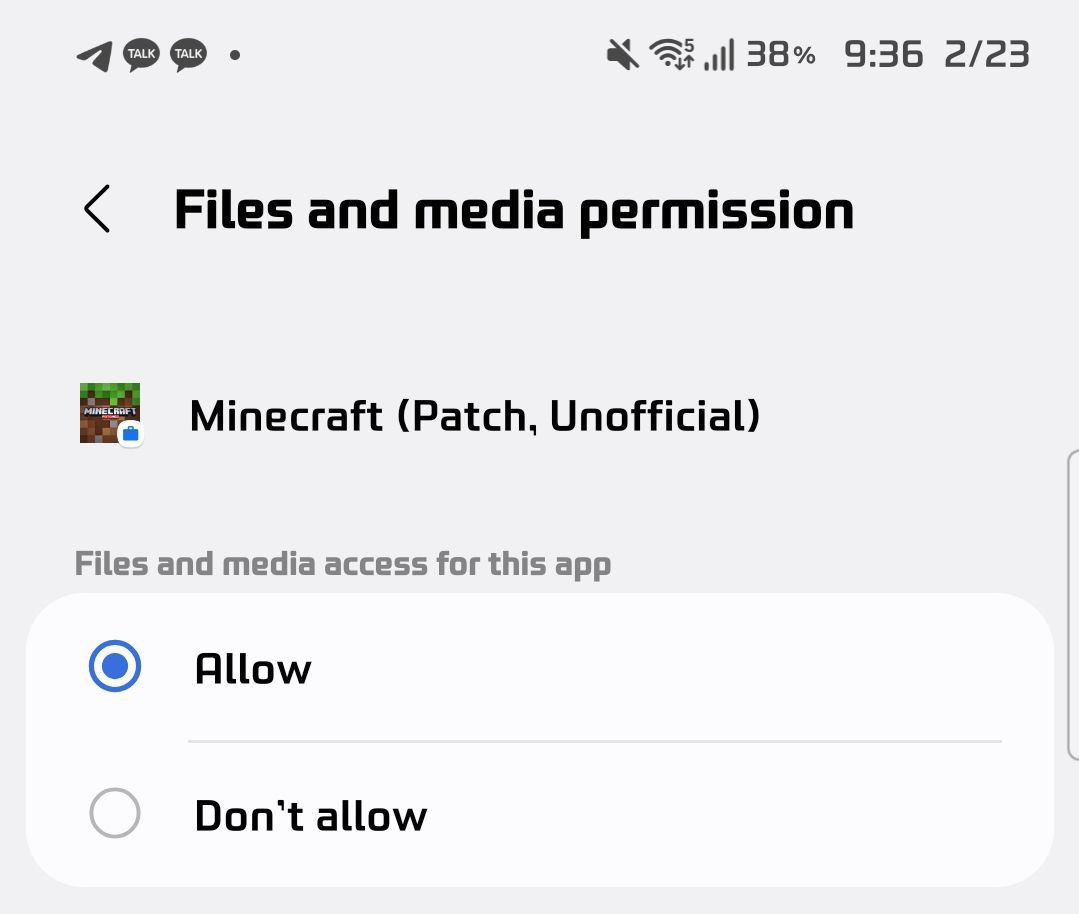
How to grant storage permission:
- Open Settings on your Android device.
- Go to Apps.
- Select Minecraft (Patch, Unofficial).
- Tap Permissions.
- Select Files and media.
- Choose Allow (as shown in the image above).
After enabling permission:
- Close the game completely if it is running.
- Reopen the game.
- Your files, worlds, and development packs should now be accessible.
Note: If you select “Don’t allow”, the game will not be able to read or create files in the Pathmod directory.
Click to rate this post!
[Total: 2 Average: 5]