Creating a Function File for a Datapack (Step by Step)
Understanding Minecraft Datapacks and Function Files
Minecraft datapacks offer a powerful way to customize your game experience without relying on traditional modifications. They enable players to introduce new features, mechanics, and content directly into their worlds. At the core of many datapack functionalities lies the function file, a simple yet incredibly versatile component that executes sequences of Minecraft commands.
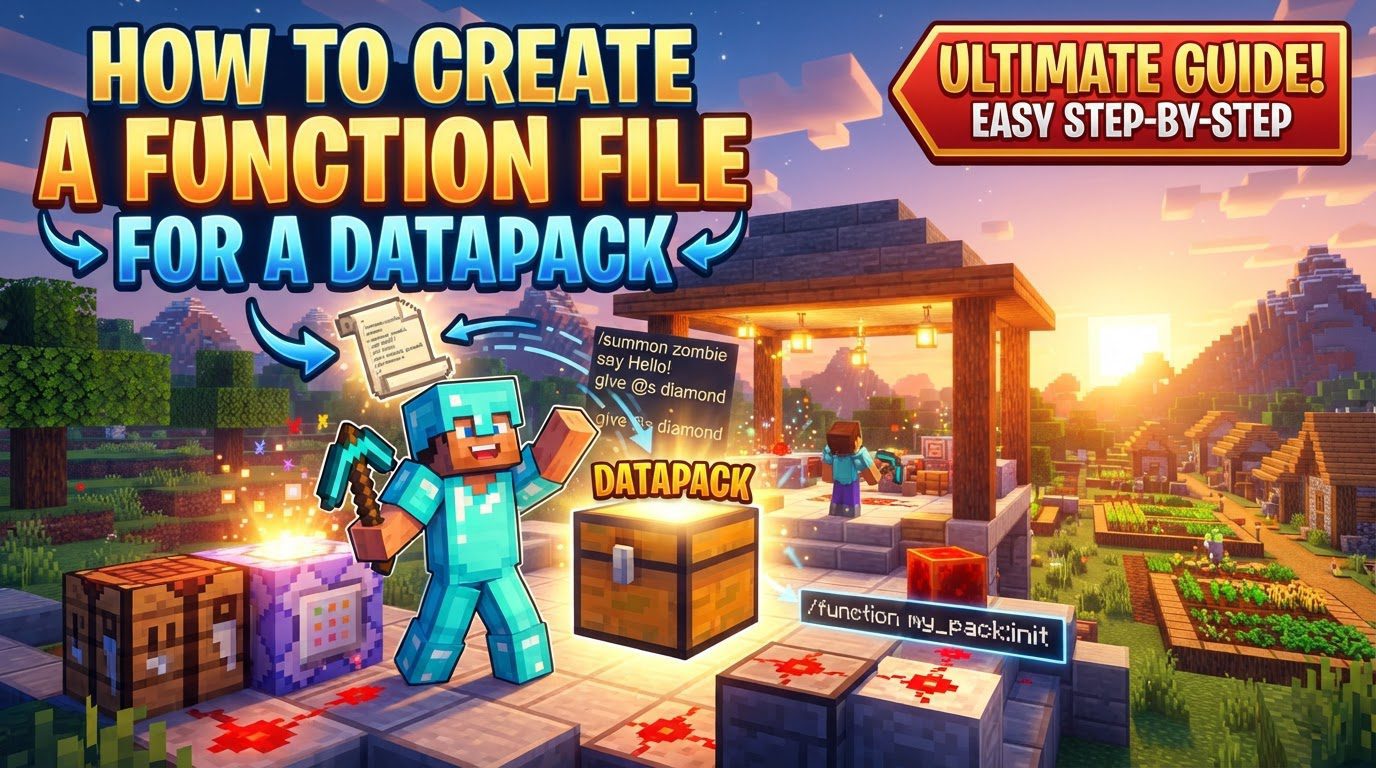
A function file, identified by its .mcfunction extension, is essentially a plain text document. Within this file, you can list numerous Minecraft commands, one per line. When the function is called, these commands are executed in the exact order they appear, providing a robust mechanism for scripting complex in-game behaviors. A crucial detail to remember is that commands within a function file do not require the leading slash (/) that you would typically use when typing them directly into the game’s chat or command block.
Functions are organized and identified through a system of “namespaces” and “paths.” A function’s unique identifier follows the format namespace:function_name or, for more structured organization, namespace:folder/function_name. The minecraft namespace is reserved for the game’s vanilla data and functionalities. When creating your own custom content, it is imperative to use a unique namespace to prevent conflicts with vanilla elements or other datapacks. This ensures that your custom functions operate as intended without interfering with existing game mechanics.
Beyond manual execution, function files can be triggered automatically using special function tags. For instance, the minecraft:load tag designates a function to run automatically whenever the world loads or when the datapack is reloaded in-game. Another incredibly useful tag is minecraft:tick, which causes a function to execute at the beginning of every game tick. Given that Minecraft typically runs at 20 ticks per second, this allows for continuous, real-time operations and dynamic gameplay elements within your world.
Step-by-Step Guide to Creating a Function File
Creating your first function file involves a structured process of setting up your world, establishing the correct folder hierarchy, and populating your file with commands. Follow these steps meticulously to ensure your datapack functions correctly.
- 1. Create a New World: Begin by launching Minecraft and creating a brand new world. It is essential to ensure that cheats are enabled during world creation, as this will allow you to test your functions and reload your datapack in-game.
-
2. Locate the Datapacks Folder: Once your world is created, navigate to its specific folder. From the Minecraft Singleplayer menu, select your world, click “Edit,” and then choose “Open World Folder.” Inside this folder, you will find a subdirectory named
datapacks. This is where all your custom datapacks will reside. -
3. Create Your Datapack Folder: Within the
datapacksfolder, create a new folder that will serve as the root directory for your entire datapack. Choose a descriptive name for this folder, such asmy_datapack. This folder will contain all the necessary files and subfolders for your custom content. -
4. Create
pack.mcmeta: Inside your newly created datapack folder, you must create a file namedpack.mcmeta. It is crucial to ensure the file extension is precisely.mcmetaand not mistakenly.txtor any other format. This file is vital as it defines your datapack’s metadata, including thepack_format, which indicates the Minecraft version your datapack is compatible with. The correctpack_formatnumber changes with different Minecraft updates. -
5. Set up the Folder Structure: Proper folder organization is key to a working datapack.
- Inside your datapack folder (e.g.,
my_datapack), create a folder nameddata. - Inside the
datafolder, create another folder for your unique “namespace” (e.g.,my_namespace). This namespace should be distinct to avoid conflicts. - Finally, inside your namespace folder, create a folder named
function. It is important to note that for Minecraft 1.21.1 and later versions, this folder should be namedfunction, notfunctions. Using the incorrect name for your specific Minecraft version will prevent the datapack from loading correctly.
- Inside your datapack folder (e.g.,
-
6. Create Your
.mcfunctionFile: Navigate into thefunctionfolder you just created. Here, you will create a new text file. Name this file descriptively (e.g.,my_first_function.mcfunction), ensuring its extension is.mcfunction. This is the file where your commands will reside. -
7. Add Commands to the File: Open your
.mcfunctionfile using a text editor. On each new line, add the Minecraft commands you wish to execute. Remember, do not include the leading slash (/) that you would use in the game. You can also add comments to your function file by starting a line with a hash symbol (#). Comments are ignored by the game and are useful for documenting your code. -
8. Reload the Datapack: After making changes to your function file or datapack structure, you need to reload the datapack in-game for the changes to take effect. Open the chat in Minecraft and type
/reload, then press Enter. Alternatively, rejoining the world will also load the latest version of your datapack. -
9. Run Your Function: To execute the commands within your function file, use the
/functioncommand in-game. The syntax is/function namespace:function_name. For example, if your namespace ismy_namespaceand your function file ismy_first_function.mcfunction, you would type/function my_namespace:my_first_function.
Important Tips for Datapack Development
Developing datapacks can be a rewarding experience, and incorporating best practices can significantly streamline your workflow and prevent common issues.
- Use a Code Editor: While a basic text editor works, tools like Visual Studio Code are highly recommended. They offer invaluable features such as syntax highlighting, which makes your commands easier to read; error checking, which can catch typos before you even load the game; and command autocompletion, which speeds up typing and reduces errors.
- Unique Namespaces: Always use a unique and distinct namespace for your datapacks. This practice is crucial for preventing conflicts with vanilla Minecraft functionalities or with other datapacks that players might install alongside yours. A unique namespace ensures your functions are correctly identified and executed.
-
File Naming Conventions: Adhere to consistent and clear file naming conventions. Use lowercase letters exclusively and avoid spaces in both folder and file names. Instead of spaces, use underscores (
_) or hyphens (-) if you need to separate words. This prevents potential issues with file path recognition across different operating systems. -
pack_formatAccuracy: Thepack_formatnumber in yourpack.mcmetafile is version-specific. Always ensure that this number corresponds correctly to the Minecraft version you are targeting. An incorrectpack_formatcan lead to your datapack not being recognized or loaded by the game. -
Frequent Testing: Develop a habit of frequently testing your datapack, especially after implementing small changes. This allows you to quickly identify and troubleshoot issues. Use the command
/datapack listin-game to verify that your datapack is loaded and active. -
Implementing Loops: For actions that need to repeat continuously, functions can be set up to run on a loop. This is commonly achieved by adding your function to the
minecraft:tickfunction tag, which executes it every game tick. Alternatively, you can use scheduled commands within a function to delay and then re-call itself, creating a custom loop.
Common Mistakes to Avoid
Even experienced datapack creators can stumble upon common pitfalls. Being aware of these can save you significant debugging time.
-
Incorrect Folder Name for Functions: One of the most frequent errors is misnaming the folder that contains your
.mcfunctionfiles. Depending on your Minecraft version, it should be eitherfunctionorfunctions. As noted, for Minecraft 1.21.1 and later, it is specificallyfunction. Using the wrong name will prevent the game from finding your functions. -
Leading Slash in Commands: A common oversight for new datapack creators is including the leading slash (
/) before commands within the.mcfunctionfile. Commands inside functions must be written without this slash; its presence will render the command invalid and cause errors. -
Incorrect
pack.mcmetaLocation: Thepack.mcmetafile is crucial and must be placed at the root level of your datapack folder, alongside thedatafolder. If you are distributing your datapack as a.zipfile, bothpack.mcmetaand thedatafolder must be at the root of that archive. - Syntax Errors in Commands: Minecraft commands are precise. Even a minor typo, an incorrect argument, or a misplaced bracket can lead to a command failing to execute. When a function isn’t working as expected, carefully review the game’s output log, which often provides clues about syntax errors.
-
Missing
.mcmetaExtension forpack.mcmeta: Ensure that your metadata file is named exactlypack.mcmeta. Some operating systems might hide known file extensions, leading to the file being saved aspack.mcmeta.txt. This incorrect extension will prevent Minecraft from recognizing your datapack. - Overlapping Functions: If you install multiple datapacks that happen to use the exact same function name within the same namespace, you might encounter unexpected behavior. Only one of these functions will likely execute, or they might conflict. Always strive for unique namespaces and function names to prevent such overlaps.
Tags:
YOU MAY ALSO LIKE...