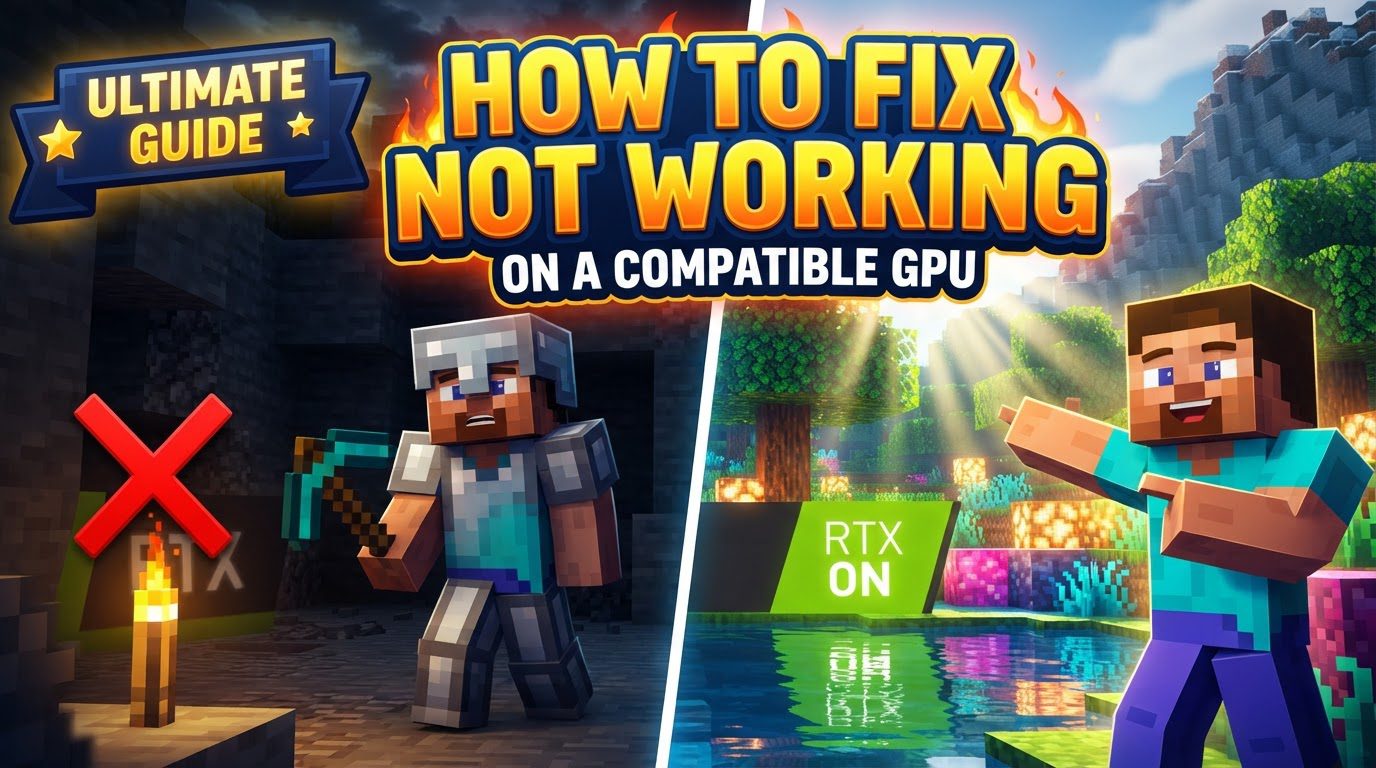
Fixing RTX Not Working on a Compatible GPU
Understanding Minecraft RTX and its Requirements
Minecraft with RTX introduces a new level of visual fidelity to the popular block-building game, transforming environments with realistic lighting, shadows, and reflections. However, this enhanced experience is exclusive to the Bedrock Edition of Minecraft. To harness the power of ray tracing within the game, players must meet specific hardware and software criteria. At its core, Minecraft RTX demands a compatible graphics processing unit (GPU), specifically an NVIDIA GeForce RTX 2060 or a higher-end model, or an AMD Radeon RX 6000 series or newer. Beyond the hardware, ray tracing functionality in Minecraft Bedrock is enabled through the use of special RTX-compatible texture or resource packs. These packs are designed to leverage the ray tracing capabilities of your GPU, thereby introducing the advanced visual effects that define the RTX experience.
Step-by-Step Troubleshooting for Minecraft RTX
1. Verify GPU Compatibility
The first and most crucial step is to confirm that your graphics card meets the minimum requirements for Minecraft RTX. This means having an NVIDIA RTX 2060 or higher, or an AMD RX 6000 series or higher. If your GPU does not meet these specifications, RTX will not function. A simple way to test compatibility within the game itself is to search for “RTX” in the Minecraft Marketplace. If compatible worlds and content appear, it indicates that your device is supported for ray tracing.
2. Update Graphics Drivers
Outdated graphics drivers are a common culprit for performance issues and functionality problems with RTX. It is essential to ensure that your NVIDIA or AMD graphics drivers are updated to their latest available versions. For NVIDIA users, there’s a specific consideration: while “Game-Ready” drivers are generally recommended for optimal gaming performance, switching to “Studio” drivers can sometimes offer improved stability for creative applications and, in some cases, for RTX features in Minecraft. Always download drivers directly from your GPU manufacturer’s official website.
3. Download an RTX Resource Pack
Minecraft RTX relies entirely on dedicated resource packs to implement ray tracing effects. Without one, the game will not display advanced lighting. You must obtain an up-to-date RTX shader or resource pack from a reputable source. Popular examples include “Vanilla RTX” or “Defined PBR.” It’s important to note that older packs may be incompatible with recent Minecraft updates, leading to visual glitches or a complete failure of RTX to activate. Always seek out the latest version of your chosen pack.
4. Import and Activate Resource Pack
- Importing the Pack: Most RTX resource packs come in a `.mcpack` file format. Simply open this file, and Minecraft should automatically import it into the game.
- Activating Globally: Once imported, navigate to Minecraft’s Settings. From there, go to Global Resources, then select My Packs. Locate your downloaded RTX resource pack and activate it. This will apply the pack across all your worlds by default.
- Activating for a Specific World: If you wish to apply the RTX pack to only one particular world, go to that world’s settings. Within the world settings, find Resource Packs, then select Owned, and activate your desired RTX pack there. Ensure it is placed above any other active resource packs to prevent conflicts.
5. Configure In-Game Video Settings
Once your RTX resource pack is active, you need to adjust Minecraft’s video settings to enable ray tracing:
- First, in Minecraft’s main settings, navigate to Video and ensure that the option “Allow in-game graphics mode switching” is enabled.
- Next, load into a Minecraft world. It’s crucial to be *in* a world for the next step, as the RTX option may not be available from the main menu.
- While in the world, open the Settings again, go to Video, and look for the “Graphics Mode” option. Change this option to “Ray Traced” (or “RTX”). If no RTX resource pack is active, this option might appear greyed out and unselectable.
6. Restart Minecraft (if needed)
After making significant changes to resource packs or video settings, especially when enabling RTX, it’s often beneficial to restart the game. If RTX appears glitched, overly glossy, or doesn’t activate correctly despite following all previous steps, a simple game restart can resolve these issues and allow the changes to fully take effect.
Important Tips for a Smooth RTX Experience
- Dedicated RTX Management Tools: For simplified launching and troubleshooting, consider using dedicated RTX management tools like the “Vanilla RTX App.” These applications can help streamline the process of applying and managing RTX resource packs.
- Inconsistent Textures and VSync: If you notice textures appearing inconsistent or visually odd, verify that your GPU driver’s VSync setting is enabled specifically for Minecraft. This can often be configured through your graphics card’s control panel (e.g., NVIDIA Control Panel or AMD Radeon Software).
- Performance Issues and VSync: For optimal performance, especially if you’re experiencing frame rate drops, it’s often recommended to disable Minecraft’s in-game VSync. Instead, manage VSync settings directly through your graphics card’s control panel, allowing for finer control over synchronization and potentially better frame rates.
- Laptops with Dual GPUs: On gaming laptops equipped with both integrated and dedicated GPUs, ensure that Minecraft is configured to utilize the high-performance graphics card. This setting can typically be adjusted within your Windows display settings or your GPU manufacturer’s control panel.
- Black Screen Issue: If your game screen turns black after enabling RTX, try exiting full-screen mode by pressing F11. Then, restart Minecraft. When relaunching, avoid immediately going back into full-screen mode; allow the game to load fully first.
- Conflicting Resource Packs: If you have multiple resource packs active, they might conflict with your RTX pack. Temporarily disabling other active texture packs in Global Resources before enabling RTX can help identify and resolve potential conflicts, ensuring the RTX pack functions as intended.
Common Mistakes to Avoid
- Incompatible Hardware: A frequent mistake is attempting to run RTX without the necessary hardware. Remember, an NVIDIA RTX 2060 (or higher) or AMD RX 6000 (or higher) series GPU is a strict requirement. Without it, RTX simply cannot function.
- Outdated Drivers: Neglecting to update your graphics card drivers is a critical oversight. Outdated drivers are a primary cause of performance issues, instability, and can entirely prevent RTX from working correctly. Always keep them current.
- Missing or Outdated Resource Pack: RTX will not activate or display correctly without an active, up-to-date RTX-enabled texture pack. Using an old or incompatible pack will lead to disappointment.
- Attempting to Enable RTX from the Main Menu: In many Minecraft versions, the “Ray Traced” graphics mode option may only become selectable once you have loaded into a world. Trying to enable it from the main menu will often result in a greyed-out or missing option.
- GPU Over/Underclocking: Minecraft RTX can be quite sensitive to GPU clock speeds. If you’ve manually over- or underclocked your GPU, it might lead to instability or visual artifacts. Returning your GPU to its default OEM settings or using “Studio” drivers (for NVIDIA) may improve stability.
- Conflicting Resource Packs: Having other active resource packs can override or interfere with the RTX pack, causing visual glitches, missing textures, or preventing ray tracing from activating. Always check for conflicts.
- Expecting Full RTX Support in All Dimensions: It’s important to manage expectations regarding RTX coverage. The Nether and End dimensions are not fully optimized for ray tracing in the beta versions of Minecraft, meaning you won’t experience the same level of visual enhancement there.
Tags:
YOU MAY ALSO LIKE...