Tracking Total Playtime Using Statistics — A Quick Guide
Understanding Playtime Tracking in Minecraft
Minecraft, a game renowned for its expansive worlds and endless creative possibilities, also offers various ways for players to keep tabs on their in-game activities, including the total time spent within its blocky realms. Tracking playtime can be a fascinating way to reflect on your journey, monitor progress, or simply satisfy curiosity about the hours invested in building, exploring, and surviving. However, the method for tracking this statistic differs significantly between Minecraft: Java Edition and Minecraft: Bedrock Edition, each with its own nuances and considerations. This comprehensive guide will walk you through the specifics of how to track your total playtime using the game’s built-in statistics, highlighting key mechanics, step-by-step processes, important tips, and common pitfalls to avoid.
Key Mechanics of Playtime Tracking
Java Edition
-
In-Game Statistics: In Minecraft: Java Edition, playtime is primarily tracked through an in-game statistics system. This system meticulously records various actions and events performed by the player within a specific world. Among these numerous statistics, you will find a dedicated entry for “Time Played,” which is typically located under the “General” section.
-
Per-World Tracking: A critical aspect of Java Edition’s statistics is that they are saved on a per-world basis. This means that the “Time Played” statistic you view is unique to the particular world you are currently in. If you play across multiple worlds, each world will have its own independent playtime counter.
-
Game Ticks and Sensible Units: The underlying measurement for playtime in Java Edition is based on “game ticks.” Minecraft operates at a fixed rate of 20 game ticks per second. The game then converts these raw tick counts into more easily understandable units such as seconds, minutes, hours, or even days, providing a clear representation of the time you’ve spent.
-
Custom Playtime Tracking: For those seeking more advanced or integrated tracking, Java Edition offers the flexibility to implement custom playtime tracking systems. This is typically achieved using command blocks in conjunction with scoreboards. Such a setup allows for real-time display of playtime or more granular control over how and where playtime is recorded.
Bedrock Edition
-
Lifetime Statistics: In contrast to Java Edition, Minecraft: Bedrock Edition provides a more consolidated approach to playtime tracking. It offers “Lifetime Statistics” that encompass your entire gameplay history across all worlds and servers linked to your account. This includes “Time Played” alongside other metrics like “Blocks Broken,” “Mobs Defeated,” and “Distance Traveled.”
-
Profile Integration: These lifetime statistics, including your total “Time Played,” are readily accessible through your in-game profile. This central location makes it convenient to view your overall progress and engagement with the game.
-
Microsoft Account Linkage: A key feature of Bedrock Edition’s statistics system is its direct linkage to your Microsoft account. This ensures that your playtime and other statistics persist across different devices and platforms where you play Bedrock Edition, as long as you are logged in with the same Microsoft account.
Step-by-Step Process for Checking Playtime
Java Edition (In-game)
To check your playtime within a specific world in Minecraft: Java Edition, follow these simple steps:
-
Open Minecraft: Launch your Minecraft: Java Edition client and load into the world for which you wish to check playtime. You must be in-game within a loaded world to access its specific statistics.
-
Press the “Escape” Key: Once you are in-game, press the “Escape” key on your keyboard. This action will pause the game and bring up the main game menu, which contains various options and settings.
-
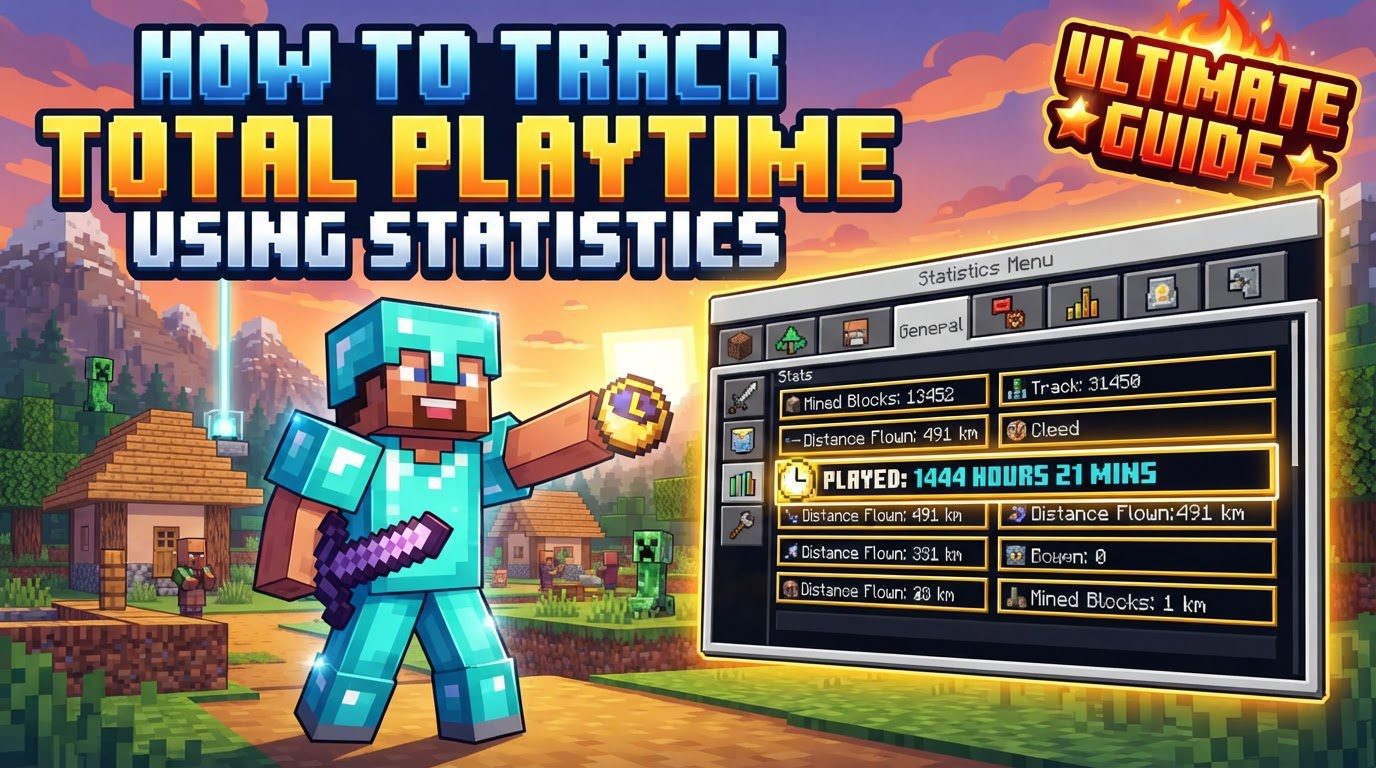
Click on “Statistics”: Within the game menu, locate and click on the “Statistics” button. This will open a detailed screen displaying all the recorded statistics for your current world.
-
Select the “General” Tab: The statistics screen is organized into several tabs. Navigate to and select the “General” tab. This tab typically contains broad, overarching statistics related to your overall gameplay in that world.
-
Find “Time Played”: Scroll down through the list of statistics under the “General” tab. You will find an entry labeled “Time Played” (or sometimes “Minutes played,” depending on the game version or display unit). This value represents the total time you have spent in that particular world, displayed in the most appropriate units.
Bedrock Edition (In-game)
For Minecraft: Bedrock Edition, checking your lifetime playtime is even more streamlined:
-
From the Main Menu, Go to Your “Profile”: Launch Minecraft: Bedrock Edition. From the main menu screen, look for and select your “Profile” option. This is usually represented by your character’s avatar or gamertag.
-
Click on the “Stats” Button: Within your profile interface, you will find a dedicated “Stats” button. Click on this button to access your comprehensive lifetime statistics, including your total “Time Played” across all your Bedrock Edition experiences.
Important Tips for Accurate Playtime Tracking
-
Java Edition: Summing Per-World Playtime: Since Java Edition tracks playtime on a per-world basis, obtaining a true “total playtime” across all your worlds requires manual effort. You must individually access the statistics for each world you’ve played in and then manually sum up all the “Time Played” values. This can be a time-consuming process if you have many worlds.
-
Bedrock Edition: Xbox App Integration: Beyond the in-game profile, Bedrock Edition players also have the option to view some of their statistics through the Xbox app. This provides another convenient way to check your overall “Time Played” and other lifetime metrics, leveraging the integration with your Microsoft account.
-
Advanced Java Tracking with Scoreboards and Command Blocks: For Java Edition players who desire more dynamic or integrated playtime tracking, advanced techniques are available. Using command blocks, players can set up custom scoreboard systems. These systems can be configured to continuously track a player’s playtime in specific units, such as minutes, and then display this information directly on-screen (e.g., in the sidebar or as a title message). This offers a highly customizable solution for server administrators or advanced single-player worlds.
-
External Tools for Historical Java Playtime: For very old Java Edition playtime data or to get a global estimate without manually summing, external tools and custom programs can be invaluable. These tools often work by analyzing Minecraft log files. Log files store a history of game sessions and activities, and a sophisticated program can parse these files to calculate overall playtime, even for periods dating back several years, providing a more comprehensive historical overview than in-game statistics alone.
Common Mistakes to Avoid
-
Java Edition: Misinterpreting “Total Playtime”: A very common mistake among Java Edition players is assuming that the “Statistics” screen in the game menu shows their total playtime across all worlds and servers they’ve ever played on. It is crucial to remember that this screen only shows statistics specific to the currently loaded world. There is no default global playtime tracker available directly within Java Edition’s statistics menu that aggregates data from all worlds.
-
Bedrock Edition: Tracking Bugs: While Bedrock Edition’s lifetime statistics are generally reliable, players might occasionally encounter bugs where the “Time Played” statistic does not track correctly or, in some cases, shows 0 minutes. This issue can sometimes be platform-specific (e.g., reported on certain console platforms like PS5). If you suspect your playtime isn’t being recorded accurately, checking community forums or reporting the bug might be necessary, as there may not be an immediate in-game fix.
-
Command Blocks: Setup Issues: When attempting to implement custom playtime tracking using command blocks and scoreboards in Java Edition, several technical pitfalls can arise. These include using incorrect command syntax, which will prevent the commands from executing properly. Forgetting to set a display for the scoreboard objective means the tracked playtime will accumulate but won’t be visible to players. Misunderstanding criteria types can lead to the scoreboard not tracking the desired metric. Additionally, not setting the
commandBlockOutputgamerule tofalsecan result in a constant stream of command output messages flooding the chat, creating an undesirable amount of spam.
Understanding the distinctions between Java and Bedrock Edition’s approaches to playtime tracking is key to accurately monitoring your time spent in Minecraft. Whether you’re meticulously tracking hours in a single Java world, relying on Bedrock’s lifetime statistics, or delving into advanced custom setups, knowing how to access and interpret these numbers enhances your overall Minecraft experience. By following these guidelines and being mindful of the common mistakes, you can confidently track your journey through the infinite possibilities of Minecraft.
Tags:
YOU MAY ALSO LIKE...