Signing and Finalizing a Written Book — A Quick Guide
Understanding the Written Book: Key Mechanics
In the vast world of Minecraft, written books serve as an invaluable tool for documentation, storytelling, and even complex Redstone mechanisms. At its core, a “Written Book” is the finalized product of a “Book and Quill” that has been signed and made permanent. This transformation marks a critical point, as once a book is signed, its contents become immutable; no further edits are possible, making it a permanent record within your Minecraft world.
There are subtle yet important distinctions between the Java Edition and Bedrock Edition regarding written books. In Java Edition, a signed book will automatically display the author’s in-game name alongside a chosen title, lending an authentic touch to creations. Conversely, Bedrock Edition offers more flexibility, allowing players to customize the author’s name with any desired text, providing greater creative control over the book’s attribution.
When crafting your narratives or instructions, it’s crucial to be aware of the inherent limitations of these digital tomes. Books have specific page limits: in Java Edition, a book can hold up to 100 pages, while Bedrock Edition allows for 50 pages. Each page also has a character limit, accommodating up to 798 characters and a maximum of 14 lines. Careful planning is essential to ensure your content fits within these constraints.
Beyond plain text, written books offer robust formatting capabilities to enhance readability and visual appeal. This is primarily achieved using special section characters (§) followed by specific codes. These codes allow for various text styles, including bold (§ + l), italic, underline, strikethrough, and even random characters. Additionally, a wide array of colors can be applied using codes like § + 0-f. While these formatting features are largely an in-game functionality in Bedrock Edition, they can also be utilized in Java Edition through the use of commands, offering a powerful way to make your text stand out.
The utility of written books extends beyond mere reading. They can be placed on lecterns, which are functional blocks that serve a dual purpose. When a written book is placed on a lectern, it can be read by multiple players simultaneously. More importantly, lecterns emit a Redstone signal whose strength varies based on the current page being displayed. This feature opens up possibilities for intricate Redstone contraptions, allowing books to act as programmable inputs for complex mechanisms.
Finally, written books possess a copying mechanic. A signed book can be duplicated, creating “Copy of Original” versions. These copies are perfect replicas of the original and can themselves be copied further. However, there’s a limitation: if you copy a “Copy of Original,” the resulting book will be labeled “Copy of Copy.” Books designated as “Copy of Copy” cannot be further duplicated, preventing an endless chain of reproduction and maintaining a degree of scarcity for the original content.
Step-by-Step Guide to Signing and Finalizing Your Book
The process of transforming a blank Book and Quill into a permanent Written Book is straightforward, but requires attention to detail. Follow these steps carefully to ensure your literary masterpiece is preserved exactly as intended:
- 1. Craft a Book and Quill: Your journey begins by crafting the raw materials. In a crafting grid, combine one book (crafted from paper and leather), one ink sac (obtained by defeating squids found in bodies of water), and one feather (dropped by chickens). This combination yields your blank Book and Quill, ready for content.
- 2. Open the Book and Quill: Once you have the Book and Quill in your inventory, hold it in your hand and right-click (or use the equivalent action button on your specific platform, such as L2 on PlayStation or LT on Xbox). This action will open the book’s interface, presenting you with a blank page ready for your words.
- 3. Write Content: Within the interface, you can now type your desired text. Take your time to compose your message, story, or instructions. You can navigate between pages using the provided controls, adding multiple pages of content as needed, up to the maximum page limits (100 for Java, 50 for Bedrock) and character limits per page (798 characters, 14 lines).
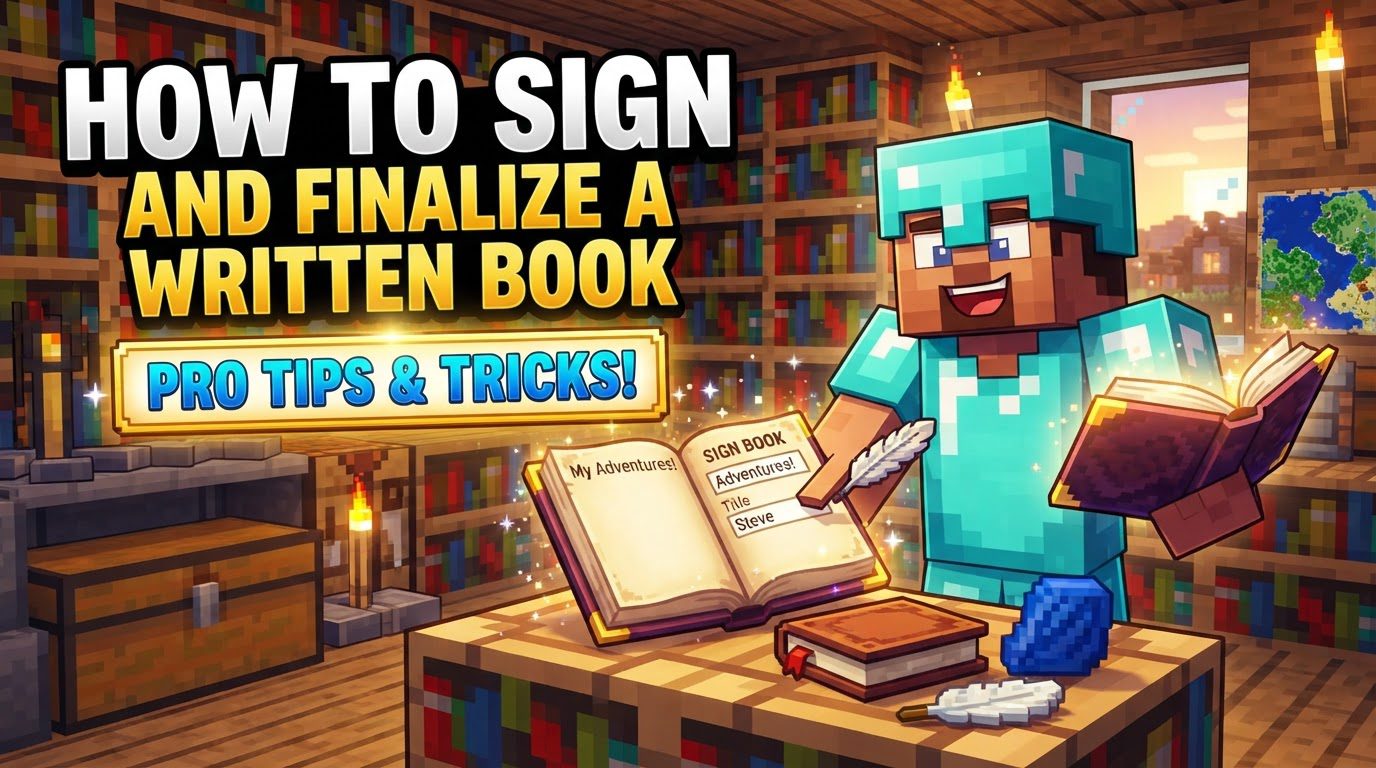
- 4. Sign the Book: After you have thoroughly reviewed your content and are completely satisfied with every word, it’s time to make it permanent. Within the book interface, locate and click the “Sign” button. This action signals your intent to finalize the book and move to the next stage.
- 5. Enter Title and Author: Upon clicking “Sign,” a new prompt will appear. Here, you will be required to enter a title for your book. This title will be prominently displayed and help identify your work. Additionally, depending on your game edition, you may need to confirm or enter the author’s name. Remember, in Bedrock Edition, you have the flexibility to customize the author’s text.
- 6. Finalize: With the title and author information entered, the final step is to click “Sign and Close.” This action completes the process. The Book and Quill will then transform into a permanent Written Book, its contents locked and ready to be shared or displayed.
Optimizing Your Written Books: Important Tips
To make the most of your written books and avoid common frustrations, consider these important tips:
- Plan Your Content Carefully: Due to the irreversible nature of signing, it is paramount to plan out your content before you begin typing. Once signed, no edits are possible. Consider drafting your text elsewhere first, or at least outlining your ideas page by page, to ensure completeness and accuracy.
- Utilize Formatting Codes: Enhance the readability and visual appeal of your books by employing formatting codes. Using the special section character (
§) followed by specific codes can bold text (§ + l), change colors (§ + 0-f), and apply other styles. While more natively integrated into Bedrock Edition’s in-game interface, Java Edition players can also leverage these through commands for advanced text styling. Strategic use of these codes can make complex information easier to digest or highlight key points. - Typing on a PC with a Keyboard: For extensive writing, especially when dealing with character limits and formatting, typing on a PC with a physical keyboard is significantly easier and faster than attempting to use a console controller. The precision and speed offered by a keyboard greatly streamline the writing process.
- For Extensive Narratives or Information, Consider Dividing Content: If your story or guide exceeds the page limits of a single book, or if you simply prefer a more organized approach, divide your content across multiple written books. You can then label them sequentially (e.g., “Story Part 1,” “Story Part 2”) or by topic, creating a comprehensive library.
- Books Can Be Used with Lecterns: Beyond their primary function as readable items, remember that written books, when placed on lecterns, can be integral components of Redstone mechanisms. The Redstone signal emitted by a lectern, which changes based on the current page, can be used to activate or control various devices, opening up creative automation possibilities.
Avoiding Pitfalls: Common Mistakes to Sidestep
While creating written books is generally straightforward, several common mistakes can lead to frustration. Being aware of these can save you time and effort:
- Signing Too Early: This is arguably the most common and frustrating mistake. Many players sign a book before all desired content is complete or thoroughly checked. Once signed, the book is permanently locked, and no changes can be made. Always double-check your entire manuscript before committing to the “Sign and Close” button.
- Exceeding Character/Page Limits: Attempting to write too much text can result in content being cut off or not appearing at all. Be mindful of the limits: 100 pages in Java Edition, 50 in Bedrock Edition, and up to 798 characters or 14 lines per page. Regularly check your progress against these limits to prevent loss of information.
- Incorrect Formatting Application: When utilizing special formatting codes, particularly in Bedrock Edition, the order of application matters. Colors often need to be applied before other styles, such as bold or underline. If applied incorrectly, the color code might override other styles, or the desired effect won’t render correctly. Experiment with formatting in a test book if unsure.
- Expectation of Bedrock Parity for All Formatting: While Bedrock Edition offers good in-game formatting, not all options available through commands in Java Edition are natively accessible or rendered in Bedrock. Specifically, some formatting options like strikethrough and underline are not natively available in-game for Bedrock Edition, so manage your expectations accordingly.
- Clunky Console UI: On console versions of Bedrock Edition, the interface for writing in books can be cumbersome. Players often find it difficult to see what they are typing, or to accurately gauge how the text will fit on the page. Patience and frequent checks are advised when writing on consoles.
- Relying Solely on In-Game Copy/Paste for Complex Formatting: While basic copy-paste functionality exists, when dealing with complex formatting, especially if pasting text from external sources, the formatting might not be retained correctly. In-game copy-paste often strips away special characters or interprets them incorrectly. For intricately formatted text, manual re-application of codes might be necessary.
Tags:
YOU MAY ALSO LIKE...