Enabling the In-game Narrator, Explained
Understanding the Minecraft In-Game Narrator
The Minecraft in-game narrator is a powerful and valuable accessibility feature, meticulously designed to enhance the gaming experience for a diverse range of players. At its core, the narrator functions as a text-to-speech system, reading aloud various forms of in-game text. This innovative tool was first introduced to the Minecraft community with Java Edition 1.12, establishing its presence as a fundamental component of the game’s accessibility suite. Its primary purpose is to assist players who may face challenges in reading on-screen text, ensuring they can fully engage with all aspects of Minecraft, from understanding chat messages to navigating user interfaces.
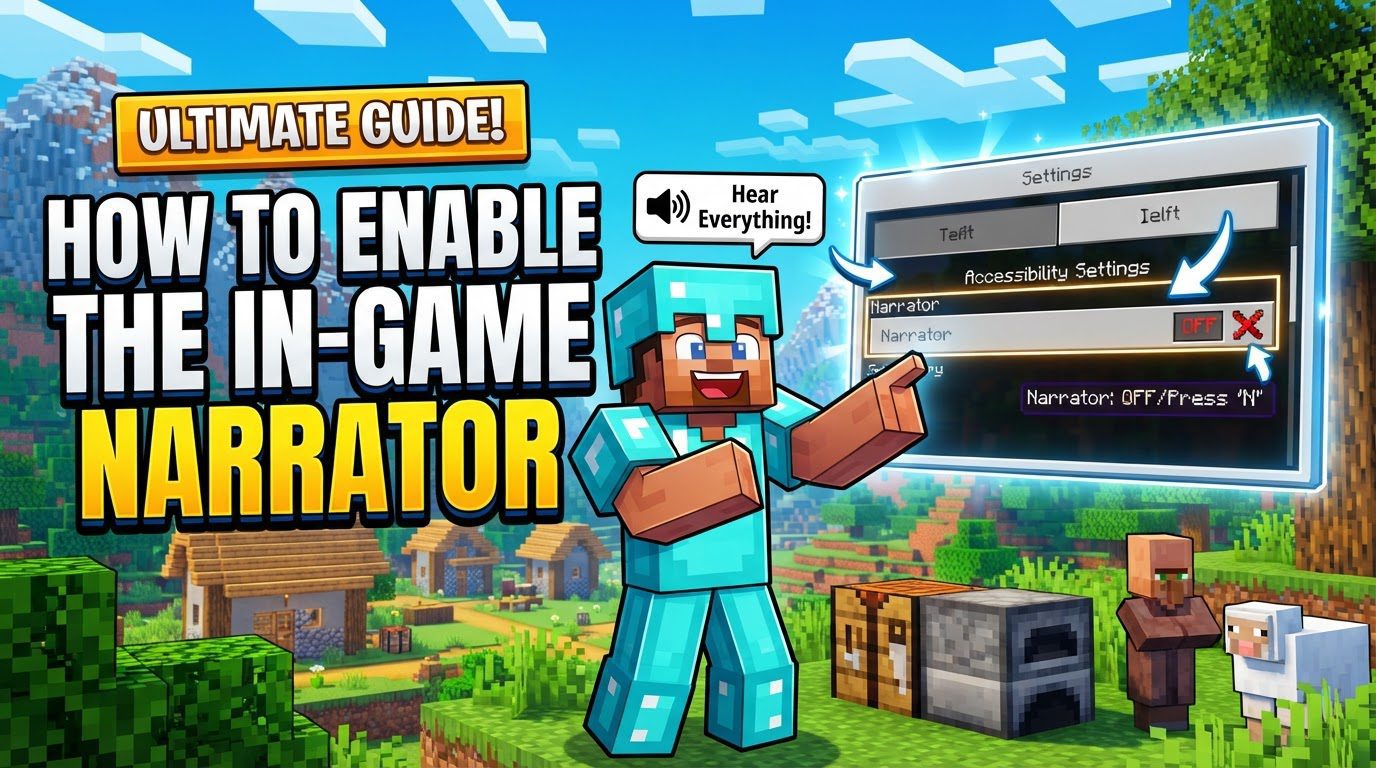
The narrator offers a highly customizable experience, allowing players to tailor its functionality to their specific needs. There are four distinct settings available for the narrator, each designed to provide a different level of textual assistance:
- Off: This setting completely disables the narrator, ensuring no in-game text is read aloud. Players who do not require this feature, or who prefer a silent experience, will choose this option.
- All: When set to “All,” the narrator provides comprehensive auditory feedback. It reads both player-generated chat messages and system-generated notifications. This option is ideal for players who wish to have a full understanding of all textual communication and alerts within the game without needing to constantly focus on the screen.
- Chat: Choosing the “Chat” setting narrows the narrator’s focus specifically to player messages. This means that only text originating from other players in the chat window will be read aloud. This can be particularly useful for players who can easily read UI elements and system messages but might struggle to keep up with fast-paced conversations in multiplayer environments.
- System: The “System” setting directs the narrator to read aloud user interface (UI) text, outputs from commands, and various notifications that appear within the game. This setting is beneficial for players who need assistance with menu navigation, understanding game mechanics explained through UI elements, or keeping track of command execution results, while preferring to read chat messages themselves.
An important technical consideration for the narrator is its language. The language used by the narrator is inherently tied to the host system’s language settings. This means that, within the game itself, there is no direct option to change the narrator’s language. While advanced users can, in some cases, manually force a different language through Windows registry edits, this is an external modification and not an in-game feature. This design choice highlights the narrator’s integration with the operating system’s accessibility features.
Beyond the settings menu, there’s a quick and convenient keyboard shortcut for toggling the narrator modes: Ctrl + B for Windows users and ⌘ Cmd + B for Mac users. This hotkey allows players to cycle through the “Off,” “All,” “Chat,” and “System” settings on the fly, providing immediate control over the narrator’s behavior without needing to pause the game and delve into menus. However, players who find this shortcut inconvenient or prone to accidental activation can choose to disable it within the game’s accessibility settings.
Enabling the Narrator in Minecraft Java Edition
For players enjoying Minecraft Java Edition, activating the in-game narrator is a straightforward process that can be accomplished through the game’s intuitive menu system or via a convenient keyboard shortcut. Here’s a step-by-step guide to get the narrator up and running:
-
Step 1: Access the Main Menu
Begin by launching Minecraft Java Edition. Once the game has loaded, you will arrive at the main menu screen. This is your central hub for game settings, world selection, and other core functions. -
Step 2: Navigate to Options
From the main menu, locate and select the “Options” button. Clicking this will open a new screen filled with various game configuration categories, including controls, video settings, and more. -
Step 3: Open Accessibility Settings
Within the “Options” menu, you’ll find a button labeled “Accessibility Settings.” Click on this to access all the game’s accessibility-related features, which include the narrator. -
Step 4: Configure the Narrator
On the “Accessibility Settings” screen, you will see a specific button dedicated to the “Narrator.” This button typically displays its current state (e.g., “Narrator: Off”). To change the narrator’s setting, simply click this button. Each click will cycle through the available modes: “Off,” “All,” “Chat,” and “System.” Continue clicking until you land on your desired setting. -
Alternative Method: Using the Keyboard Shortcut
A more dynamic way to control the narrator is by using its dedicated keyboard shortcut. At any point while playing or navigating menus, you can pressCtrl + B(for Windows users) or⌘ Cmd + B(for Mac users). This hotkey will instantly toggle the narrator through its various modes, allowing for quick adjustments without needing to enter the settings menu.
Enabling the Narrator in Minecraft Bedrock Edition
Minecraft Bedrock Edition, which encompasses versions for Windows 10, mobile (Pocket Edition), and consoles, offers a slightly different but equally effective method for enabling its text-to-speech capabilities. While the core functionality remains consistent, the interface for activation is adapted to its cross-platform nature.
-
Step 1: Access the Main Menu and Settings
Launch Minecraft Bedrock Edition. From the main menu, select the “Settings” option. This will take you to the game’s comprehensive settings panel, where you can customize various aspects of your game experience. -
Step 2: Navigate to the Accessibility Section
Within the “Settings” menu, look for and select the “Accessibility” section. This dedicated area groups all features designed to make the game more accessible to a wider audience. -
Step 3: Activate Text-to-Speech Sliders
In the “Accessibility” section, you will find two distinct sliders related to text-to-speech functionality: “Text to Speech for UI” and “Text to Speech for Chat.”- To enable the narrator for user interface elements, command outputs, and notifications, activate the “Text to Speech for UI” slider.
- To enable the narrator for player-generated chat messages, activate the “Text to Speech for Chat” slider.
You can activate one or both sliders depending on your preference, providing granular control over what the narrator reads aloud.
-
In-Gameplay Activation/Deactivation
Similar to Java Edition, once you are in gameplay within Bedrock Edition, the keyboard shortcutCtrl + Bcan also be utilized. This hotkey allows players to quickly activate or deactivate the narrator functionality, offering an immediate toggle without needing to return to the settings menu.
Important Tips and Accessibility Considerations
The Minecraft narrator is far more than just a feature; it’s a critical accessibility tool that significantly broadens the game’s appeal and usability. Its thoughtful design ensures that players who may experience difficulties with on-screen text, such as those with visual impairments, can still fully enjoy and interact with the rich world of Minecraft. By converting written text into audible speech, the narrator empowers these players to understand game mechanics, follow conversations, and navigate menus with greater ease and independence.
The high degree of customization offered by the narrator is a testament to its commitment to accessibility. Players are not forced into an all-or-nothing scenario; instead, they have the freedom to choose whether the narrator reads every piece of text, only specific categories of text (like chat or system messages), or remains entirely off. This flexibility allows each player to configure the feature precisely to their comfort level and needs, ensuring it enhances their experience without becoming intrusive.
A key strength of the narrator is its consistent functionality across different editions of Minecraft. Whether you’re playing Java Edition on a PC, Bedrock Edition on Windows 10, a mobile device (Pocket Edition), or a console, the core text-to-speech capabilities remain reliable. While the specific menu paths for activation might vary slightly to accommodate each platform’s interface, the underlying purpose and effectiveness of the narrator are maintained across the board, providing a unified accessibility experience.
For players who frequently find themselves accidentally activating the narrator via the Ctrl + B hotkey, there’s a simple solution. The game’s accessibility settings include an option to disable this specific hotkey. This ensures that the narrator only activates when intentionally enabled through the menus, preventing any unintended interruptions during gameplay. This customization further highlights the player-centric design of the accessibility features.
Common Mistakes and Troubleshooting Persistent Narrator Activation
While the narrator is an invaluable accessibility feature, its default keybinding and interactions with system-level settings can sometimes lead to unexpected behavior, particularly unintentional activation. Understanding these nuances is key to a smooth experience.
One of the most common points of confusion revolves around the Ctrl + B keybinding. It’s crucial to understand that this specific key combination for the narrator is hardcoded into Minecraft. This means that, unlike many other in-game actions, you cannot remap Ctrl + B through the standard in-game controls menu. This hardcoded nature can be a source of frustration, as players might accidentally activate the narrator in several scenarios:
-
Keyboard Layouts: Some international keyboard layouts use key combinations like
AltGr + Bto produce special characters. Depending on how the system interprets these inputs, it might inadvertently trigger theCtrl + Bcommand, turning on the narrator when the player intended something else entirely. - Conflicting Keybinds: If a player has mapped the ‘B’ key to another in-game action (e.g., opening an inventory, using an ability) and frequently uses it in conjunction with the Control key for other operations, they might accidentally trigger the narrator.
If you find the narrator persistently turning on, even after you’ve seemingly disabled it within Minecraft’s in-game settings, the issue likely lies beyond the game itself. Modern operating systems and consoles often include their own comprehensive accessibility suites, which can override or interact with in-game features. Therefore, it’s essential to check not only Minecraft’s settings but also the system-level accessibility settings of your device.
Here’s how to troubleshoot persistent narrator activation on various platforms:
-
For Xbox Consoles:
- First, check the console’s system settings. Navigate to “Settings → Ease of Access → Narrator” and ensure that the Xbox system narrator is disabled.
- Additionally, within Minecraft on Xbox, navigate to “Settings → General → Accessibility” and verify the in-game narrator options are set as desired.
-
For PlayStation Consoles:
- Access your PlayStation’s system settings. Look for “Settings → Accessibility → Screen Reader” and ensure that the “System Voice Guide” option is turned off.
-
For Nintendo Switch:
- Go to the Nintendo Switch’s “System Settings.” Scroll down to “Accessibility” and make sure the “Text-to-Speech” option is turned off.
By meticulously checking both the in-game and system-level accessibility settings, players can effectively manage and prevent unintended narrator activation, ensuring a smooth and personalized Minecraft experience. The narrator remains a vital tool for inclusivity, and understanding its operational nuances allows all players to fully benefit from its capabilities.
Tags:
YOU MAY ALSO LIKE...