Elytra Trims Mod Bedrock Download
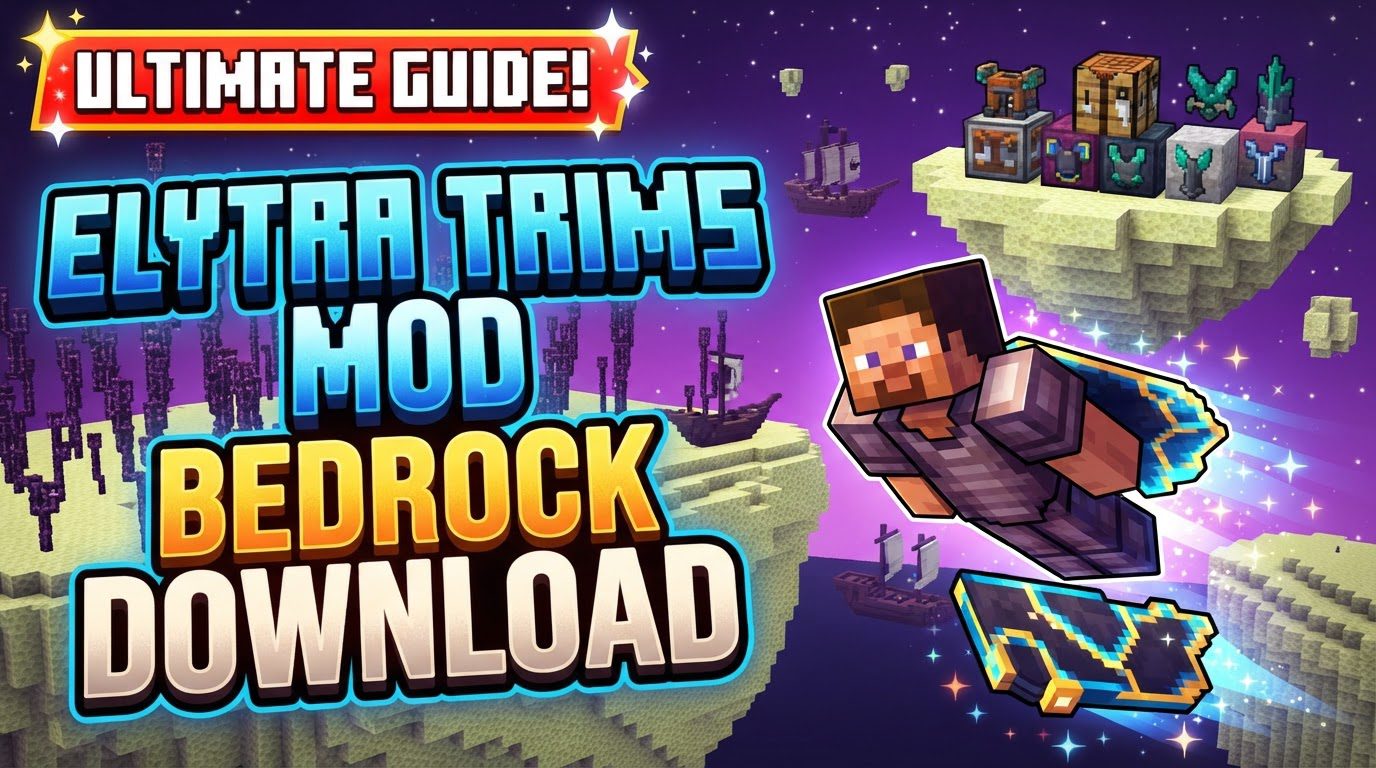
When players search for “Elytra Trims Mod Bedrock Download,” they often find themselves at a crossroads, because the popular armor trimming mechanic for elytras, as understood from Minecraft Java Edition, doesn’t actually exist in the same form for Bedrock. While Java Edition boasts dedicated mods that allow players to apply intricate armor trims directly to their elytras using a crafting table, Bedrock Edition approaches elytra customization through a different, yet equally vibrant, system: resource packs and add-ons. This comprehensive guide will demystify elytra customization for Bedrock players, explaining what’s truly available and how to achieve stunning personalized wings.
The Bedrock Reality: Visual Customization, Not “Trims”
The fundamental distinction lies in how Minecraft’s two main editions handle modifications. Minecraft Java Edition, with its more open-ended modding API, allows for deep alterations to game mechanics, including the introduction of new crafting recipes and item properties like applying trims to elytras. In contrast, Minecraft Bedrock Edition, while supporting add-ons, primarily facilitates changes through asset replacement and behavior pack modifications. This means that for elytras in Bedrock, instead of applying a “trim” in the Java sense, players are actually replacing the entire visual model and texture of the elytra with a custom design.
Therefore, when you’re looking for “Elytra Trims Mod Bedrock Download,” what you’re likely seeking is a resource pack or add-on that visually alters your elytra. These Bedrock-compatible packs offer a rich tapestry of customization options:
- Custom 3D Models and Textures: Forget the default bat-like wings! Resource packs can transform your elytra into anything from majestic angel wings, futuristic jetpacks, or intricate dragon scales, to even whimsical UFOs. These are complete model and texture overhauls.
- Subpack Selection: Many sophisticated packs utilize a feature called “subpacks.” This allows a single download to contain multiple custom elytra designs. Players can then switch between these designs directly within the game’s resource pack settings, offering incredible versatility without needing to download separate files for each look.
- Enhanced Animations and Sounds: Beyond static models, some premium resource packs also include custom animations for gliding, taking off, or landing, and even unique sound effects to match your new wings, creating a truly immersive experience.
- No Armor Trim Mechanic: It’s crucial to reiterate: these Bedrock packs do not introduce a crafting mechanic where you combine an elytra with a trim template and a material (like netherite or gold) to apply an armor-like trim. The change is visual and complete, replacing the default elytra’s appearance entirely.
How to Customize Your Elytra in Bedrock Edition
Achieving your desired custom elytra look in Minecraft Bedrock Edition is a straightforward process involving resource packs. Follow these steps:
Step 1: Download the Resource Pack
Begin by finding a custom elytra resource pack. Reputable sources include:
- MCPEDL (mcpedl.com): A vast repository of Bedrock add-ons and resource packs.
- CurseForge (curseforge.com): Increasingly supports Bedrock content alongside Java.
- Planet Minecraft (planetminecraft.com): Another popular community site.
Look for files typically ending in .mcpack or sometimes .zip. Always check the pack’s description for compatibility with your specific Minecraft Bedrock version.
Step 2: Import to Minecraft
- For
.mcpackFiles: This is the easiest method. Simply locate the downloaded.mcpackfile and open it. Minecraft Bedrock should automatically launch and begin importing the pack. You’ll see a notification in-game confirming the successful import. - For
.zipFiles: If you download a.zipfile, you’ll need to manually extract its contents into your Minecraft game directory.- First, extract the
.zipfile to a temporary location. - Then, navigate to your Minecraft Bedrock
resource_packsfolder. The exact path varies by operating system:- Windows 10/11:
C:\Users\<YourUser>\AppData\Local\Packages\Microsoft.MinecraftUWP_8wekyb3d8bbwe\LocalState\games\com.mojang\resource_packs(You may need to enable “Show hidden files” in File Explorer to see the AppData folder). - Android/iOS: Use a file manager app to navigate to
games/com.mojang/resource_packswithin your Minecraft folder.
- Windows 10/11:
- Copy the extracted resource pack folder (which contains files like
manifest.jsonand thetexturesfolder) directly into theresource_packsfolder.
- First, extract the
Step 3: Activate the Pack in Minecraft
Once imported or manually placed, you need to activate the pack:
- Launch Minecraft Bedrock.
- From the main menu, go to
Settings. - Scroll down the left-hand menu and select
Global Resourcesunder the “Global Resources” section. - In the “My Packs” tab, find your newly imported custom elytra pack. Click on it and then click
Activate. - Alternatively, you can activate the pack for a specific world. When editing a world (or creating a new one), go to
Resource Packsunder the “Add-Ons” section. Activate it there. - Resource Pack Order: Ensure your custom elytra pack is at the top of your active resource pack list. Packs higher in the list override those below them. This is crucial if you have other resource packs that might also modify the elytra.
Step 4: Select Desired Model (If Applicable)
If your chosen pack supports subpacks (meaning it offers multiple designs within one download):
- While the pack is active in your
Global Resourcesor world settings, click the gear icon (⚙️) next to its entry. - A slider or selection menu will appear, allowing you to choose your preferred custom wing model or texture. Select your desired option.
Step 5: Equip Elytra In-Game
Now, simply launch into a world (or continue playing in one where the pack is active). Equip an elytra in your chestplate slot as you normally would, and it should immediately display the custom model and textures you’ve chosen!
Essential Tips for Elytra Customization
- Check Compatibility: Always verify that the resource pack explicitly states compatibility with your current Minecraft Bedrock Edition version. Using outdated packs can lead to visual glitches, crashes, or the pack simply not working.
- Performance Considerations: While most resource packs are optimized, some highly detailed 3D models can be more demanding on your system’s resources. If you experience lag or frame rate drops, consider switching to a less complex pack or one specifically noted for performance optimization.
- Explore Multiple Designs via Subpacks: Don’t settle for the first design you see! Many creators pack multiple options into a single download using subpacks. This offers fantastic value and flexibility.
- Backup Your Worlds: Before making significant changes, especially when experimenting with new add-ons or resource packs, it’s always a good practice to back up your Minecraft worlds.
Common Pitfalls and How to Avoid Them
Understanding the common mistakes can save you a lot of frustration:
- Confusing Java and Bedrock Functionality: As highlighted, the biggest pitfall is expecting the Java Edition’s “Elytra Trims” mod functionality (applying armor trims) to exist in Bedrock. Bedrock’s customization is visual replacement, not trim application. Searching specifically for “Elytra Trims Mod Bedrock” might lead you to Java-only content or misleading downloads.
- Incorrect Installation Path: For
.zipfiles, placing the extracted folder in the wrong directory (e.g., inbehavior_packsinstead ofresource_packs, or in a subfolder too deep) will prevent the game from recognizing it. Double-check the path. - Forgetting to Activate the Pack: Simply importing or placing a pack isn’t enough; you must activate it in the game’s settings, either globally or for a specific world.
- Incorrect Resource Pack Load Order: If your custom elytra pack is lower in the active resource pack list than another pack that also modifies the elytra, the lower pack will be overridden, and you won’t see your desired customization. Always move your elytra pack to the top.
- Using Outdated Packs: Resource packs created for significantly older versions of Minecraft Bedrock may not function correctly, if at all, with newer game updates due to changes in asset paths or game mechanics. Always check the version compatibility.
- Expecting Trimming Functionality: Continuously expecting to find an in-game crafting mechanic to “trim” your elytra in Bedrock will lead to disappointment. Embrace the model and texture replacement approach, which offers its own vast array of creative possibilities.
While the “Elytra Trims Mod” in the Java sense isn’t a feature of Minecraft Bedrock Edition, the platform offers a rich and diverse ecosystem of resource packs and add-ons that allow for incredible visual customization of your elytra. By understanding the Bedrock approach and following the correct installation and activation steps, you can soar through your worlds with wings that truly reflect your unique style.
Tags:
YOU MAY ALSO LIKE...