How to Change Elytra Color
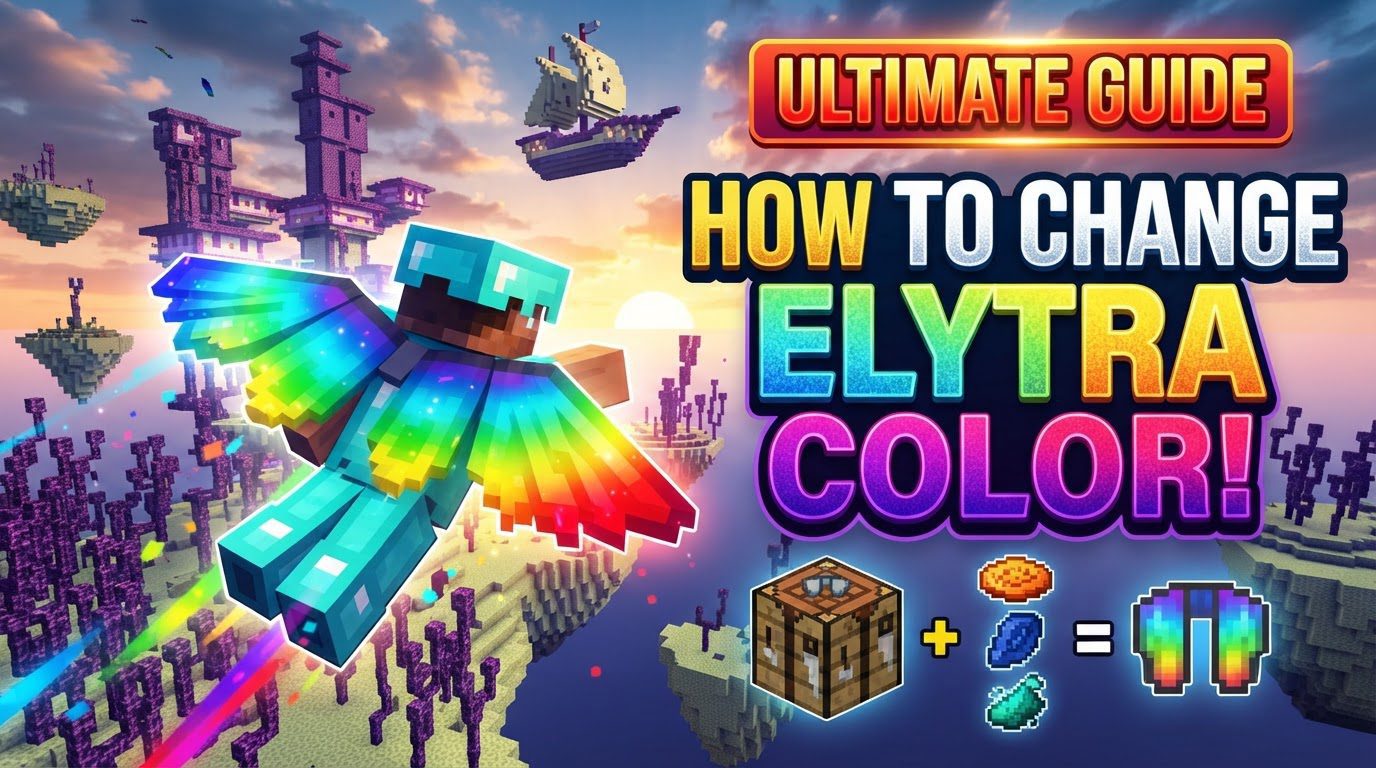
Many a new aviator in Minecraft has tried to personalize their Elytra, only to be met with frustration. Unlike leather armor, which readily accepts dyes, the majestic wings of the Elytra stubbornly resist any attempts at direct coloration. This fundamental difference often leads players down a fruitless path, trying every dye and cauldron in their inventory. The truth is, in vanilla Minecraft, dyeing your Elytra is simply not an option. However, this doesn’t mean you’re stuck with the default grey. A multitude of creative avenues exist to transform your flight experience, from subtle changes to complete overhauls, leveraging the game’s inherent flexibility and community-driven content.
The Illusion of Dyeing: Why Your Elytra Stays Grey
First and foremost, it’s crucial to understand the core mechanic: Elytra cannot be dyed. This is a common misconception, often stemming from the dyeing mechanics of leather armor. Players frequently attempt to place Elytra in a crafting grid with dyes, or dunk them into cauldrons filled with colored water, expecting a vibrant transformation. These actions, however, yield no results. The game’s code simply doesn’t support this functionality for Elytra. This isn’t a bug; it’s by design. The developers chose a different path for Elytra customization, relying on external factors and community contributions rather than an in-game dyeing system.
This limitation serves as a starting point for exploring the actual methods available. While you can’t just pick up some lapis lazuli and turn your wings blue, the options for aesthetic alteration are surprisingly vast and allow for far more intricate designs than simple color changes. These methods range from subtle, in-game features to powerful community-made tools that unlock a world of visual possibilities for your aerial adventures.
The Cape Connection: A Vanilla Glimmer
For players seeking a purely vanilla solution without external files, the most straightforward (though limited) way to alter your Elytra’s appearance is through cape integration. If your Minecraft account has an associated cape – perhaps from attending Minecon, participating in specific events, or being part of the Mojang team – that cape’s design will automatically transfer to your Elytra when worn. This means that instead of the default grey texture, your Elytra will display the pattern of your equipped cape. This is a seamless, in-game feature that requires no modifications or resource packs.
While this method offers a genuine vanilla customization, it’s important to note its exclusivity. Capes are not easily acquired by most players, often being rewards for specific, historical achievements or events. Therefore, this option isn’t universally accessible, but for those fortunate enough to possess a cape, it provides a unique and official way to add a touch of personal flair to their Elytra, making them stand out in the skies. The cape texture replaces the entire Elytra texture, offering a distinct visual identity that is visible to all other players who can see your cape.
Unleashing Creativity: The Power of Resource Packs
The most popular and accessible method for customising your Elytra’s appearance for the majority of players is through the use of Resource Packs (also known as Texture Packs). These user-created modifications allow players to completely change the visual assets of the game, including the Elytra. Resource packs can transform your wings into anything imaginable: from sleek, futuristic designs and majestic dragon wings to delicate butterfly wings or even whimsical fairy wings. The possibilities are truly endless, limited only by the creativity of the pack creator.
Unlike capes, resource packs are client-side. This means that only you, the player using the resource pack, will see the altered Elytra texture. Other players on the same server will still see your Elytra with its default grey appearance, or with your cape’s texture if you have one. This is an important distinction to manage expectations, especially if you’re aiming for a server-wide aesthetic change. However, for personal immersion and visual enjoyment, resource packs are unparalleled in their versatility and ease of use.
Step-by-Step: Equipping a Custom Elytra Texture
Implementing a resource pack for your Elytra is a straightforward process:
- Find a Trusted Source: Begin by downloading a desired Elytra resource pack. Reliable websites like CurseForge, Modrinth, and Vanilla Tweaks are excellent starting points. Always ensure you download from reputable sources to avoid malicious files.
- Download and Locate: Once downloaded, the resource pack will typically be a
.zipfile. Do not unzip it. - Place in the Correct Folder: Open your Minecraft game, navigate to “Options,” then “Resource Packs,” and finally click “Open Pack Folder.” This will open the directory where Minecraft looks for resource packs. Drag and drop your downloaded
.zipfile into this folder. - Activate In-Game: Return to the “Resource Packs” menu in Minecraft. Your newly added pack should appear in the “Available Resource Packs” list. Click the arrow icon next to its name to move it to the “Selected Resource Packs” list. Ensure it’s at the top of the list if you have multiple packs, to give it priority.
- Enjoy Your New Wings: Click “Done” to apply the changes. Your Elytra should now display its new custom texture.
Some advanced resource packs offer multiple Elytra designs within a single pack. These often utilize a feature where renaming your Elytra in an anvil (e.g., to “Dragon Wings” or “Fairy Elytra”) will trigger a specific texture variant from the pack. This adds another layer of customization, allowing you to switch between designs without changing the entire resource pack.
Beyond Vanilla: Mods and Addons for Deeper Customization
For those who desire even more control, including direct dyeing mechanics or highly specific custom designs that go beyond simple texture swaps, Mods (for Java Edition) and Addons (for Bedrock Edition) offer advanced solutions. These tools often introduce new items, crafting recipes, or game mechanics specifically designed for Elytra customization.
- Java Edition Mods: The Java modding community has created various modifications that can introduce dyeing mechanics for Elytra. These mods often require a mod loader like Forge or Fabric. They might add a new crafting recipe where you combine Elytra with dyes, or introduce a special block or tool for coloring. The specific process will depend entirely on the mod you choose, so always consult the mod’s documentation for installation and usage instructions.
- Bedrock Edition Addons: On Bedrock Edition, addons function similarly to mods, expanding game functionality. There are specific Elytra coloring addons available that might introduce items like “colored phantom membranes.” The typical process involves downloading the addon, importing it into your game (often by simply opening the
.mcpackor.mcaddonfile), and then following the addon’s unique instructions. This could involve crafting these colored membranes and then using them on an equipped Elytra, or interacting with a new custom block.
The key with mods and addons is to ensure compatibility. Always check that the mod/addon is designed for your specific Minecraft version and edition (Java or Bedrock). Installing incompatible files can lead to game crashes or unexpected behavior.
Navigating the Skies: Essential Tips for Customization
- Explore Resource Packs Extensively: The sheer volume of creative resource packs available is staggering. Don’t settle for the first one you find. Spend some time browsing different platforms to discover the perfect aesthetic for your Elytra. Many packs offer subtle enhancements, while others provide complete overhauls, including unique wing shapes and animations.
- Verify Compatibility: Before downloading any resource pack, mod, or addon, double-check its compatibility with your specific Minecraft version (e.g., 1.19, 1.20) and game edition (Java or Bedrock). Incompatible files are the leading cause of installation issues and game instability.
- Vanilla Tweaks for Java: If you play Java Edition, consider exploring websites like Vanilla Tweaks. They offer highly customizable resource packs where you can select individual components, including various Elytra textures, and then download a combined pack tailored to your preferences. This is an excellent way to get unique textures without sifting through countless individual packs.
Avoiding Turbulence: Common Mistakes to Sidestep
- Attempting to Dye Directly: As reiterated, the most common mistake is trying to dye Elytra with standard dyes or through cauldrons. This simply does not work in vanilla Minecraft. Save your dyes for leather armor!
- Expecting Cross-Platform Appearance: Remember that resource packs are client-side. If you install a resource pack that changes your Elytra’s appearance, only you will see that change. Other players will see the default Elytra unless they also have the exact same resource pack installed and activated. Capes are the only exception, as their texture is visible to all.
- Incorrect Installation: Ensure you place resource pack
.zipfiles directly into theresourcepacksfolder and activate them in-game. Do not unzip them unless specifically instructed by the pack creator. For mods and addons, carefully follow their installation guides, as these can vary significantly. Incorrect installation can lead to the custom textures not appearing or, worse, game crashes. - Downloading from Unreliable Sources: Always download resource packs, mods, and addons from well-known, trusted community sites. Downloading from unknown or suspicious websites can expose your computer to malware or viruses.
Your Personalized Flight Path
While the default grey Elytra might seem limiting at first glance, the Minecraft community and game mechanics offer a rich tapestry of customization options. From the exclusive elegance of capes to the boundless creativity of resource packs and the deep functionality of mods and addons, there’s a solution for every player looking to personalize their aerial adventures. Embrace these tools, follow the installation guidelines carefully, and prepare to soar through your Minecraft world with a style that is uniquely your own.
Tags:
YOU MAY ALSO LIKE...