

Immersive Engineering Catwalk
Perhaps one of the most frequent frustrations new Immersive Engineering players encounter when first laying down a Catwalk is its seemingly bland, flat appearance. Despite its promise of elegant industrial pathways, the initial placement often leaves builders with a simple, railing-less surface. This common oversight, however, is not a bug but a feature, easily rectified with the right tool and a bit of know-how, transforming a mere platform into a secure and visually appealing industrial thoroughfare.
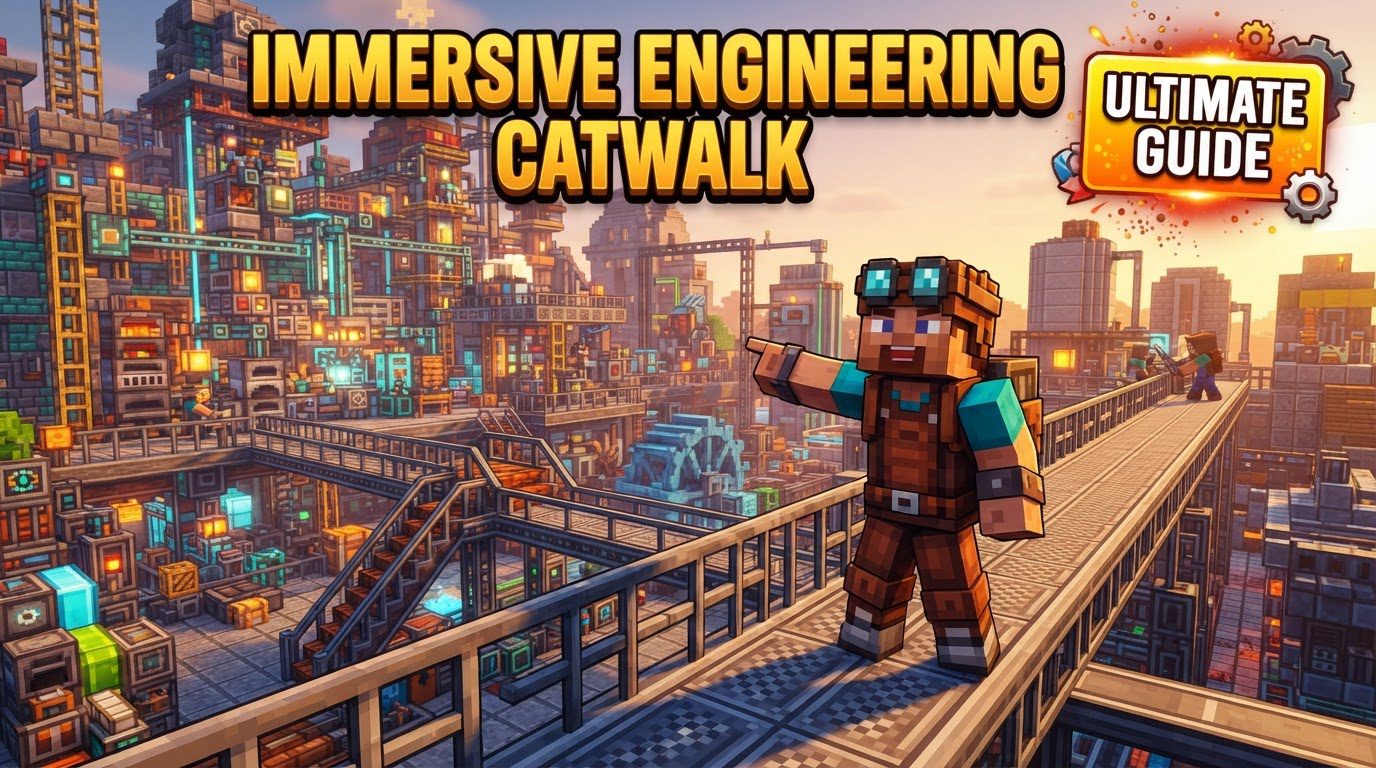
Immersive Engineering (IE) is renowned for its meticulously crafted industrial aesthetic, and its Catwalks are a prime example of this design philosophy. More than just simple blocks, IE Catwalks are a cornerstone for creating intricate, multi-layered factory complexes and impressive architectural builds. They serve a dual purpose: facilitating efficient player movement throughout vast industrial setups and significantly contributing to the overall visual grandeur and realism of these environments. Understanding their mechanics, from initial placement to advanced customization, is crucial for any aspiring industrialist in Minecraft.
Understanding the Core Mechanics of Immersive Engineering Catwalks
At its heart, an Immersive Engineering Catwalk is designed for player traversal. It’s a block that allows you to build elevated walkways, bridges, and access points within your factory. When you first place a Catwalk block, it appears as a flat, unassuming layer. This default state is intentional, giving players the flexibility to customize its appearance and safety features according to their specific needs. This initial flat layer is functional for movement, but it lacks the iconic industrial look and, more importantly, the safety of railings.
The true magic of Catwalk customization lies in the Engineer’s Hammer. This indispensable tool is not just for crafting or breaking down machinery; it’s the key to unlocking the full potential of many Immersive Engineering blocks, including Catwalks. With the Engineer’s Hammer, you can individually add railings to any side of a Catwalk block. This granular control allows for highly detailed and precise constructions, enabling players to create pathways that fit seamlessly into their industrial designs, whether they require full enclosure or open access on certain sides.
It’s important to note that the Engineer’s Hammer’s behavior can sometimes be nuanced. In specific versions of the mod or certain modpack configurations, the Hammer might rotate the Catwalk block instead of toggling railings, especially after the first interaction. This can be a source of confusion, but generally, a careful approach to interacting with the block will yield the desired results. Furthermore, for the railing-adding function to work reliably, it’s often necessary for the player’s offhand to be empty. This small detail can be overlooked but is crucial for successful customization.
A Step-by-Step Guide to Installing Railings on Your Catwalks
Transforming a bare Catwalk into a fully railed pathway is a straightforward process once you know the steps. Follow this procedure to add railings to your Immersive Engineering Catwalks:
- Step 1: Place the Catwalk Block. Begin by placing the Catwalk block in your desired location. Remember, it will initially appear as a flat, unrailed surface.
- Step 2: Equip an Engineer’s Hammer. Ensure you have an Engineer’s Hammer in your main hand. This is the only tool that can modify the Catwalk’s railing configuration.
- Step 3: Position Yourself on the Catwalk. Stand directly on top of the Catwalk block you wish to modify. This ensures proper interaction and targeting.
- Step 4: Engage Crouch Mode. Hold down the crouch button (typically ‘Shift’). Crouching is often required for precise interactions with Immersive Engineering blocks, preventing accidental rotations or other unintended actions.
- Step 5: Right-Click the Desired Side. While crouching, right-click on the specific side of the Catwalk block where you want to add a railing. You will see the railing appear instantly. Repeat this action for all other sides where you wish to place a railing. You can add railings to one, two, three, or all four sides, creating custom pathways and corners.
This method provides complete control over your Catwalk’s appearance, allowing for intricate designs and ensuring safety wherever needed. Whether you’re building a simple straight path or a complex network of elevated platforms, the Engineer’s Hammer is your indispensable companion.
Essential Tips for Efficient Catwalk Construction
Beyond the basic steps, a few tips can enhance your experience and efficiency when working with Immersive Engineering Catwalks:
- Always Have Your Hammer Ready: The Engineer’s Hammer is not just for Catwalks; it’s central to configuring many Immersive Engineering components, including conveyor belts, wires, and various machines. Keeping it in your inventory or hotbar will save you countless trips back to your workshop.
- Mastering Corner Railings: Achieving perfect corner railings or specific custom configurations might require a bit of practice. Sometimes, adjusting your angle or position slightly when using the Engineer’s Hammer can make a difference. Experiment with different approaches to get the desired aesthetic for your industrial structures.
- Consult the Engineer’s Manual: Immersive Engineering includes a comprehensive in-game guide called the Engineer’s Manual. This invaluable resource provides detailed instructions on every machine, recipe, and mechanic within the mod, including specific nuances of Catwalks. If you encounter difficulties or seek advanced information, the manual is your best friend.
Navigating Common Pitfalls and Solutions
While Catwalks are generally straightforward, players occasionally encounter issues. Awareness of these common mistakes and their solutions can save time and frustration:
- The “Flat Layer” Conundrum: As mentioned, the most frequent issue is the Catwalk appearing as just a flat layer after placement, with no apparent way to add railings. The solution, as detailed above, is always to use the Engineer’s Hammer while crouching and right-clicking the desired sides. This is by design, not a bug, and is easily resolved with the correct tool.
- Catwalk Stairs and Client Crashes: In some specific Immersive Engineering versions (e.g., 12.4.0-192 for Minecraft 1.21.1), right-clicking Catwalk Stairs with an Engineer’s Hammer has been known to cause the game client to crash. While disruptive, the block usually retains its original state upon reloading the world, meaning no progress is lost. Builders should exercise caution or check modpack release notes if they encounter this specific version.
- Hammer as a Wrench Conflict: In certain modpacks, notably “All the Mods,” the Engineer’s Hammer might be tagged internally as a generic wrench. This can lead to an frustrating interaction where instead of adding railings, the Hammer rotates the Catwalk block. This behavior can significantly hinder proper railing placement. Players in such scenarios have resorted to alternative tools like debug sticks (available in creative mode) or building gadgets from other mods to bypass this conflict and achieve their desired Catwalk configurations. If you find your Hammer rotating instead of railing, investigate your modpack’s specific configurations or consider these workaround tools.
Immersive Engineering Catwalks are far more than just decorative blocks; they are essential functional and aesthetic elements that bring your industrial Minecraft builds to life. By mastering the Engineer’s Hammer and understanding the nuances of their placement and customization, you can construct truly impressive and efficient factory complexes, ensuring both player safety and visual appeal in your blocky, industrialized world.
Tags:
YOU MAY ALSO LIKE...


