Create Factory Logistics Network Link
Many aspiring factory owners, keen on automating their Minecraft Create setups, often stumble at the first hurdle of true logistical integration: understanding how to seamlessly connect their storage and production lines. The concept of a “Factory Logistics Network Link” within the Create mod is not a single block, but rather a powerful system built around the humble Stock Link, designed to manage item and even fluid flow across vast, automated empires.
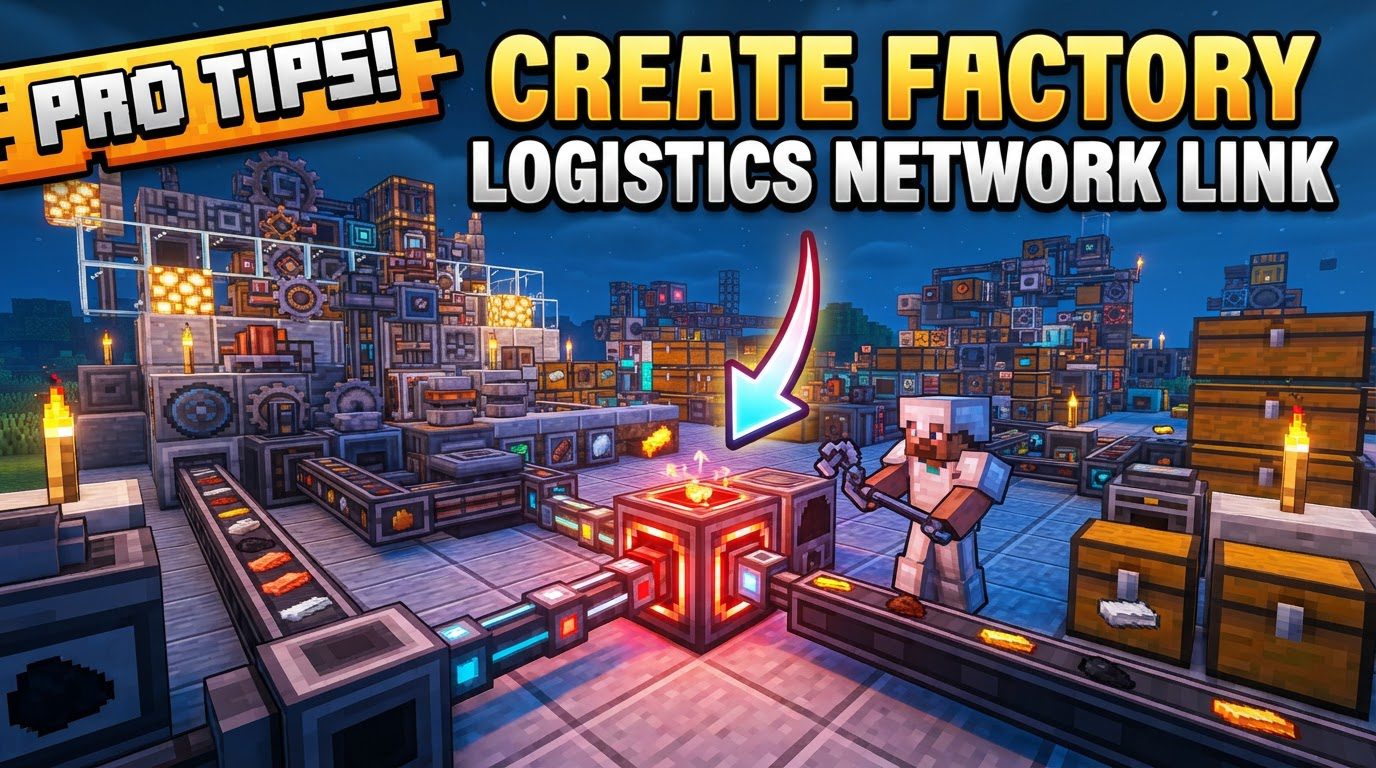
At its core, a Create logistics network is about communication. It allows different parts of your factory to “talk” to each other about what items they have, what they need, and where things should go. This guide will unravel the intricacies of establishing and optimizing such a network, leveraging the Stock Link as its foundation and exploring advanced capabilities offered by the Create Factory Logistics addon for fluid management.
The Central Nervous System: Understanding Core Mechanics
The foundation of any Create logistics network is the Stock Link. Think of it as an inventory sensor and transmitter. When properly configured, it exposes the contents of an attached storage system to a wider logistics network. This means other devices on the network can query what’s inside and even request items to be extracted.
- Logistics Network Core (Stock Link): This block is indispensable. It connects directly to a storage system via a Packager, transmitting inventory data and receiving item extraction requests. Without a Stock Link, your storage remains an isolated island.
- Network Components: A logistics network isn’t just one Stock Link. It’s a collection of interconnected devices. Multiple Stock Links, along with Stock Tickers (for manual requests), Redstone Requesters (for redstone-controlled requests), and Factory Gauges (for automated monitoring and requests), can all be linked together to form one or more cohesive networks.
- No Range Limit (with a catch): One of the most liberating features is that Stock Links have no inherent range limitations. They can connect components across vast distances, even spanning different dimensions. The crucial caveat, however, is that all chunks containing network components must be actively loaded for them to communicate and function.
- Automatic Operation: Once properly set up and linked, these networks operate with impressive autonomy. They continuously transmit and receive inventory information and requests, minimizing the need for constant manual oversight.
- Item Request and Automation: The power of the network truly shines in its ability to automate item requests. While Stock Keepers attached to Stock Tickers can generate manual requests, Factory Gauges are the workhorses of automation. These devices can monitor inventory levels for specific items and, if quantities dip below a pre-set threshold, automatically issue requests for replenishment or crafting materials.
Building Your Item Logistics Network: A Step-by-Step Guide
Establishing an item logistics network with Stock Links is a straightforward process, but precision in placement and linking is key.
- Craft a Stock Link: Your journey begins by crafting a Stock Link. This requires combining a Transmitter (a component used in other Create contraptions) and an Item Vault.
- Attach to a Packager and Storage: This is a critical step often misunderstood. First, place your desired storage block (e.g., an Item Vault, chest, or barrel). Next, place a Packager directly adjacent to this storage block. The Packager acts as the intermediary, handling the packaging and extraction of items. Finally, the Stock Link must be attached to the side or top of this Packager to establish the connection. Without this specific arrangement, the Stock Link cannot access the storage.
- Initiate or Join a Network:
- Starting a New Network: Simply placing a Stock Link will automatically create a new, independent Logistics Network.
- Joining an Existing Network: To expand an existing network, hold your crafted Stock Link in your hand and right-click on *any* existing network component (another Stock Link, Stock Ticker, Redstone Requester, or Factory Gauge). You’ll notice the Stock Link briefly glow purple, and upon placement, a message will confirm that it’s “tuned to this network.” This visual feedback is essential for verifying correct linkage.
- Integrate with Other Devices: Once your Stock Links are broadcasting inventory, you can introduce other components:
- Stock Tickers/Keepers: These allow for manual item requests or managing specific item categories within the network.
- Factory Gauges: Place a Factory Gauge anywhere in your factory and link it to the same network (by right-clicking an existing network component). Configure it to track specific items, set desired inventory thresholds, and enable automatic requests for crafting or replenishment.
- Frogports and Chain Conveyors: While the network handles information, physical transportation still relies on Create’s excellent movement solutions. Frogports, paired with Chain Conveyors, are ideal for moving packaged items to their requested destinations.
Advanced Automation: Leveraging Factory Gauges and Addons
The true power of a logistics network emerges with advanced automation, particularly through Factory Gauges. These devices are your automated quartermasters, ensuring supplies never run dry.
A Factory Gauge, once linked to your network, can be configured to monitor the stock of any item available. You can set a “minimum” threshold and a “target” amount. If the network-wide stock of an item falls below the minimum, the Factory Gauge will automatically request items until the target amount is reached. This is perfect for:
- Automated Crafting: Requesting raw materials when intermediate products are low, or finished goods when consumer demand is high.
- Replenishment: Keeping a buffer of essential items in various storage locations across your factory.
- Directed Transport: By naming Frogports, you can configure Factory Gauges to send requested items to specific destinations, ensuring that “iron ingots for the gear assembly” go exactly where they’re needed.
Fluid Logistics with Create Factory Logistics Addon
For those looking to manage liquids with similar precision, the Create Factory Logistics addon introduces parallel concepts for fluid handling. Instead of Stock Links, you’ll use components like “Jars” (fluid storage), “Butlers” (fluid packagers, akin to item packagers), and “Fluid Gauges.” These function in much the same way as their item counterparts, allowing you to create comprehensive fluid distribution networks.
Optimizing Your Network: Tips and Best Practices
To ensure your logistics network runs smoothly and efficiently, consider these tips:
- Universal Connectivity: Always double-check that all desired logistics components – Stock Links, Factory Gauges, Stock Tickers, Redstone Requesters – are correctly linked to the *same* network. An unlinked component is an invisible one to the network.
- Strategic Packager Placement: Remember, a Stock Link is useless without a Packager, and that Packager needs to be connected to a storage block. Plan your storage and Packager locations carefully.
- Clear Frogport Naming: When using Frogports for item delivery, give them descriptive names. This allows your Factory Gauges to accurately direct items to their intended destinations, preventing bottlenecks.
- Leverage Addon Improvements:
- Promise Limits (Create: Additional Logistics): To prevent network congestion from over-ordering, this addon offers “Promise Limits” for Factory Gauges. This caps the number of pending requests, ensuring your network isn’t swamped with too many packages.
- Additional Stock (Create: Additional Logistics): For Restockers, this feature allows them to request larger batches of items when stock falls below a threshold, rather than just the exact minimum amount, making resupply more efficient.
- Chunk Loading Solutions: Invest in reliable chunk loading solutions (like those provided by other mods or vanilla mechanisms) to ensure all parts of your network are active, especially when spanning large distances or dimensions.
Avoiding Pitfalls: Common Mistakes to Sidestep
Even with the best intentions, errors can creep into complex systems. Be mindful of these common mistakes:
- Incorrect Attachment Sequence: A Stock Link placed directly on a storage block, or a Packager not connected to storage, will not work. The sequence is: Storage -> Packager -> Stock Link.
- Unlinked Components: This is perhaps the most frequent issue. If a new component doesn’t glow purple and confirm “tuned to this network” upon placement, it’s not connected. Always right-click an existing network item before placing a new one.
- Neglecting Chunk Loading: While range-free, the network is not magic. If a chunk containing a Stock Link or Factory Gauge is unloaded, that part of your network effectively goes offline, leading to supply interruptions.
- Network Congestion: Over-automating or setting too many high-volume requests without adequate transportation infrastructure can lead to a backlog of packages, slowing down your entire factory. Use promise limits if available!
- Factory Gauge Linking Issues: In very complex setups or with certain mod interactions, Factory Gauges might occasionally struggle to connect or request from the intended Stock Links. Always check their GUI for active connections.
- Missing Stock Keeper (for manual requests): If you’re trying to manually request items via a Stock Ticker, remember that a Stock Keeper (a mob on a seat or a blaze burner) is required for the ticker to function.
Conclusion
The “Factory Logistics Network Link” in the Create mod, primarily facilitated by the versatile Stock Link and augmented by the Create Factory Logistics addon, transforms your sprawling contraptions into a cohesive, intelligent factory. By understanding its core mechanics, meticulously following the setup process, and avoiding common pitfalls, you can build an automated empire where items and fluids flow precisely where and when they are needed, freeing you to design even grander creations. Embrace the power of interconnected automation, and watch your Minecraft factory truly come to life.
Tags:
YOU MAY ALSO LIKE...