Adding Hover Text to Chat Messages (Step by Step)
Understanding Hover Text in Minecraft Chat
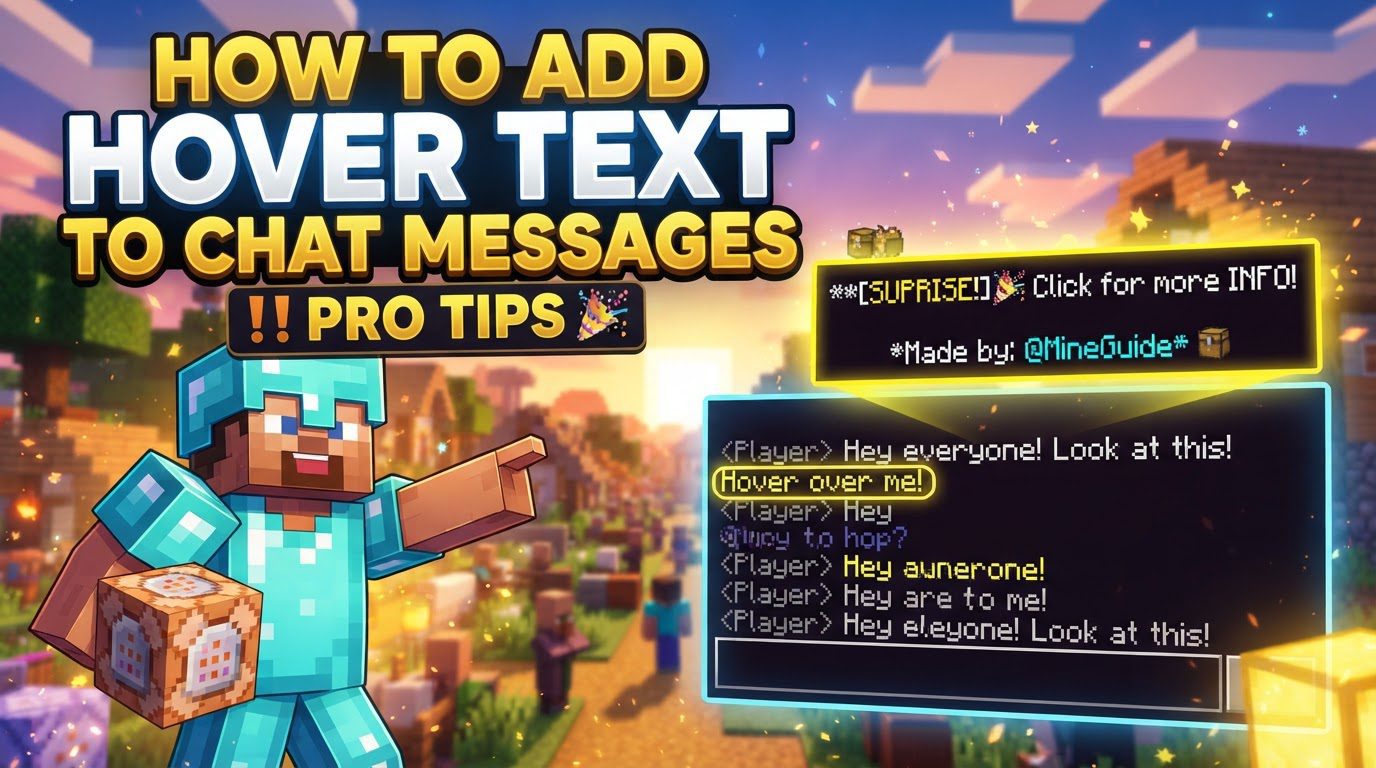
Adding hover text to chat messages in Minecraft significantly enhances player communication and interaction. This powerful feature allows you to display additional information, item details, or entity data simply by having a player move their mouse cursor over a specific piece of text in the chat window. This guide will walk you through the process, leveraging the game’s advanced command system to create dynamic and informative chat messages.
Key Mechanics for Interactive Chat
The foundation of creating chat messages with hover text lies in understanding a few core mechanics within Minecraft’s command system. These elements work in conjunction to define how your message is structured and how it behaves when interacted with.
-
The Primary Method: The
/tellrawCommandThe most crucial tool for generating chat messages with hover text is the
/tellrawcommand. Unlike simpler commands that send plain text,/tellrawis designed to send raw JSON text components to players. This allows for a far greater degree of customization, including advanced formatting, click events, and, most importantly for this guide, hover events. By mastering/tellraw, you unlock the full potential of interactive chat. -
JSON (JavaScript Object Notation) Format
At the heart of
/tellrawis the JSON format. JSON is a lightweight data-interchange format that is easy for humans to read and write, and easy for machines to parse and generate. In Minecraft, JSON is used to define the various properties of a chat message. This includes the text itself, its color, font style, and any interactive components like hover events or click events. Understanding the basic structure of JSON – using curly braces{}for objects, square brackets[]for arrays, colons:to separate keys and values, and commas,to separate elements – is essential for constructing complex/tellrawcommands. -
The
hoverEventJSON ComponentThe specific part of the JSON structure responsible for enabling hover text is the
hoverEventcomponent. When included within a text component’s JSON, this object tells the game to react when a player’s mouse hovers over that particular text. The presence ofhoverEventtransforms a static piece of chat into an interactive element, revealing additional context or information on demand. -
The
actionKey withinhoverEventInside the
hoverEventobject, theactionkey is used to specify the type of effect that should occur when the text is hovered over. This key dictates what kind of information will be displayed to the player. Minecraft offers several predefined actions to choose from, each serving a distinct purpose:-
show_text: This is the most common action and allows you to display any custom text message when hovered. It’s highly versatile for providing explanations, lore, or simple annotations. -
show_item: This action is designed to display a detailed tooltip of a specific Minecraft item. When a player hovers over the text, they will see the item’s name, quantity, and any NBT data (such as enchantments or custom names) associated with it, just as if they were hovering over the item in their inventory. -
show_entity: This action provides information about a specific in-game entity. When hovered, it typically displays the entity’s name, its type (e.g., “Zombie,” “Cow”), and its unique UUID (Universally Unique Identifier). This can be useful for identifying specific mobs or players.
-
-
The
contentsKey (orvalue)The
contentskey, nested within thehoverEventobject, holds the actual information that will be displayed when the hover action is triggered. The format and content of this key depend entirely on theactionspecified. For example, if the action isshow_text,contentswill contain the string of text to be shown. If the action isshow_item,contentswill hold a more complex JSON object describing the item. It’s important to note that for Minecraft versions 1.15 and below, the key used for this purpose wasvalueinstead ofcontents. Always ensure you are using the correct key for your specific game version to avoid errors.
Step-by-Step Process: Crafting Your Hover Text Message
Creating a chat message with hover text involves constructing a precise command in the game. Follow these steps carefully to ensure your command is correctly formatted.
-
Open the Chat and Begin with
/tellraw:First, open your Minecraft chat window (usually by pressing ‘T’ or ‘/’). Type
/tellrawto initiate the command. This tells the game you intend to send a raw JSON message. -
Specify a Target Selector:
After
/tellraw, you need to specify who will receive this message. Use a target selector for this purpose. Common selectors include:@a: Targets all players on the server.@p: Targets the nearest player to where the command was executed.@r: Targets a random player.@s: Targets the entity executing the command (e.g., yourself if typed in chat).- A specific player’s username: Targets only that individual player.
For example:
/tellraw @a -
Construct the Main Message as a JSON Text Component:
The core of your message will be a JSON object. This object will contain the visible text and any formatting. For a simple message, it might look like
{"text":"Click Me!"}. -
Inside the Main Message’s JSON, Add a
,"hoverEvent":{...}Object:To add hover functionality, you’ll nest the
hoverEventobject within your main text component’s JSON. Ensure you use a comma to separate it from other keys (like"text").
Example:{"text":"Click Me!","hoverEvent":{...}} -
Within the
hoverEventObject, Set theactionKey:Determine what kind of information you want to display on hover, and set the
actionaccordingly.
Example:{"text":"Click Me!","hoverEvent":{"action":"show_text", ...}} -
For
show_text, Set"contents":"Your hover text here":If your
actionisshow_text, thecontentskey will hold the exact message you want to appear. This text can be a simple string or even a complex JSON object itself for advanced formatting within the hover tooltip.
Example:/tellraw @a {"text":"Hover over me!","hoverEvent":{"action":"show_text","contents":"This is the hidden message."}} -
For
show_item, Use SpecificcontentsJSON:If your
actionisshow_item, thecontentsmust be a JSON object detailing the item. This object typically requires anid(e.g.,"minecraft:diamond_sword"), an optionalcount, and an optionaltagfor NBT data like enchantments.
Example:/tellraw @a {"text":"Check out this sword!","hoverEvent":{"action":"show_item","contents":{"id":"minecraft:diamond_sword","count":1,"tag":"{Enchantments:[{id:\"minecraft:sharpness\",lvl:5s}]}"}}} -
For
show_entity, Reference an Entity’s UUID incontents:When using
show_entity, thecontentstypically refers to an entity’s UUID. When hovered, this will display the entity’s name, type, and its UUID. This is often used in conjunction with commands that obtain entity UUIDs.
Example: If an entity has UUID “123e4567-e89b-12d3-a456-426614174000”:
/tellraw @a {"text":"Who is this?","hoverEvent":{"action":"show_entity","contents":{"name":"\"Steve\"","type":"\"minecraft:player\"","id":"\"123e4567-e89b-12d3-a456-426614174000\""}}}
Important Tips for Effective Hover Text
-
Utilize Target Selectors Precisely:
Beyond
@aand@p, remember the full range of target selectors (`@r` for random, `@e` for entities, `@s` for self) to control exactly who receives your interactive message. This allows for highly targeted communication in specific scenarios, such as notifying only players within a certain radius or sending a message to a particular entity. -
Insert New Lines with
\n:For longer hover texts, you might want to break them into multiple lines for readability. You can achieve this by inserting the newline character
\ndirectly within your string in thecontents(orvalue) key. This ensures your hover text appears neatly formatted, rather than as one continuous block. -
Mind Version-Specific Syntax (
contentsvs.value):As highlighted earlier, Minecraft versions 1.15 and below use the key
"value"instead of"contents"within thehoverEventobject to define the display content. Always double-check which version you are targeting to avoid syntax errors that prevent your hover text from appearing. Using the wrong key is a very common oversight. -
Combine with
clickEventfor Enhanced Interactivity:Hover events are powerful on their own, but they can be made even more dynamic when combined with a
clickEvent. This allows you to create messages that not only display hover text but also execute a command, open a URL, or change page when clicked. For instance, a text might show a description on hover and then teleport the player when clicked. TheclickEventcomponent is structured similarly tohoverEvent, with anaction(e.g.,"run_command","open_url") and avalue. -
Leverage Online Tools like MCStacker:
Constructing complex JSON for
/tellrawcommands can be intricate, especially for beginners. Online command generators like MCStacker are invaluable resources. These tools provide a user-friendly interface to build your commands, automatically generating the correct JSON syntax. This significantly simplifies the process, reduces errors, and allows you to experiment with different options without needing to manually write every bracket and quote.
Common Mistakes to Avoid
While creating interactive chat messages is rewarding, certain pitfalls can lead to frustration. Being aware of these common errors will help you troubleshoot and succeed.
-
Incorrect JSON Syntax:
JSON requires precise formatting. Missing commas between key-value pairs, unclosed curly braces
{}or square brackets[], or unquoted strings where a string is expected are the most frequent culprits. Even a single misplaced character can invalidate the entire command. Pay close attention to detail and use JSON validators if you’re unsure. -
Version-Specific Syntax:
As previously mentioned, using
"contents"when your Minecraft version expects"value"(or vice-versa) for the hover event’s display content will cause the hover text to fail. Always verify the correct key for your specific game version to ensure compatibility. This is a subtle but critical difference. -
Platform Differences:
While the core concept of
hoverEventis consistent across Minecraft Java Edition and Bedrock Edition, minor differences in JSON formatting or command syntax can sometimes exist. If you are developing for both platforms, be aware that you might need to make slight adjustments to your commands to ensure they function identically in both environments. Always test your commands on the target platform.
By understanding these mechanics, following the step-by-step process, and heeding the important tips and common pitfalls, you can effectively add dynamic and informative hover text to your Minecraft chat messages, greatly enhancing the interactive experience for all players.
Tags:
YOU MAY ALSO LIKE...