Configuring a Mod’s Config File Manually (Step by Step)
Configuring a Minecraft mod’s settings can significantly enhance your gameplay experience, allowing you to tailor features to your preferences. While many mods offer in-game configuration menus, understanding how to manually edit a mod’s config file provides a deeper level of control and is often necessary for server administrators or for troubleshooting. This guide will walk you through the essential steps and best practices for manually configuring a mod’s settings.
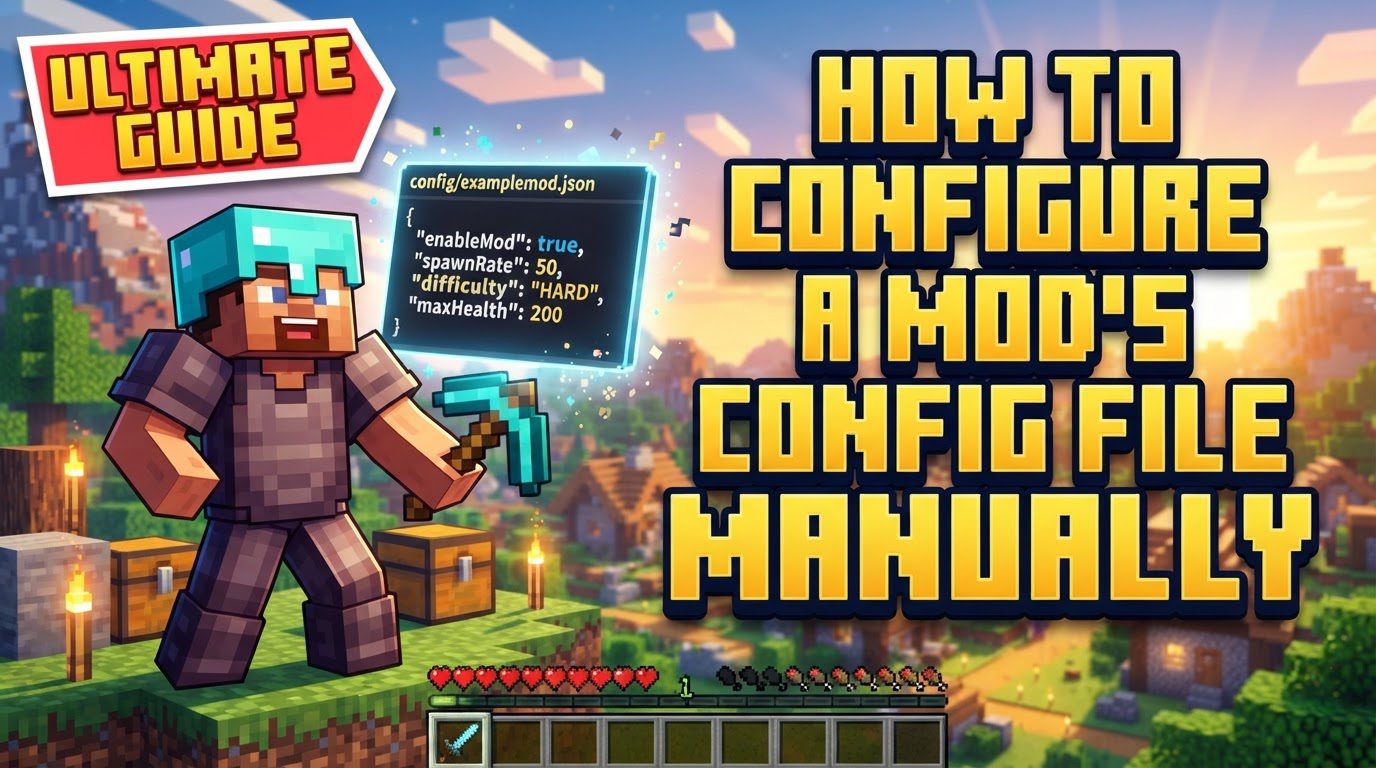
Understanding Mod Configuration Files
Configuration files are the backbone of mod customization. They are plain text documents that store various parameters and settings which dictate how a mod behaves within your Minecraft world. Mod developers are responsible for determining which aspects of their mod are configurable and the specific format these settings will take.
- File Types: These files come in several common formats, including
.cfg,.json,.txt,.yml,.hocon, and.toml. Each format has its own syntax rules, but they all serve the same purpose: to store mod settings in a human-readable and editable way. - Configuration Scope: Mod configurations can be categorized by their scope:
- Client-side files: Typically named or located in a way that indicates they affect only your game client. These files contain settings related to visual elements, rendering, user interface, and other aspects that solely impact your local game instance.
- Common files: These files usually hold gameplay-related settings that might affect both client and server behavior, or aspects that are fundamental to the mod’s functionality regardless of whether you’re playing solo or on a server.
- Server-specific files: For Forge versions 1.13 and higher, some server-specific configuration files might be found within a
serverconfigfolder, located inside your world folder. These settings are crucial for server administrators to manage gameplay mechanics that apply to all players on the server.
Step-by-Step Process for Manual Configuration
Manually configuring a mod involves a clear sequence of locating, editing, and saving the relevant file. Follow these steps carefully to ensure your changes are applied correctly.
1. Locate Your Minecraft Instance Folder
The first step is to find the root directory of your specific Minecraft installation or modpack. This is where all the core game files, mods, and configuration files reside. Most modern Minecraft launchers provide a convenient way to access this folder:
- Use the “Open Folder” or “Open Directory” option within your Minecraft launcher. Popular launchers like CurseForge, Twitch, or MultiMC offer this functionality, typically accessible from the profile or instance settings. Clicking this option will open your operating system’s file explorer directly to your instance folder.
2. Navigate to the config Folder
Once you are inside your Minecraft instance folder, look for a folder named config. This is the central repository for most mod configuration files. Double-click to open it.
3. Identify the Mod’s Configuration File
Inside the config folder, you will find numerous files and subfolders, each corresponding to a different mod. To locate the file for the mod you wish to configure:
- Look for a file or a subfolder that is named after the mod. The mod ID, which is often the unique identifier for the mod, usually forms the first part of the file name. For example, a mod named “Example Mod” might have a configuration file called
examplemod.cfgor be located within anexamplemodsubfolder.
4. Open the File with a Text Editor
It is crucial to use a plain text editor for this step. Do not use word processors like Microsoft Word, as they can introduce hidden formatting that corrupts the configuration file. Recommended plain text editors include:
- Notepad: The default text editor on Windows, suitable for basic edits.
- Notepad++: A more advanced and highly recommended free text editor with features like syntax highlighting and line numbering, which greatly improve readability and reduce errors.
- VS Code: A powerful, free code editor that offers excellent support for various file formats, including syntax highlighting and advanced editing features.
Open the identified configuration file using one of these editors.
5. Edit the Settings
Once the file is open, you will see a list of parameters and their assigned values. This is where you make your desired changes:
- Understand the Comments: Many configuration files include comments, often preceded by a hash symbol (
#) or double slashes (//). These comments are invaluable as they explain what each setting does, its purpose, and what types of values are accepted. Always read these comments carefully. - Value Types: Pay close attention to the expected data type for each setting:
- Booleans: These are typically represented by
trueorfalse. Case sensitivity can be important (e.g.,Truemight not be accepted iftrueis expected). - Numerical values: For settings that require numbers (e.g., item IDs, spawn rates, distances), enter whole numbers or decimals as appropriate.
- Text strings: Some settings require specific text inputs, which might need to be enclosed in quotation marks, depending on the file format.
- Booleans: These are typically represented by
- JSON Files: If a mod uses JSON for its configuration, you might find that in-file comments are not present, as JSON does not natively support comments. In such cases, you will need to consult the mod’s official documentation or website for guidance on specific settings.
6. Save the File
After making all your desired changes, save the file. Ensure you overwrite the original file, as saving it with a different name or in a different location will prevent your changes from taking effect.
7. Restart Minecraft
For your changes to be fully applied and recognized by the game and its mods, a complete restart is almost always necessary. Close Minecraft entirely and then relaunch it. If you are configuring a server, you must also stop and restart the server software for the new configurations to load.
Important Tips for Successful Configuration
Adhering to these best practices will help prevent issues and ensure a smooth configuration process.
- Stop Your Minecraft Server: If you are editing configuration files for a server, always stop the server process completely before making any modifications. Editing files while the server is running can lead to corrupted files, data loss, or the server overwriting your changes with its previous state. Stopping the server ensures changes are applied correctly upon restart.
- Back Up Your Files: Before making any significant changes, always back up your config files or, even better, your entire world folder. This precautionary step allows you to easily revert to a working configuration if something goes wrong or if your edits cause unexpected issues.
- Use a Dedicated Text Editor: As mentioned, tools like Notepad++ or VS Code are highly recommended over basic Notepad. They offer superior readability through syntax highlighting, better navigation, and features that help prevent common errors like incorrect formatting or accidental characters.
- Pay Attention to In-File Comments: These comments are your primary source of information within the configuration file itself. They are crucial for understanding the purpose of each setting, the range of acceptable values, and any specific formatting requirements.
- Consult Mod Documentation for JSON: If you encounter a JSON configuration file that lacks comments, do not guess. Always consult the mod’s official documentation, GitHub page, or forum. Mod developers often provide detailed explanations of their settings there.
- Server Hosting Panels: Some advanced server hosting panels, such as Multicraft, offer direct web-based interfaces for editing configuration files. While convenient, always ensure you understand the file structure and the impact of your changes, as these interfaces are essentially a graphical front-end to the same text files.
Common Mistakes to Avoid
Being aware of common pitfalls can save you a lot of frustration and troubleshooting time.
- Editing While Minecraft is Running: Making changes to config files while the game or server is active is a major mistake. Your modifications may not be saved, or the game/server could overwrite your changes upon shutdown, effectively reverting them.
- Incorrect Formatting: This is a frequent cause of errors. Entering values in the wrong format, such as typing “text” where a number is expected, or using “True” instead of “true” for a boolean, can lead to mods failing to load, game crashes, or unexpected behavior. Always double-check the required format.
- Unsaved Changes: Forgetting to save the config file after making edits means your modifications will not be applied. Always ensure you perform the save operation before closing your text editor.
- Not Restarting the Game/Server: Most configuration changes require a full restart of Minecraft (and your server, if applicable) to take effect. If you edit a file and don’t see changes, a restart is almost always the solution.
- Accidental Characters: Adding extra spaces, tabs, newline characters, or other unintended characters can corrupt the configuration file’s syntax, leading to parsing errors, mod malfunction, or even game crashes. Be meticulous when editing.
- Not Backing Up: Failing to create a backup before modifying files means you have no easy way to revert to a working state if your changes introduce problems. This can force you to re-download the mod or even reinstall your instance.
- Reverting to Defaults on Servers: On some server setups, modified configuration files might occasionally revert to their default states. To mitigate this, ensure your modified files are correctly uploaded to the server and, if possible, set them as read-only on the server file system to prevent accidental overwrites.
By following this comprehensive guide, you will be well-equipped to manually configure your Minecraft mods, unlocking a new level of customization and control over your gameplay experience.
Tags:
YOU MAY ALSO LIKE...