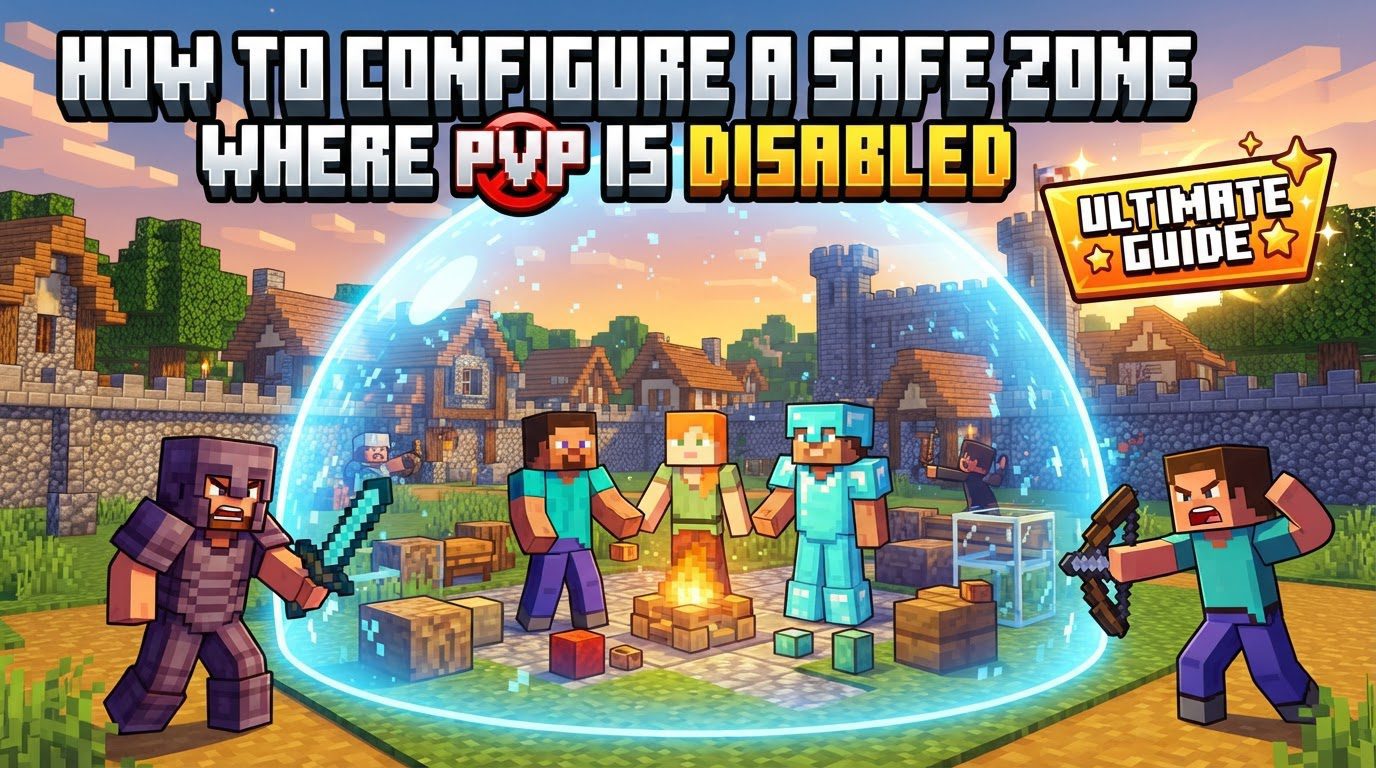
Configuring a Safe Zone Where PvP Is Disabled — A Quick Guide
Configuring a safe zone in Minecraft where Player versus Player (PvP) combat is disabled is a crucial task for server administrators aiming to foster a peaceful and constructive environment. These designated areas allow players to engage in activities such as building, trading, or simply socializing without the constant threat of combat, significantly enhancing the overall player experience. This guide will detail the mechanics, step-by-step processes, and important considerations for establishing effective PvP-disabled zones, drawing exclusively from established methods and tools.
Key Mechanics for Safe Zone Configuration
The foundation of any PvP-disabled safe zone in Minecraft relies on a few core mechanics that define, control, and enforce the desired rules within specific areas of the game world.
- Region Definition: Safe zones are fundamentally defined as specific geographical areas within the Minecraft world. These areas act as boundaries, clearly demarcating where the special rules, such as PvP disablement, apply. The flexibility in defining these regions allows server administrators to create various types of safe spaces, from small trading posts to large community hubs. Depending on the tools utilized, these definitions can range from simple rectangular prisms to more intricate, custom shapes that perfectly fit the server’s landscape and aesthetic.
- PvP Flag/Setting: A central component to disabling PvP within these defined regions is the implementation of a specific “PvP” flag or setting. This flag can be explicitly toggled to “deny” or “false” for a given region. When set, this flag overrides the server’s global PvP status, ensuring that even if PvP is generally enabled across the server, it remains inactive within the designated safe zone. This allows for granular control over combat engagement, ensuring that players in these areas are protected from unsolicited attacks.
- Server Plugins: For Minecraft servers running on platforms like Paper, Spigot, Purpur, or Bukkit, server plugins are the most common and highly effective tools for managing safe zones. Prominent examples include WorldGuard, SafeZones, and SafeZone. These powerful tools extend the server’s capabilities far beyond vanilla limitations, providing administrators with precise control over player interactions within designated areas. Crucially, these plugins are not merely limited to PvP management; they often come equipped with a suite of additional protection features. These features can safeguard against griefing, protect structures, and manage various aspects of player behavior, ensuring a truly secure and peaceful environment that fosters positive community interactions without the constant threat of combat.
- Command Blocks (Vanilla/Bedrock): For vanilla Minecraft servers or those running Bedrock Edition, where plugins are not an option, command blocks offer a creative, albeit more complex, alternative for establishing safe zones. Instead of directly disabling a PvP game rule, command blocks can be programmed to apply specific effects or manipulate game mechanics to effectively prevent combat. One method involves applying the Weakness effect to players within a designated radius, significantly reducing their damage output to negligible levels. Alternatively, leveraging team mechanics can disable friendly fire for players assigned to a specific team within the safe zone, preventing them from harming each other. These methods require careful setup and ongoing management to ensure consistent functionality.
Step-by-Step Process for Plugin-Based Safe Zones (WorldGuard Example)
For most server administrators, utilizing plugins like WorldGuard offers the most robust and user-friendly approach to creating PvP-disabled safe zones. The following steps outline the process using WorldGuard, a widely adopted plugin for region management.
- 1. Install Required Plugins: Before proceeding, ensure that your server has the necessary plugins installed and properly configured. For effective region selection and management, you will need both WorldEdit and WorldGuard. WorldEdit is essential for selecting the precise boundaries of your safe zone, while WorldGuard handles the creation and flag management of the region itself. These plugins must be compatible with your server software (e.g., Paper, Spigot) and placed in your server’s ‘plugins’ folder, followed by a server restart or reload to ensure they are loaded correctly.
-
2. Select the Region: Once WorldEdit is installed, you can begin defining the physical boundaries of your safe zone in-game.
- Obtain the WorldEdit wand. This tool, typically a wooden axe, can be acquired by typing the command
//wandin chat. - With the wand in hand, navigate to one corner of your intended safe zone. Left-click a block at this position. This action designates your first selection point, often referred to as Position 1, marking one extreme of your cuboid selection.
- Next, move to the diagonally opposite corner of your desired safe zone. Right-click a block at this second position. This sets your second selection point, Position 2, completing the basic rectangular selection that encompasses the horizontal area you wish to protect.
- For comprehensive protection, it is crucial to ensure your region extends from the very bottom of the world to the very top. To achieve this vertical expansion, use the command
//expand vert. This command automatically expands your current selection from bedrock (Y=0) to the sky limit (Y=255 or higher depending on server version), preventing players from bypassing the safe zone rules by attacking from above or below the defined area.
- Obtain the WorldEdit wand. This tool, typically a wooden axe, can be acquired by typing the command
-
3. Define the Region: After accurately selecting your desired area, the next step is to formally create the region within WorldGuard’s system.
- Use the command
/region define <region_name>. Replace<region_name>with a unique and descriptive name for your safe zone (e.g.,/region define spawn_safezoneor/region define market_area). This command registers your selected area as a protected region under the specified name, allowing WorldGuard to manage its properties and flags.
- Use the command
-
4. Disable PvP: With the region defined, the final crucial step is to apply the PvP disablement flag, making the area a true safe zone.
- Execute the command
/region flag <region_name> pvp deny. Again, replace<region_name>with the exact name you used when defining the region. This command sets the ‘pvp’ flag for that specific region to ‘deny’, meaning that all player versus player combat will be prevented within its boundaries. Players attempting to attack each other in this zone will find their attacks simply pass through or deal no damage, effectively making PvP impossible and ensuring a peaceful environment.
- Execute the command
Important Tips for Effective Safe Zone Management
Beyond the basic setup, several considerations can enhance the effectiveness, clarity, and overall success of your safe zones, ensuring they serve their intended purpose without issues.
- Clear Messaging: To avoid confusion and improve player experience, it is highly recommended to provide clear indications when players enter or leave a PvP-disabled zone. This can be achieved through splash messages that appear on their screen (often configurable through plugins), or by placing informative signs at the zone’s entrances and exits. Clear communication helps players understand the rules of the area and prevents frustration from unexpected combat restrictions, fostering a more transparent server environment.
- Global PvP Management: A strategic approach to server-wide PvP is to set global PvP to “deny” by default. Then, selectively enable PvP only in designated areas, such as specific arenas or wilderness zones where combat is intended. This method establishes a default safe environment, fostering a more welcoming atmosphere for new players and those who prefer non-combat gameplay, while still allowing for PvP encounters in controlled settings. This contrasts with enabling PvP globally and then trying to disable it everywhere else, which can be prone to oversight and accidental PvP.
- Comprehensive Protection: Many safe zone plugins, including WorldGuard, offer a wide array of additional protection features beyond just disabling PvP. Server administrators should explore and utilize these functionalities to create truly secure areas. These features commonly include disabling mob damage within the zone, preventing block breaking or placement by non-authorized players, and providing explosion protection to safeguard against TNT or creeper damage. Implementing these supplementary protections ensures that the safe zone is impervious to various forms of damage and griefing, maintaining its integrity and purpose.
- Persistent Storage: It is paramount to ensure that your chosen method for configuring safe zones, whether through plugins or command blocks, automatically saves all zone data. This ensures that regions and their associated flags are reloaded correctly and persist across server restarts, updates, or crashes. Relying on methods that do not offer persistent storage would necessitate re-configuring zones every time the server goes offline, which is highly impractical and unsustainable for any active server, leading to potential loss of configuration.
-
Vanilla Alternatives (Command Blocks): For servers without plugin support (vanilla or Bedrock Edition), command blocks provide functional workarounds, though they require more intricate setup and management.
-
Weakness Effect: To effectively disable PvP using command blocks, a common strategy is to apply the Weakness effect to players within the safe zone. This can be done using a repeating command block set to continuously execute the command
effect @a[r=<radius>] weakness 99999 255 true. Here,<radius>should be replaced with the desired range of your safe zone,99999ensures the effect lasts for an extremely long duration, and255sets the effect’s amplifier to its maximum, severely reducing any damage output. Thetrueargument is crucial as it hides the particle effects, providing a cleaner visual experience for players within the zone. This method effectively prevents players from dealing damage to each other. -
Teams: Another vanilla-friendly approach involves using Minecraft’s team mechanics. First, create a new team using the command
/scoreboard teams add TEAMNAME(e.g.,/scoreboard teams add SafeZoneTeam). Then, set thefriendlyfireoption for this team to false:/scoreboard teams option TEAMNAME friendlyfire false. Subsequently, use other command blocks (e.g., pressure plates, tripwires, or proximity detectors linked toexecutecommands) to automatically add players entering the safe zone to this specific team and remove them when they exit. When players are part of a team with friendly fire disabled, they cannot harm other members of the same team, thus preventing PvP within the designated safe area.
-
Weakness Effect: To effectively disable PvP using command blocks, a common strategy is to apply the Weakness effect to players within the safe zone. This can be done using a repeating command block set to continuously execute the command
Common Mistakes to Avoid When Configuring Safe Zones
Even with clear instructions, certain pitfalls can lead to ineffective or incomplete safe zone implementations. Being aware of these common mistakes can save significant time and frustration for server administrators.
-
Incomplete Region Selection: A frequent error, especially with plugins like WorldEdit, is failing to select the full vertical extent of a region. If a safe zone is only defined horizontally without extending from bedrock to the sky limit, players can potentially bypass the PvP restrictions. For instance, they might attack other players within the safe zone by shooting arrows from a high vantage point above the defined region, or by digging below it. Always use commands like
//expand vertto ensure comprehensive vertical coverage, guaranteeing protection throughout the entire vertical space. - Overlapping Regions with Conflicting Flags: When multiple regions are defined, they may sometimes overlap. If these overlapping regions have conflicting flags (e.g., one region has PvP enabled, and an overlapping one has it disabled), the server’s behavior can become unpredictable or might not align with the administrator’s intentions. It is essential to carefully plan region boundaries and prioritize flags, understanding which region’s settings will take precedence in areas of overlap. Most plugins have a hierarchy or priority system for overlapping regions that administrators should familiarize themselves with.
-
Forgetting to Restart Server/Reload Plugin: Many changes made to server configurations, such as modifications in
server.propertiesor certain plugin configuration files, require a server restart or a specific plugin reload command to take effect. Forgetting this crucial step can lead to confusion when new safe zones or flag changes do not appear to be working as intended. Always verify if a restart or reload is necessary after making significant configuration adjustments to ensure changes are applied. - Indirect PvP Methods: Players, ever resourceful, may attempt to bypass direct PvP restrictions through indirect means. This can include placing TNT, pouring lava, drowning players, or using owned wolves to attack. While a basic PvP flag will prevent direct player-to-player damage, it may not inherently protect against these environmental or indirect forms of harm. Server administrators should be aware of these possibilities and utilize additional flags or plugins that offer protection against explosions, fluid placement, or mob damage within safe zones to ensure comprehensive safety.
- Not Adding New Players to Teams (Vanilla): If employing the team-based method for PvP disablement in vanilla Minecraft, it is vital to ensure that all players intended to be in the safe zone are correctly added to the non-PvP team. Newly joined players will not automatically be part of the team. Without automated systems (via command blocks or external scripts) to add players upon entry, new entrants might still be vulnerable to friendly fire from other team members, or be able to inflict damage themselves, undermining the safe zone’s purpose.
- Ignoring Performance Impact: While plugins are generally optimized, and command blocks for simple tasks are usually lightweight, a very large number of complex or constantly running command blocks for safe zone management in vanilla Minecraft can potentially impact server performance. This is particularly true if the commands are inefficiently written or frequently querying large numbers of entities. Plugins are typically more optimized for managing regions and their flags, making them the preferred choice for larger servers or complex safe zone setups where performance is a critical concern. Careful monitoring and optimization are key if relying heavily on command blocks.
Tags:
YOU MAY ALSO LIKE...