Configuring Double-tap Sprint Settings (Step by Step)
Sprinting in Minecraft is a fundamental movement mechanic that significantly enhances a player’s mobility and capabilities within the game world. Understanding how to effectively utilize and configure sprint settings, including the nuanced double-tap method, is crucial for efficient exploration, combat, and even specialized movements like parkour or navigating tight spaces.
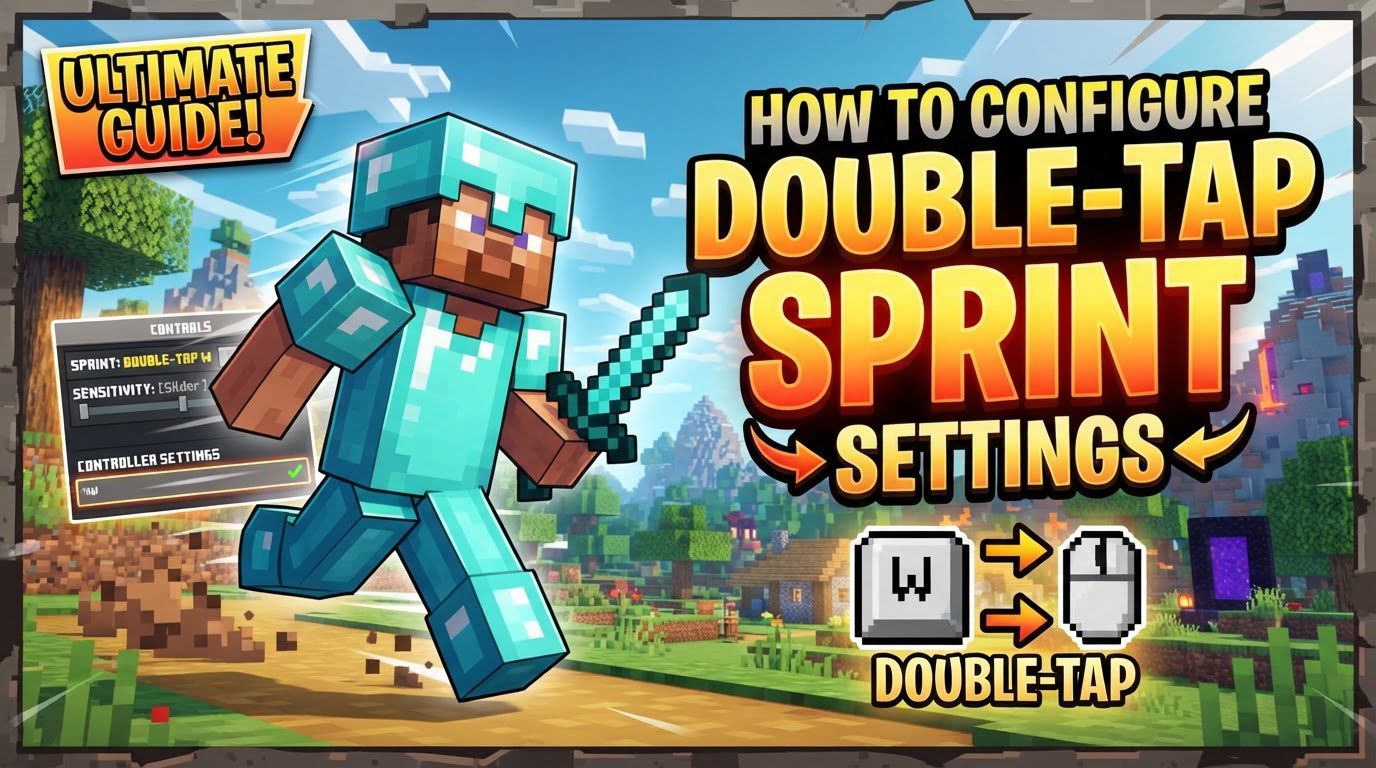
At its core, sprinting allows your character to move approximately 30% faster than standard walking speed, reaching about 5.6 meters per second. This increased velocity comes with several key characteristics and considerations. Visually, sprinting slightly increases your Field of View (FOV), creating a sense of heightened speed. Furthermore, particles corresponding to the block type you are running on will generate from your character’s feet, providing a subtle visual cue of your rapid movement.
However, this speed boost isn’t without its costs. Sprinting significantly reduces your hunger saturation, meaning your hunger bar will deplete at a much faster rate. Players must be mindful of their hunger levels, as sprinting becomes impossible if your hunger drops below 6, which is equivalent to three meat symbols on the hunger bar. In combat, sprinting offers a tactical advantage: attacking mobs while sprinting results in a larger knockback effect, which can be invaluable for controlling enemy positioning or creating distance.
Sprinting is not a continuous state; it can be interrupted by certain actions or environmental factors. Colliding with a solid block will immediately stop your sprint, as will performing a sneaking action. In the Java Edition of Minecraft, players have an additional layer of control over sprinting through the Accessibility settings, where the “Sprint” option can be set to either “Hold” (requiring the sprint key to be continuously pressed) or “Toggle” (allowing a single tap to initiate and another to stop sprinting).
Configuring Your Sprint Settings
Minecraft offers various ways to initiate and manage sprinting, from the default double-tap method to dedicated sprint keys and toggle options. Understanding these configurations allows players to tailor their movement controls to their personal playstyle and needs.
The Default Double-Tap Sprint Method
The most common and default way to sprint in Minecraft is through a quick double-tap action. This method is universal across different versions of the game:
- For Keyboard & Mouse (PC) Players: To initiate a sprint, you need to quickly tap your “forward” key (which is ‘W’ by default on most PC setups) twice. On the second tap, you must hold the key down to continue sprinting. Your character will then maintain the sprint as long as the ‘W’ key is held, or until an action or collision stops it.
- For Controller Players: For those using a controller, sprinting typically involves flicking the left analog stick forward twice in quick succession. Similar to the keyboard method, you then hold the stick forward to sustain the sprint.
While intuitive for many, this method can sometimes feel less consistent, especially during intense gameplay moments or when precise movement is required.
Utilizing a Dedicated Sprint Key
For more consistent and reliable sprinting, particularly beneficial for activities like parkour, Player versus Player (PvP) combat, or simply navigating terrain smoothly, assigning a dedicated sprint key is often preferred. This method avoids the potential “wobbles” or accidental stops that can occur with double-tapping ‘W’.
To set up a dedicated sprint key, follow these steps:
- Step 1: Access the Pause Menu. Begin by pressing the ‘Esc’ key on your keyboard to open the game’s pause menu.
- Step 2: Navigate to Settings. Select “Settings” from the pause menu. In the Java Edition, this option might be labeled “Options”.
- Step 3: Open Keyboard & Mouse Controls. Within the settings menu, locate and select “Keyboard & Mouse”. If you are playing Java Edition, this section is found under “Controls”, and then typically “Key binds”.
- Step 4: Locate the “Sprint” Option. Scroll down through the list of key binds until you find the entry specifically labeled “Sprint”.
- Step 5: Assign a New Key. Click on the “Sprint” option. The game will then prompt you to press the key you wish to assign for sprinting. Common and highly recommended alternatives include ‘Left Ctrl’ (which is the default dedicated sprint key in Java Edition) or ‘Left Shift’. These keys are often chosen for their ergonomic placement, allowing for easy access during gameplay without hindering other movements.
Once a dedicated sprint key is assigned, you can simply press and hold that key while moving forward to initiate and maintain a sprint, offering a more direct and reliable control method.
Enabling “Toggle Sprint” (Java Edition Specific)
Java Edition players have an exclusive accessibility option that can further streamline the sprinting experience: “Toggle Sprint.” When enabled, this feature modifies how the dedicated sprint key functions, making sprinting even less demanding on your fingers.
To enable “Toggle Sprint”:
- Step 1: Access Options. From the main menu or pause menu, go to “Options”.
- Step 2: Enter Accessibility Settings. Within the Options menu, select “Accessibility Settings”.
- Step 3: Change the “Sprint” Setting. Locate the “Sprint” setting and change its value to “Toggle”.
With “Toggle Sprint” activated, pressing your dedicated sprint key once will initiate sprinting. You will then continue to sprint while holding your forward movement key, without needing to hold down the sprint key itself. To stop sprinting, you can either press the dedicated sprint key again or simply stop moving forward.
Understanding the Interaction with Double-Tap ‘W’
The way double-tap ‘W’ functions in relation to a dedicated sprint key can be adjusted. If you wish to manage this interaction, the research notes state that unbinding the default dedicated sprint key (which is usually ‘Left Control’ in Java Edition) in the settings will often revert the primary sprint method back to double-tapping ‘W’. This implies that having a dedicated sprint key bound can alter the prominence of the double-tap ‘W’ method, and unbinding it brings double-tap ‘W’ back to the forefront as the main sprinting action.
Important Tips for Effective Sprinting
Mastering sprint mechanics goes beyond just knowing how to activate it. A few advanced tips can significantly improve your movement and efficiency in Minecraft:
- Consistent Sprinting with a Dedicated Key: As mentioned, utilizing a dedicated sprint key (such as ‘Left Shift’ or ‘Left Ctrl’) is highly recommended. It provides more consistent sprinting, which is invaluable for precise movements in parkour, fast-paced PvP encounters, and general traversal. This consistency helps to avoid unexpected “wobbles” or accidental stops that can break your momentum.
- Sprint-Jumping for Speed: For a slight increase in speed on land, you can combine sprinting with continuous jumping. However, be aware that this technique drains your hunger bar even more quickly than just sprinting, so always ensure you have a plentiful supply of food.
- Sprinting While Swimming: Sprinting is not just for land. When in water, sprinting significantly increases your swimming speed. An added benefit is that sprinting while swimming causes your player’s hitbox to become smaller, allowing you to pass through tight, one-block-high gaps that would otherwise be impassable.
- Making Turns While Sprinting: You can execute turns using your ‘Left’ and ‘Right’ keys (default ‘A’ and ‘D’) while maintaining a full sprint. This allows for fluid navigation without any loss of speed, crucial for dodging enemies or navigating complex environments.
Common Mistakes to Avoid
Even experienced players can fall into common traps related to sprinting. Being aware of these pitfalls can help you maintain optimal performance:
- Forgetting Hunger Depletion: The most critical mistake is overlooking the rapid hunger depletion caused by sprinting. Always carry a sufficient supply of food, especially before embarking on long journeys or engaging in activities that require extensive sprinting. Running out of hunger will leave you unable to sprint and vulnerable.
- Over-reliance on Double-Tap ‘W’: While it’s the default, relying solely on double-tapping ‘W’ can lead to inconsistencies. This is particularly true over uneven terrain or when you need quick, reliable bursts of speed in critical situations. Consider configuring a dedicated sprint key for improved control.
- Ignoring Sprint-Stopping Conditions: Forgetting that your sprint will immediately cease upon colliding with a solid block or performing a sneaking action can lead to frustrating interruptions. Be mindful of your environment and actions to maintain momentum.
- Not Exploring Configuration Options: Many players stick with the default settings without realizing the benefits of alternative sprint configurations. Failing to explore the “Controls” or “Accessibility Settings” for options like a dedicated sprint key or “Toggle Sprint” means missing out on potentially more efficient and comfortable ways to move around the Minecraft world. Taking the time to customize these settings can significantly enhance your gameplay experience.
Tags:
YOU MAY ALSO LIKE...