Configuring Filters on a Mechanical Arm — A Quick Guide
Understanding Mechanical Arm Filtering Fundamentals
The Mechanical Arm is a versatile and powerful automation tool within the Create mod, capable of transferring items between various inventories and processing blocks. However, understanding how to effectively filter items using this arm is crucial for building efficient and precise item handling systems. The fundamental principle to grasp is that the Mechanical Arm itself does not possess a direct interface for applying filters. Instead, filtering capabilities are achieved indirectly by placing and configuring filters on the inventory blocks that the arm interacts with. This distinction is vital for successful automation.
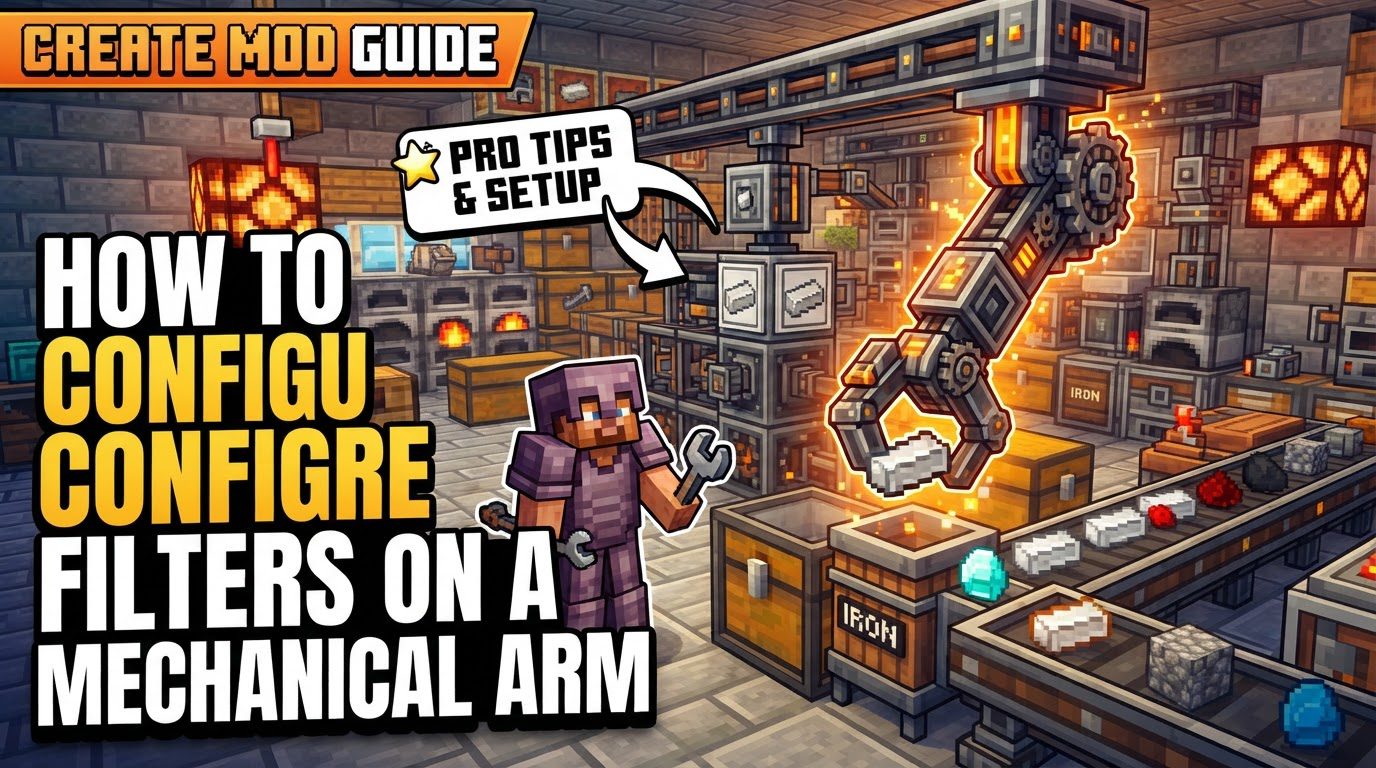
- The Core Principle: Filtering Through Inventories
Unlike some other item transportation methods, the Mechanical Arm cannot have items placed directly into its own filter slots. All filtering logic must be implemented on the blocks the arm picks from or places into. This means that if you want to control which items an arm picks up or where it places specific items, you must equip the source or destination inventory with a filtering mechanism, most commonly the Brass Funnel. The arm acts as a bridge, moving items according to the rules set by these external filters.
- Item Handling Logic: Destination Dictates Pickup
A key aspect of the Mechanical Arm’s behavior is its intelligent item handling. The arm will only bother to pick up an item from a source inventory if it has an available destination that is configured to accept that specific item. This “pull” mechanism means that if all potential output inventories have filters that deny a particular item, the arm will simply ignore that item in the input. This prevents the arm from picking up items it cannot place, avoiding inventory clogs and ensuring efficient resource flow. The filters on the output inventory are the primary gatekeepers for what the arm will decide to move.
- Interaction Range and Order: Defining the Arm’s Scope
Mechanical Arms operate within a defined spatial limit. They can interact with blocks that are situated within a 5-block radius from their base. This range includes both the input and output points you configure. Furthermore, the arm’s operational behavior, particularly when dealing with multiple inputs or outputs, is influenced by the order in which these blocks were initially selected during its placement. The arm processes interactions sequentially based on this established order, which can be a critical detail for complex setups requiring specific priority.
- Operational Behaviors: Distributing Items with Precision
To manage how items are distributed among multiple potential output inventories, Mechanical Arms offer several operational behaviors. These settings dictate the arm’s strategy for item placement:
- Round Robin: This setting distributes items evenly among all available output points in a cyclical fashion. Each output receives an item in turn before the cycle repeats.
- Forced Round Robin: Similar to Round Robin, but the arm will wait for an output to become available if it’s currently full, rather than skipping it. This ensures all outputs eventually receive items.
- Prefer First: With this setting, the arm will always attempt to place items into the first available output point (based on the selection order) until it is full or no longer accepts the item. Only then will it move on to the next output point in the sequence.
Step-by-Step Guide to Configuring Mechanical Arm Filters
Implementing effective filtering with a Mechanical Arm involves a precise sequence of steps, focusing on the configuration of Brass Funnels at the interaction points.
- Step 1: Selecting Interaction Points
Before placing the Mechanical Arm, you must define its operational scope by selecting the blocks it will interact with.
- How to Select: Hold the Mechanical Arm in your hand and right-click on the various blocks you intend for it to interact with. These can include item depots, chests, other funnels, or any inventory-holding block.
- Understanding Highlights: As you select blocks, visual cues will appear. A blue highlight indicates that the selected block is designated as an input point, meaning the arm will attempt to take items from it. A yellow or orange highlight signifies an output point, where the arm will attempt to deposit items. If you need to change a block’s function, simply right-click it again while still holding the arm to toggle between input and output, or to deselect it entirely. This careful designation forms the backbone of your arm’s operation.
- Step 2: Placing Brass Funnels Strategically
The Brass Funnel is your primary tool for filtering items in conjunction with the Mechanical Arm. Its placement is critical.
- The Role of Brass Funnels: Position Brass Funnels at either the input or output points (or both) where you require filtering. For instance, if you want the arm to only deposit specific items into a chest, place a Brass Funnel on top of that chest. If you want the arm to only pick up certain items from a source, you might place a Brass Funnel connected to that source, though often output filtering is sufficient given the arm’s “destination dictates pickup” logic. Ensure the funnel’s directional arrow points correctly to either pull items in (from a source) or push them out (into a destination).
- Step 3: Configuring Brass Funnel Filters
Once Brass Funnels are in place, you must tell them what items to allow or deny.
- Accessing the Funnel GUI: Right-click on the Brass Funnel itself to open its graphical user interface (GUI).
- Setting Item Filters: Within the GUI, you will find filter slots. Place the specific items you wish to filter into these slots. For example, if you want the funnel to only allow iron ingots, place an iron ingot into one of the filter slots. The funnel also offers options to specify whether it should “allow” or “deny” the filtered items, and for attribute filters, whether “any” or “all” conditions must be met.
- Ensuring Correct Orientation: Double-check the Brass Funnel’s directional arrow. This arrow dictates whether the funnel is pulling items from an inventory it’s attached to or pushing items into it. An incorrectly oriented funnel will prevent items from flowing as intended, regardless of its filter settings.
- Step 4: Placing and Powering the Mechanical Arm
With the interaction points and filters set up, the final step is to deploy and activate the arm.
- Arm Placement: Place the Mechanical Arm in its intended location. Crucially, ensure that this placement allows the arm to be within a 5-block radius of all the interaction points (inputs and outputs) that you selected in Step 1. If any point is out of range, the arm will not be able to interact with it.
- Providing Rotational Power: Connect the Mechanical Arm to a rotational power source. This can be provided by any Create mod power generation and transmission system, such as a water wheel, windmill, or engine connected via shafts and gears. Without rotational power, the arm will remain static and inactive.
Important Tips for Advanced Filtering and Troubleshooting
To maximize the efficiency and reliability of your Mechanical Arm setups, keep these crucial tips in mind:
- Always Use Brass Funnels: Reiterate this point consistently. The Mechanical Arm itself cannot be filtered. Any item filtering must be handled by Brass Funnels or other filtered inventories that the arm interacts with. This is a fundamental concept for successful operation.
- Arm Respects Funnel Filters: The Mechanical Arm is smart enough to respect the filtering rules set by Brass Funnels. It will not pick up items from an input source if there is no valid, unfiltered (or correctly filtered to accept the item) output destination available for that specific item. This prevents the arm from holding items indefinitely or trying to force them into an incompatible inventory.
- Sophisticated Sorting with Attribute Filters: For advanced and highly specific sorting needs, leverage the full capabilities of Brass Funnels by utilizing their attribute filters. These filters allow you to define conditions beyond just item type, such as “was added by create” (filtering for items from the Create mod itself) or “is not tagged fences” (filtering out all items that are classified as fences). Combining these attribute filters effectively enables highly granular control over item flow.
- Redstone Deactivation: Mechanical Arms can be temporarily deactivated using a Redstone signal. Applying a Redstone signal to the arm will pause its operations, effectively stopping it from picking up or placing items. This feature is invaluable for timing-sensitive operations, batch processing, or creating an emergency stop for your automation lines.
Common Mistakes to Avoid
Even experienced players can fall into common pitfalls when setting up Mechanical Arm filters. Being aware of these can save significant time and frustration.
- Attempting to Filter the Mechanical Arm Directly: This is the most frequent mistake. Players often look for filter slots on the arm itself. Remember, filtering is exclusively applied to the inventories (like Brass Funnels) that the arm interacts with, not the arm’s own interface.
- Incorrect Brass Funnel Filter Settings: Always double-check the configuration of your Brass Funnel filters. Ensure that the filter is correctly set to either “allow” or “deny” the specified items. Furthermore, if you are using attribute filters, verify that “any” or “all” conditions are applied as intended to achieve your desired sorting logic. A simple oversight here can lead to unexpected item flow.
- Improper Brass Funnel Orientation: The small directional arrow on a Brass Funnel is not merely decorative; it dictates item flow. An arrow pointing away from an inventory means it’s pushing items out, while an arrow pointing towards an inventory means it’s pulling items in. If this orientation is incorrect, items will not move as expected, regardless of filter settings.
- Arm Ignoring Filters: If your Mechanical Arm seems to be disregarding the filters you’ve set, it’s usually due to one of two reasons: either the Brass Funnel’s filter is misconfigured (e.g., set to allow everything when you intended to deny specific items), or the arm is interacting directly with an unfiltered inventory (like a plain chest) which overrides any filtering you might have attempted on other points. Ensure all relevant interaction points are filtered.
- Expecting Distinction Between Crafting Stages: Filters, particularly basic item filters, might not differentiate between items that are partially crafted or in different stages of an assembly process. For example, a filter might not distinguish between an incomplete track and a fully assembled one if they share the same base item ID. For such nuanced differentiation, you may need to rely on attribute filters or separate input/output inventories.
- Placing the Arm Out of Range: The Mechanical Arm has a strict interaction range of 5 blocks from its base. If any of the selected input or output points are beyond this 5-block radius, the arm will simply be unable to interact with them, leading to a non-functional setup. Always measure your distances carefully during planning and placement.
Tags:
YOU MAY ALSO LIKE...